Skip to content

Released

Editor

Edit several watermarks at once

Select a few watermarks and change them together: font, colour, size, angle and opacity, all in one go.

  • Hold Ctrl (⌘ on a Mac) and click the watermarks you want, or drag a box around them.
  • Line them up with each other, and move them up or down the layers with Ctrl/⌘ + Shift + arrow keys.
  • Set an exact angle, give a signature an outline, or tint a logo to match your brand.

A selection box being dragged over three watermarks on a photo of a sea arch, the signature already selected with its handles showing
Photo tools

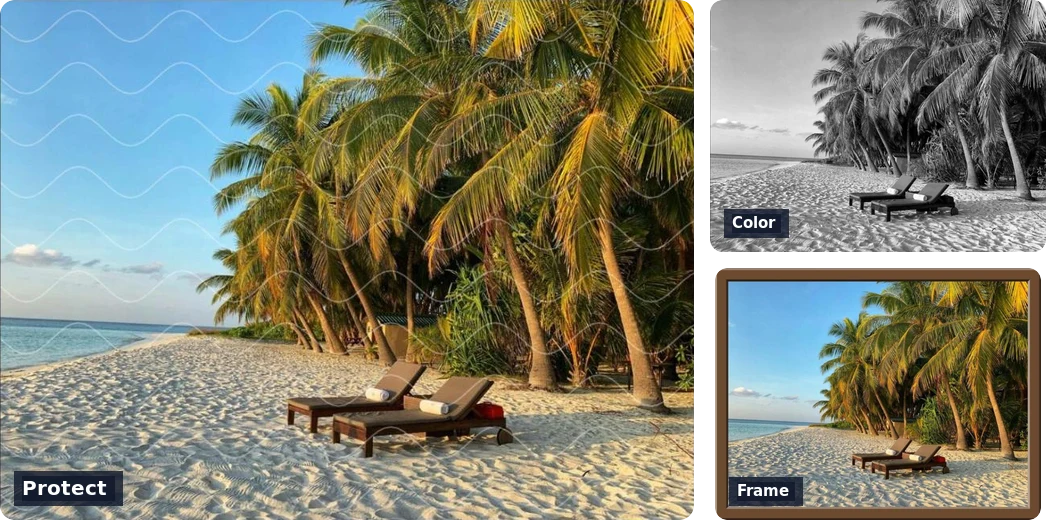
Protect, Color and Frame

Cover a photo with a protective pattern, adjust its colour, or give it a frame, on one photo or all of them.

  • Protect lays a pattern over the whole photo, so cropping cannot remove your mark.
  • Frame has nine styles, including a gradient border, a mat line and a tilted print.
  • Color sets light, contrast, saturation and warmth, or turns a photo mono or sepia.
  • Filters have a strength now, so you can soften one instead of all or nothing.
The same beach photo three ways: under the Waves protect pattern, in black and white, and in a wooden frame
Templates

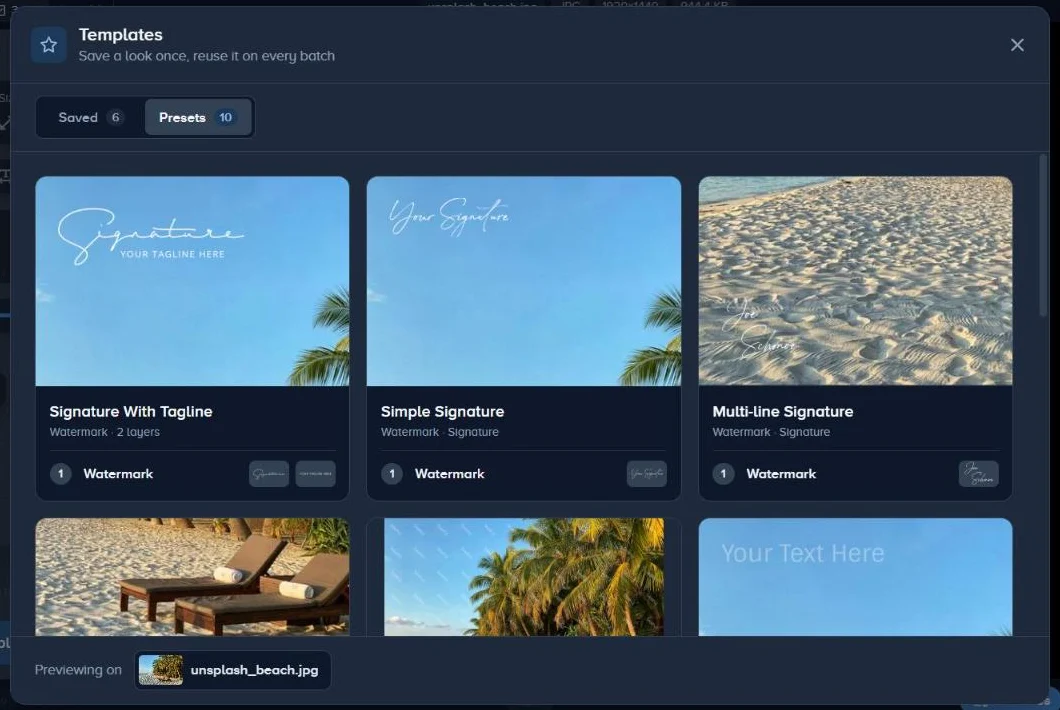
Templates that are easier to find

Search, sort and pin your saved templates, and see each one's watermarks right on its card.

  • Name a template when you save it, and find it again by searching.
  • Pin the ones you use most so they stay at the top.
  • Duplicate a template to make a variation of it.
The Templates window in the editor, with each template previewed on the photo being edited
Phones

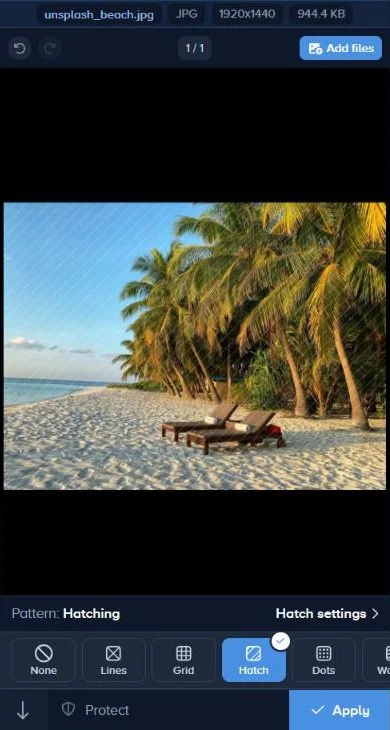
The editor, made for phones

Every tool has a phone layout now: swipe through your photos and edit with your thumb.

  • Swipe between photos, and open a tool from the bar at the bottom.
  • Nudge a watermark a pixel at a time from the Position tab.
  • Swipe a tool down to close it, as you would expect.
The editor on a phone, with the Protect patterns in a bar along the bottom
Shortcuts

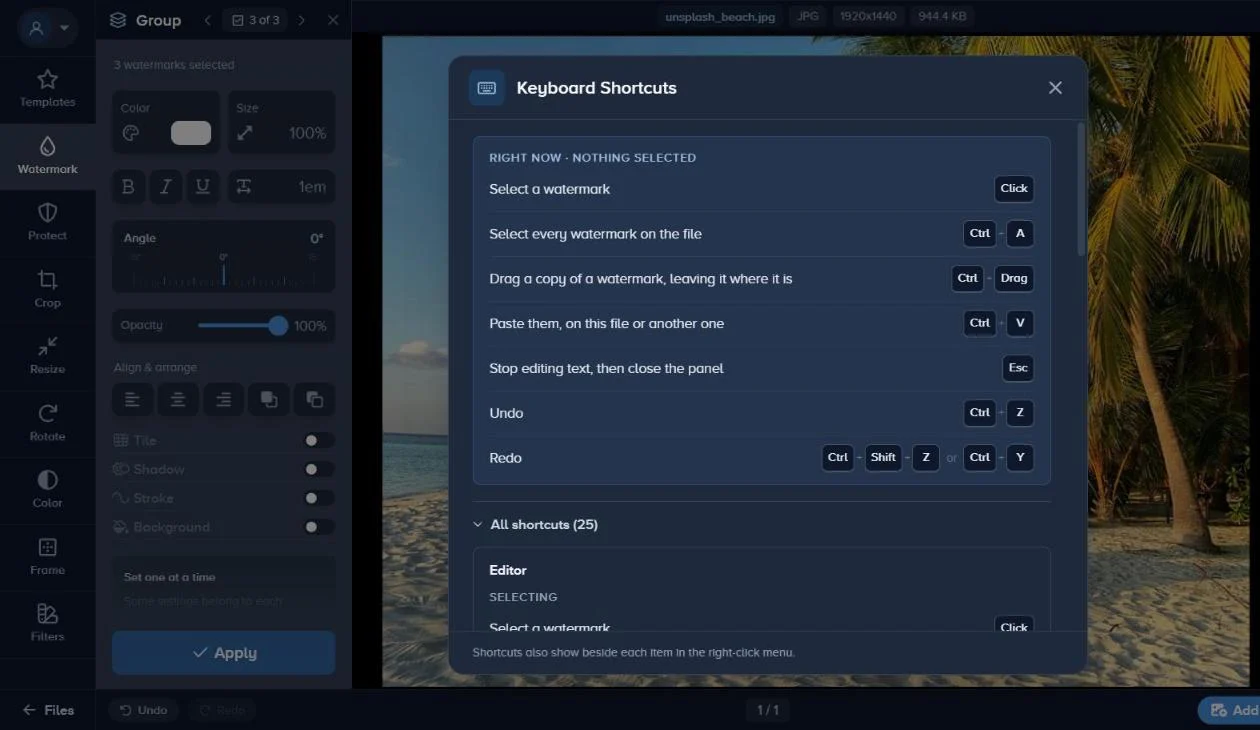
Keyboard shortcuts and tips

Press ? to see every keyboard shortcut, and read the editor's tips again whenever you like.

  • Menus show each action's shortcut beside it.
  • The shortcuts window lists the keys that work right now first.
  • The Tips dialog, in your account menu, has every tip in one place, and lets you switch them off.
The Keyboard Shortcuts window open over the editor
Help

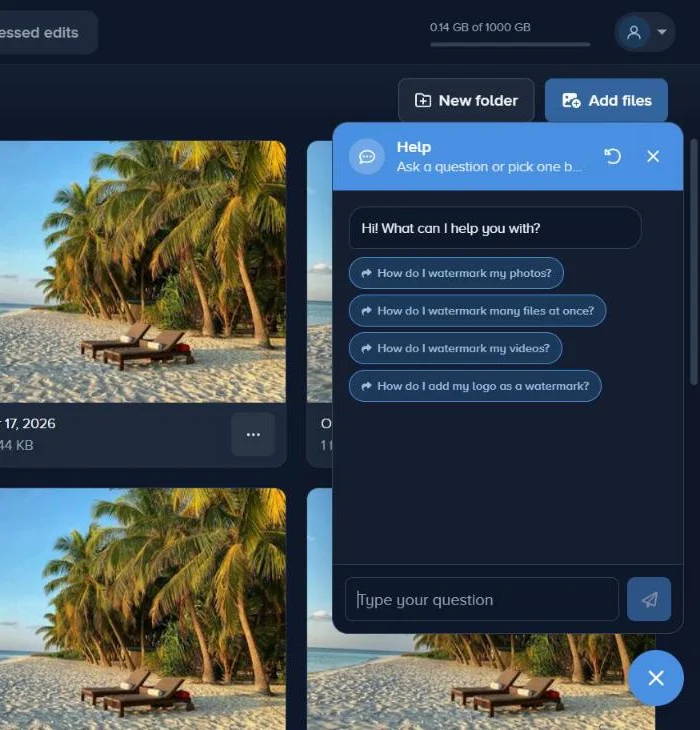
Help, right where you work

Ask a question from the chat bubble, or from Help in the editor, and get an answer straight away.

  • Answers come with screenshots, and some with a guide that shows you around the editor.
  • Choose Talk to a real person to write to us, with a screenshot or a screen recording if it helps.
  • Our reply comes by email and in the chat, with a badge on the bubble when there's something new.
The help chat open over the files page, greeting with questions to pick from

Try it on your own photos

Everything on this page is in the editor now.

Watermark your files