How to Apply an Edit Only to the Photos You Changed
Watermark or crop a handful of photos in a batch and leave the others exactly as they are.
- No account needed to start
- Up to 5,000 files per batch
In short
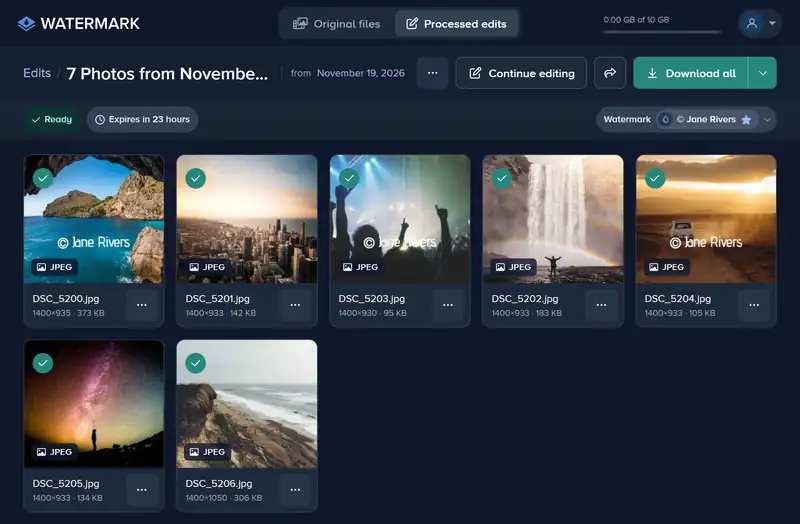
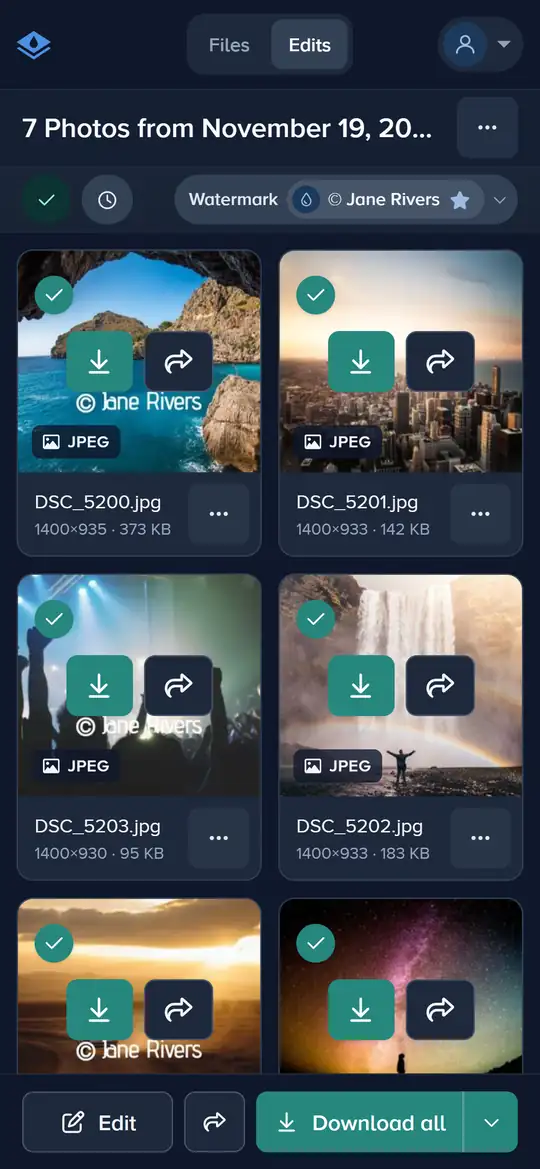
Each photo you open while a tool is open gets a blue number in the files strip: those are your edited files. Click Apply, pick Edited files and apply: only those photos get the edit, and the rest are left as they are. It works the same in every tool.
How to Apply to Edited Files in 4 Steps
Open the photos that need it, and only those.
-
Step 1: Open the Tool on the First Photo
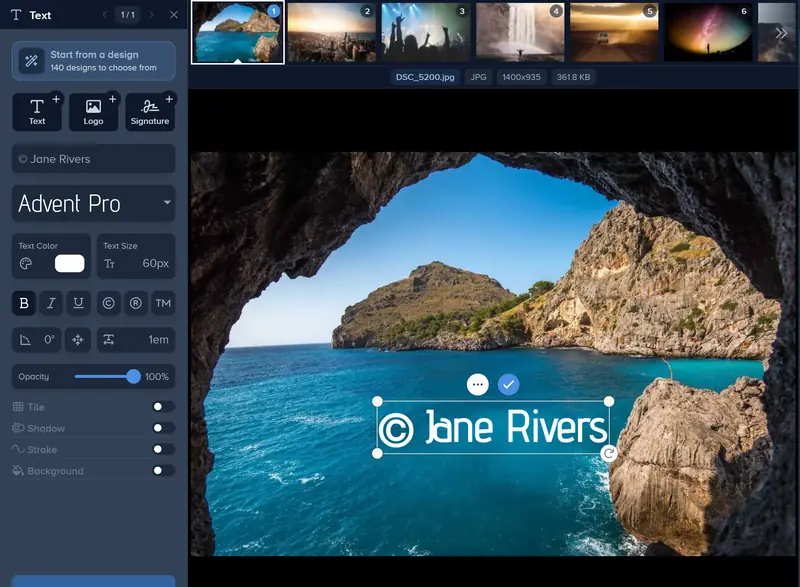
Open the photo, then the tool: Watermark, or Crop under Edit. Set it up, and the photo gets a blue number.
-
Step 2: Open Each Photo That Needs It
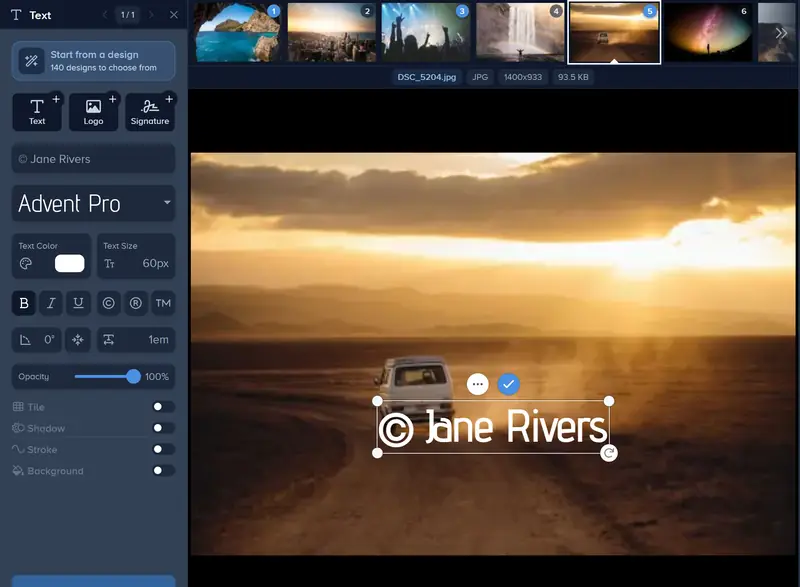
Click the next photo in the files strip. It takes the last photo’s settings and a blue number; adjust them if it needs to differ. Skip the photos that should stay as they are.
-
Step 3: Pick Edited Files
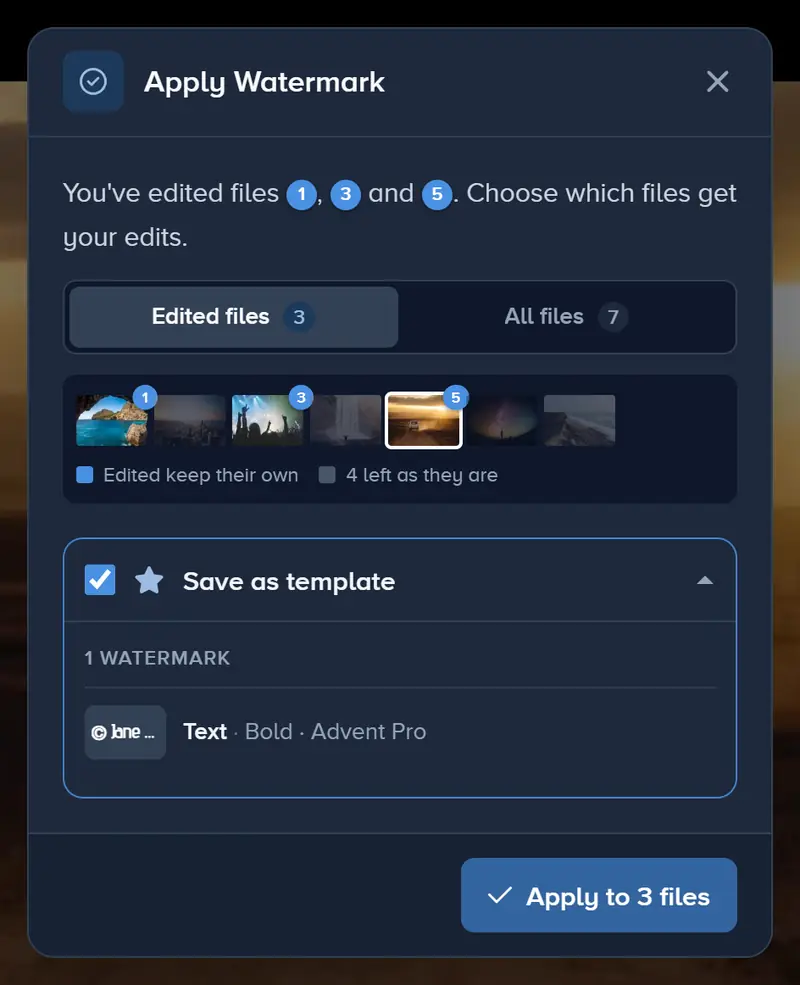
Click Apply. With two or more photos edited, Edited files is picked, with their count beside it. The dialog shows which photos get the edit and how many are left as they are.
-
Step 4: Apply to Those Photos
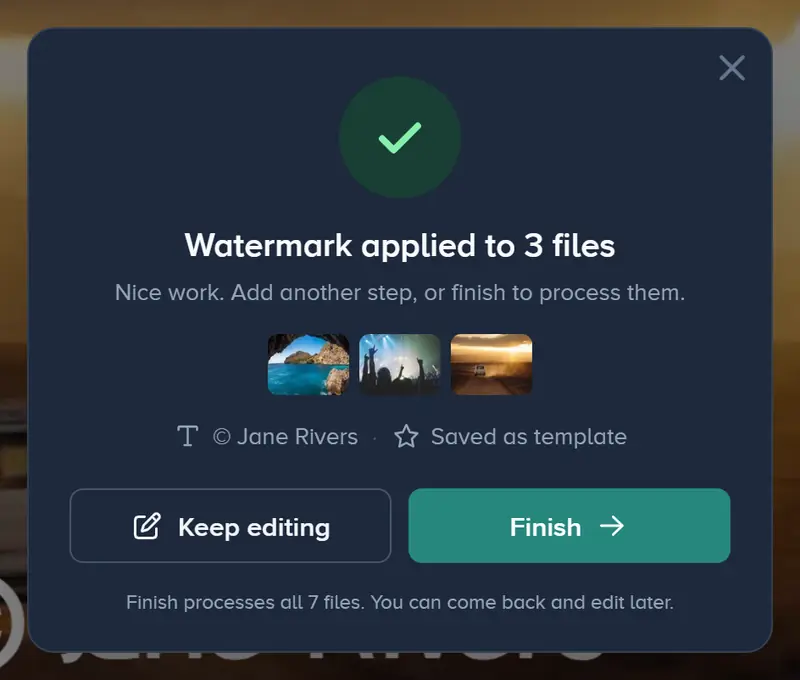
Click Apply to 3 files (the number is yours). Then click Finish, or open another tool for the next step.
If It Doesn’t Look Right
A Photo You Only Looked At Has a Number
Opening a photo while a tool is open counts as editing it. Look through the batch before you open the tool, or after you apply, and only the photos you mean to change get numbers.
Edited Files Isn’t Offered
With one photo edited, the dialog offers This file and All files instead. Edited files appears once two or more are edited, as long as some are not.
You Applied to All Files by Mistake
Click Undo. The tool opens again with each edited photo’s settings, ready for you to pick Edited files and apply.
The Edited Photos Didn’t Come Out
The free plan processes the first file of each edit, whether or not it is one you edited. Premium and Ultimate process every file.
Watermark Just the Photos That Need It
Open them, apply to edited files, and the rest stay untouched.
Add your photos- No account needed to start
- Works in your browser
Questions people ask
What counts as an edited file?
Do the other photos leave the edit?
Does it work for crops and other tools?
Keep reading
 Guide
Add a Logo Watermark to Your Photos
Upload your logo, set its size, opacity and position, and put it on one photo or a whole shoot. PNG, SVG or JPG logos up to 50 MB and 8,000 px. Free to try.
Guide
How to Add a Logo to a Video
Upload your logo, set its size and opacity, place it on the video’s frame and download the video with your logo on it. PNG, SVG or JPG logos up to 50 MB.
Guide
How to Add a Text Watermark to Photos
Type your name, website or © line, pick a font, then set its size, color, opacity and place. Apply it to one photo or a whole batch and download them.
Guide
How to Batch Watermark Multiple PDFs at Once
Watermark many PDFs in one edit: place the watermark once, apply it to all files, and download them together. Up to 5,000 files per edit on Premium.
Guide
How to Change the Color of a Logo Watermark
Recolor your logo watermark with Tint: type your brand’s hex code, pick a shade that suits the photo, or switch Tint off to get the original colors back.