How to Add a Logo to a Video
Put your logo in a corner of the frame so it goes wherever the video goes.
- No account needed to start
- Up to 5,000 files per batch

In short
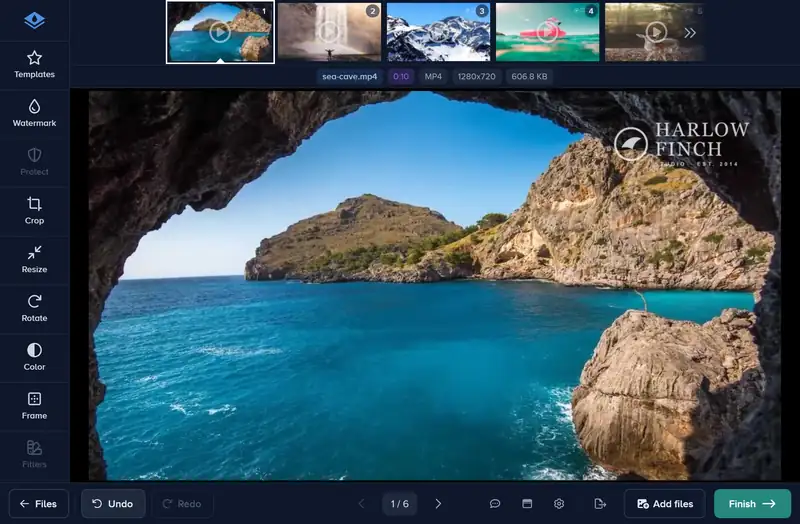
Add the video, open the Watermark tab, choose Logo and pick your logo file. Set its size and opacity, drag it into place and apply. The logo goes into the frames that are processed: the first 30 seconds on the free plan and Premium, the whole video up to 4 hours on Ultimate.
How to Add a Logo to a Video in 4 Steps
A few minutes, and nothing to install.
-
Step 1: Add Your Video
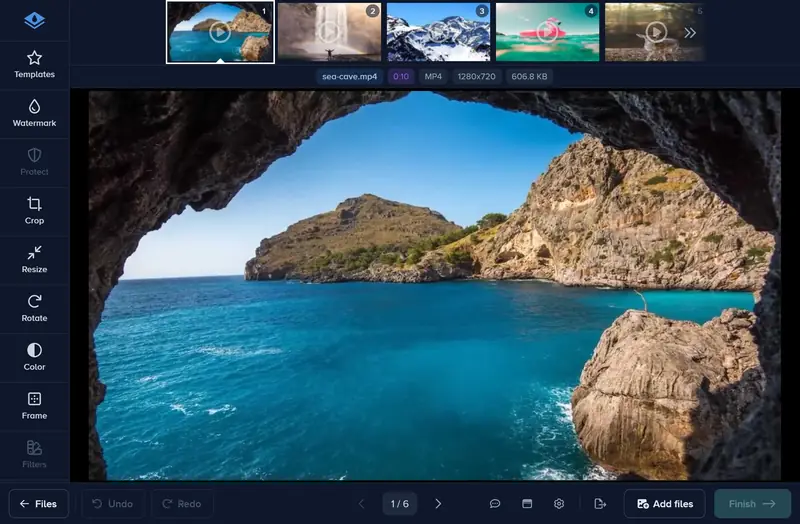
Click Choose files or drag the video onto the page. MP4, MOV and most other video formats work, up to 2 GB.
-
Step 2: Add Your Logo
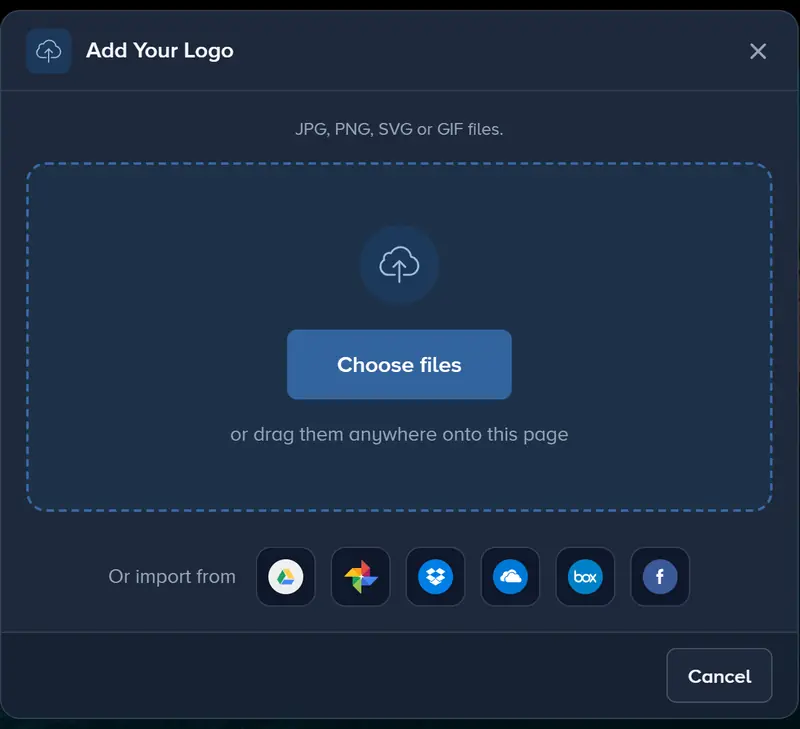
Open the Watermark tab, click Logo and pick your logo file. On a phone, tap Watermark, then Logo. A PNG with a transparent background sits cleanly on the picture.
-
Step 3: Size and Place It
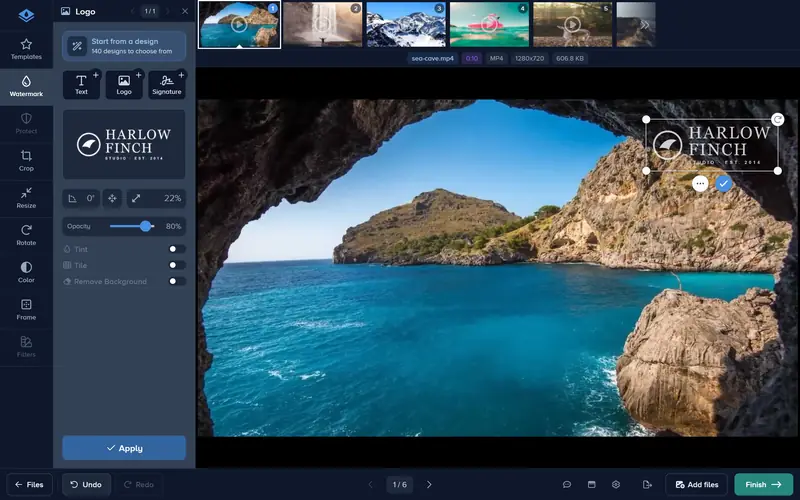
Set Size and Opacity, then drag the logo into a corner. The editor shows a frame of the video: keep the logo away from where captions or on-screen text appear.
-
Step 4: Apply, Finish and Download
Click Apply, then Finish. When the video is processed, click Download.
If It Doesn’t Look Right
The Logo Has a White Box
Switch on Remove background on the logo to take out the white and near-white around it. It is free to try in the editor; downloading the video with it needs a paid plan.
The Logo Pulls the Eye
Lower Opacity until the logo reads without competing with the video. On a busy or moving background, a slightly larger logo at lower opacity often reads better than a small solid one.
The Video Ends After 30 Seconds
That is the limit of the free plan and Premium. The download dialog offers the 30-second preview; Ultimate puts the logo on the whole video, up to 4 hours.
The Logo Looks Soft
Upload the largest version of your logo you have, or an SVG, which stays sharp at any size.
Put Your Logo on Your Next Video
Upload the video and your logo, place it, and download the result.
Add your logo- No account needed to start
- Works in your browser
Questions people ask
Which logo files can I use?
Can I add a logo and text to the same video?
Does the logo show for the whole video?
Can I reuse the logo on my next video?
Keep reading
 Guide
How to Batch Watermark Photos Online
Batch watermark up to 5,000 photos in one batch: design the watermark once, apply it to all, fix single photos and download a zip. Free to try, no install.
Guide
How to Change the Color of a Logo Watermark
Recolor your logo watermark with Tint: type your brand’s hex code, pick a shade that suits the photo, or switch Tint off to get the original colors back.
Guide
How to Change the Watermark on One Photo in a Batch
Open the photo in the files strip, move or change its watermark, and apply. That photo keeps its own watermark while the rest of the batch shares the other.