How to Tile a Watermark Across a Photo
Repeat your name or logo over the whole photo, so no part of it can be cropped out and reused.
- No account needed to start
- Up to 5,000 files per batch
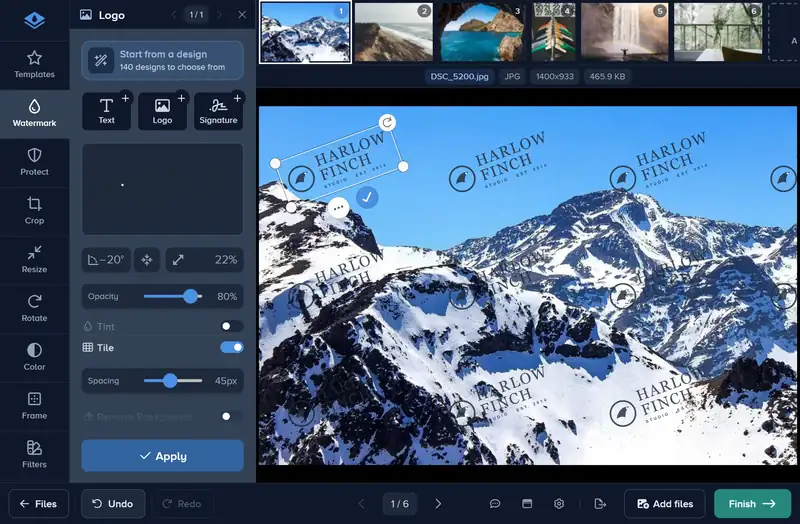
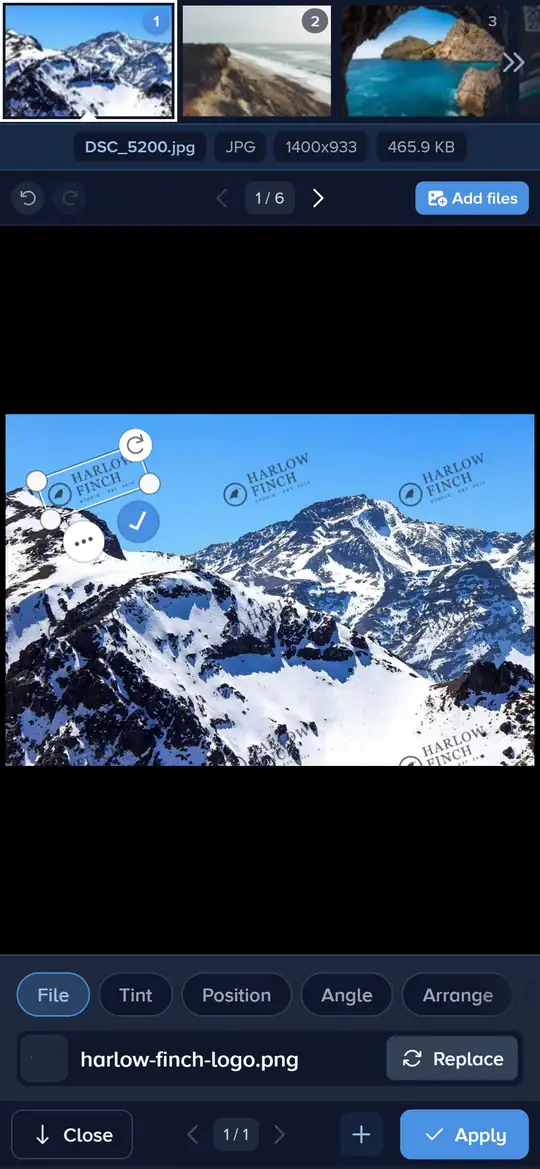
In short
Add a text or logo watermark, then switch on Tile: it repeats across the whole photo. Spacing sets the gap between the copies, and the size, angle and opacity you give the watermark go to every copy. Tile works on every plan; the free plan processes the first file of each edit, and Premium and Ultimate every file.
How to Tile a Watermark in 4 Steps
Set up one copy, and the pattern follows it.
-
Step 1: Add and Size Your Watermark
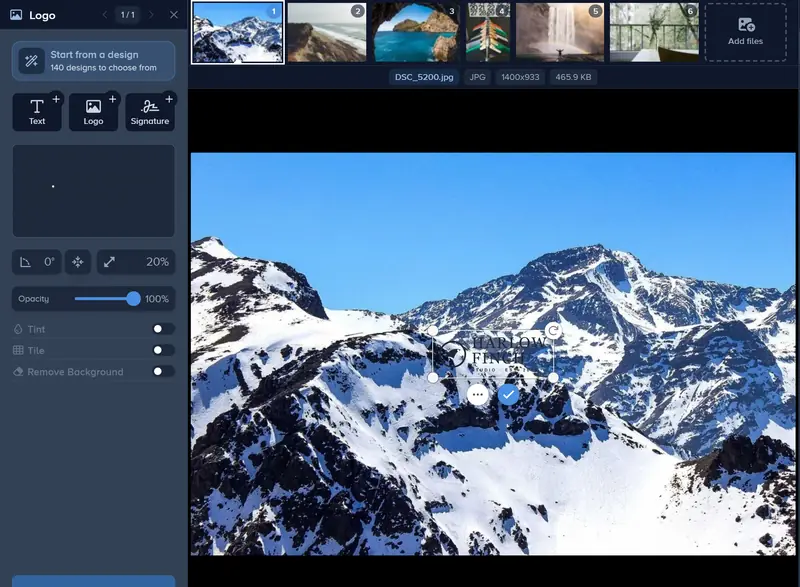
Select your photos and click Edit, open Watermark and click Text or Logo. Size it before you tile it: every copy comes out at this size.
-
Step 2: Switch On Tile
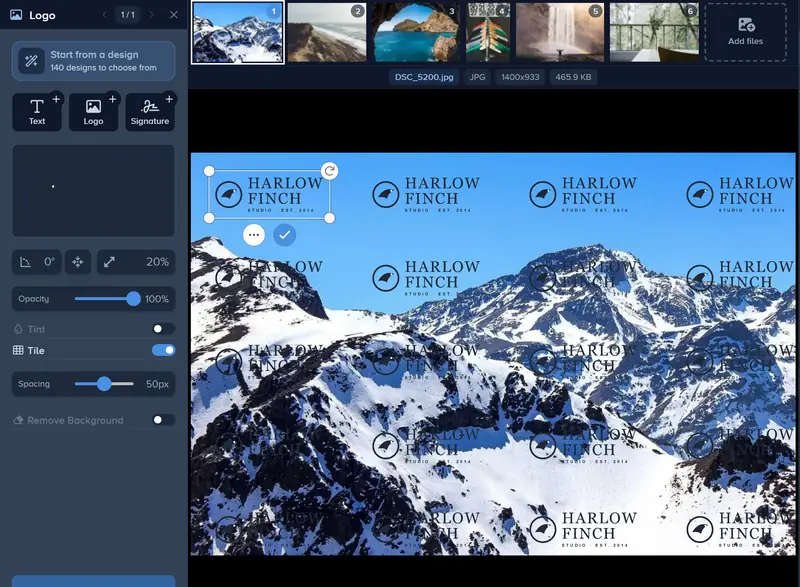
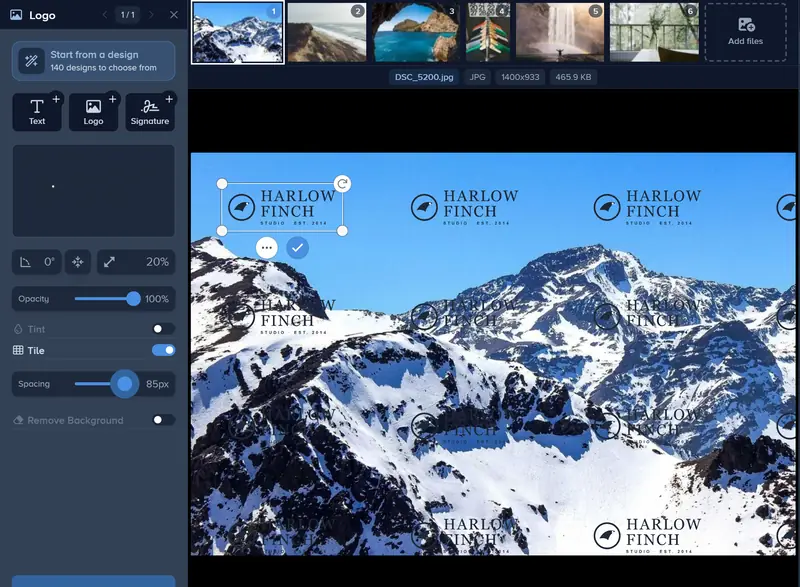
In the panel, switch on Tile. The watermark repeats from edge to edge of the photo. On a phone, open the Tile tab and switch on Tile.
-
Step 3: Set the Spacing
Spacing sets the gap between copies, from 0 to 100 px. At 0 the copies touch; a wider gap lets more of the photo show. On a phone, the slider sits next to the switch.
-
Step 4: Angle It and Apply
Set an Angle for a diagonal pattern and lower Opacity so the photo still reads. Click Apply and choose which files get it.

If It Doesn’t Look Right
The Pattern Hides the Photo
Lower the opacity first, then make the watermark smaller or raise Spacing. A tiled watermark at full strength reads louder than a single one.
The Pattern Looks Crowded
Raise Spacing, or make the watermark smaller. A short text such as your initials or @handle makes a calmer pattern than a long line.
Only Part of the Photo Should Be Covered
Tile always covers the whole photo. For a few copies in places you choose, switch Tile off and add the watermark several times, up to 10 on a photo.
Make Your Photos Hard to Reuse
Tile your watermark across every photo in the batch at once.
Tile your watermark- No account needed to start
- Works in your browser
Questions people ask
Can I tile a logo as well as text?
How is Tile different from Protect?
Does the spacing change on larger photos?
Keep reading
 Guide
Add a Logo Watermark to Your Photos
Upload your logo, set its size, opacity and position, and put it on one photo or a whole shoot. PNG, SVG or JPG logos up to 50 MB and 8,000 px. Free to try.
 Guide
How to Batch Watermark Photos Online
Batch watermark up to 5,000 photos in one batch: design the watermark once, apply it to all, fix single photos and download a zip. Free to try, no install.
 Guide
Create a Signature Logo for Your Photos
Type your name, pick one of 30 handwriting fonts and swap letters for alternates. Free to design and preview; download it from the editor with Premium.
Guide
How to Download a Watermark as a Transparent PNG
Type your name in the watermark maker, pick a design and download it as a transparent PNG 1,000, 2,000 or 4,000 px wide, or as an SVG. Every file is free.
Guide
How to Cover a Photo With a Protection Pattern
Lay lines, a grid, hatching or waves across a whole photo with the Protect tool, set the color, opacity and density, and apply it to every file in one go.