How to Use Your Own Font in a Watermark
Write your watermark in your brand’s lettering by uploading the font file once.
- No account needed to start
- Up to 5,000 files per batch


In short
Add a text watermark, open the font list and click the + to upload a TTF, OTF or TTC file of up to 10 MB. The font is picked for your text at once and stays in your list for later edits. You can upload and try it on any plan; downloading files that use it needs a paid plan.
How to Upload a Font in 4 Steps
You upload it once; it waits in your font list after that.
-
Step 1: Add a Text Watermark
Select your files and click Edit. Open Watermark and click Text, then type the words you want in your font.

-
Step 2: Open the Font List
Click the font box under your text. In the line at the top of the list, after the styles, click the +. On a phone, tap Font in the Text row, then the + beside Done.

-
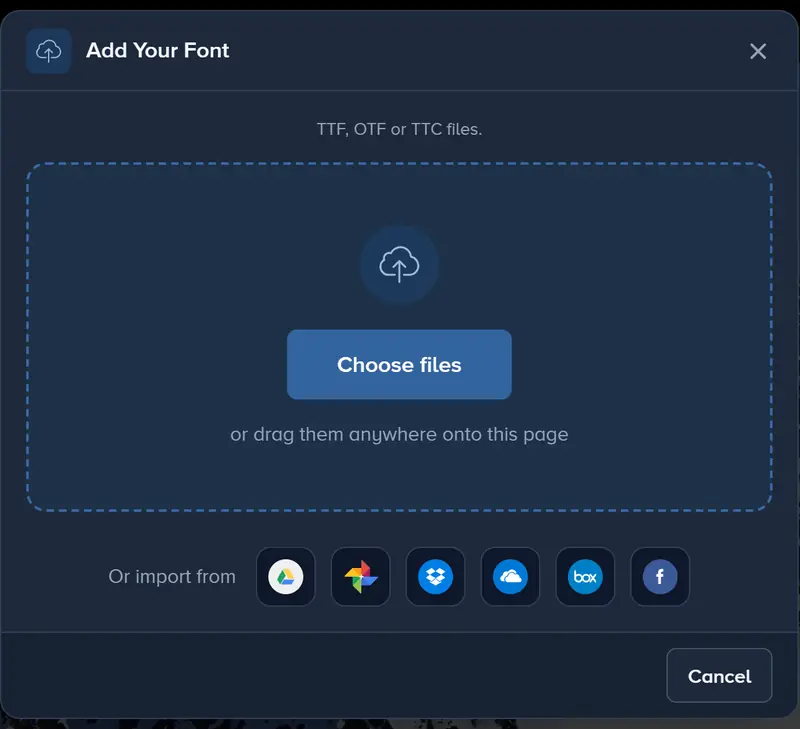
Step 3: Upload the Font File
In Add Your Font, drop in the TTF, OTF or TTC file, up to 10 MB. Once it is in, your text switches to it.
-
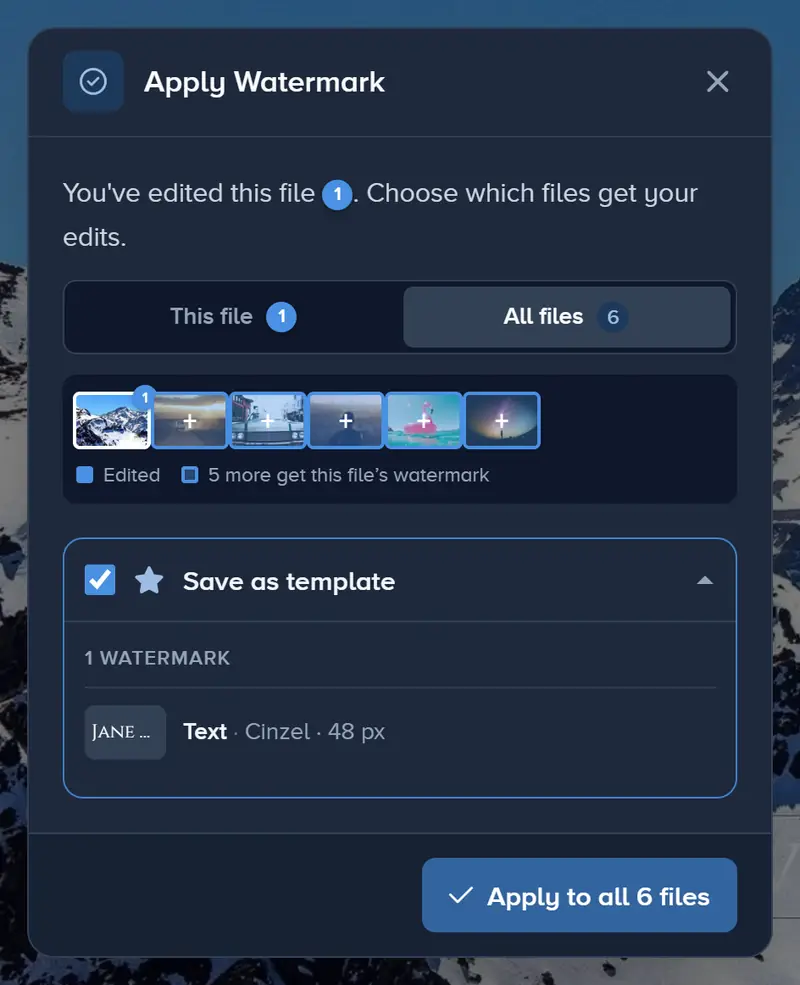
Step 4: Apply It to Your Files
Set the size and color as for any font. Your uploaded fonts now head the list, set apart from the rest by a line. Click Apply and choose which files get it.
If It Doesn’t Look Right
The File Is Refused
Only TTF, OTF and TTC files up to 10 MB go in. Web fonts (WOFF, WOFF2) do not, and neither does a zip: unzip the download and upload the .ttf or .otf file inside it.
Some Characters Are Missing
The font does not include them. Display fonts often leave out accented letters, numbers or symbols such as ©. Upload a fuller version of the font, or write those characters in another one.
The Download Asks You to Upgrade
Your own fonts are a paid feature. The free plan shows them in the editor; switch the text to one of the 484 free fonts, or upgrade to download the files as they are.
Write Every Watermark in Your Own Font
Upload it once and use it on every batch from then on.
Upload your font- No account needed to start
- Works in your browser
Questions people ask
Which font files can I upload?
Do I have to upload the font again next time?
How do I delete an uploaded font?
Am I allowed to use any font?
Keep reading
 Guide
Add a Logo Watermark to Your Photos
Upload your logo, set its size, opacity and position, and put it on one photo or a whole shoot. PNG, SVG or JPG logos up to 50 MB and 8,000 px. Free to try.
Guide
How to Add a Logo to a Video
Upload your logo, set its size and opacity, place it on the video’s frame and download the video with your logo on it. PNG, SVG or JPG logos up to 50 MB.
Guide
How to Batch Watermark Multiple PDFs at Once
Watermark many PDFs in one edit: place the watermark once, apply it to all files, and download them together. Up to 5,000 files per edit on Premium.
 Guide
How to Batch Watermark Photos Online
Batch watermark up to 5,000 photos in one batch: design the watermark once, apply it to all, fix single photos and download a zip. Free to try, no install.
Guide
How to Change the Color of a Logo Watermark
Recolor your logo watermark with Tint: type your brand’s hex code, pick a shade that suits the photo, or switch Tint off to get the original colors back.