How to Watermark Photos From Dropbox, OneDrive or Box
Bring photos in from the cloud app you use, watermark them, and download them ready to share.
- No account needed to start
- Up to 5,000 files per batch
In short
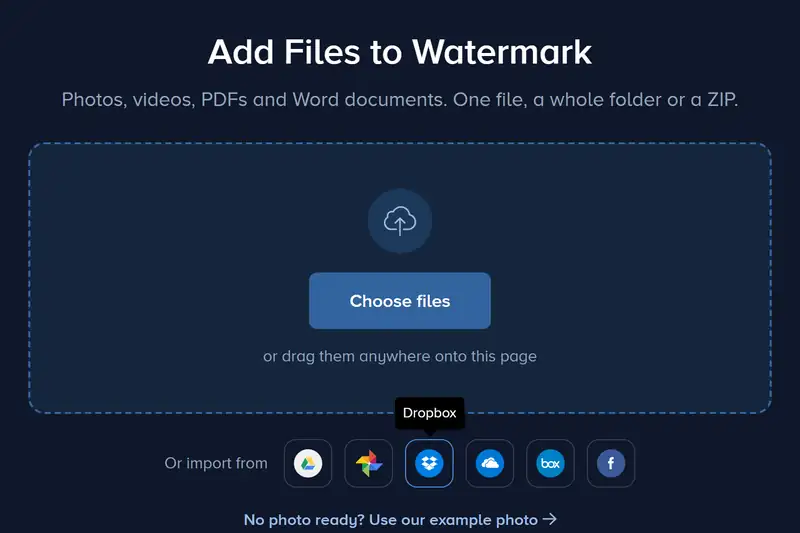
Under Or import from, click the Dropbox, OneDrive or Box icon, sign in and pick your photos. They come straight into the editor. Watermark.ws cannot save the finished files back to those apps: you download them and upload them yourself. The free plan processes the first file of each edit; Premium and Ultimate every file.
How to Import From Dropbox, OneDrive or Box in 4 Steps
The same steps for all three apps.
-
Step 1: Open Add Files
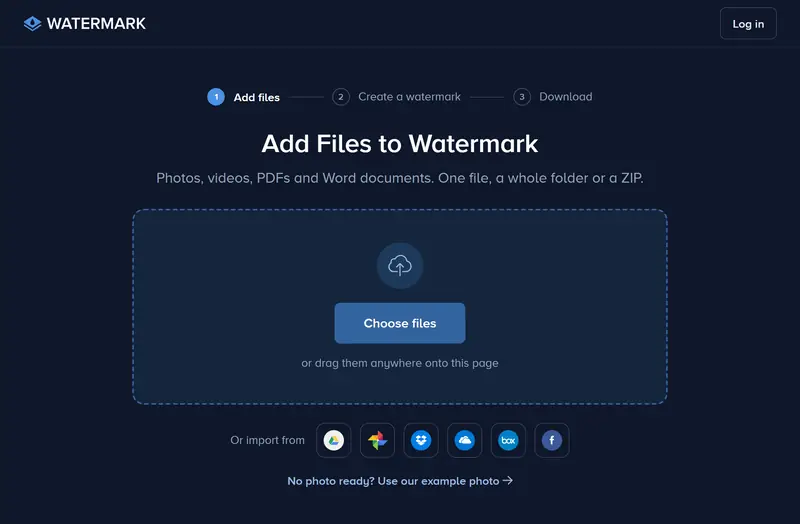
Start a new edit, or click Add files in one that is open. The apps are under Or import from, below the Choose files button.
-
Step 2: Choose Your App
Click the Dropbox, OneDrive or Box icon. In the window that opens, pick that app and sign in to it.

-
Step 3: Pick the Photos
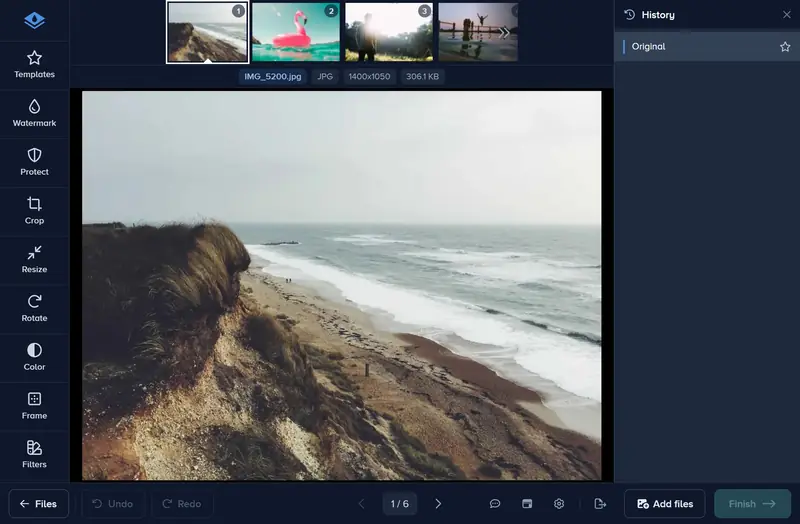
Go to the folder, select the photos and confirm. To add photos from a second app, open Add files again: they join the same edit.
-
Step 4: Watermark, Then Download
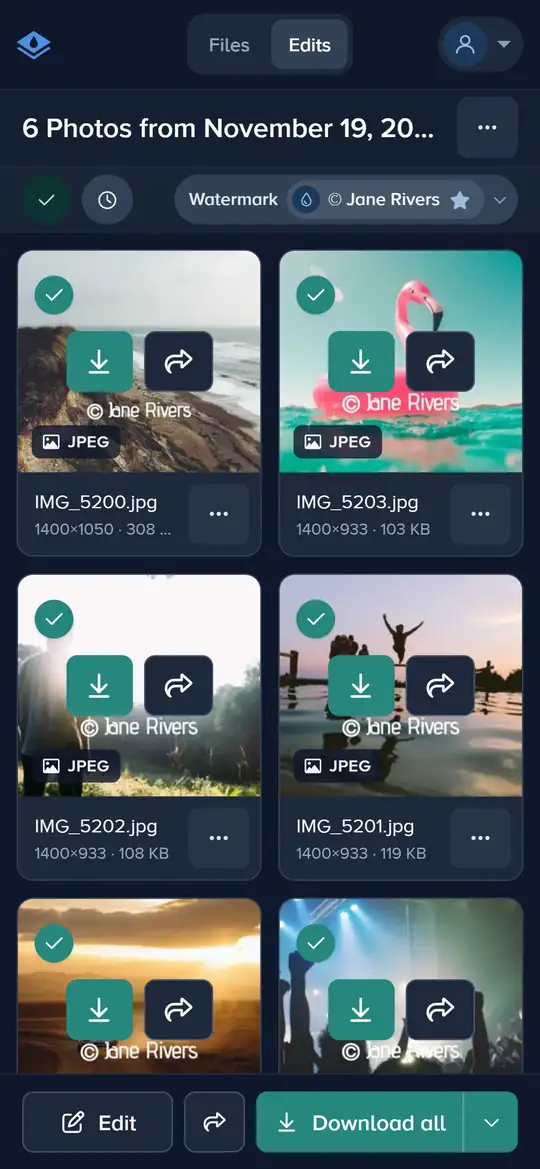
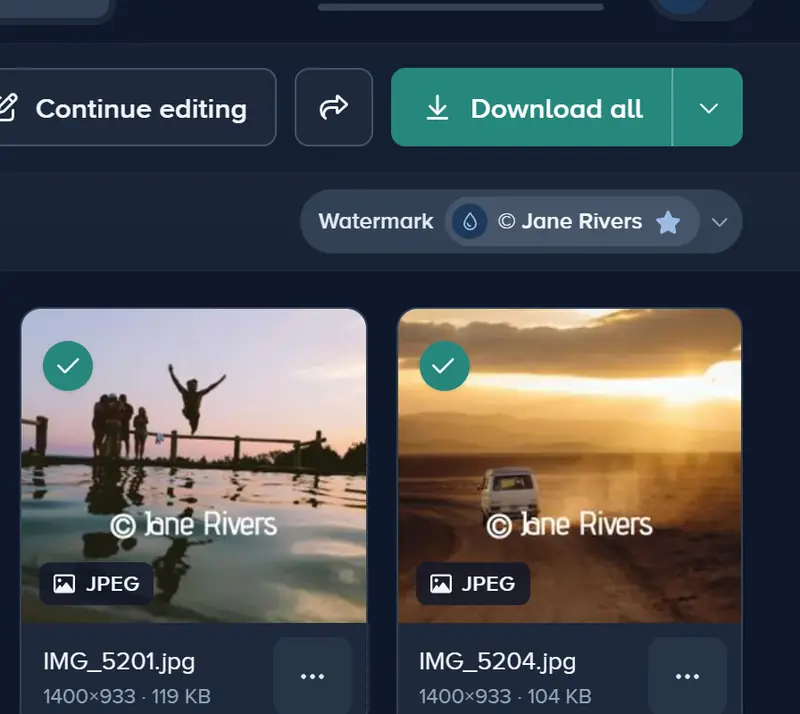
Add your watermark, click Apply and Finish, then Download all. To keep the results in Dropbox, OneDrive or Box, upload the downloaded files there.
If It Doesn’t Look Right
There’s No Save to Dropbox Button
Watermark.ws does not send files to cloud apps. Download the finished files, then upload them, or save them into a folder that the app syncs from your computer.
A ZIP or Document Is Refused
The apps window takes photos only. Download the ZIP, PDF or video to your device and add it with Choose files: a ZIP is opened and the files inside it added.
A Large Photo Fails
Photos can be up to 100 MB each. For a bigger file, such as a large TIFF or a stitched panorama, save a smaller copy in the cloud app and import that.
Watermark Your Cloud Photos
Import them from Dropbox, OneDrive or Box and download them with your watermark.
Import your photos- No account needed to start
- Works in your browser
Questions people ask
Can I send the watermarked files back to Dropbox, OneDrive or Box?
Does importing change anything in my Dropbox, OneDrive or Box?
Can I mix files from several apps in one edit?
Which other apps can I import from?
Keep reading
 Guide
Add a Logo Watermark to Your Photos
Upload your logo, set its size, opacity and position, and put it on one photo or a whole shoot. PNG, SVG or JPG logos up to 50 MB and 8,000 px. Free to try.
Guide
How to Add a Logo to a Video
Upload your logo, set its size and opacity, place it on the video’s frame and download the video with your logo on it. PNG, SVG or JPG logos up to 50 MB.
Guide
How to Add a Text Watermark to Photos
Type your name, website or © line, pick a font, then set its size, color, opacity and place. Apply it to one photo or a whole batch and download them.
Guide
How to Apply an Edit Only to the Photos You Changed
Open the photos that need an edit, then click Apply and pick Edited files. Only those photos get the watermark or crop; the rest of the batch stays as it is.
Guide
How to Batch Watermark Multiple PDFs at Once
Watermark many PDFs in one edit: place the watermark once, apply it to all files, and download them together. Up to 5,000 files per edit on Premium.