
On this page
Copyright Symbol Shortcuts at a Glance
To type the copyright symbol, press Alt+0169 on Windows (using the numeric keypad) or Option+G on a Mac. On a phone, © is hidden in the symbol or emoji keyboard. In Word and Google Docs you can simply type (c) and let the app replace it.
| Where you are typing | How to type © |
|---|---|
| Windows | Hold Alt and type 0169 on the numeric keypad, or press Windows key + . and open Symbols. |
| Mac | Option + G, or Control + Command + Space to open the Character Viewer. |
| iPhone and iPad | Search "copyright" in the emoji keyboard, or set up a Text Replacement. |
| Android (Gboard) | Tap ?123, then =\<, then ©. |
| Microsoft Word | Ctrl + Alt + C on Windows, or type (c) and let AutoCorrect replace it. |
| Google Docs | Type (c), or use Insert › Special characters. |
| Chromebook and many Linux desktops | Ctrl + Shift + U, then a9, then Enter. |
| HTML | © or © |
If you only need the symbol once, you can also copy it from here: ©.
How to Type the Copyright Symbol on Windows
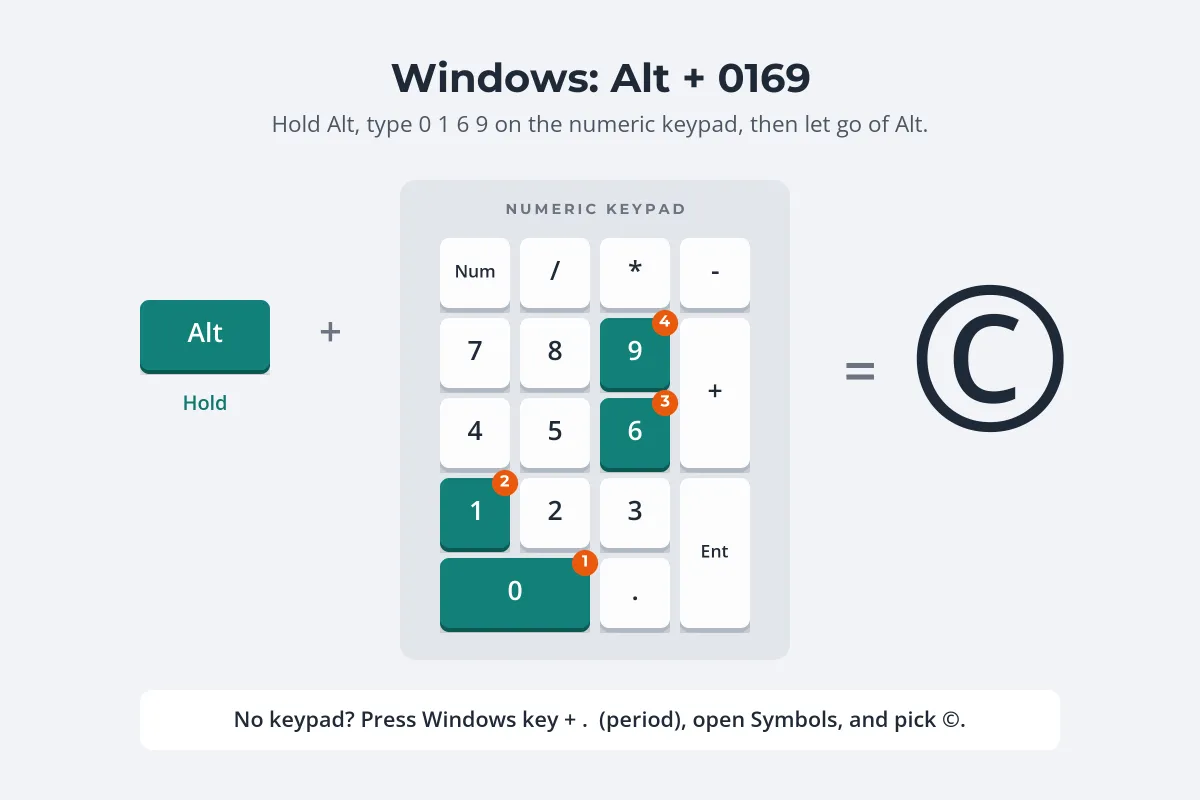
-
Turn on Num Lock
The keypad has to type numbers, not act as arrow keys.
-
Hold down Alt
Either Alt key works in most apps.
-
Type 0169 on the numeric keypad
Keep holding Alt while you type all four digits, including the leading zero.
-
Let go of Alt
The © appears as soon as you release the key.
The leading zero matters. Alt+169 without it uses an older character set and, on most English-language systems, types ⌐ instead of ©.
No numeric keypad? Most laptops do not have one, and the number row does not work for Alt codes. Press Windows key + . (period) to open the emoji panel, choose the Symbols tab, and pick © from the list. Character Map, which comes with Windows, also lets you copy the symbol.
How to Type the Copyright Symbol on a Mac
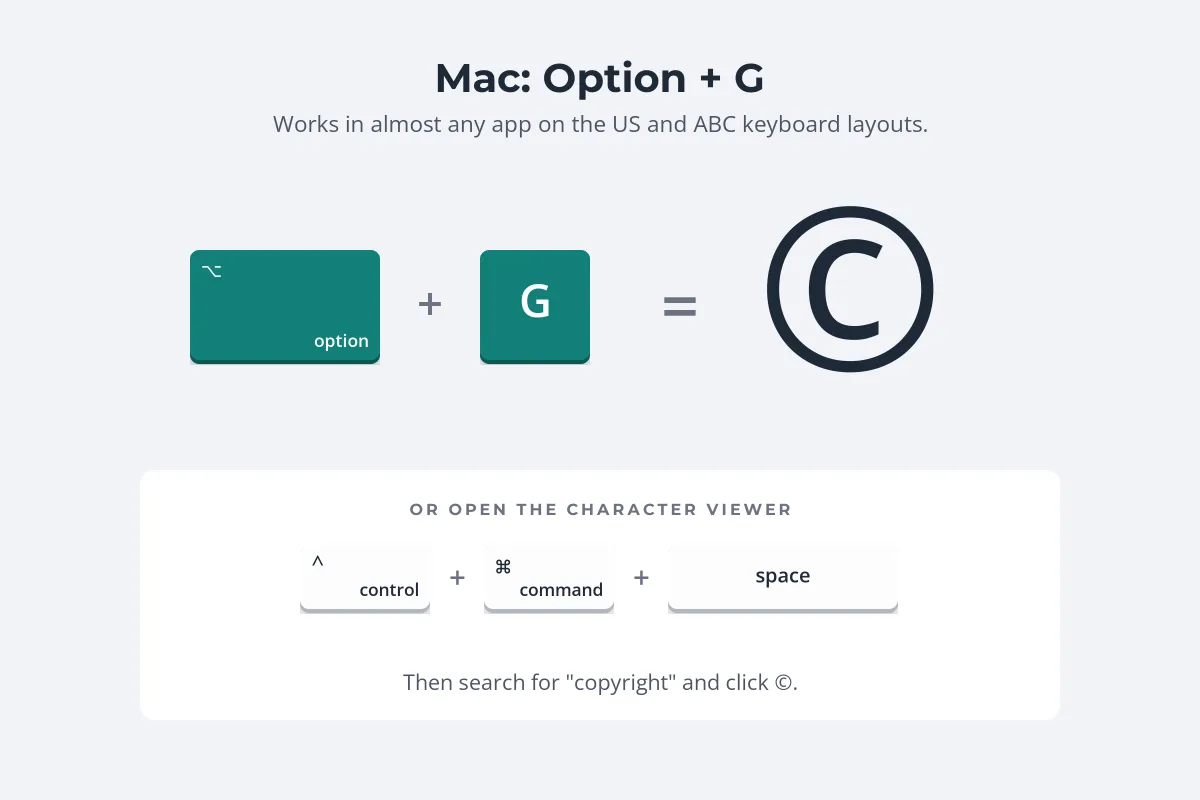
Press Option+G. It works in nearly every app, from Mail and Pages to web browsers, on the standard US and ABC keyboard layouts. Some other layouts put © on a different key; to find it, open the Keyboard Viewer and hold Option to see what each key types.
You can also open the Character Viewer with Control+Command+Space, or choose Edit › Emoji & Symbols in most apps. Search for "copyright" and click the symbol to insert it.
On iPhone and Android
Phone keyboards have no © key on the main layout, but the symbol is never far away.
- iPhone and iPad: switch to the emoji keyboard, search for "copyright" and tap ©. The emoji version can look like a small graphic in some apps.
- iPhone shortcut that lasts: go to Settings › General › Keyboard › Text Replacement, tap +, paste © as the phrase and choose a shortcut such as "cpy". From then on, typing the shortcut inserts the plain symbol.
- Android with Gboard: tap ?123 to open the symbols, then =\< for the second page, where © sits among the other symbols.
- Other Android keyboards: layouts vary, and some leave © out of their symbol pages. Look in the emoji keyboard’s symbols section instead, or install Gboard.
Watermarking on your phone? You do not need the keyboard at all in Watermark.ws, because the text editor has its own © button (more on that below). For the whole phone workflow, see how to watermark photos on iPhone or on Android.
In Word, Google Docs and on the Web
- Microsoft Word (Windows): press Ctrl+Alt+C. Typing (c) also turns into © automatically, thanks to AutoCorrect. If you really wanted "(c)", press Ctrl+Z straight after and Word puts it back. Insert › Symbol works too.
- Microsoft Word (Mac): Option+G, or type (c) and let AutoCorrect replace it.
- Google Docs: type (c) and it becomes © through Automatic substitution (Tools › Preferences › Substitutions). Or use Insert › Special characters and search for "copyright".
- Chromebook and many Linux desktops: press Ctrl+Shift+U, type a9 (the symbol’s Unicode number), then press Enter or Space.
- HTML: write
©or©. A page saved as UTF-8 can also contain the © character directly. - CSS: use
content: "\00A9";in a pseudo-element.
U+00A9 is the copyright sign in every font and on every system. When a shortcut fails, any tool that lets you enter a Unicode number will get you there.
What a Correct Copyright Notice Looks Like
Typing the symbol is half the job. According to the U.S. Copyright Office (Circular 3), a copyright notice has three parts: the symbol © (or the word "Copyright" or the abbreviation "Copr."), the year of first publication, and the name of the owner. For example: © 2026 Rowan Ellery.
 Typed (c)
 Real ©
Is "(c)" good enough? The Copyright Office’s practices manual lists (c) as an acceptable variant of the symbol, so it is not wrong. But next to the real ©, letters in brackets look improvised, especially in a watermark where every character is on show. Since the real symbol takes a second to type, use it.
- Put a space after ©. "© 2026 Rowan Ellery" reads better than "©2026Rowan Ellery".
- Do not double up. "Copyright © 2026" says the same thing twice. Either form is fine on its own.
- "All rights reserved" is optional. It is not part of the notice under US law, and in a watermark it mostly takes up space.
- The notice is optional too. In the US, works published since March 1, 1989 are protected without one, and the same goes for the many countries in the Berne Convention. A notice still tells people the work is not free to use. Does a watermark count as copyright? covers what a © mark on a photo does, and does not do, legally.
For which year to use, where to place the notice and what it does in a dispute, see how to write a copyright notice.
How to Put the Copyright Symbol in a Watermark
On a photo, a © line works as both credit and notice. Three common versions:



- Check the font has ©. Nearly every font does, but some decorative ones draw it oddly small or leave it out. Preview before you apply a batch.
- Think twice about the year in a template. A template with this year in it will be wrong next January. Many photographers keep the year out of the watermark and put it in the photo’s metadata.
- Keep © with your name, not a slogan. The symbol makes most sense next to the owner’s name. Choosing that name is covered in watermark name ideas.
-
Add a text watermark
Upload your photos, PDFs or other files to Watermark.ws and add text.
-
Click the © button
Buttons next to the text field insert ©, ® and ™, so you do not need a shortcut on any device.
-
Type the rest of the notice
Your name, and the year if you want it. Press Enter for a second line with your website.
-
Save it as a template
Every future batch gets the same notice in the same place.
Wondering whether to use ©, ® or ™ at all? What to write in a watermark explains when each symbol applies.
Sample photos: Golden hills by Greg Shield, Beach at sunset by Joseph Barrientos, Mountain river by Daniel Beilinson, Ocean wave by Austin Schmid, Palm trees by Thomas Lefebvre on Unsplash.