On this page
What Photo Metadata Is
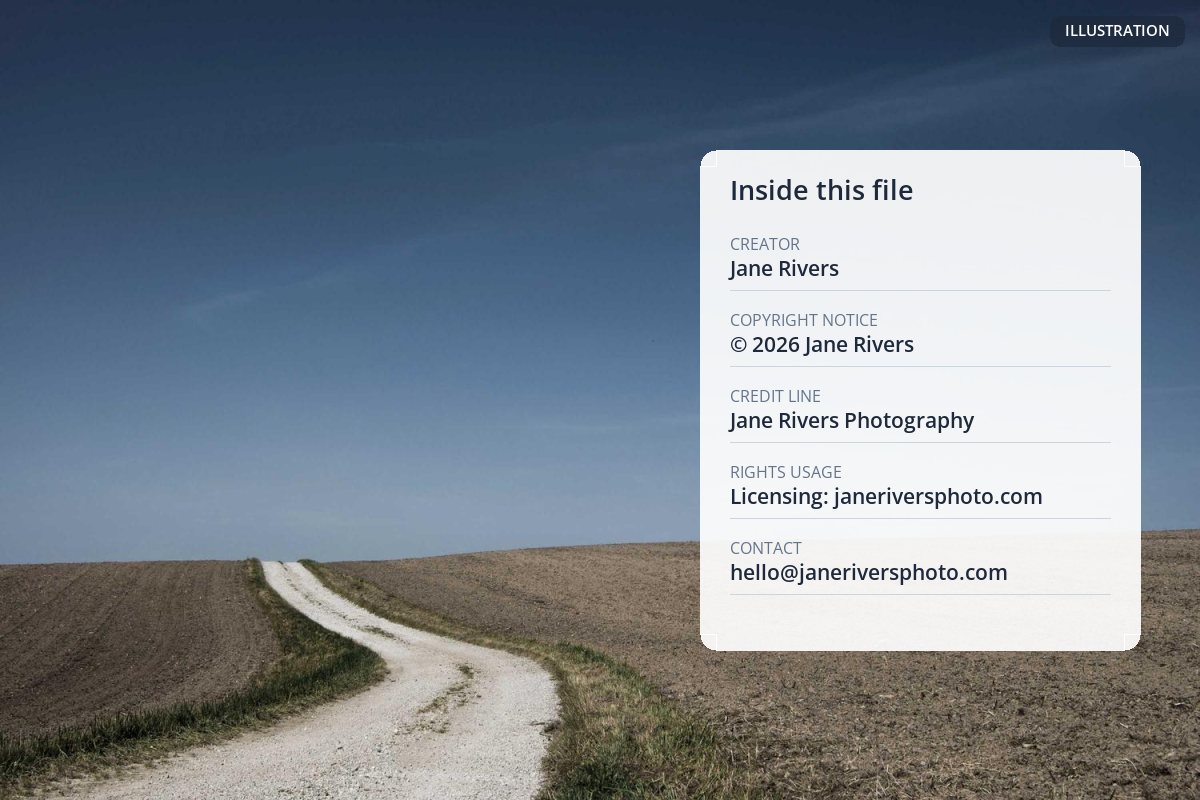
Every JPEG, TIFF or RAW file carries more than pixels. Alongside the image are blocks of text: when and with what camera it was taken, and — if you fill them in — who took it, who owns the copyright and how it may be used. That text is metadata. Nobody sees it when they look at the photo, but any software that opens the file can read it.
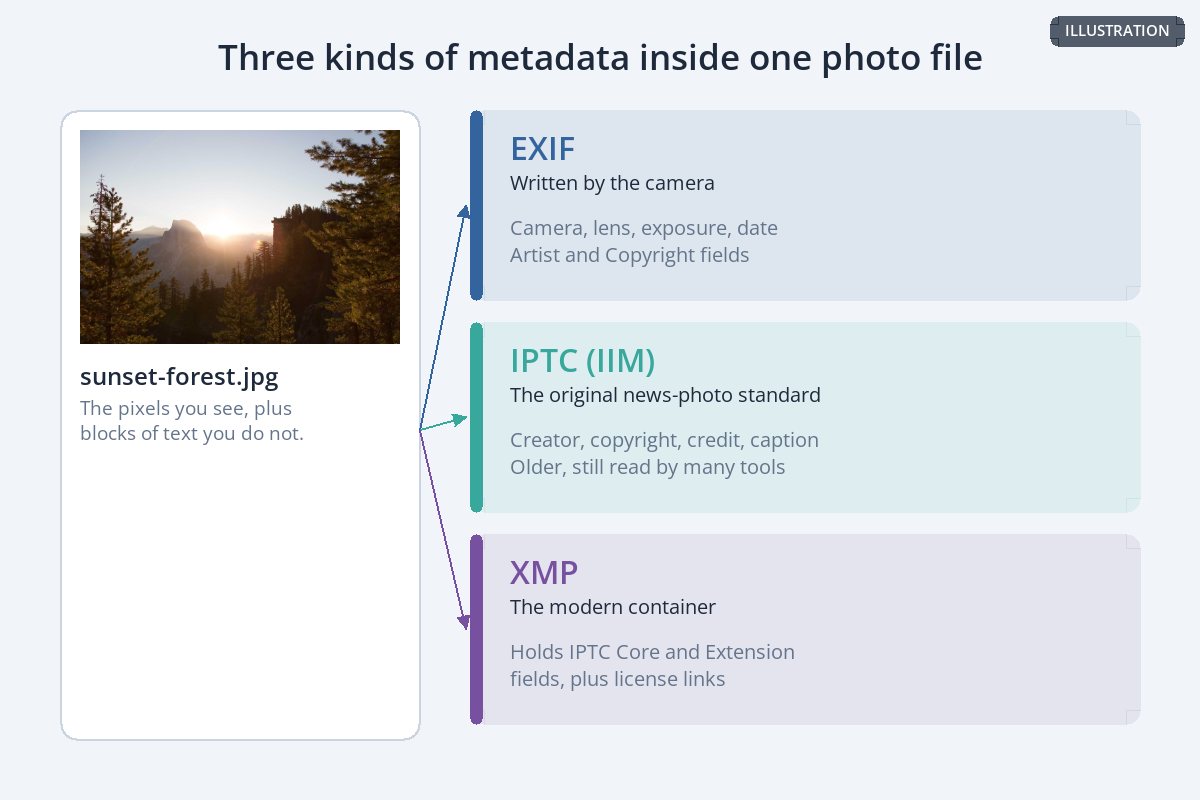
| Standard | Where it comes from | Copyright fields |
|---|---|---|
| EXIF | Written by the camera: settings, date, sometimes location. | Artist and Copyright — often set once in the camera menu. |
| IPTC (IIM) | The original standard news agencies used to caption and credit photos. | Creator, Copyright Notice, Credit Line and more. |
| XMP | A newer, extensible container that most editing software writes today. | Carries the IPTC Core and Extension fields, plus license links. |
You do not need to choose between them. Photo software usually writes the same information into several places at once, so older and newer tools can both read it. What matters is which fields you fill in.
The Fields That Carry Your Copyright
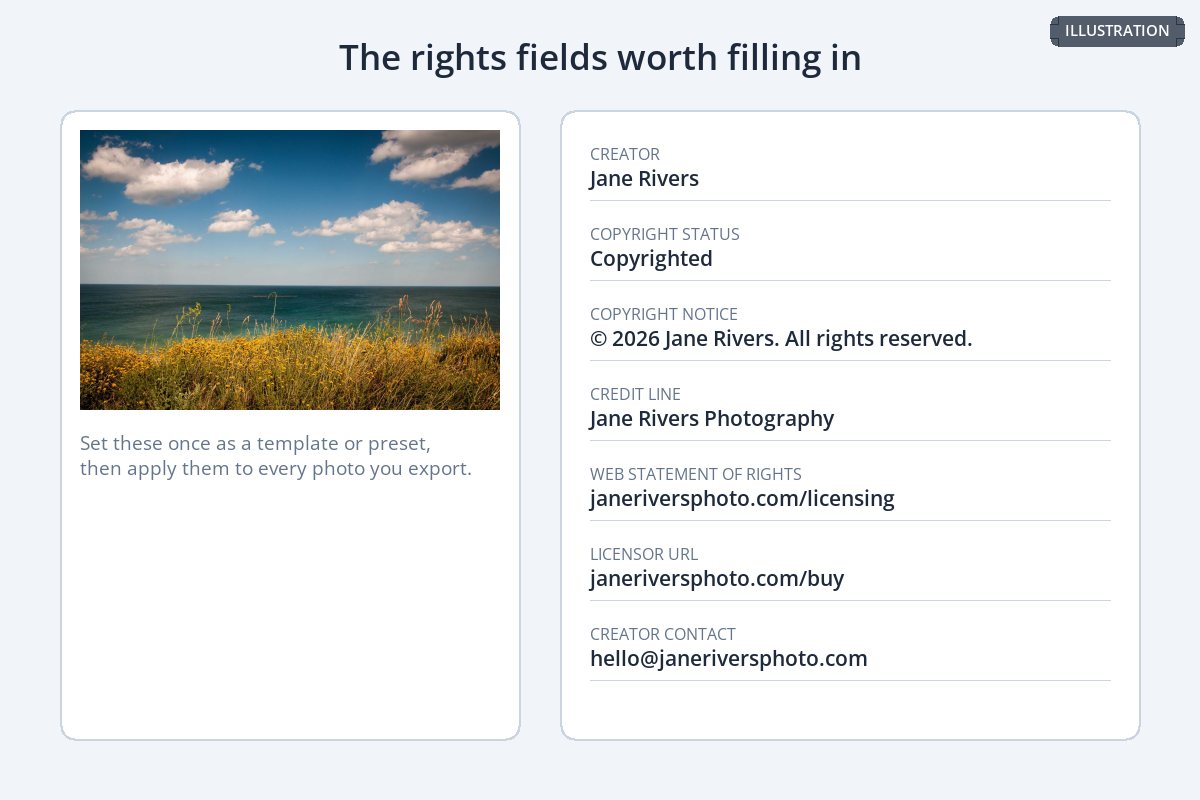
The IPTC Photo Metadata Standard defines dozens of fields. For copyright and credit, these are the ones worth filling in on every photo:
| Field | What to put in it |
|---|---|
| Creator | Your name, exactly as you want to be credited. |
| Copyright Notice | The full notice, for example © 2026 Jane Rivers. All rights reserved. |
| Copyright Status | Marked as copyrighted, where your software offers it. |
| Credit Line | How publishers should credit the photo, for example Jane Rivers Photography. |
| Web Statement of Rights | A link to a page on your site explaining the license or usage terms. |
| Licensor URL | A link to where the photo can be licensed or bought. |
| Creator contact info | An email address or website so people can reach you for permission. |
Many cameras have a menu setting for the artist name and copyright notice, which are then written into the EXIF of every photo you take. It takes two minutes, and it means even your unedited files carry your name.
Not sure how to word the notice? How to write a copyright notice covers the © symbol, the year and the name.
How to Add Copyright Metadata
Any decent photo tool can write these fields. The trick is doing it automatically, so it happens on every photo without you thinking about it.
| Tool | Where to find it | Best for |
|---|---|---|
| Adobe Lightroom Classic | Create a metadata preset with your copyright fields and apply it when you import. | Photographers who import every shoot. |
| Adobe Photoshop | File › File Info, where the copyright and IPTC fields live. | Individual images and artwork. |
| Windows File Explorer | Right-click a JPEG › Properties › Details, which has Authors and Copyright fields. | Quick edits to a few files. |
| ExifTool | A free command-line tool that can write any metadata field to whole folders. | Large batches and automation. |
With ExifTool, for example, one command writes your name and notice into both the EXIF and XMP fields of every JPEG in a folder:
exiftool -Artist="Jane Rivers" -Copyright="© 2026 Jane Rivers" -XMP-dc:Creator="Jane Rivers" -XMP-dc:Rights="© 2026 Jane Rivers" *.jpg
Whatever you use, the rule is the same: add metadata to your originals, as early as possible — ideally on import — so every copy you export later inherits it.
Google Images Can Show It
Metadata is not just for the file. Google Images reads the IPTC Creator, Credit Line, Copyright Notice, Web Statement of Rights and Licensor URL fields, and according to Google's documentation it "can show more details about the image, such as who the creator is, how people can use an image, and credit information." License information can also make an image eligible for the Licensable badge.
That is credit in search results without a single pixel of watermark. Do watermarks hurt SEO? explains how this fits with the rest of image search.
Where Metadata Gets Lost
Metadata has one big weakness: it is easy to lose, often without anyone intending to remove it.
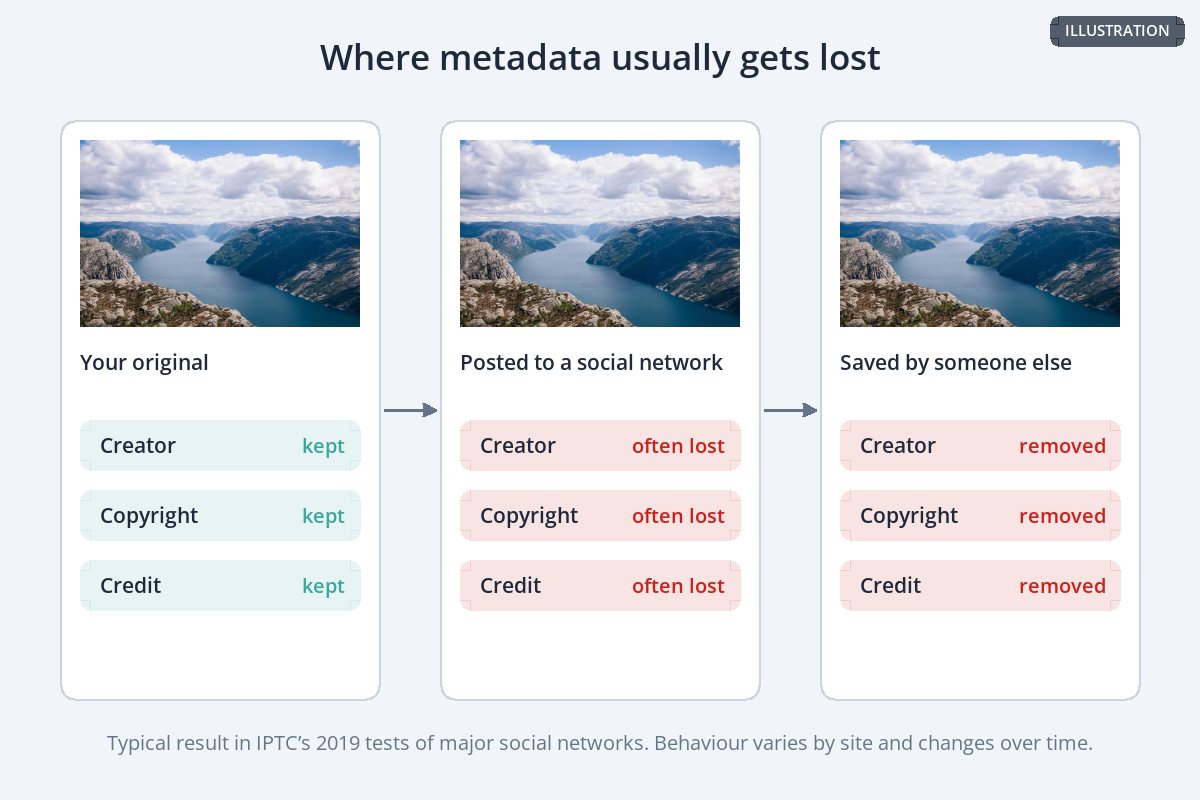
- Social networks. In the IPTC's own tests of social media sites (spring 2019), Twitter stripped the metadata from saved copies, Instagram displayed none and offered no way to download the original, and Facebook displayed none and kept only a few rights fields in downloaded files. Platforms change, but stripping has long been the norm.
- Resizing and re-saving. Some editors and online tools drop metadata when they resize or re-encode an image. Open an exported copy and check before you rely on it.
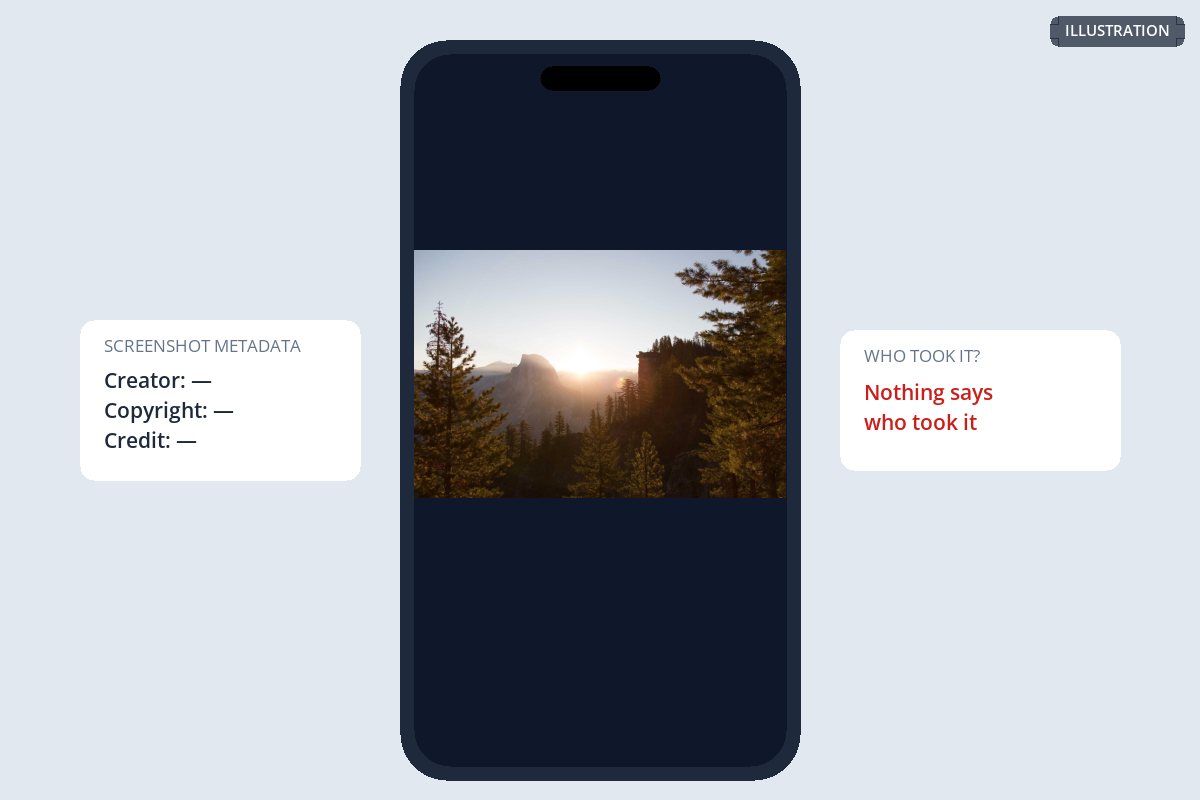
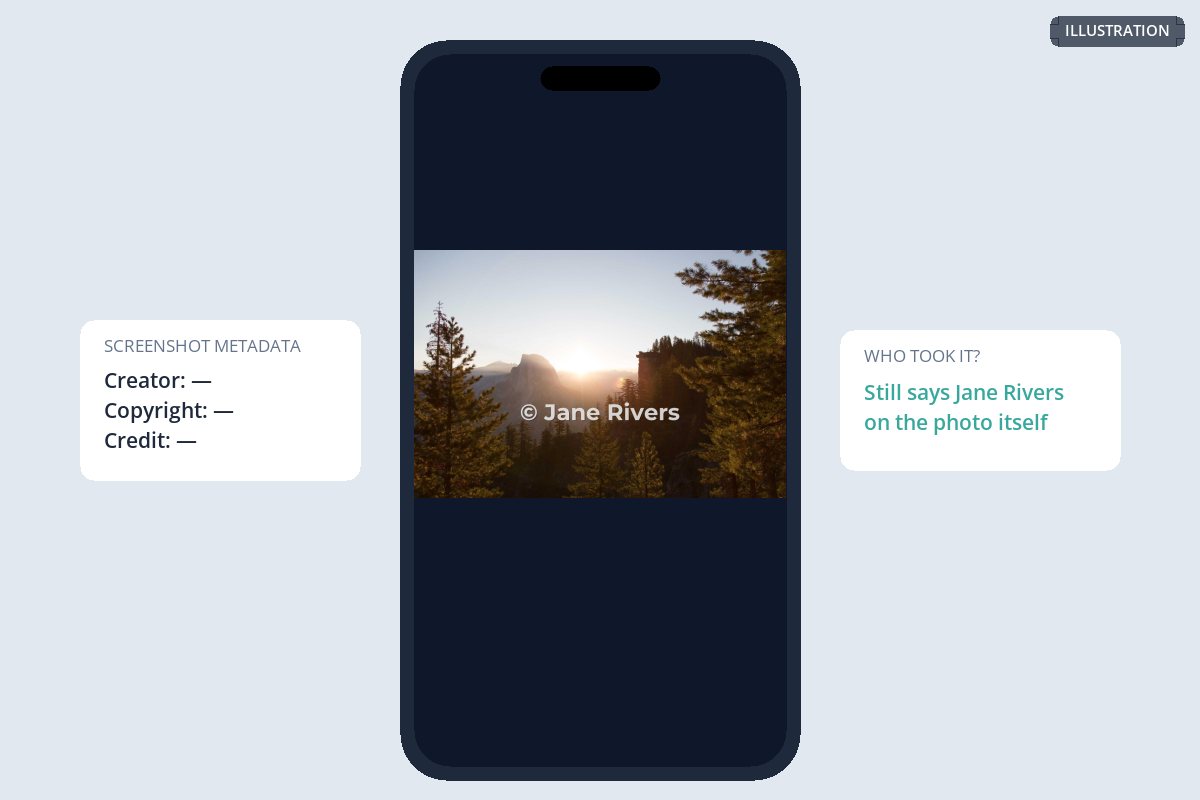
- Screenshots. A screenshot is a brand-new file. It copies the pixels and nothing else.
- Deliberate removal. Metadata can be deleted in seconds by anyone who wants to.
Metadata and Watermarks Do Different Jobs
Because a screenshot keeps the pixels and drops the file data, the only credit guaranteed to survive one is the credit that is in the pixels.
| Metadata | Visible watermark | |
|---|---|---|
| Changes how the photo looks | No | Yes, a little |
| Survives a screenshot | No | Yes |
| Survives upload to social media | Often not | Yes |
| Can hold license terms and contact details | Yes | Only a name or web address |
| Shown in Google Images | Yes, as credit details | Only as part of the picture |
Use both: metadata for the full record — who you are, the copyright notice, how to license — and a small visible watermark for the credit that has to survive the internet. See where to put a watermark and what to write in a watermark.
Is Removing Copyright Metadata Illegal?
In some countries, rights information attached to a work has its own legal protection. In the United States, 17 U.S.C. § 1202 covers "copyright management information" — which includes the author's name, the copyright owner's name and the information in a copyright notice when it is conveyed with copies of a work. Knowingly removing it to enable or conceal infringement can be a violation in itself.
Whether a particular removal breaks the law depends on the country, the facts and intent. For an overview of ten countries, see copyright infringement laws by country, and talk to a lawyer about a specific case.
A Metadata Workflow That Sticks
- Set your name and copyright in the camera menu.
- Create a metadata preset and apply it on import.
- Fill in Creator, Copyright Notice, Credit Line and a rights URL.
- Check one exported file to confirm the metadata survived.
- Add a visible watermark to copies you share publicly.
- Rely on metadata alone for photos posted to social media.
- Leave the year or name out of your copyright notice.
- Assume every tool keeps metadata when it resizes.
- Put private details, like your home address, in public files.
- Forget that screenshots carry no metadata at all.
Watermark.ws works on copies of your photos and never changes the originals, so your fully tagged master files stay exactly as they are. To watermark a whole shoot at once, see how to batch watermark photos.
Sample photos: Country road by Martin Dörsch, Forest at sunset by Jordan McQueen, Coastal meadow by David Marcu, Fjord by Jeff Sheldon on Unsplash.