How to Draw Your Signature as a Watermark
Sign with a mouse, a trackpad, a pen or your finger, and use your real signature as a transparent watermark.
- No account needed to start
- Up to 5,000 files per batch

In short
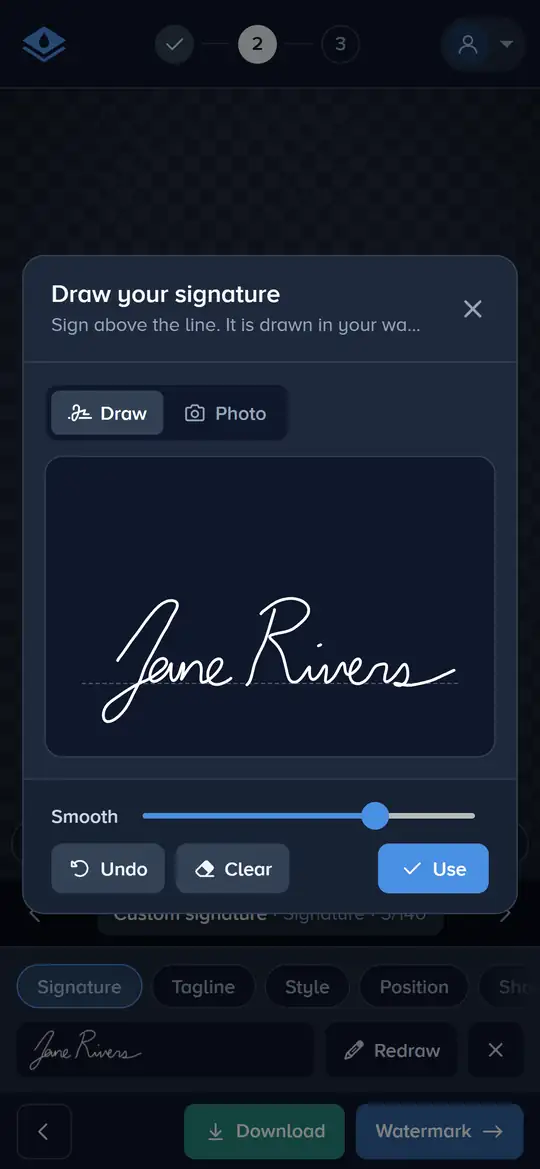
In the watermark maker, open the Signature shelf and click Custom signature. Sign above the line on the pad, use Smooth to take the shake out of the strokes, and click Use signature. It is drawn in your watermark’s color.
How to Draw a Signature Watermark in 5 Steps
A minute on the pad, then it is ready for every photo.
-
Step 1: Open the Signature Pad
Open the watermark maker, choose the Signature shelf and click Custom signature. The pad opens on its Draw tab.

-
Step 2: Sign Above the Line
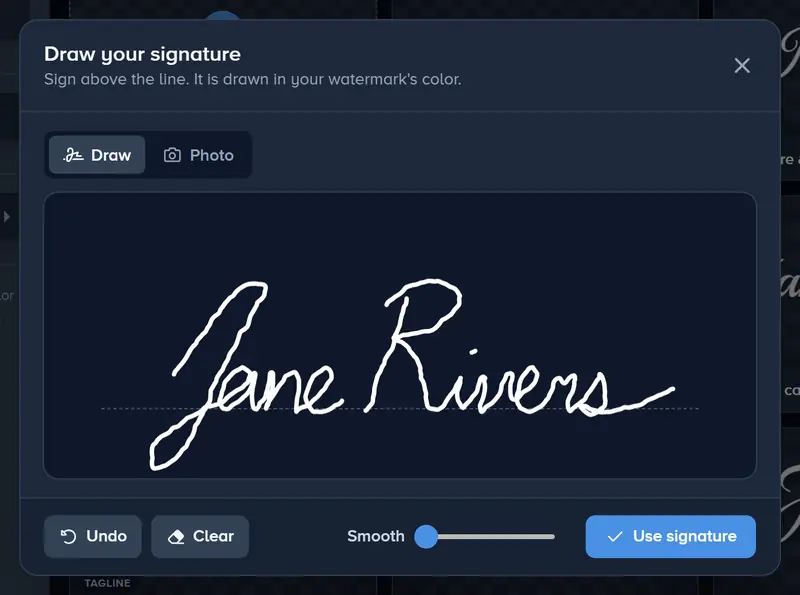
Sign across the pad where it says Sign here. Undo takes back the last stroke and Clear empties the pad. On a phone the pad is taller, to give your finger room.
-
Step 3: Smooth the Strokes
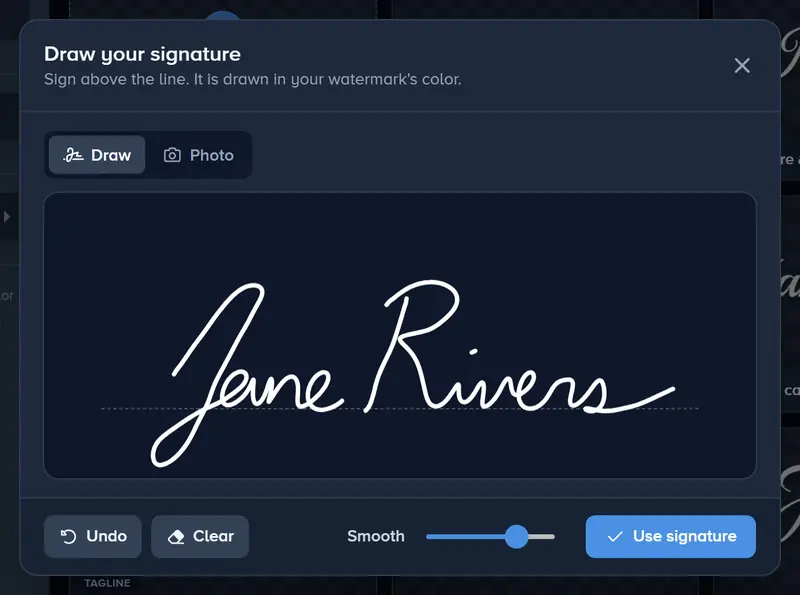
Drag Smooth to the right to even out a shaky line, which a mouse gives most; the strokes on the pad change as you drag. Leave it at the left to keep them exactly as drawn.
-
Step 4: Use Your Signature
Click Use signature (Use on a phone). In the panel, add a Tagline, pick a Flourish such as Sweep or Loop, and lean it with Slant.

-
Step 5: Download It or Watermark Your Photos
Click Download and save a transparent PNG or an SVG. To sign your photos instead, click the blue Watermark button after Download and add them.

If It Doesn’t Look Right
The Line Wobbles
Raise Smooth a few steps; it works on what you already drew, so there is no need to sign again. A trackpad or a finger usually gives a steadier line than a mouse.
One Stroke Went Wrong
Click Undo rather than Clear. Undo takes back only the last stroke, so a slip on the final letter costs you one stroke, not the whole signature.
You Want to Sign Again Later
Click Redraw beside your signature in the panel. The pad opens empty; sign again and click Use signature, and the design keeps its tagline and settings.
It Is Hard to See on Your Photo
The signature is drawn in the watermark’s color, not the pad’s black. Pick a color that stands off your photos, and keep Shadow on, as it starts, so it reads on light and dark parts alike.
Put Your Real Signature on Your Photos
Draw it on the pad, smooth it, and use it on everything you share.
Draw my signature- No account needed to start
- Works in your browser
Questions people ask
Can I sign with my finger on a phone?
Can I add my name or website under it?
What if I have a signature on paper already?
Keep reading
 Guide
Add a Logo Watermark to Your Photos
Upload your logo, set its size, opacity and position, and put it on one photo or a whole shoot. PNG, SVG or JPG logos up to 50 MB and 8,000 px. Free to try.
Guide
How to Add a Logo to a Video
Upload your logo, set its size and opacity, place it on the video’s frame and download the video with your logo on it. PNG, SVG or JPG logos up to 50 MB.
Guide
How to Add a Text Watermark to Photos
Type your name, website or © line, pick a font, then set its size, color, opacity and place. Apply it to one photo or a whole batch and download them.
Guide
How to Apply an Edit Only to the Photos You Changed
Open the photos that need an edit, then click Apply and pick Edited files. Only those photos get the watermark or crop; the rest of the batch stays as it is.
Guide
How to Batch Watermark Multiple PDFs at Once
Watermark many PDFs in one edit: place the watermark once, apply it to all files, and download them together. Up to 5,000 files per edit on Premium.
 Guide
How to Batch Watermark Photos Online
Batch watermark up to 5,000 photos in one batch: design the watermark once, apply it to all, fix single photos and download a zip. Free to try, no install.