How to Start Editing While Your Files Upload
Design the watermark on the first photo while the rest of a big set is still on its way.
- No account needed to start
- Up to 5,000 files per batch
In short
You don’t have to wait for a large upload to finish. The files show in the editor as they are added, and you can design and apply the watermark while the rest are still uploading: files that arrive later get what you applied. Keep the page open until every upload is done.
How to Edit While Uploading in 4 Steps
The upload carries on while you work.
-
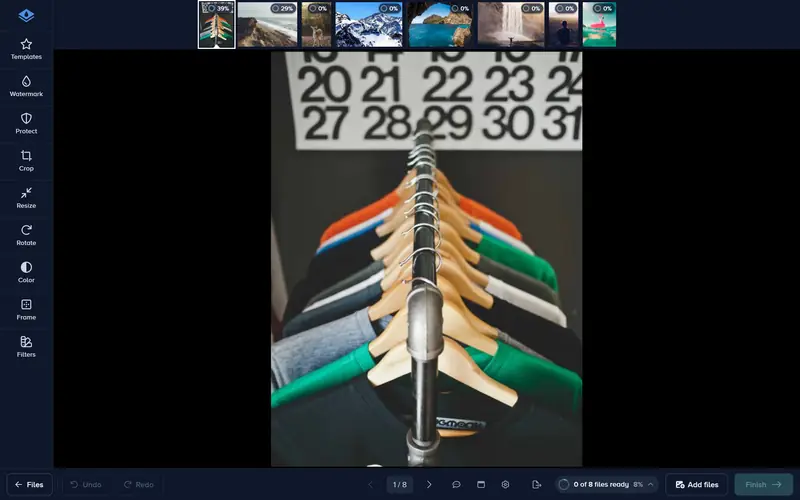
Step 1: Add Your Files
Click Choose files or drag the photos onto the page. They line up in the files strip at the top of the editor, each with its upload progress.
-
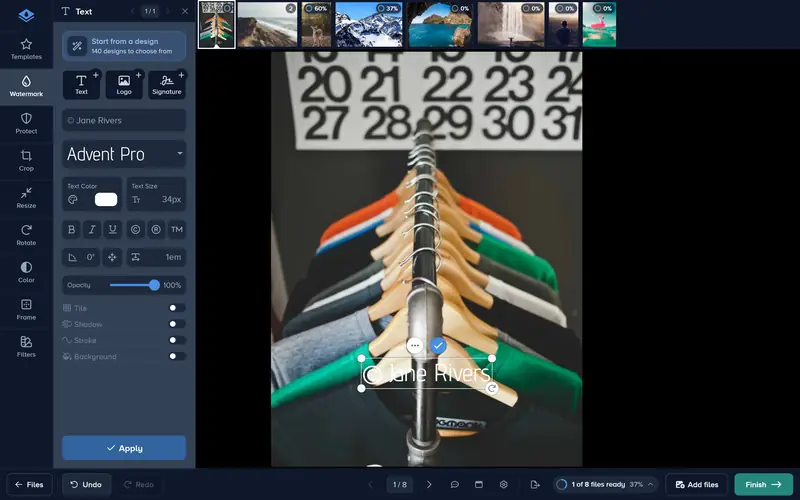
Step 2: Design on the First Photo
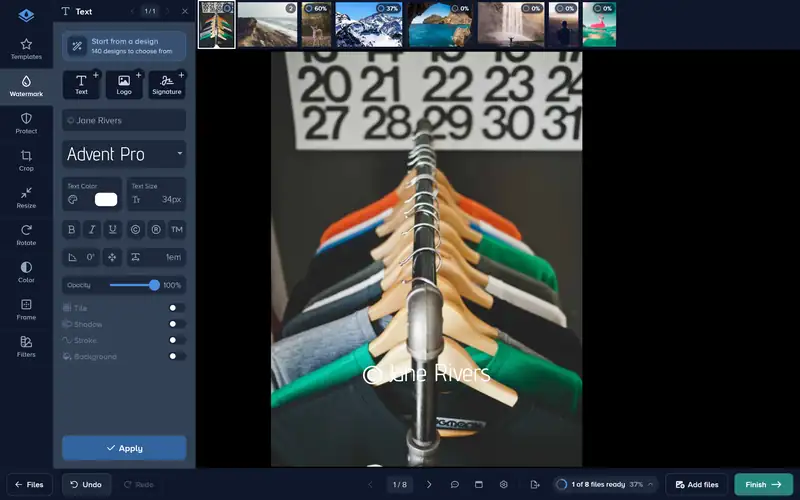
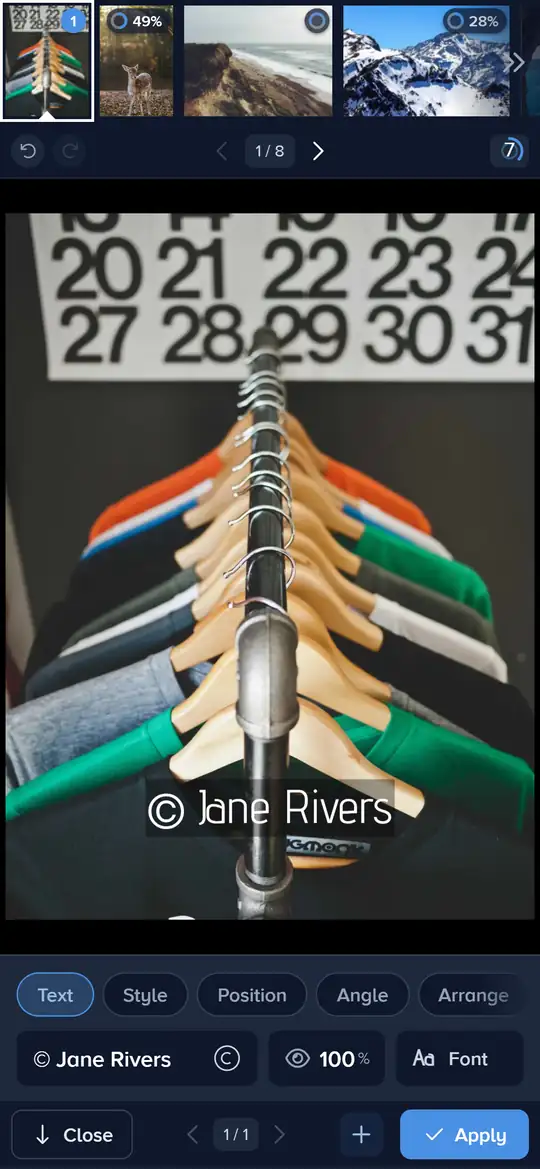
Open the Watermark tab and set up your watermark while the others upload. The bar at the bottom says how many are in, such as “3 of 7 files ready”; on a phone, the Add files button counts them.
-
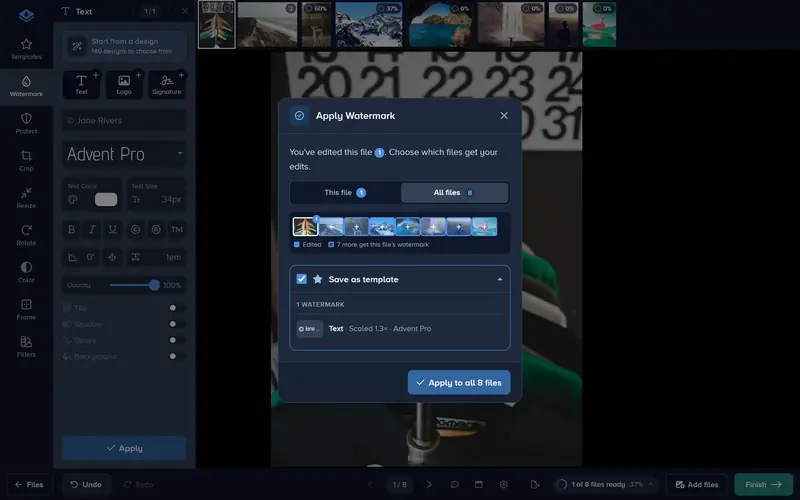
Step 3: Apply to All Files
Click Apply and pick All files. The count includes the files still uploading, and each one gets the watermark as it lands.
-
Step 4: Finish When You’re Ready
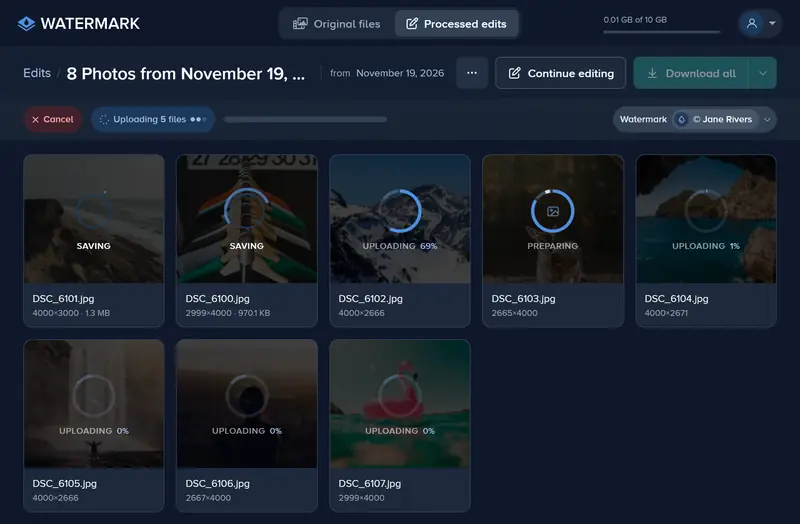
Click Finish, even if some files are still on their way. The finished edit processes each one as it arrives.
If It Doesn’t Look Right
Apply Says Uploading
Apply waits until the first file is on screen, and says Uploading or Preparing until then. It takes only that first file; the rest can keep uploading.
The Upload Stopped
The files are sent from the open page, so closing or reloading it stops the ones still on their way. Add those again; the ones already in stay in the edit.
Some Files Say Not Added
A photo over 100 MB, a video over 2 GB, or a type the editor can’t read is left out. Open the upload list to see why each one was turned down.
Start on Your Watermark Right Away
Add a big set of photos and design while they upload.
Add your photos- No account needed to start
- Works in your browser
Questions people ask
Do the files still uploading get my watermark?
Can I close the page while files upload?
Can I start an edit from a folder in Files while it uploads?
Keep reading
 Guide
Add a Logo Watermark to Your Photos
Upload your logo, set its size, opacity and position, and put it on one photo or a whole shoot. PNG, SVG or JPG logos up to 50 MB and 8,000 px. Free to try.
Guide
How to Add a Logo to a Video
Upload your logo, set its size and opacity, place it on the video’s frame and download the video with your logo on it. PNG, SVG or JPG logos up to 50 MB.
Guide
How to Add a Text Watermark to Photos
Type your name, website or © line, pick a font, then set its size, color, opacity and place. Apply it to one photo or a whole batch and download them.
Guide
How to Apply an Edit Only to the Photos You Changed
Open the photos that need an edit, then click Apply and pick Edited files. Only those photos get the watermark or crop; the rest of the batch stays as it is.
Guide
How to Batch Watermark Multiple PDFs at Once
Watermark many PDFs in one edit: place the watermark once, apply it to all files, and download them together. Up to 5,000 files per edit on Premium.