How to Add a Logo to Every Page of a Word Document
Brand reports, proposals and letters with your logo on each page, without opening Word.
- No account needed to start
- Up to 5,000 files per batch
In short
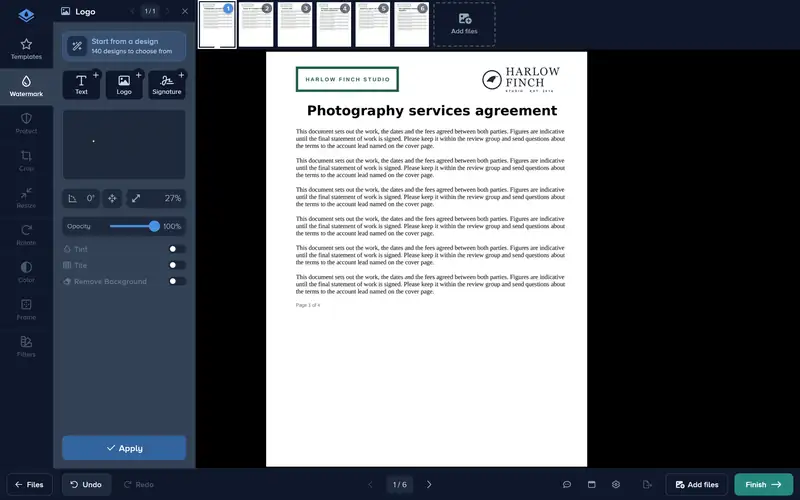
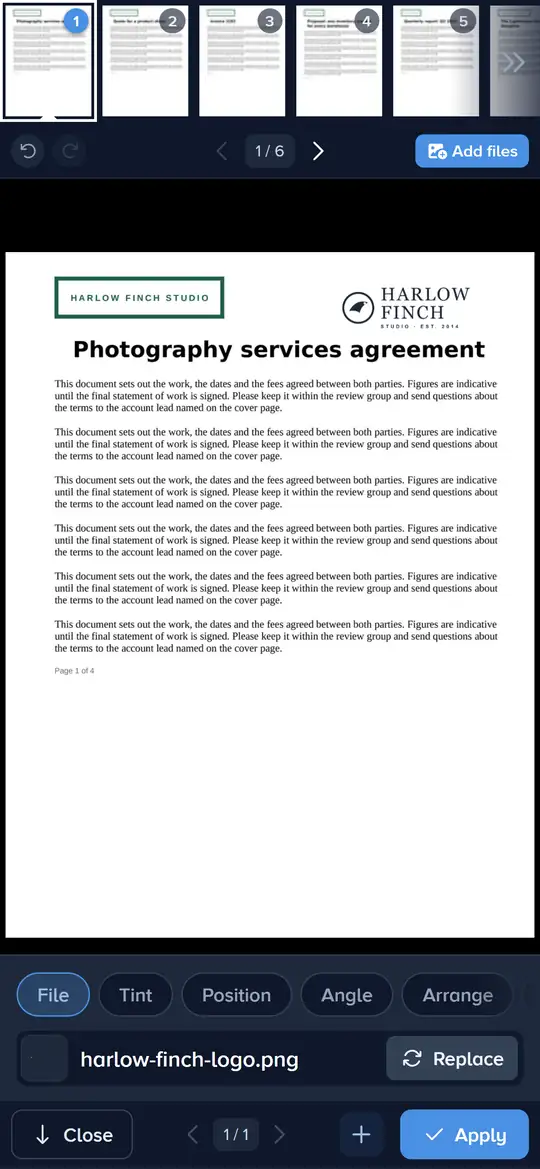
Add your .docx, place your logo on the first page in the editor and apply it: the logo goes into the document’s page header, so it shows on every page and the file stays an editable .docx. Premium and Ultimate cover every page; the free plan covers the first. Older .doc files, .odt and .rtf are accepted too, and come back as PDFs.
How to Put a Logo on Every Word Page in 4 Steps
Place it once; the page header carries it through the document.
-
Step 1: Add Your Word Document
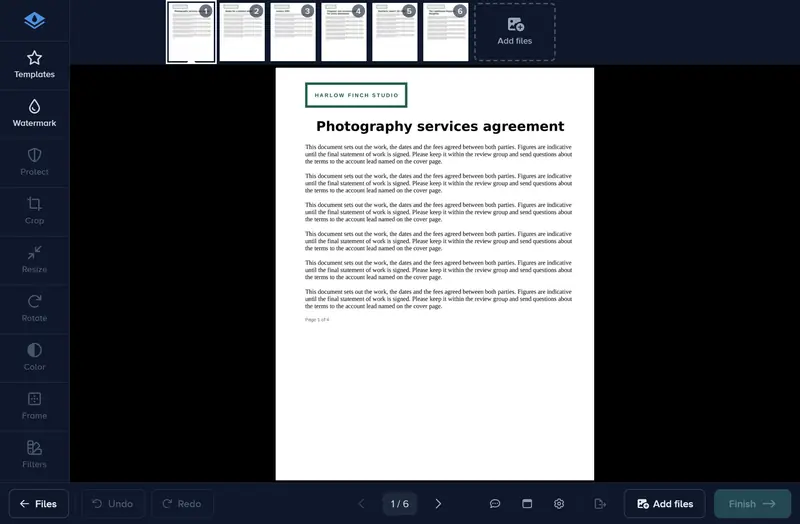
Drag the .docx onto the page or click Upload from Device, then select it and click Edit. The editor shows the first page.
-
Step 2: Add Your Logo
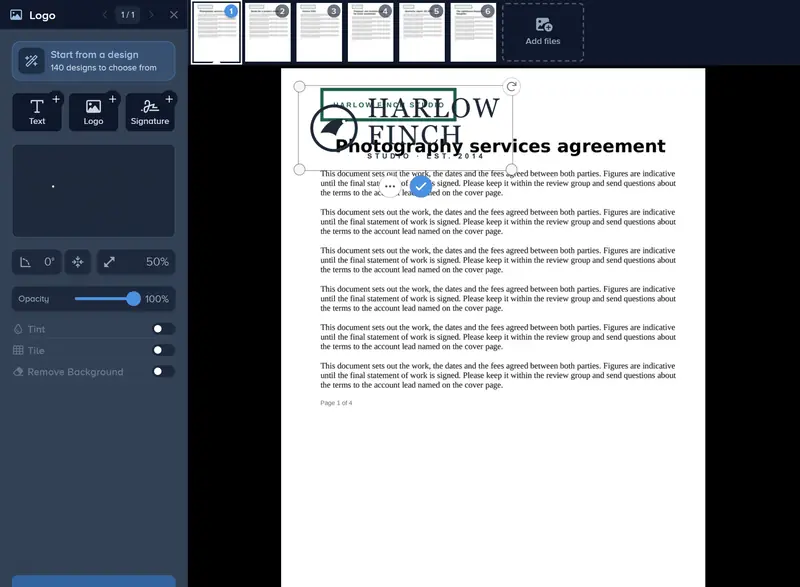
Click Watermark, then Logo, and upload your logo. A PNG with a transparent background sits cleanly on the page.
-
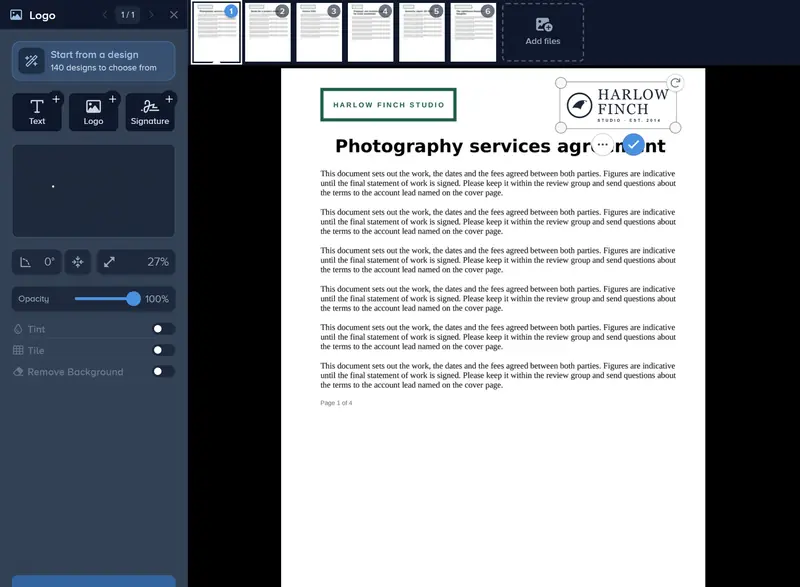
Step 3: Place It Like a Letterhead
Drag it to a top corner for a letterhead look, or into the middle with a low Opacity for a faint logo behind the text. Its size is a share of the page’s width.
-
Step 4: Apply and Download the .docx
Click Apply, then Finish, and download. The file is still a .docx with the logo in the page header, and your original is not changed.

If It Doesn’t Look Right
It Came Back as a PDF
Only .docx stays a Word file. A .doc, .odt or .rtf is turned into a PDF when it is watermarked, so open it in Word and save it as .docx first if it has to stay editable.
Someone Removed the Logo in Word
The logo sits in the page header, and anyone who edits the document can change the header. When the logo has to stay, send a PDF copy instead.
A White Rectangle Shows on Shaded Parts
A logo saved as a JPG carries its white background onto the page, where it shows over tables, colored boxes and cover images. Upload a transparent PNG version of the logo.
Only Page One Has the Logo
The free plan covers the first page of a document. Premium and Ultimate put the logo on every page.
Brand Every Page Without Opening Word
Upload the .docx, place your logo, and download it with the logo on each page.
Add your logo- No account needed to start
- Works in your browser
Questions people ask
Why is the logo in the header?
Can I add a logo to a .doc file?
Can I add my company name under the logo?
Keep reading
 Guide
Add a Logo Watermark to Your Photos
Upload your logo, set its size, opacity and position, and put it on one photo or a whole shoot. PNG, SVG or JPG logos up to 50 MB and 8,000 px. Free to try.
Guide
How to Add a Logo to a Video
Upload your logo, set its size and opacity, place it on the video’s frame and download the video with your logo on it. PNG, SVG or JPG logos up to 50 MB.
Guide
How to Add a Text Watermark to Photos
Type your name, website or © line, pick a font, then set its size, color, opacity and place. Apply it to one photo or a whole batch and download them.
Guide
How to Apply an Edit Only to the Photos You Changed
Open the photos that need an edit, then click Apply and pick Edited files. Only those photos get the watermark or crop; the rest of the batch stays as it is.
Guide
How to Batch Watermark Multiple PDFs at Once
Watermark many PDFs in one edit: place the watermark once, apply it to all files, and download them together. Up to 5,000 files per edit on Premium.
 Guide
How to Batch Watermark Photos Online
Batch watermark up to 5,000 photos in one batch: design the watermark once, apply it to all, fix single photos and download a zip. Free to try, no install.