On this page
Why a Watermark Logo Needs a Transparent Background
Every image file is a rectangle. If the area around your logo is white, that white rectangle comes along when you place the logo on a photo. A transparent PNG logo stores "no color at all" around the artwork instead, so only the letters and shapes appear on the photo.
 Logo with a white background
 Transparent PNG
- Use a PNG with a transparent background. JPG files cannot store transparency, so a JPG logo always brings its background box with it.
- Export it from the original design file if you can. That gives the cleanest edges.
- Only have a JPG? Remove the background in a free tool such as Preview or GIMP, then check the edges for a white halo.
- Make a white and a dark version, each in a single color, at around 2,000 pixels wide.
A transparent background removes the box around the logo. Opacity, which you set in the watermark tool, makes the logo itself see-through. You usually want both: a transparent file, shown at a lower opacity. For how far to lower it, see how transparent a watermark should be.
How to Tell if Your Logo Is Already Transparent
You cannot tell from the file name. A .png can still have a solid white background; a .jpg never has a transparent one. Check it instead:
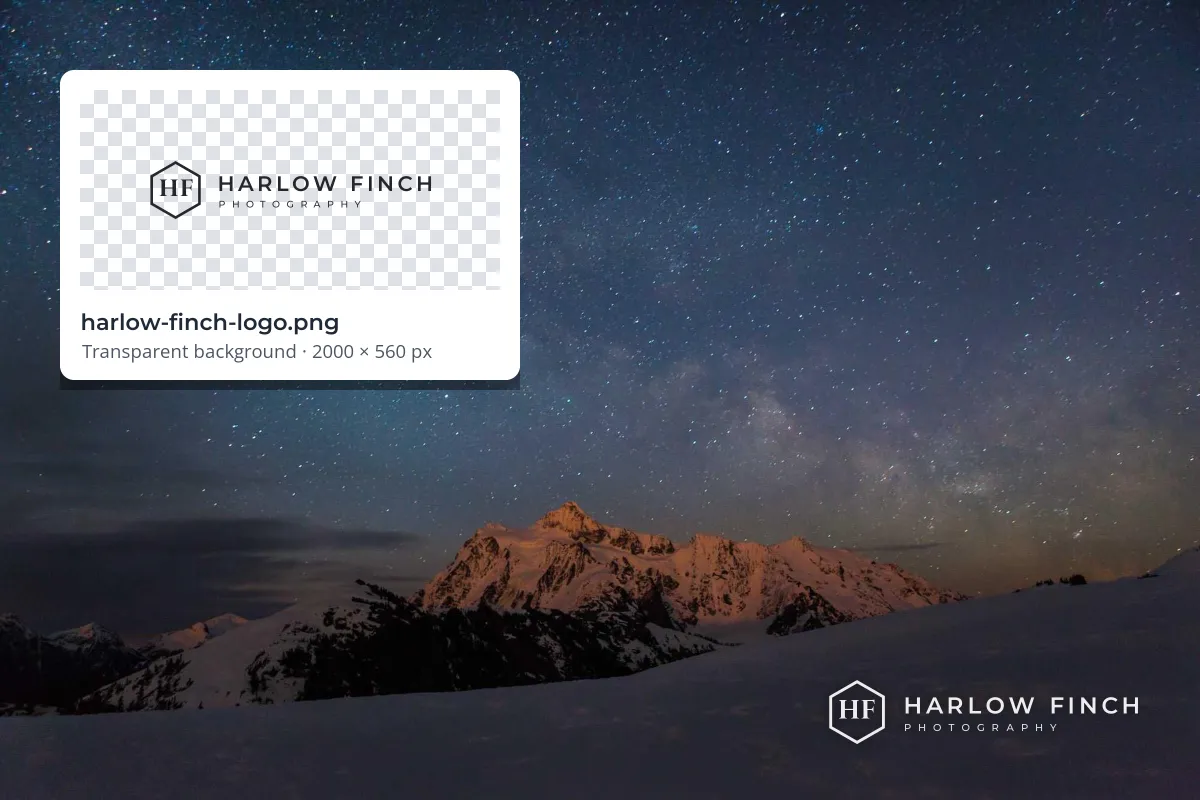
- Look for a checkerboard. Image editors, and the logo preview in Watermark.ws, show transparent areas as a gray and white checkerboard. If you see solid white around the logo, the white is part of the file.
- Put it on something dark. Drop the logo onto a dark photo or a black slide. A box or a light outline gives the background away at once.
- Check the file type. If it ends in .jpg or .jpeg, it is not transparent, whatever it looks like on a white page. The finished photo is a different matter; JPEG, PNG or WebP for watermarked photos covers which format to export it in.
Logos sent by a designer usually come as a folder of versions. Look for files labeled "transparent", "PNG" or "RGB", or a vector file (.svg, .ai, .eps or .pdf), which you can export from yourself.
How to Make a Transparent PNG Logo
The best route: export from the original. If your logo was made in Illustrator, Affinity, Figma or a similar app, hide or delete any background shape and export a PNG. In Illustrator, choose File › Export › Export As, pick PNG, and set the background color to Transparent. In Canva, choose Share › Download, pick PNG and tick "Transparent background", an option Canva reserves for its paid plans.
If all you have is a JPG on white, you can remove the background yourself. A logo on a plain white background is about the easiest cut-out there is:
- Preview on a Mac: show the Markup toolbar, choose Instant Alpha, drag over the white background and press Delete. Then use File › Export and choose PNG to keep the transparency.
- GIMP (free, Windows, Mac and Linux): open the file and choose Colors › Color to Alpha with white as the color. It turns white into transparency and partly white edge pixels into partial transparency, which avoids most halos. Export as PNG.
- Photoshop: use Select › Color Range or the Magic Wand to select the white, add a layer mask to hide it, then File › Export › Export As › PNG with Transparency ticked. The one-click Remove Background action is built for photos of people and objects, and can soften fine lettering.
- Watermark.ws: after you upload a logo, the Remove Background option (on paid plans) clears a plain background, with Fuzz and Blur sliders to tune the edge. It works best on logos with a solid, even background.
Avoid screenshotting your logo from a website or a PDF. You get a small file with the page background baked in, and the edges are already blended with that color.
Avoid the White Halo Around the Edges
The most common mistake after the white box is a thin light outline around every letter. It appears when a logo is cut out of a white background by deleting only the pure white pixels.
 Cut out of a white background
 Exported with transparency
Smooth edges are made of pixels that are partly logo color and partly background. On a white background those edge pixels are pale. Delete the white and the pale pixels stay behind, fully solid, which is invisible on a light photo and glaring on a dark one. JPG compression makes it worse by adding faint speckles around the letters.
- Re-export from the vector file if there is one. It is the only perfect fix.
- Use Color to Alpha in GIMP rather than deleting white pixels. It removes the white from edge pixels too.
- In Photoshop, try Layer › Matting › Remove White Matte on the cut-out layer, or Defringe for a stubborn outline.
- Always check the result on a dark photo before you use it on a batch.
Make a White Version and a Dark Version
Most brand logos are designed in full color for websites and print. As a watermark, a single-color version works far better, and you need two of them:

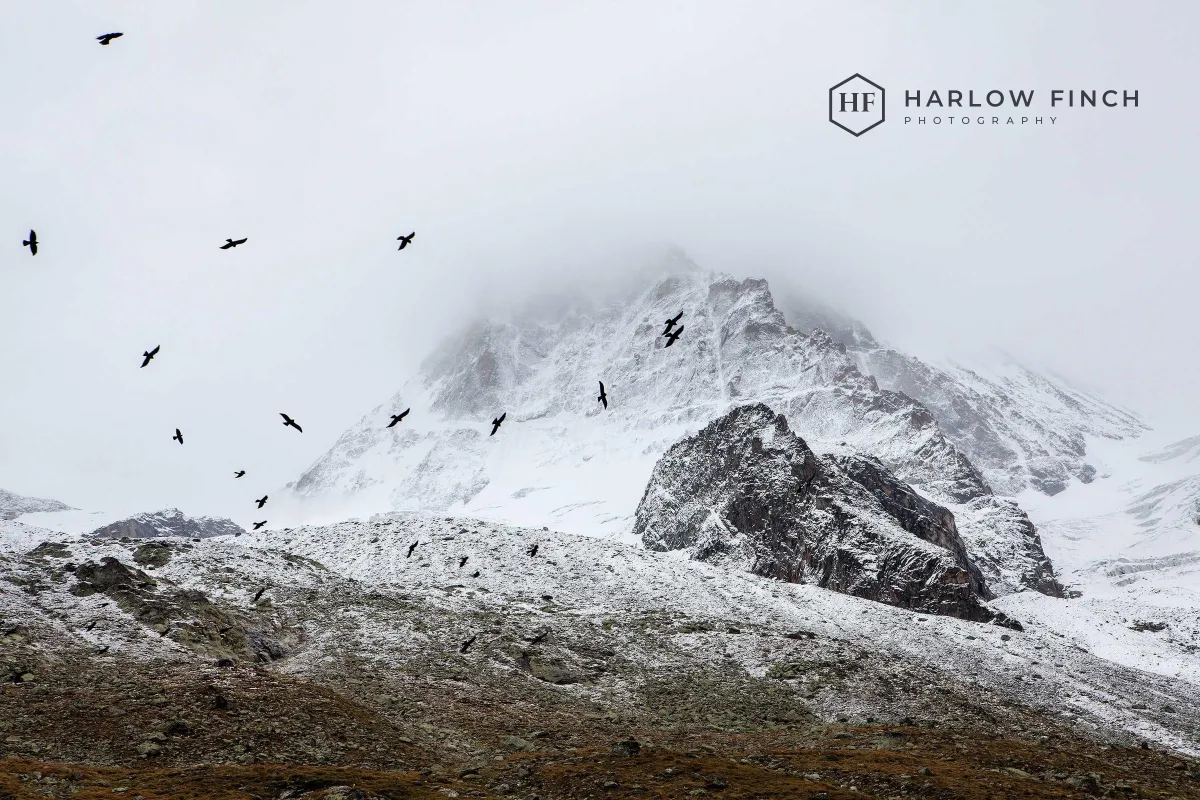
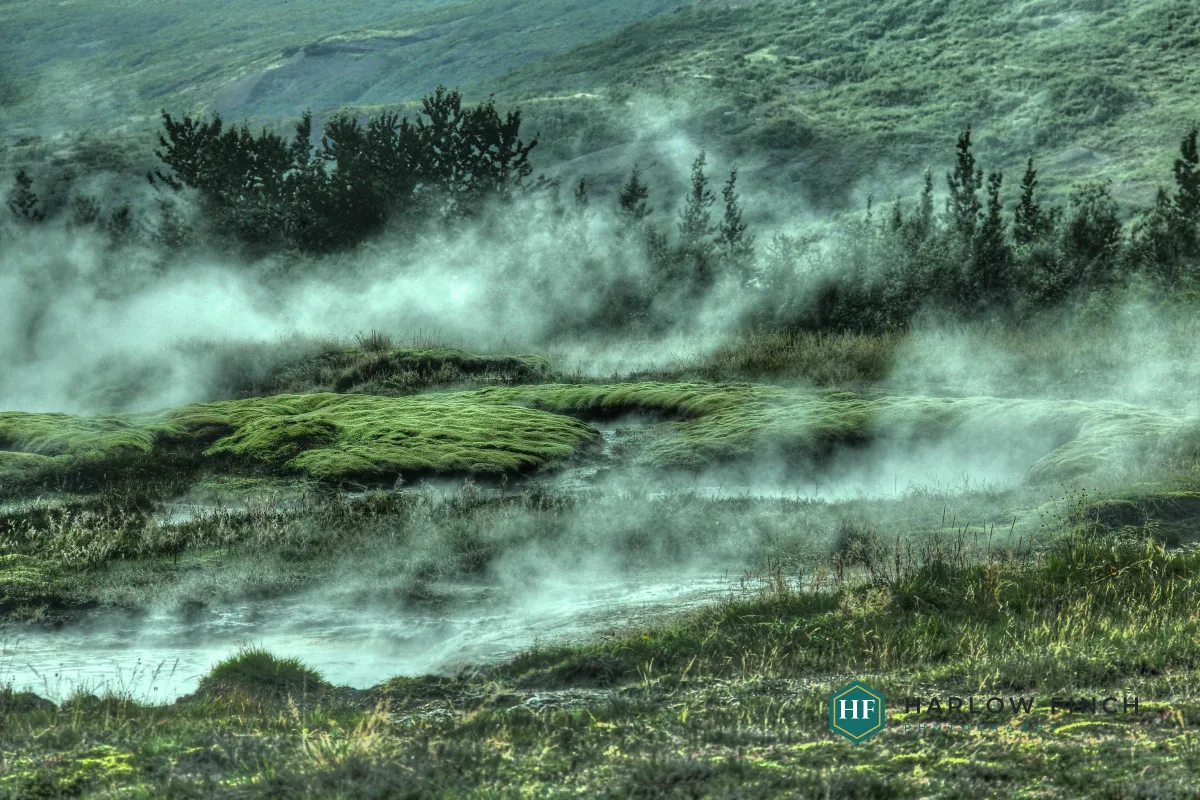
- Make the white version white, not light gray. You can always lower the opacity in the watermark tool; you cannot brighten a gray file.
- Make the dark version charcoal or black. Very dark gray often looks softer on photos than pure black.
- Drop fine details that disappear when small, such as a long tagline or thin outlines.
Which version to use comes down to the part of the photo the logo sits on; choosing a watermark color covers it in more depth. Still deciding whether to use a logo at all? See logo vs text watermark.
Logo Size and Export Settings
A watermark tool scales your logo to fit each photo. When the file is smaller than the size it ends up on the photo, it gets stretched and goes soft.
 Small PNG, stretched
 Large PNG
- Export at around 2,000 pixels wide. A logo covering a fifth of a 6,000-pixel photo is 1,200 pixels wide, so 2,000 leaves room to spare. More than that only makes the file bigger.
- Choose full transparency. In export dialogs this may be called PNG-24 or PNG-32. Some PNG-8 and GIF exports only support on-or-off transparency, which gives jagged edges.
- Use RGB color (sRGB). Print-ready CMYK files can shift color on screen, and some tools will not read them.
- Trim the empty space. Crop the canvas tight to the logo, as shown below.
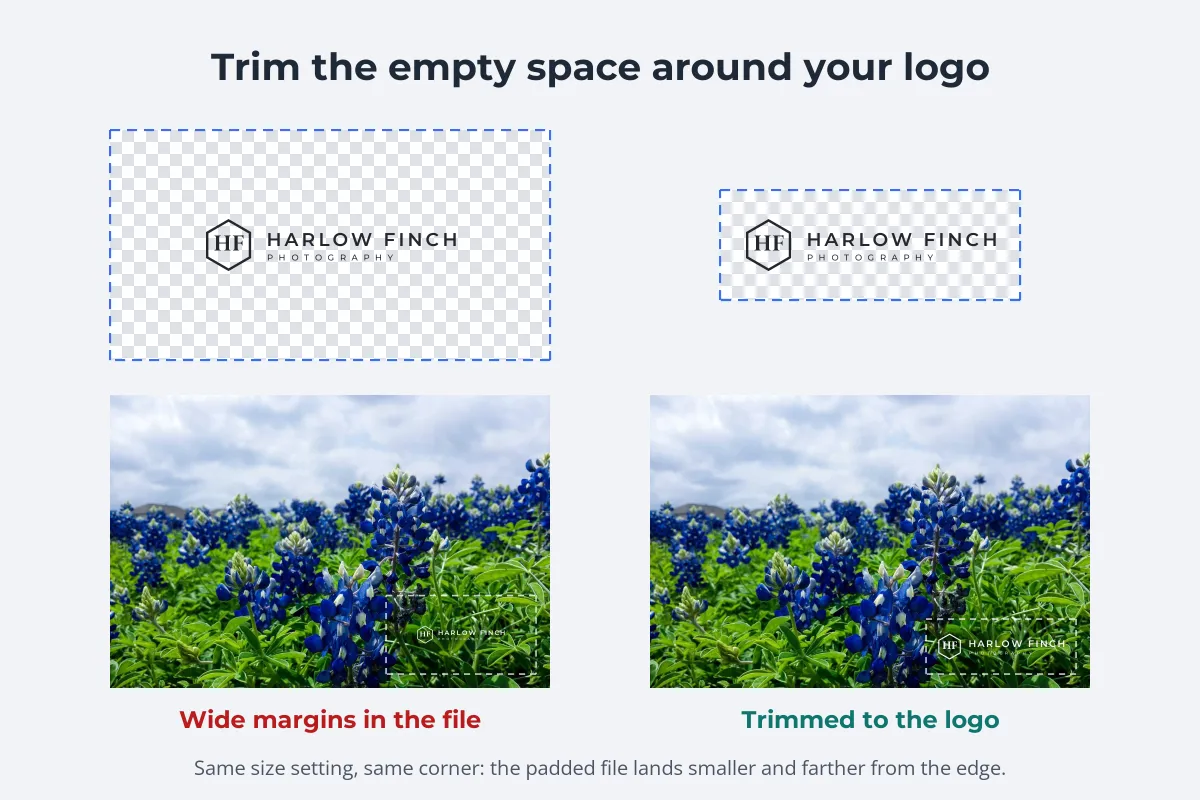
For how big the logo should be on the photo itself, see how big a watermark should be.
Using Your Transparent Logo in Watermark.ws
-
Upload your photos
One photo or a whole batch. PDFs, Word documents, GIFs and videos work too.
-
Add a logo watermark
Upload your transparent PNG. JPG and GIF logos are accepted too, but only a PNG keeps soft, transparent edges.
-
Check the checkerboard
The logo preview shows transparent areas as a checkerboard. If you see a white box instead, use Remove Background or go back to your source file.
-
Size, place and fade it
Drag the logo where you want it, resize it and lower the opacity. It is scaled to each photo in proportion when you download.
-
Save it as a template
Save one template with the white version and one with the dark version, and pick the right one per batch.
More on placing a logo in the guide to adding a logo to photos. No logo yet? The signature logo creator turns your name into a handwritten signature you can use straight away.
Sample photos: Night mountain by Caleb Ralston, Glacier lake by Roger Burkhard, Diver by Talia Cohen, Misty forest by Sebastian Unrau, Snowy mountain by René Reichelt, Geothermal valley by Gian-Reto Tarnutzer, Lupines by Shannon Richards on Unsplash.