How to Watermark Every Page of a PDF
Place the watermark once on the first page and every page gets it, in the same spot.
- No account needed to start
- Up to 5,000 files per batch
In short
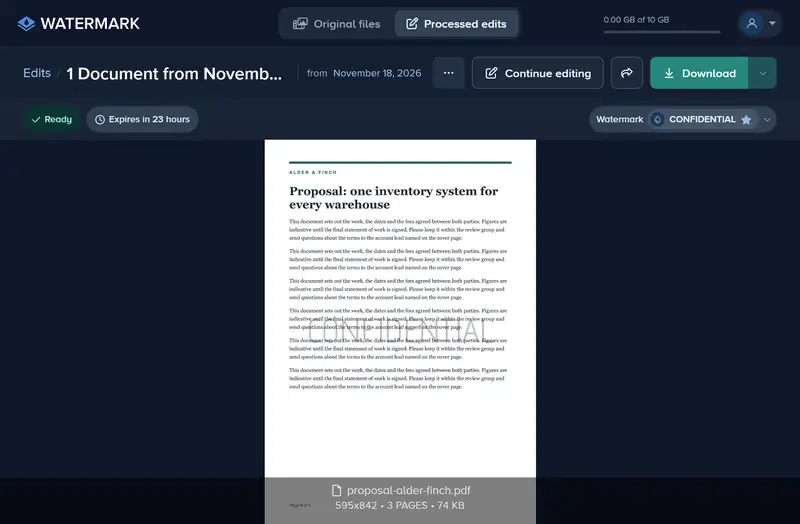
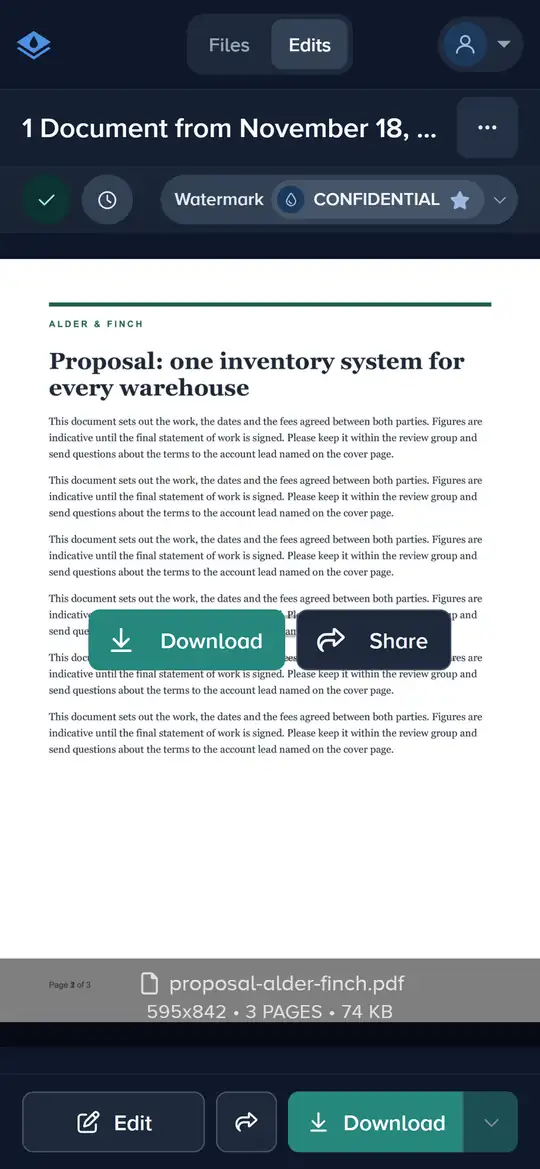
Add your PDF and place a text or logo watermark on the first page, which the editor shows: when you apply it, it goes in the same place on every page. Premium and Ultimate watermark every page; the free plan watermarks the first page only, and its download holds just that page. A PDF that needs a password to open has to be unlocked first.
How to Watermark All the Pages of a PDF in 4 Steps
You set it up on one page; the rest follow.
-
Step 1: Add Your PDF
Drag the PDF onto the page or click Upload from Device. A PDF that asks for a password to open is turned away as Password protected, so remove the password first.

-
Step 2: Place the Watermark on Page One
Select the PDF and click Edit. Click Watermark, add Text or a Logo, and place it on the first page. Where it sits there is where it sits on every page.

-
Step 3: Keep the Pages Readable
For a watermark across the middle of the page, bring Opacity down to roughly 15–30% so the words underneath stay clear. A small one in a margin can stay solid.

-
Step 4: Apply and Download
Click Apply, then Finish, and download the PDF. Your original file is not changed.

If It Doesn’t Look Right
Only the First Page Has It
That is the free plan: it watermarks the first page, and the download holds just that page. Premium and Ultimate watermark every page of the PDF.
The PDF Won’t Upload
A PDF that asks for a password to open is turned away as Password protected. Open it in your PDF reader, save a copy without the password, and add that copy.
It Covers Text on Later Pages
The watermark sits in the same spot on every page, and the editor shows only the first. Put it where no page has important text, such as a margin, or lower its Opacity so the text reads through.
Watermark the Whole PDF in One Go
Place it once on page one, and on Premium every page gets it.
Watermark your PDF- No account needed to start
- Works in your browser
Questions people ask
Can I see the other pages in the editor?
Does the file stay a PDF?
Can I watermark only some of the pages?
Keep reading
 Guide
Add a Logo Watermark to Your Photos
Upload your logo, set its size, opacity and position, and put it on one photo or a whole shoot. PNG, SVG or JPG logos up to 50 MB and 8,000 px. Free to try.
 Guide
How to Batch Watermark Photos Online
Batch watermark up to 5,000 photos in one batch: design the watermark once, apply it to all, fix single photos and download a zip. Free to try, no install.
 Guide
Create a Signature Logo for Your Photos
Type your name, pick one of 30 handwriting fonts and swap letters for alternates. Free to design and preview; download it from the editor with Premium.
Guide
How to Remove the White Background From a Logo
Upload your logo, switch on Remove Background, and the white box around it disappears. Tune the edge with Fuzz and Blur, then apply it to every photo.
Guide
How to Save a Watermark as a Template
Tick Save as template when you apply your watermark, and its text or logo, place and style are saved for your next batch. Saving works on every plan.
Guide
How to Watermark 100 Photos at Once
Add 100 photos to one edit, design the watermark on the first and apply it to all files in one click. Up to 5,000 files an edit, downloaded as one zip.