On this page
- A PDF Watermark Has a Different Job
- Keep the Body Text Readable
- Four Kinds of PDF Watermark
- Mark Every Page, Not Just the Cover
- Portfolios and Lookbooks: Protect the Images, Not the Text
- Can a PDF Watermark Be Removed?
- Password-Protected PDFs
- PDF Watermark Checklist
- Watermarking a PDF in Watermark.ws
A PDF Watermark Has a Different Job
A watermark on a photo can afford to get in the way a little. People look at a photo for a few seconds. A PDF is different: a proposal, a contract or a report is read line by line, sometimes for an hour, and often printed. A watermark that makes that harder is a watermark people resent — and a document nobody can read comfortably is not doing its job either.
So the goal shifts. A PDF watermark should be impossible to miss and easy to read through, it should be on every page that could be separated from the rest, and it should tell the reader what the document is: confidential, a draft, a preview, or yours.
- Business documents — proposals, contracts, reports: the watermark states the document’s status or who it was prepared for.
- Creative documents — portfolios, lookbooks, ebooks, sample chapters: the watermark protects the work inside and credits you.
This article covers how to do both well. If you just want the quick version of how to stamp a file, see the guide to watermarking PDFs online.
Keep the Body Text Readable
The most common PDF watermark mistake is treating the page like a photo: a big, dark mark at high opacity. On a text page, that mark sits directly on top of the words, and every line it crosses becomes harder to read.
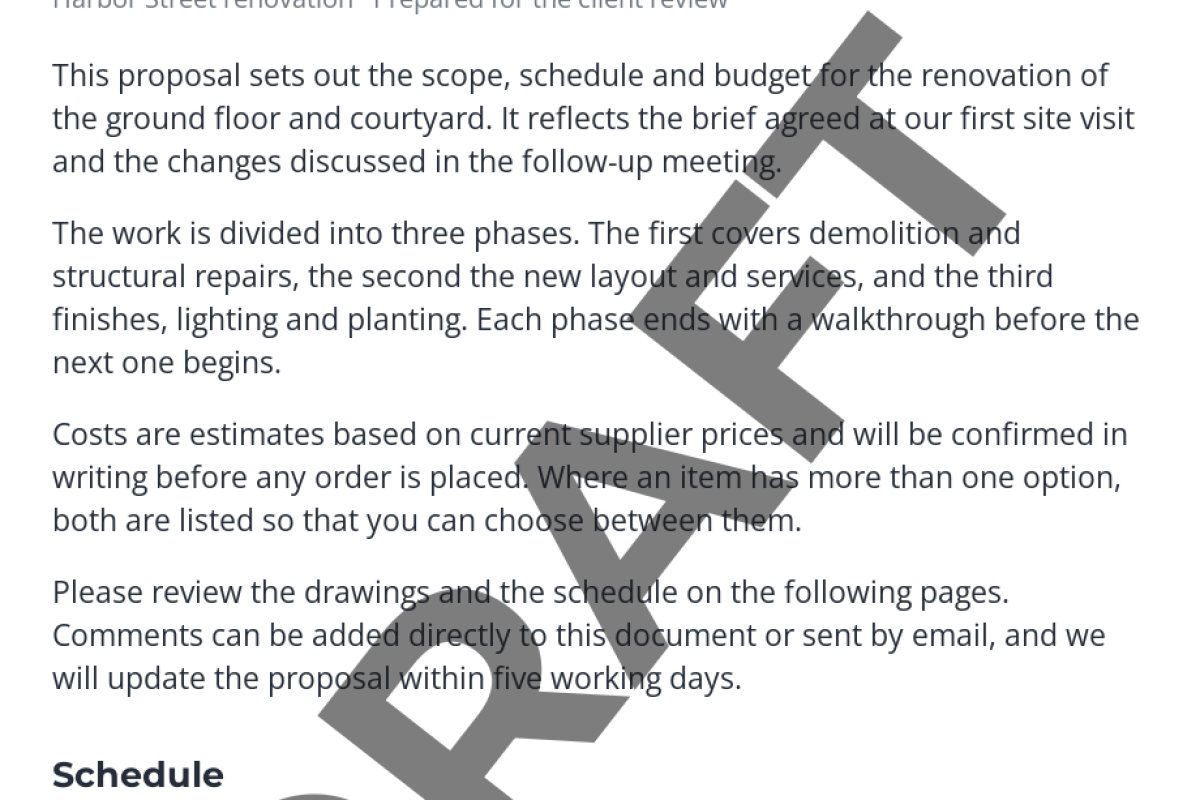
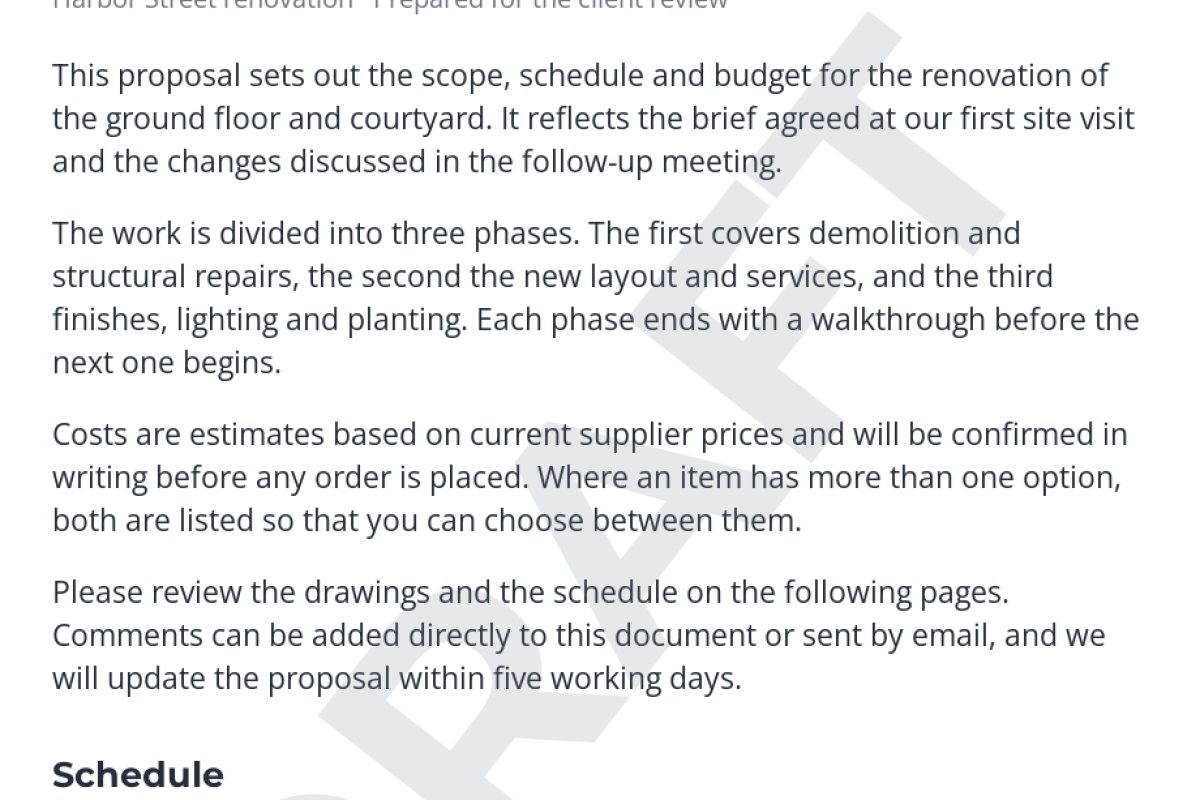
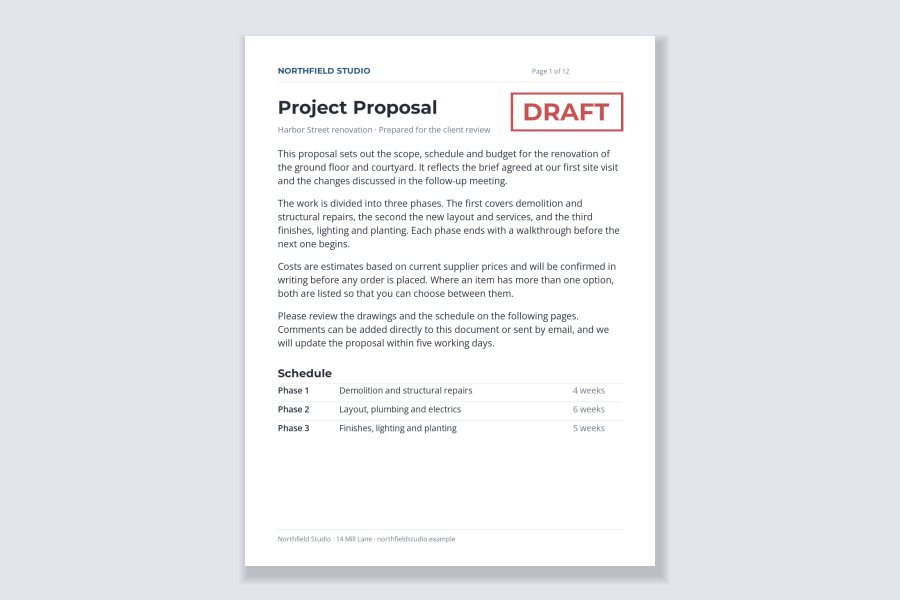
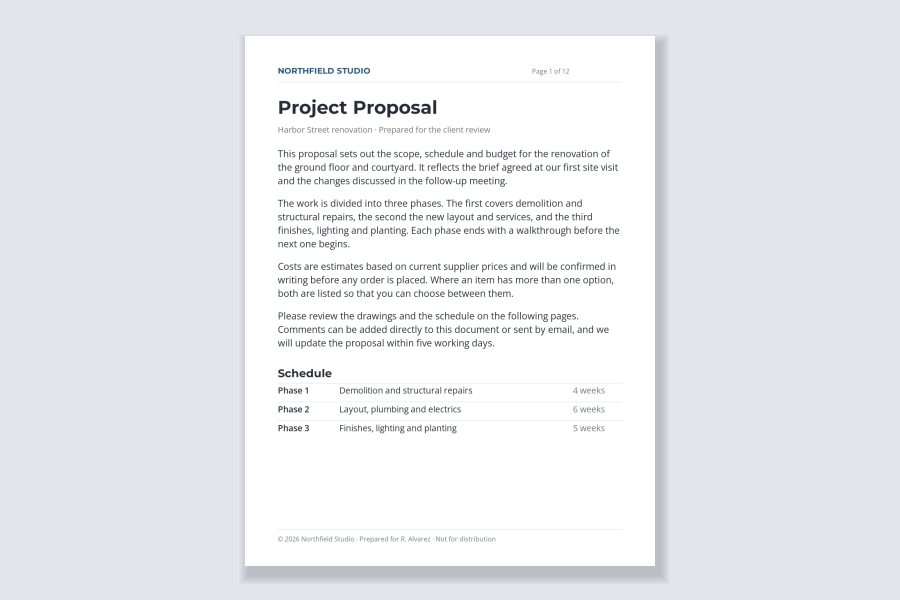
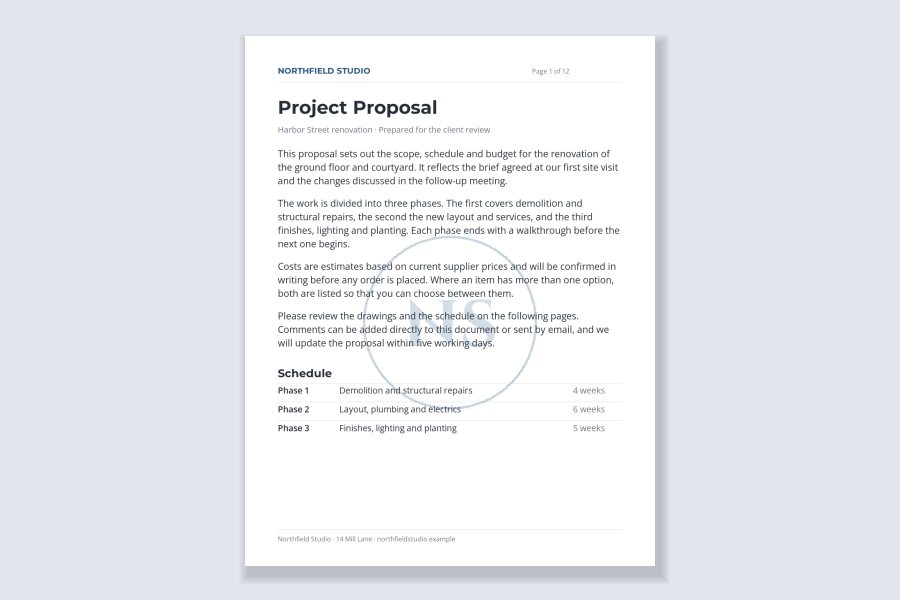
Both marks say DRAFT just as clearly. The one on the right is a light gray at low opacity, so the black text keeps almost all of its contrast and the eye reads straight through the watermark. That is the whole trick for text pages:
- Use a light gray, not black. Black text on a black watermark is where readability is lost. A mid-to-light gray leaves the text as the darkest thing on the page.
- Keep opacity low. Somewhere around 15–30% is a good range for a large mark behind text. It still reads as a watermark at a glance.
- Go large and diagonal. A large, thin-looking mark spread across the page interrupts each line only briefly. A small, dense block of text over one paragraph blots it out.
- Pick a sturdy, simple font. Plain capitals in a medium or bold sans-serif read as a mark without competing with the body text.
Many PDFs end up on paper. A mark that looks faint on screen can print darker or lighter depending on the printer. If the document will be printed, print one page before you send the whole thing.
Four Kinds of PDF Watermark
Different documents need different marks. These four cover most of what people send:
| Document | Suggested mark | Why |
|---|---|---|
| Proposal or quote | Faint logo, or “Prepared for …” footer | Professional, and it records who received it. |
| Contract or report under review | DRAFT, diagonal or stamp | Nobody mistakes it for the signed or final version. |
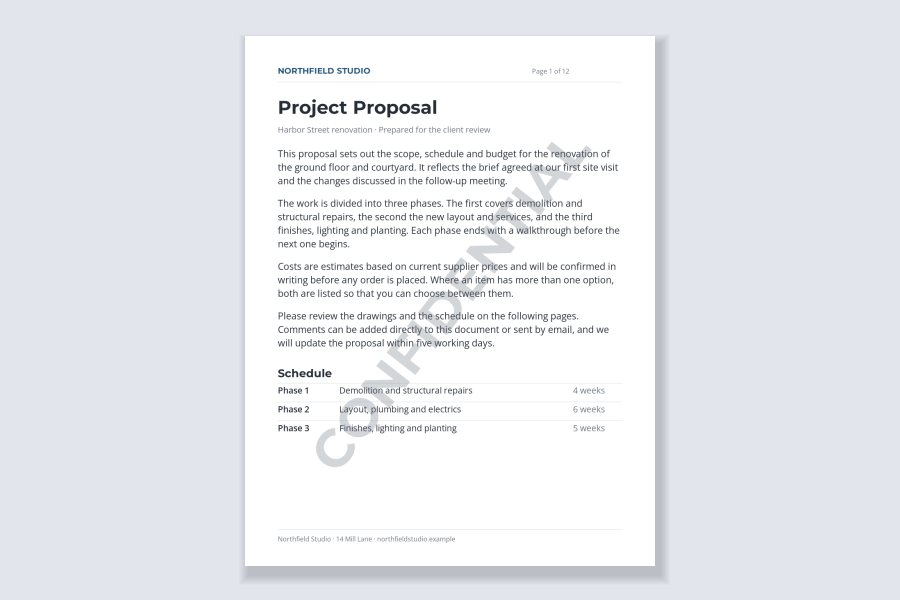
| Internal or sensitive document | CONFIDENTIAL, diagonal | The status is visible on every page, even if printed. |
| Portfolio or lookbook | Your name over the images | Protects the work, not the text around it. |
| Ebook or course sample | SAMPLE or your name, diagonal | The preview cannot pass as the paid version. |
For the wording itself — CONFIDENTIAL vs PRIVATE, DRAFT vs FOR REVIEW — see confidential and draft watermarks.
Mark Every Page, Not Just the Cover
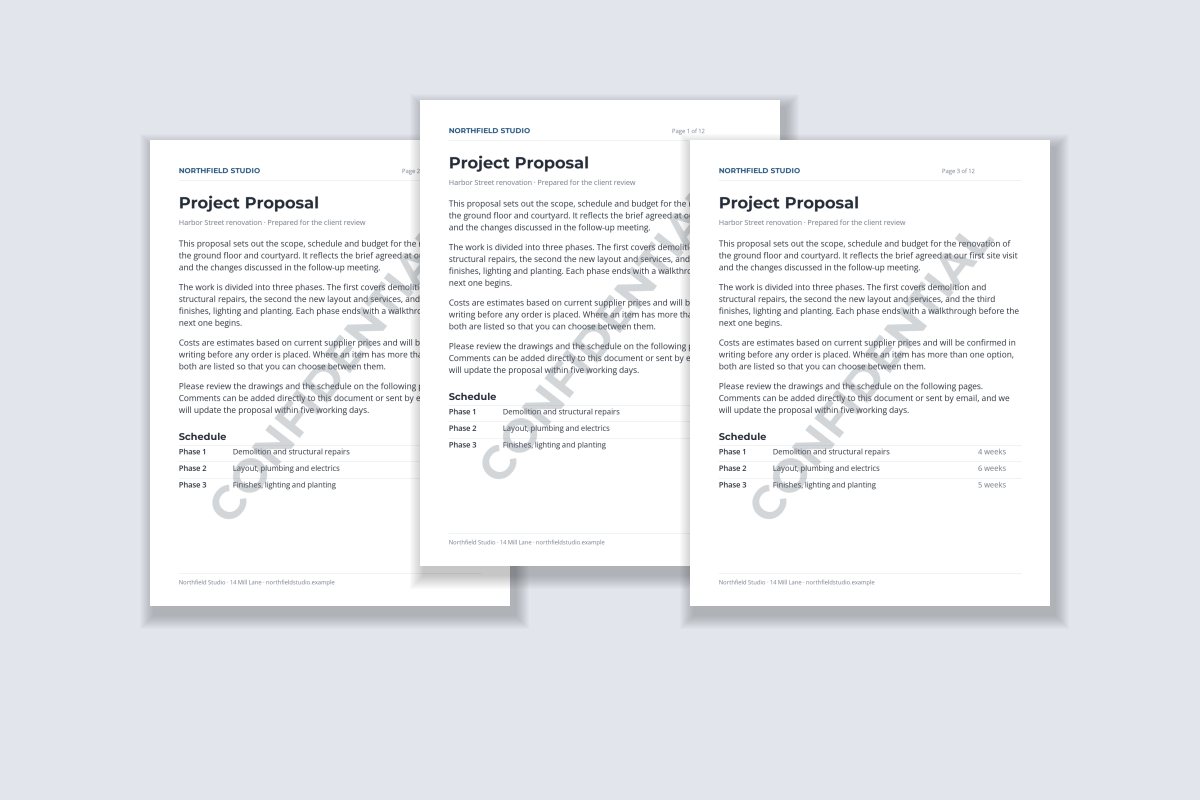
A PDF rarely stays in one piece. People save single pages, screenshot a table, print the one page with the numbers on it, or paste a page into their own presentation. A watermark only on the cover disappears the moment that happens.
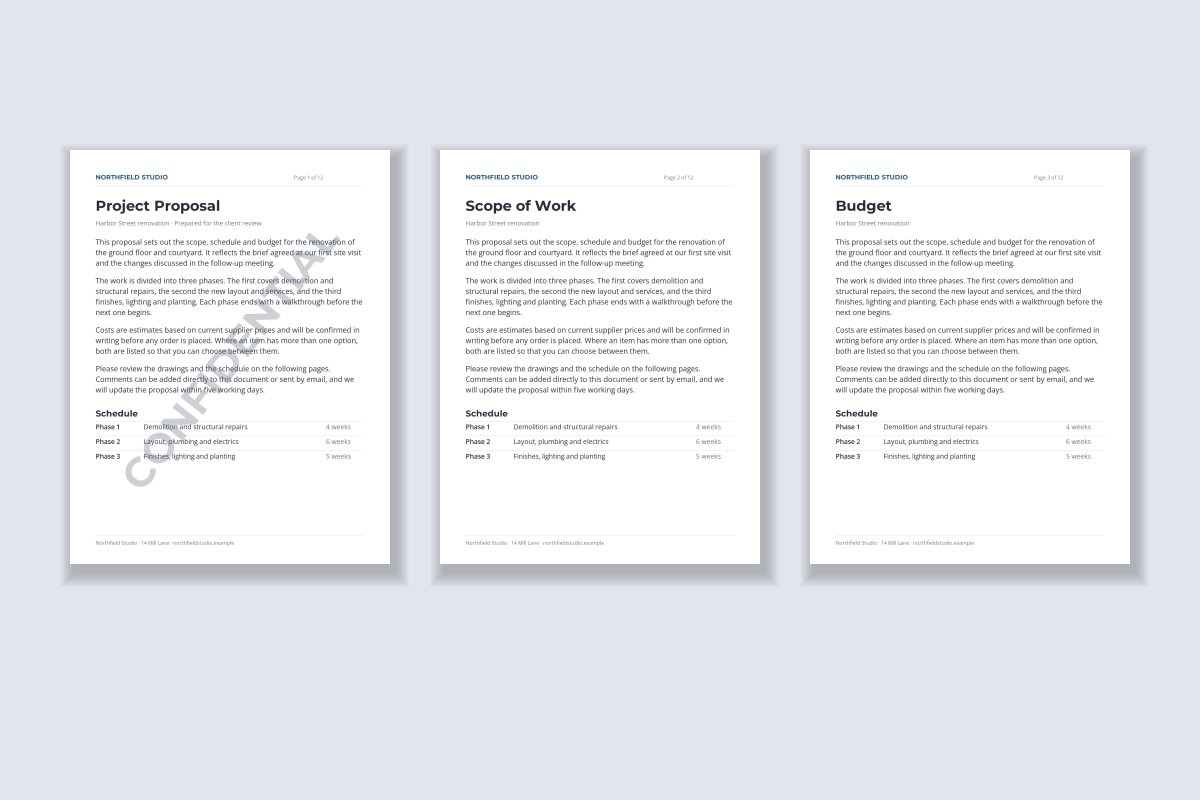
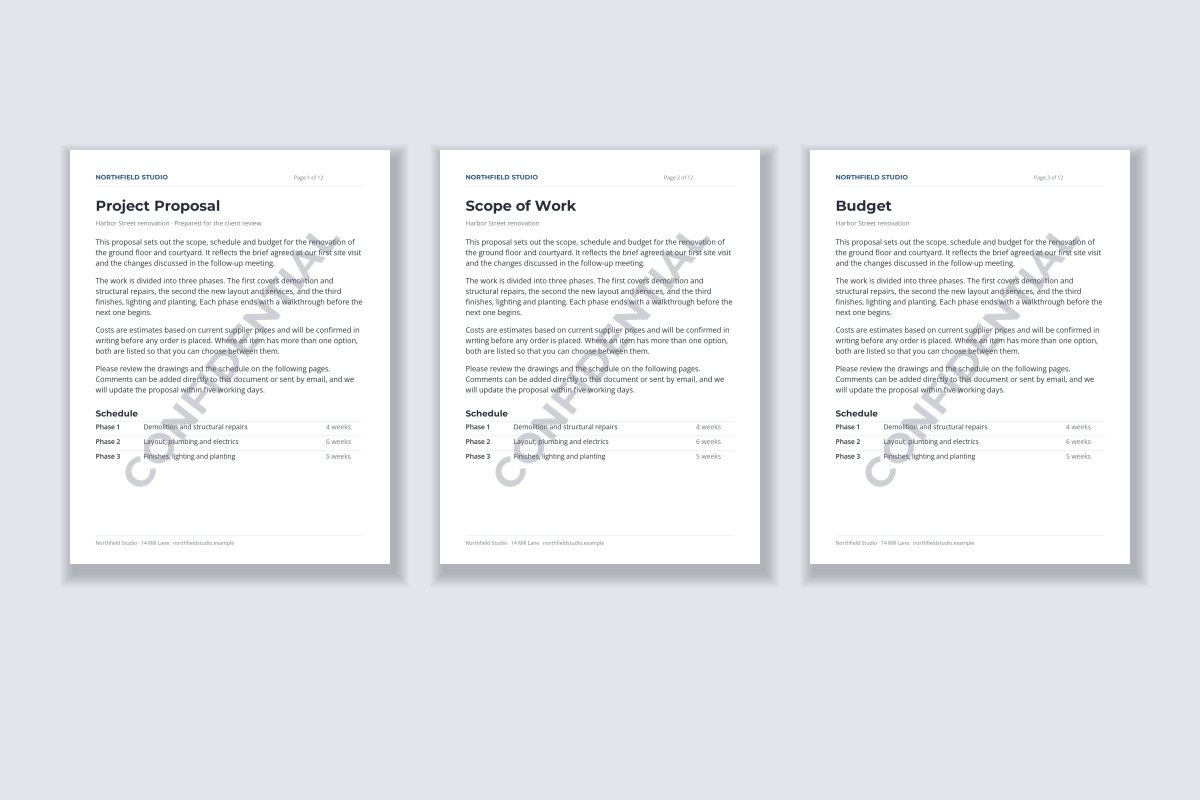
Pages two and three on the left are clean. The budget page — probably the most sensitive one in the document — carries no mark at all. On the right, any page someone pulls out still says what it is.
Watermark.ws applies your watermark to every page of the PDF in one pass, so a twelve-page proposal takes the same effort as a single page. Depending on your plan, there may be a limit on how many pages a document can have.
Portfolios and Lookbooks: Protect the Images, Not the Text
When the valuable part of a PDF is the photography or artwork inside it, a watermark over the text protects nothing. The captions and descriptions are not what anyone wants to take — the images are.
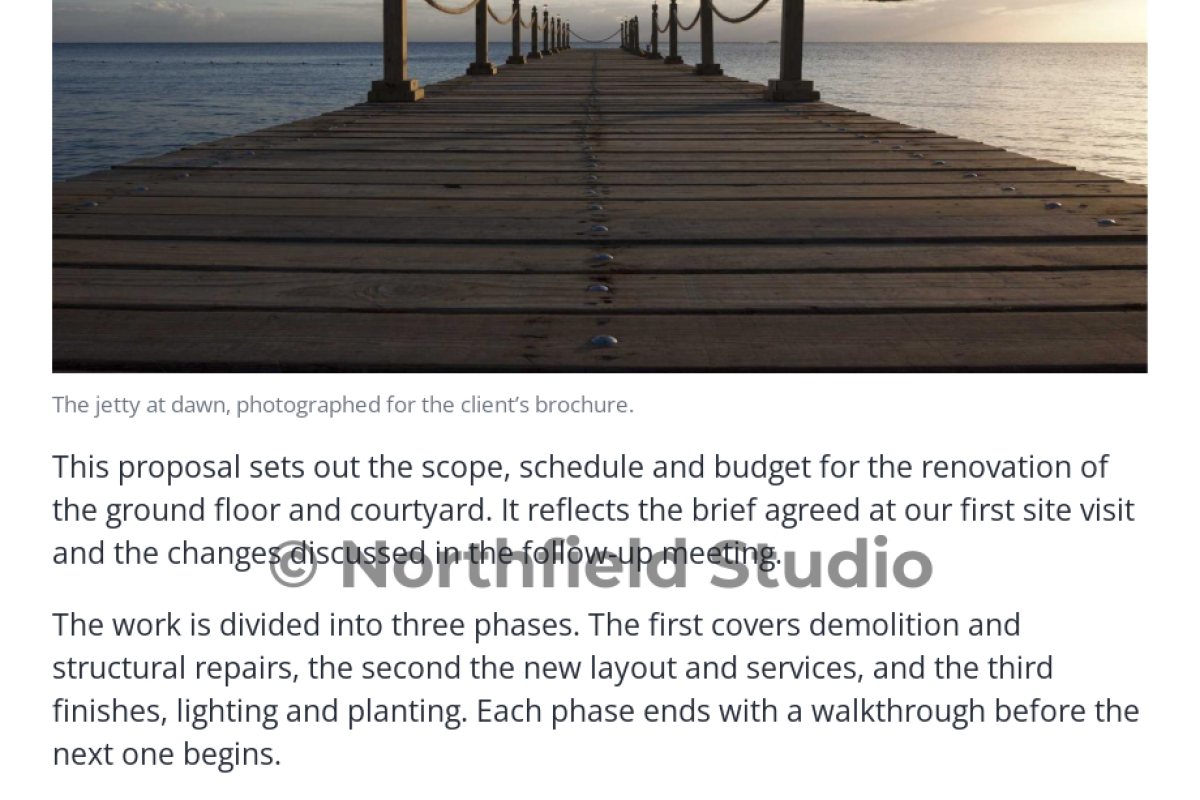
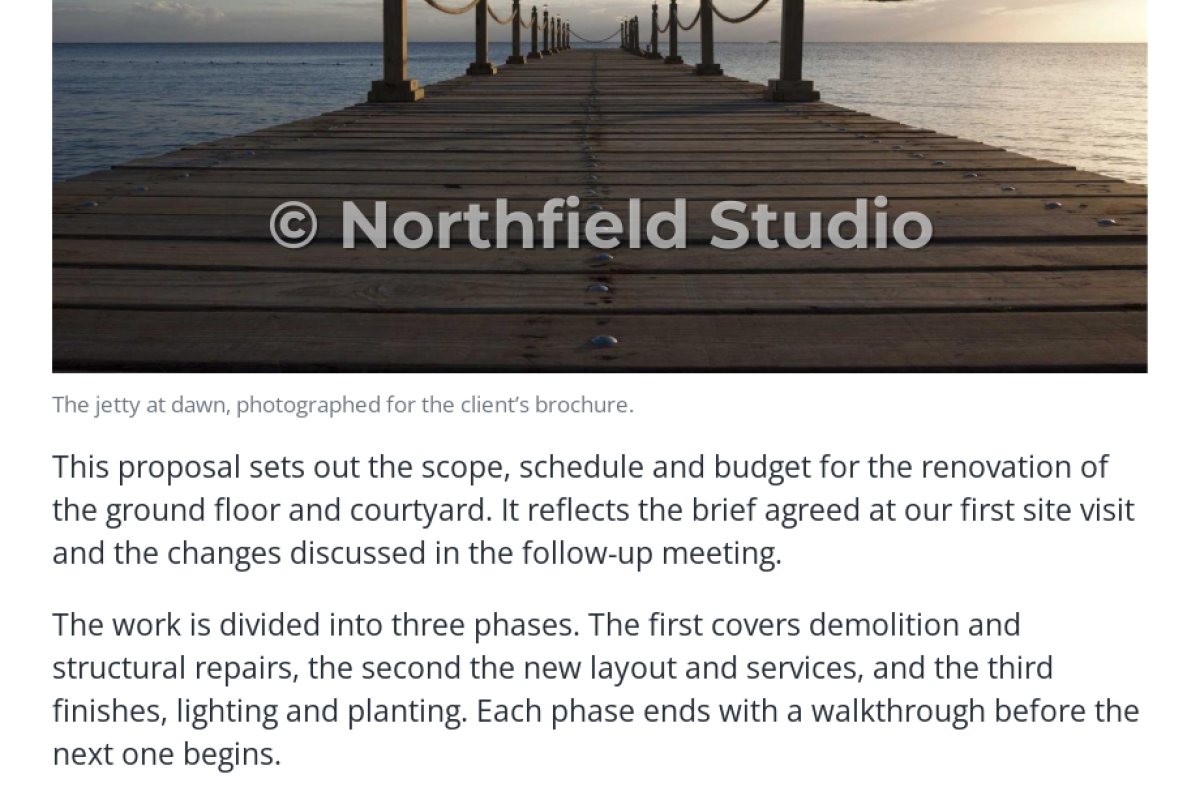
On the left, the photo can be cropped out of a screenshot perfectly clean, and the text underneath is harder to read for no reason. On the right, the mark sits on the image itself, where it protects the work and credits you — and the text stays untouched.
If every page has a large image in the same place, one watermark position works for the whole document. If the layout changes from page to page, it is often simpler to watermark the photos themselves before you build the PDF. Where to put a watermark on a photo covers the placement choices.
Can a PDF Watermark Be Removed?
Often, yes — and it helps to know why. A PDF is not a flat picture. Its pages are made of separate objects: text, images, shapes, and sometimes annotations layered on top. How easy a watermark is to remove depends on how it was added:
| How the watermark is stored | Text stays selectable | How easy to remove |
|---|---|---|
| As a separate watermark object added by a PDF editor | Yes | Easy — the same kind of editor can usually find and delete it. |
| Merged into the page content as text or shapes | Yes | Harder, but a PDF editor can still select and delete the objects. |
| Flattened into an image of each page | No | Hardest — but search, copy and accessibility are lost, and the file gets bigger. |
Adobe’s own documentation, for example, describes a Remove option for watermarks that were added with Acrobat’s watermark tool. That is useful when you added the mark yourself and need a clean copy — and it is a reminder that a PDF watermark is a deterrent and a label, not a lock.
Open the watermarked PDF in any PDF editor and try to click on the watermark, select it, or delete it. What you can do in thirty seconds, anyone you send it to can do too. For truly sensitive documents, combine the watermark with access control — who receives the file in the first place.
What a visible watermark does reliably is travel with every copy: every screenshot, printout and forwarded page carries it unless someone takes deliberate effort to remove it. For the bigger picture, see can watermarks be removed?
Password-Protected PDFs
A PDF that needs a password to open cannot be read by a watermarking tool until the password is removed — including Watermark.ws, which will tell you the file is password-protected and ask you to import it again without the password.
The order that works: remove the open password in the app you created the document with, add the watermark, then apply any password or permissions again with your PDF tool before you send it.
PDF Watermark Checklist
- Use a light gray at roughly 15–30% opacity for marks behind text.
- Watermark every page, not just the cover.
- Put the mark over the images in a portfolio, not over the captions.
- Say what the document is: CONFIDENTIAL, DRAFT, SAMPLE, or who it was prepared for.
- Print or zoom out to check one page before sending the whole file.
- Use a dark, dense watermark over paragraphs of text.
- Rely on a cover-only mark for a document people will split up.
- Assume a PDF watermark cannot be deleted in a PDF editor.
- Flatten a document into images unless you accept losing search and copy.
- Send a sensitive document to more people just because it is watermarked.
Watermarking a PDF in Watermark.ws
-
1
Upload the PDF
Drag in the document. If it asks for a password when you open it, remove the password first.
-
2
Add a text or logo watermark
Type CONFIDENTIAL, DRAFT or your name, or add your logo.
-
3
Make it readable
Choose a light gray, lower the opacity, and rotate the mark to run diagonally across the page with the rotation handle.
-
4
Check a page
Look at the preview at a normal reading size. If the body text is harder to read, lighten the color or lower the opacity further.
-
5
Download
The watermark is applied to every page of the document.
Working with Word files instead? See how to watermark Word documents, or PDF watermarking for an overview.
Sample photos: Jetty by Dirk Sebregts on Unsplash.