How to Watermark Several Videos at Once
Put the same text or logo on a whole set of clips in one edit, then download them together.
- No account needed to start
- Up to 5,000 files per batch
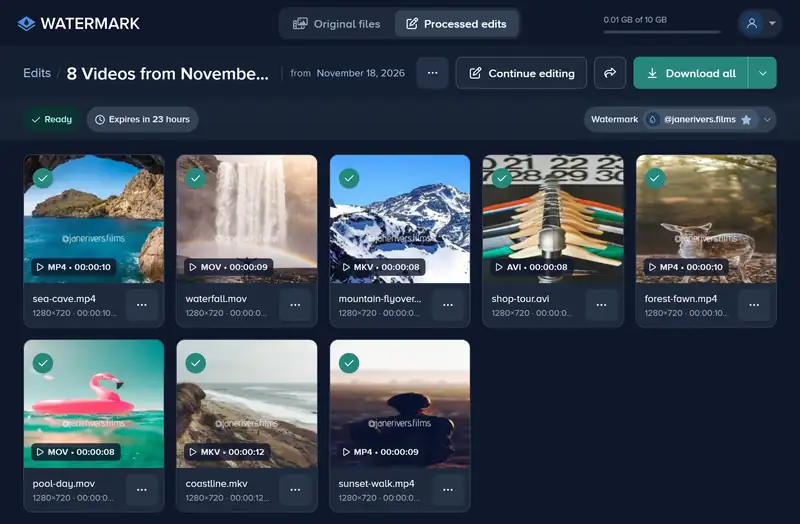
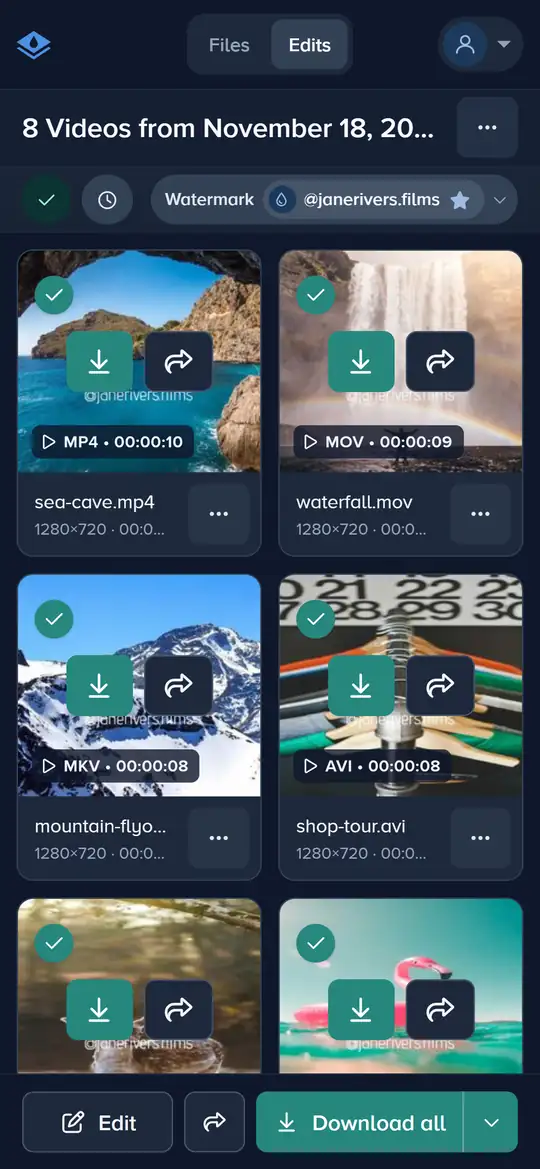
Add all the videos to one edit, place the watermark on the first and apply it to all files. Each video can be up to 2 GB. Premium processes every video in the edit, the first 30 seconds of each; Ultimate processes each one in full, up to 4 hours. The free plan processes the first file of each edit.
How to Watermark Several Videos in 4 Steps
One watermark, every clip, one download.
-
Step 1: Add Your Videos
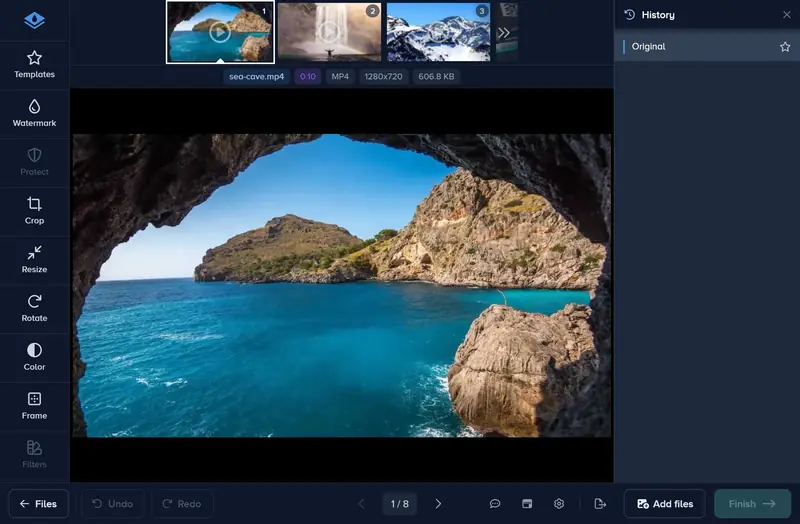
Click Choose files and select the videos, or drag them onto the page. MP4, MOV, MKV, WebM, AVI and other formats work, up to 2 GB each.
-
Step 2: Place the Watermark on the First Video
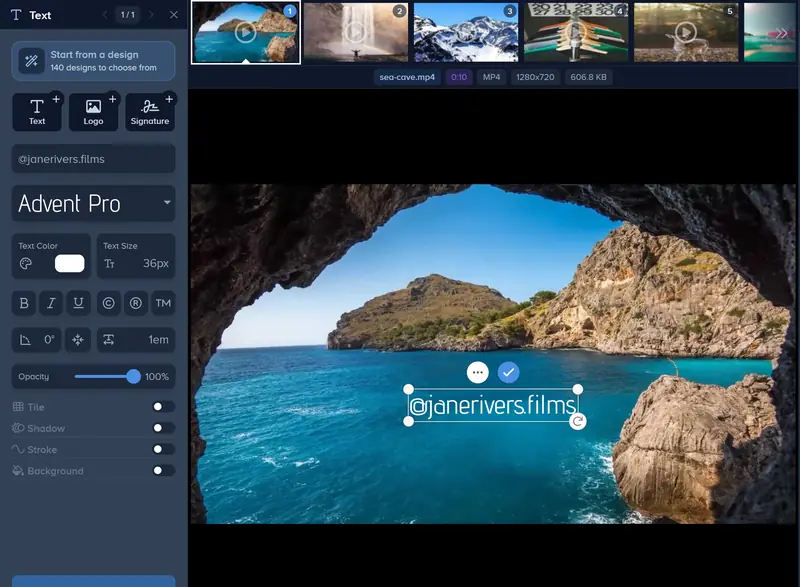
Open the Watermark tab and add Text or a Logo. The editor shows a frame of the video, so keep the watermark clear of where the action happens.
-
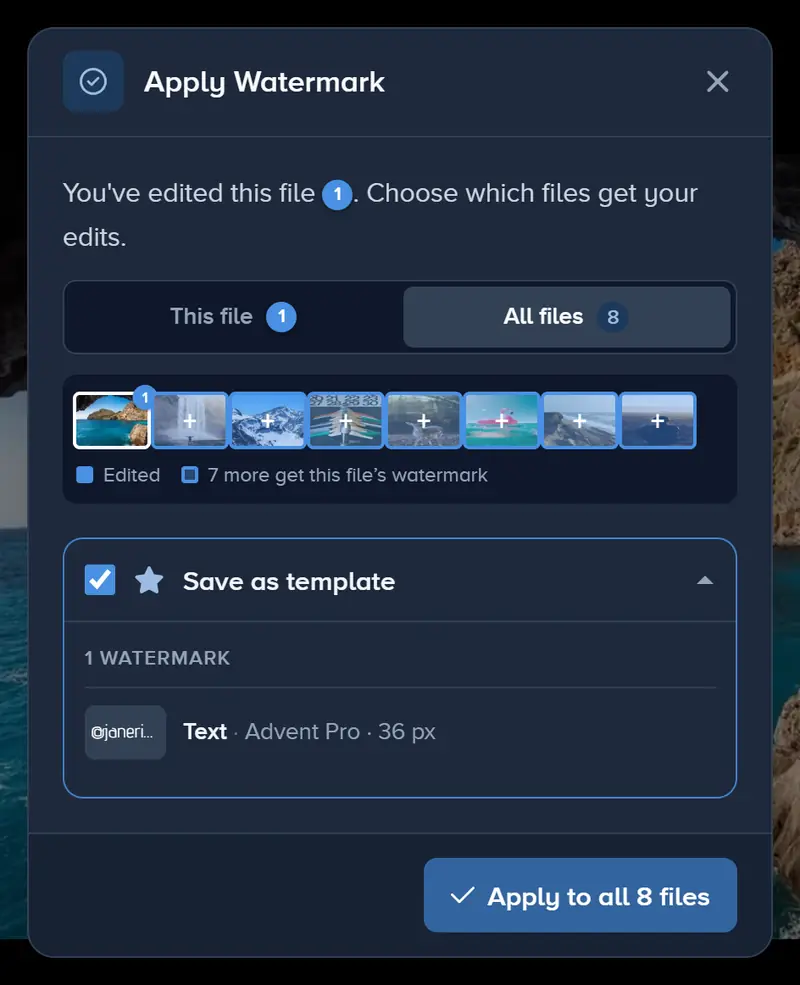
Step 3: Apply It to All Files
Click Apply and keep All files picked. Every video in the edit gets the same watermark.
-
Step 4: Finish and Download
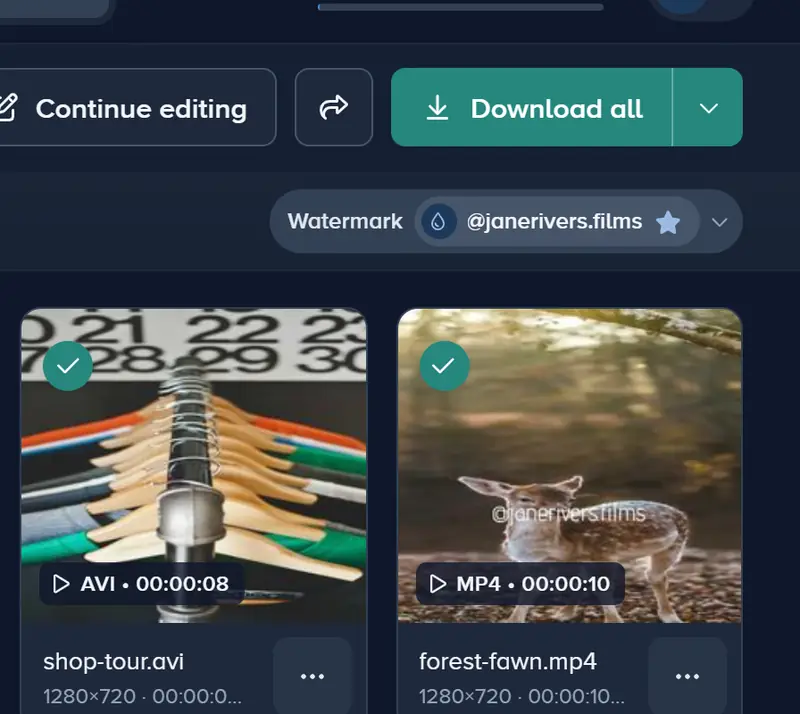
Click Finish. The videos are processed on our servers; when they are ready, click Download all to save them in one zip.
If It Doesn’t Look Right
Each Video Stops at 30 Seconds
The free plan and Premium process the first 30 seconds of every video. Ultimate processes them in full, up to 4 hours each; after you upgrade, open the finished edit and it is processed again.
Only the First Video Came Out
On the free plan, only the first file of each edit is processed. Premium and Ultimate process every video you added to it.
A Video Wasn’t Added
Each video can be up to 2 GB. Export a larger one again at a lower bitrate, or split it in two, and add it to the edit.
Processing Takes a While
Ten videos take far longer than ten photos. Once every upload has finished you can close the page: processing carries on, and the edit waits for you under Edits.
Questions people ask
How many videos can I watermark at once?
Can one video get the watermark in a different place?
Can I choose the format the videos come out in?
Keep reading
 Guide
Add a Logo Watermark to Your Photos
Upload your logo, set its size, opacity and position, and put it on one photo or a whole shoot. PNG, SVG or JPG logos up to 50 MB and 8,000 px. Free to try.
 Guide
How to Batch Watermark Photos Online
Batch watermark up to 5,000 photos in one batch: design the watermark once, apply it to all, fix single photos and download a zip. Free to try, no install.
 Guide
Create a Signature Logo for Your Photos
Type your name, pick one of 30 handwriting fonts and swap letters for alternates. Free to design and preview; download it from the editor with Premium.
Guide
How to Remove the White Background From a Logo
Upload your logo, switch on Remove Background, and the white box around it disappears. Tune the edge with Fuzz and Blur, then apply it to every photo.
Guide
How to Watermark 100 Photos at Once
Add 100 photos to one edit, design the watermark on the first and apply it to all files in one click. Up to 5,000 files an edit, downloaded as one zip.
 Guide
Watermark Maker: Make Your Own Watermark Online
Make a text or logo watermark online with 600+ fonts, stroke, shadow, tiling and opacity. Free to design and try, nothing to install. No signup to start.

Watermark the Whole Set of Videos
Add your clips, place the watermark once, and download them together.
Watermark your videos