
On this page
- Why Video Is Harder to Watermark Than a Photo
- Corner Bug or Center Mark?
- A Still Watermark on a Moving Picture
- Size It for a Phone, Not for Your Editor
- Opacity for Video
- Watermark the Whole Video, Not Just the Intro
- Burned In vs Player Overlays
- Three Kinds of Video, Three Treatments
- Use a Transparent Logo File
- Video Watermark Checklist
- How to Watermark a Video in Watermark.ws
Why Video Is Harder to Watermark Than a Photo
Most watermark advice is written for photos, where you can check one picture and be done. A video puts three extra pressures on the same watermark:
- The background keeps changing. A watermark that reads perfectly over a dark opening shot can vanish when the camera pans to a bright sky.
- It is watched small. Most video is viewed on a phone, often at a fraction of the size you edit it at.
- It gets cut up. Clips, reposts, compilations and screen recordings take pieces of your video out of context.
Everything below comes back to those three. If you post to TikTok, Shorts or YouTube specifically, watermarking YouTube and TikTok videos covers where each app’s interface sits.
Corner Bug or Center Mark?
Broadcasters call the small logo in the corner of the screen a “bug”. It is the most common video watermark for a reason: it is always there, it rarely gets in the way, and after a few seconds viewers stop noticing it. A large mark across the middle does the opposite — it is impossible to miss and impossible to crop, and it makes the video hard to enjoy.


| Style | Best for | Trade-off |
|---|---|---|
| Corner bug | Channels, tutorials, brand content, anything you want people to watch and share | Easy to crop or blur out |
| Lower-third handle | Vlogs and social clips that get reposted | Can clash with subtitles if it sits too low |
| Large center mark | Client review cuts and footage you have not been paid for | Spoils the viewing experience |
| Tiled pattern | Stock footage previews | Heavy — only for previews of paid content |
Whichever you choose, keep the mark a little way in from the edges. Broadcasters work to a “title safe” area for the same reason: some TVs and players trim the outer edges of the picture, and a bug tucked right into the corner is the first thing to go. A margin of a few percent of the frame width is plenty.
A Still Watermark on a Moving Picture
Here are two moments from the same shot, a few seconds apart, with the watermark in the same place. In the first, it sits over bright mist. In the second, over dark rock.
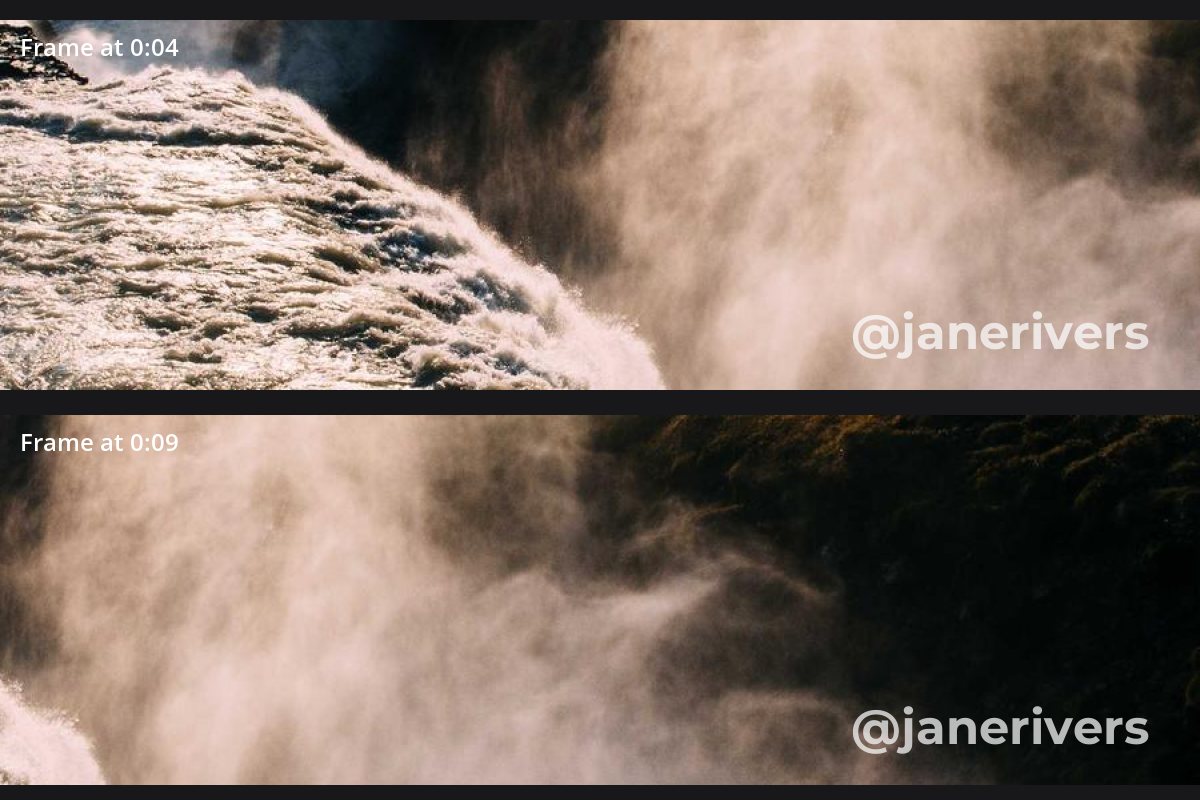
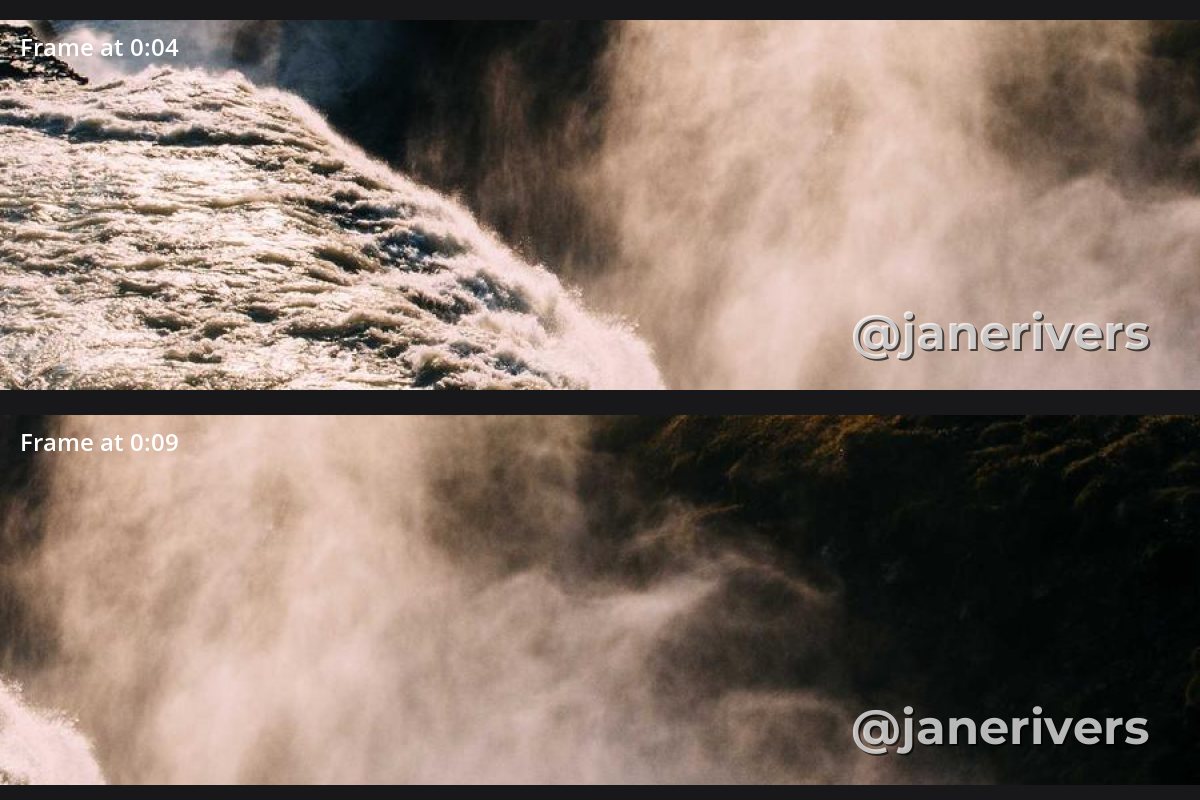
A plain white mark is only as good as the brightest frame it has to sit over. A dark edge fixes that: a shadow or a thin stroke gives every letter its own contrast, so it reads over mist, sky, snow and shadow alike. On footage that is bright almost all the way through, switch to a dark mark instead — see what color a watermark should be.
Drag through the whole video before exporting and stop on the brightest and darkest shots. If the watermark reads on both, it will read everywhere in between.
Size It for a Phone, Not for Your Editor
You design a watermark on a large monitor. Your audience watches on a phone, where a horizontal video is often under 400 pixels wide. Both frames below were shrunk to phone width and enlarged again to show what survives.
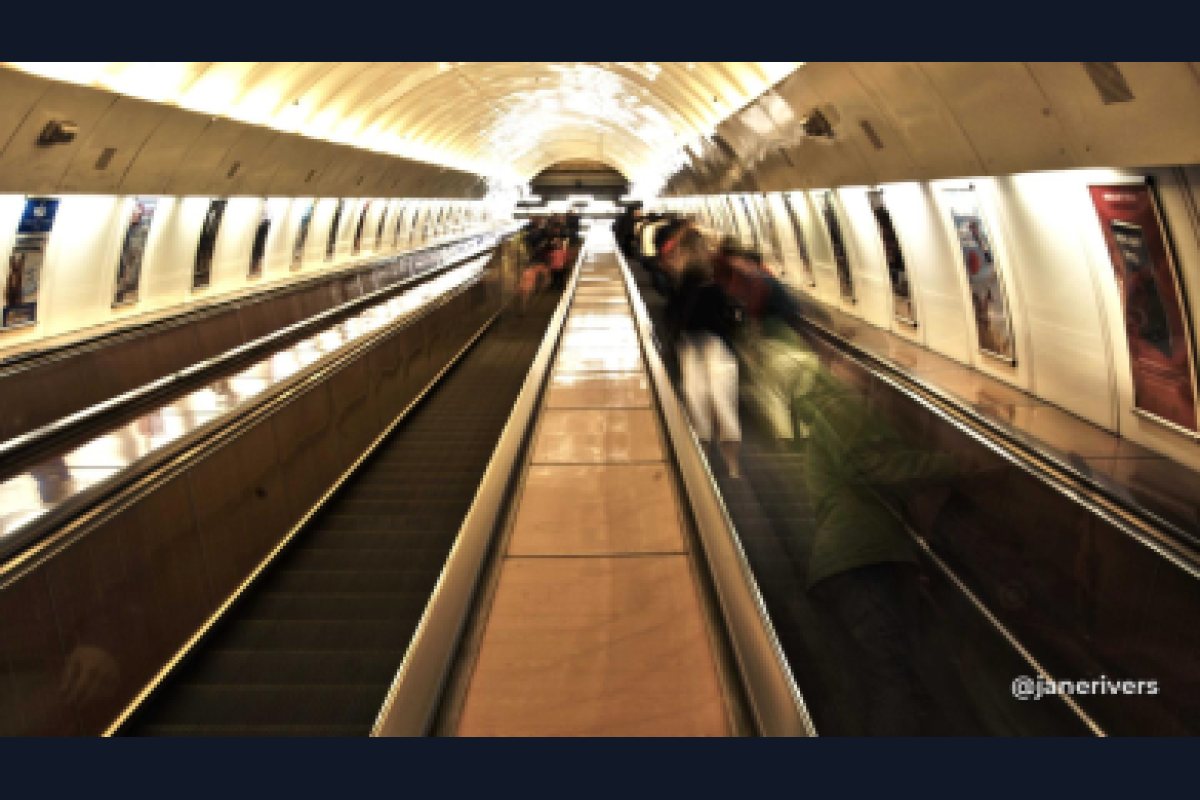

As a starting point, a text handle needs to be around a quarter of the frame width to stay readable on a phone. A monogram or logo mark can be smaller, because it is one simple shape rather than a line of letters — but it should still be recognizable at thumbnail size. Medium and bold fonts survive shrinking far better than thin ones; see the best fonts for watermarks.
Opacity for Video
The usual opacity rules apply: small marks need to be fairly solid, and large marks need to be see-through. For video, that works out as:
- Corner bug or lower-third handle: 60–85%. It is small, so it needs weight to be read at phone size.
- Large center mark on a review cut: 30–50%. Obvious, but the footage is still easy to judge.
- Tiled preview pattern: 20–30% per copy, because there are many of them.
For the reasoning behind these numbers, see how transparent a watermark should be.
Watermark the Whole Video, Not Just the Intro
A logo animation at the start and a credit at the end look professional, and they are worth keeping. They do not protect the video. The first thing anyone does with a clip they want to reuse is cut the part they need — and that part is almost never the intro.
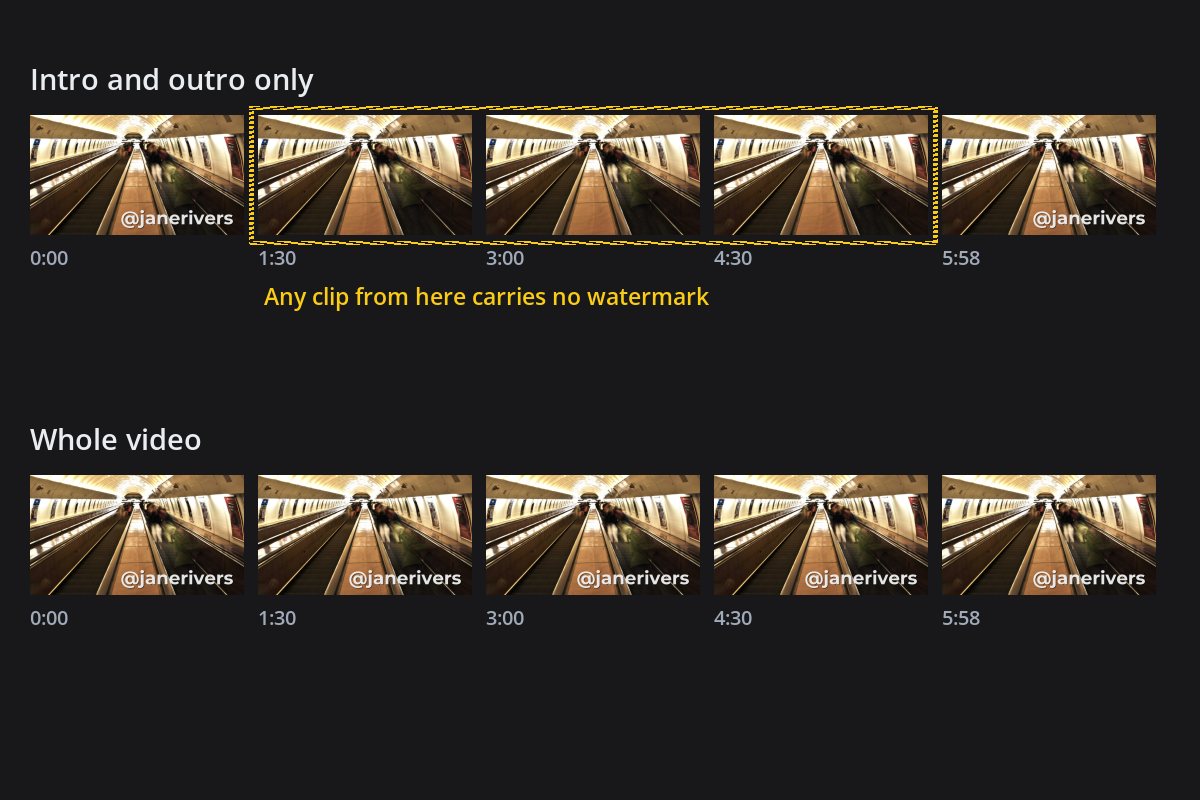
A watermark that stays on screen for the whole running time makes every clip, screenshot and screen recording carry your name. Keep your intro and outro branding if you like, and add a steady mark for the full length.
Burned In vs Player Overlays
Some platforms let you add a logo that the player shows on top of your video — YouTube’s branding watermark is the best-known example. It is useful, but it is an overlay: it only exists inside that player.


Download the video, screen-record it or reupload it somewhere else, and the overlay is gone. A burned-in watermark is part of every frame, so it goes wherever the footage goes. Use overlays for what they are good at — a subscribe button, a link — and a burned-in mark for credit and protection.
Three Kinds of Video, Three Treatments



Tiling is covered in detail in tiled watermarks.
Use a Transparent Logo File
A logo saved as a JPG brings its white or colored background with it, and on video that box sits on every frame like a sticker. Use a PNG or SVG with a transparent background, and a single-color version of the logo where possible, so it works over any shot.
Watermark.ws accepts logos as JPG, PNG, SVG or GIF files, and if a logo has a plain background, Remove Background can clear it, with Fuzz and Blur settings to clean up the edges. For more on logo files, see logo or text watermark.
Video Watermark Checklist
- Keep the watermark on screen for the whole video.
- Give it a shadow or stroke so it survives bright and dark shots.
- Size it for a phone screen, not your monitor.
- Use a transparent, single-color logo file.
- Keep the same mark in the same spot on every video.
- Rely on an intro or outro logo for protection.
- Put it where subtitles or player controls will cover it.
- Use a thin font or a hairline logo that blurs at small sizes.
- Put a large center mark on videos you want people to enjoy.
- Count on player overlays to protect a downloaded file.
How to Watermark a Video in Watermark.ws
- Upload your video. MP4, MOV, AVI, MKV, WMV, FLV, 3GP, MPG and M4V are supported, and you can add several at once.
- Add a text or logo watermark. Set its font, color, size and opacity, and add a shadow or stroke to a text watermark.
- Drag it into place and preview it on the video before you export.
- Apply it to every video in the batch, and save it as a template so your next upload uses the same mark.
- Download. The watermark is rendered into every frame from start to finish.
For a full walkthrough, see how to watermark videos online.
Sample photos: Waterfall mist by Jeff Sheldon, Sea pool by David Di Veroli, Moving walkway by Sam X, Misty valley by Ales Krivec, Desk by Rayi Christian Wicaksono, Portrait by Léa Dubedout, Sunset by Jenna Beekhuis on Unsplash.