How to Add an Outline or Shadow to Watermark Text
Give your text an edge so it stays readable where the photo behind it turns from light to dark.
- No account needed to start
- Up to 5,000 files per batch

In short
Select your text watermark and switch on Stroke for an outline, or Shadow for a shadow behind the letters. Stroke has a Color and a Thickness of up to 10 px; Shadow has a Color, a Blur and how far it falls. Both work on text and signature watermarks, on every plan.
How to Outline or Shadow Your Text in 4 Steps
Two switches in the text’s settings, and a check across the batch.
-
Step 1: Select Your Text
Select your photos and click Edit, open Watermark, and click your text on the photo, or add one with Text.

-
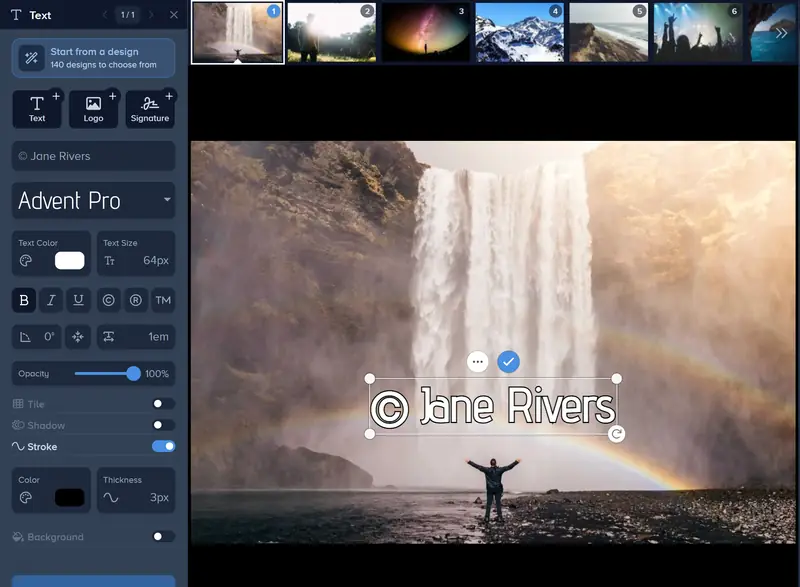
Step 2: Switch On Stroke
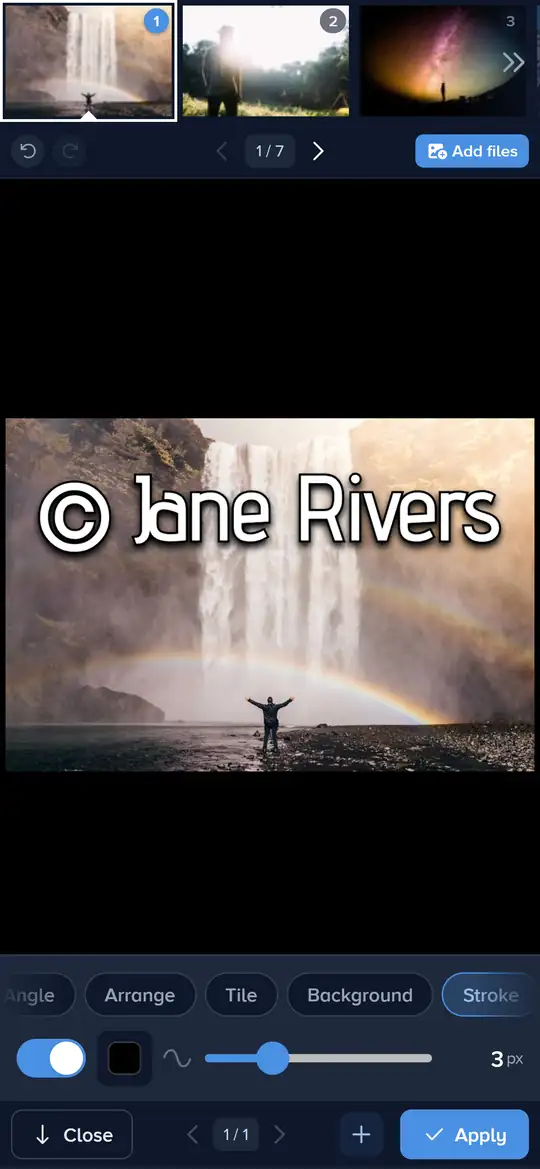
In the panel, switch on Stroke. It starts as a black outline 3 px thick; set its Color and Thickness, from 0 to 10 px. On a phone, open the Stroke tab.
-
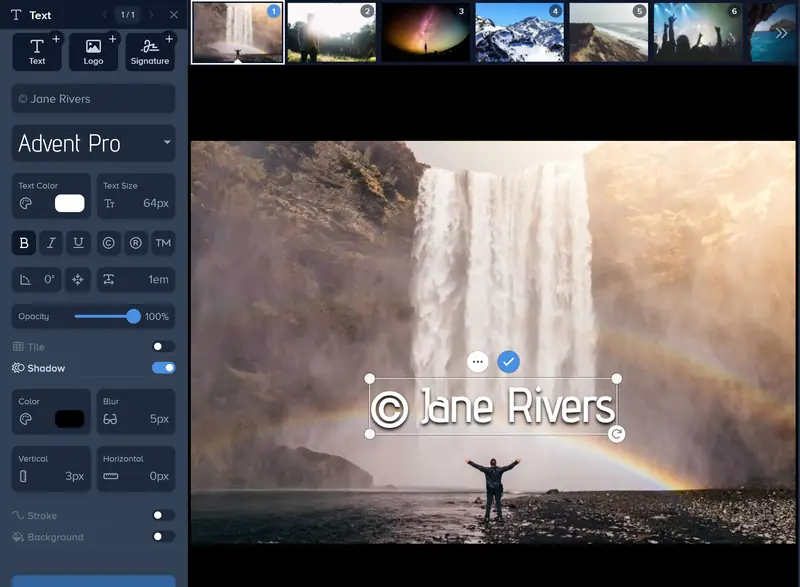
Step 3: Or Switch On Shadow
Switch on Shadow for a soft black shadow just below the letters. Set its Color, its Blur, and how far it falls with Vertical and Horizontal, each from −10 to 10 px. On a phone, open the Shadow tab.
-
Step 4: Check the Extremes and Apply
Click the brightest and the darkest photos in the strip at the top to see the text on both. Then click Apply and choose which files get it.

If It Doesn’t Look Right
The Outline Looks Heavy
Bring Thickness down to 1 or 2 px, or use a shadow instead. A thin or light font fills in under a thick stroke, so try a bolder font with a thin outline.
The Shadow Barely Shows
Move it further with Vertical and Horizontal, lower Blur so its edge is crisper, or pick a darker shadow color than the photo behind it.
A Dark Box Sits Behind the Text
That is Background, which a new text starts with on a busy photo: white letters on a box of 35% black. Switch Background off if an outline or shadow is enough.
A Logo Has No Stroke or Shadow
Stroke and Shadow are for text and signatures. A logo has Tint instead, which turns it one color, such as white for dark photos.
Make Your Text Readable on Every Photo
Outline it or give it a shadow, then apply it to the whole batch.
Style your text- No account needed to start
- Works in your browser
Questions people ask
Should I use an outline or a shadow?
Can I use both at once?
Does the outline grow with larger photos?
Keep reading
 Guide
Add a Logo Watermark to Your Photos
Upload your logo, set its size, opacity and position, and put it on one photo or a whole shoot. PNG, SVG or JPG logos up to 50 MB and 8,000 px. Free to try.
Guide
How to Add a Logo to a Video
Upload your logo, set its size and opacity, place it on the video’s frame and download the video with your logo on it. PNG, SVG or JPG logos up to 50 MB.
Guide
How to Apply an Edit Only to the Photos You Changed
Open the photos that need an edit, then click Apply and pick Edited files. Only those photos get the watermark or crop; the rest of the batch stays as it is.
Guide
How to Batch Watermark Multiple PDFs at Once
Watermark many PDFs in one edit: place the watermark once, apply it to all files, and download them together. Up to 5,000 files per edit on Premium.