How to Rotate a Watermark Diagonally
Turn your text or logo to any angle so it crosses the photo from one corner toward the other.
- No account needed to start
- Up to 5,000 files per batch
In short
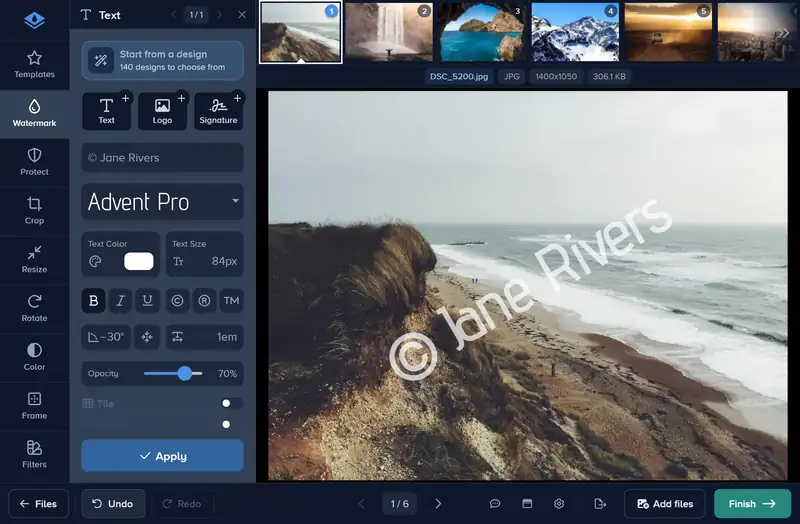
Select the watermark and drag the round arrow at its corner, or set an exact angle with Angle, from −180° to 180°. A negative angle such as −30° makes it rise from bottom left to top right. The angle goes onto every photo you apply it to, on every plan.
How to Rotate a Watermark in 4 Steps
Drag it by eye, or type the exact angle.
-
Step 1: Add a Long Enough Watermark
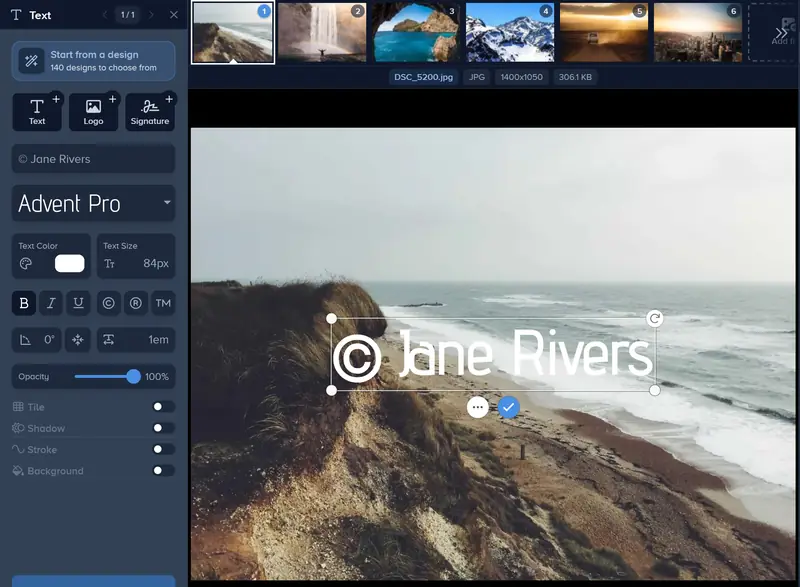
Select your photos, click Edit, open Watermark and add your Text or Logo. Make it wide enough to cross most of the photo: a diagonal needs more length than a corner credit.
-
Step 2: Drag the Rotate Handle
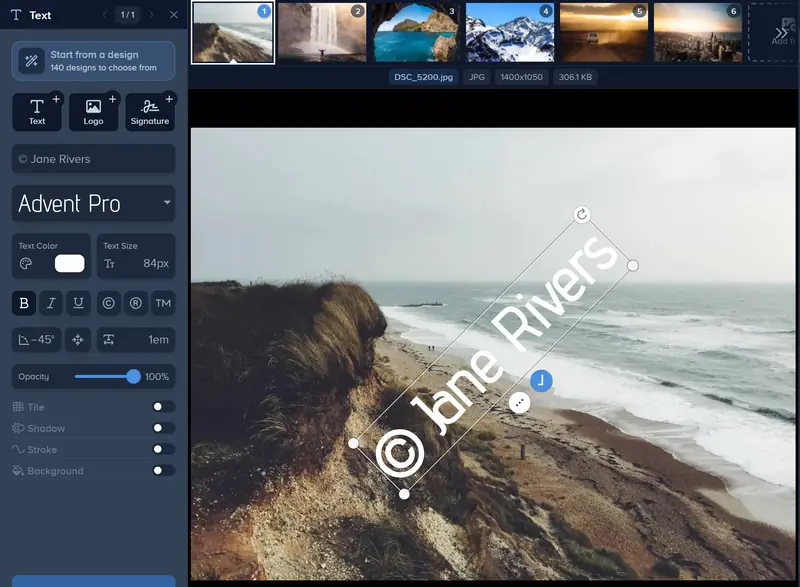
Drag the round arrow at the watermark’s corner to turn it. Hold Shift while you drag to turn it in steps of 15°.
-
Step 3: Set an Exact Angle
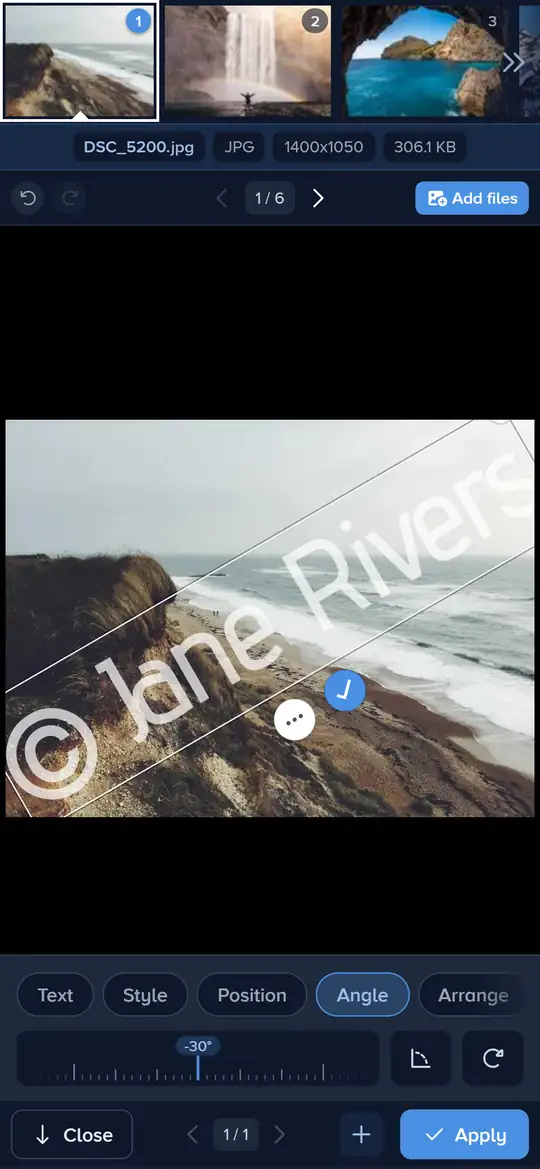
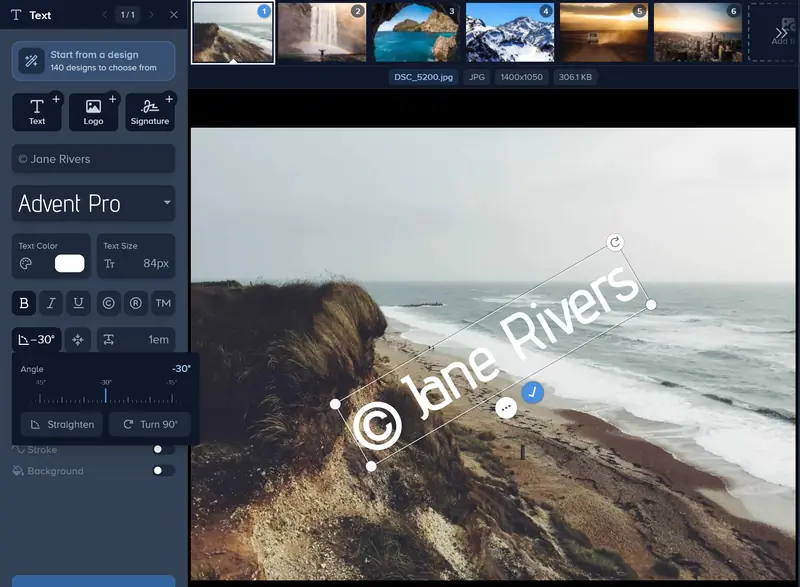
Click the Angle field in the panel and drag its ruler. Straighten sets it back to 0° and Turn 90° turns it a quarter to the right. On a phone, open the Angle tab.
-
Step 4: Center It and Apply
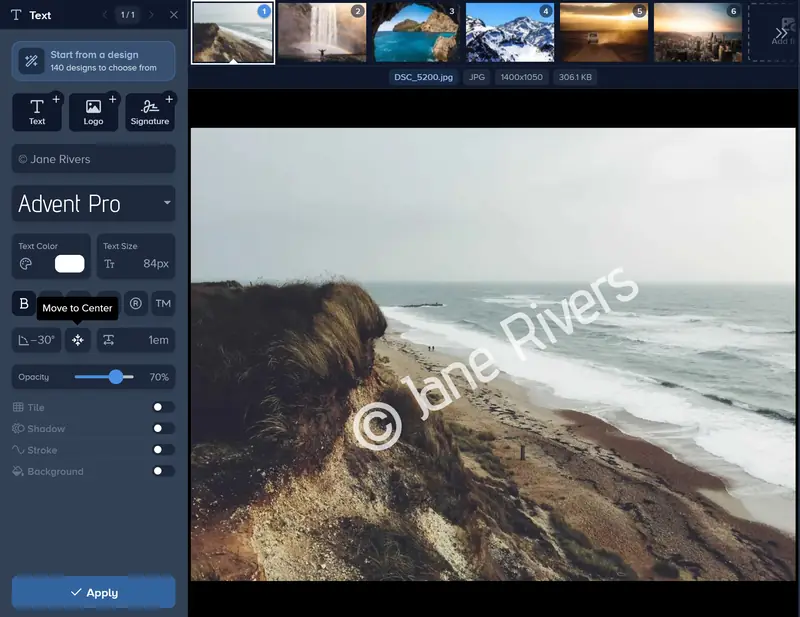
Click Move to Center so the diagonal crosses the middle, and lower the opacity. Click Apply and choose which files get it.
If It Doesn’t Look Right
It Leans the Wrong Way
A positive angle turns it clockwise, so it falls toward the bottom right. For a watermark that rises to the right, use a negative angle such as −30° or −45°.
The Ends Run Off Narrow Photos
A long diagonal that fits a landscape photo can overhang a portrait one. Click a portrait photo in the strip at the top and make the watermark shorter or smaller.
One Angle Doesn’t Suit Every Photo
The corner-to-corner angle depends on each photo’s shape. Turn it on the photo that needs it, click Apply and choose This file; the rest keep theirs.
Turn Your Watermark to Any Angle
Set it once and apply it to the whole batch.
Rotate your watermark- No account needed to start
- Works in your browser
Questions people ask
Can I rotate a logo as well as text?
Does a tiled watermark rotate too?
How do I set it level again?
Keep reading
 Guide
Add a Logo Watermark to Your Photos
Upload your logo, set its size, opacity and position, and put it on one photo or a whole shoot. PNG, SVG or JPG logos up to 50 MB and 8,000 px. Free to try.
Guide
How to Add a Logo to a Video
Upload your logo, set its size and opacity, place it on the video’s frame and download the video with your logo on it. PNG, SVG or JPG logos up to 50 MB.
Guide
How to Add a Text Watermark to Photos
Type your name, website or © line, pick a font, then set its size, color, opacity and place. Apply it to one photo or a whole batch and download them.
Guide
How to Apply an Edit Only to the Photos You Changed
Open the photos that need an edit, then click Apply and pick Edited files. Only those photos get the watermark or crop; the rest of the batch stays as it is.
Guide
How to Batch Watermark Multiple PDFs at Once
Watermark many PDFs in one edit: place the watermark once, apply it to all files, and download them together. Up to 5,000 files per edit on Premium.
 Guide
How to Batch Watermark Photos Online
Batch watermark up to 5,000 photos in one batch: design the watermark once, apply it to all, fix single photos and download a zip. Free to try, no install.