On this page
Where to Put a Watermark on an Instagram Story
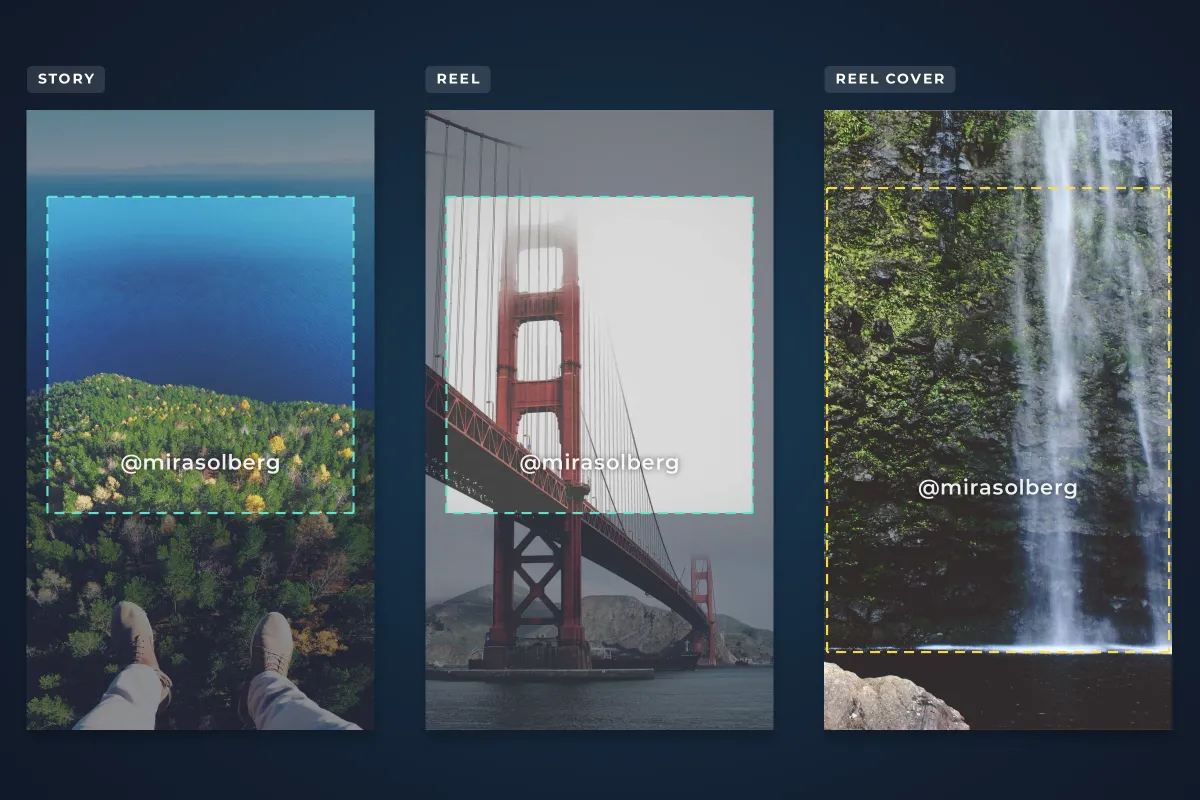
To watermark an Instagram story or reel, place your mark in the middle of the 9:16 frame, a little below center, and keep it away from the top and bottom of the screen. Instagram draws your profile name and progress bar across the top and the reply box, captions and buttons across the bottom, so anything in those bands is partly or fully covered.
- Keep clear of the top 14% and the bottom 35% of the frame, and about 6% at each side. That is Meta’s current guidance for Stories and Reels ads, and it works for everyday posts too.
- Put the watermark in the lower part of the remaining middle area, roughly 55–60% of the way down a 1080 × 1920 frame.
- For reel covers, stay inside the centered 3:4 area, because that is all your profile grid shows.
- Burn the mark into the file before you upload, and use your @handle so people can find you.
The 9:16 Safe Zone for Stories and Reels
Stories and reels are made for a 9:16 frame, usually exported at 1080 × 1920 pixels. Meta’s ads guide for both formats asks advertisers to leave roughly 14% of the top, 35% of the bottom and 6% of each side free of text and logos, because that is where the interface can sit on taller phones. A watermark is exactly the kind of thing that guidance is meant to protect.
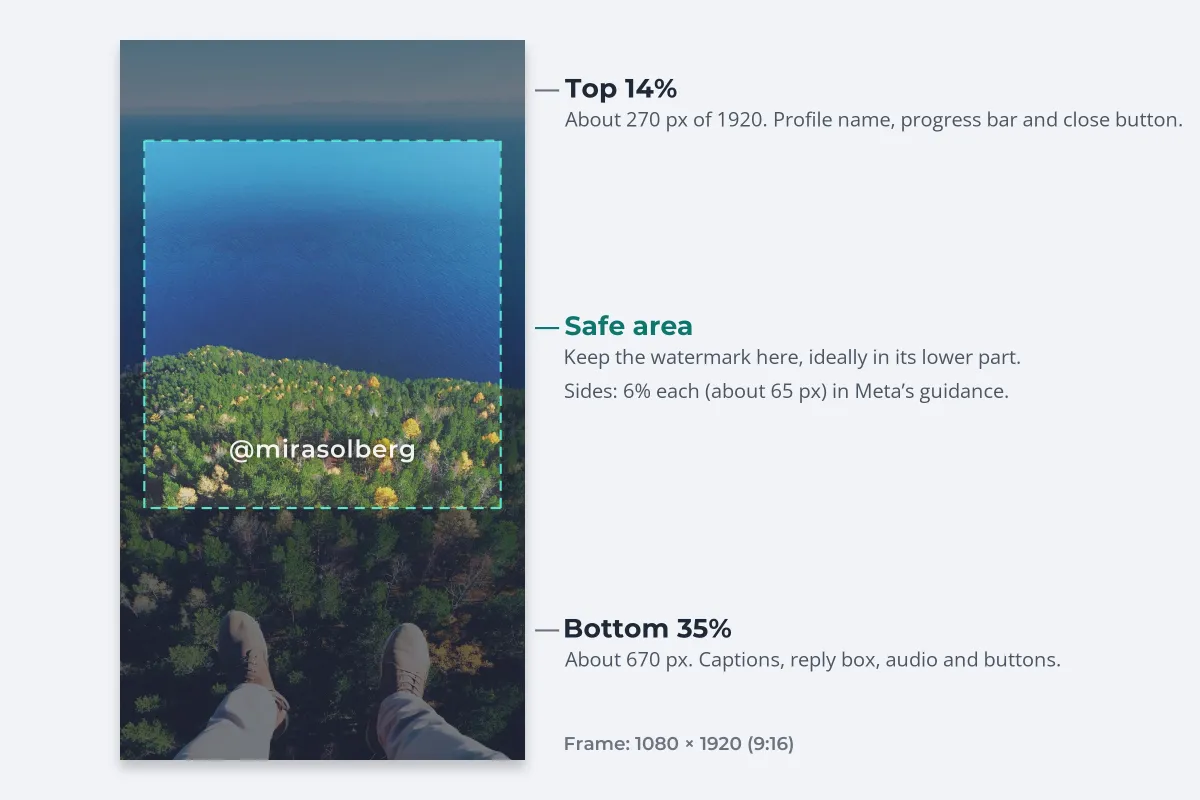
| Zone | Share of the frame | On 1080 × 1920 | What usually sits there |
|---|---|---|---|
| Top | 14% | About 270 px | Profile picture and name, progress bar, close button |
| Bottom | 35% | About 670 px | Reply box or caption, audio, like and share buttons |
| Each side | 6% | About 65 px | Edge of the screen; on reels, buttons run down the right |
| Safe area | The rest | About 950 × 980 px | Your subject, text and watermark |
The exact layout changes with the phone, the app version and whether it is a story or a reel, which is why a generous margin beats a precise one. A story usually has less covering the bottom than a reel, but designing for the reel’s 35% keeps one template safe for both.
Why Corner Watermarks Disappear in Stories
The lower right corner is the classic spot for a photo watermark. In a story or reel it is the worst spot there is: it sits under the reply box, the caption or the reel’s buttons.

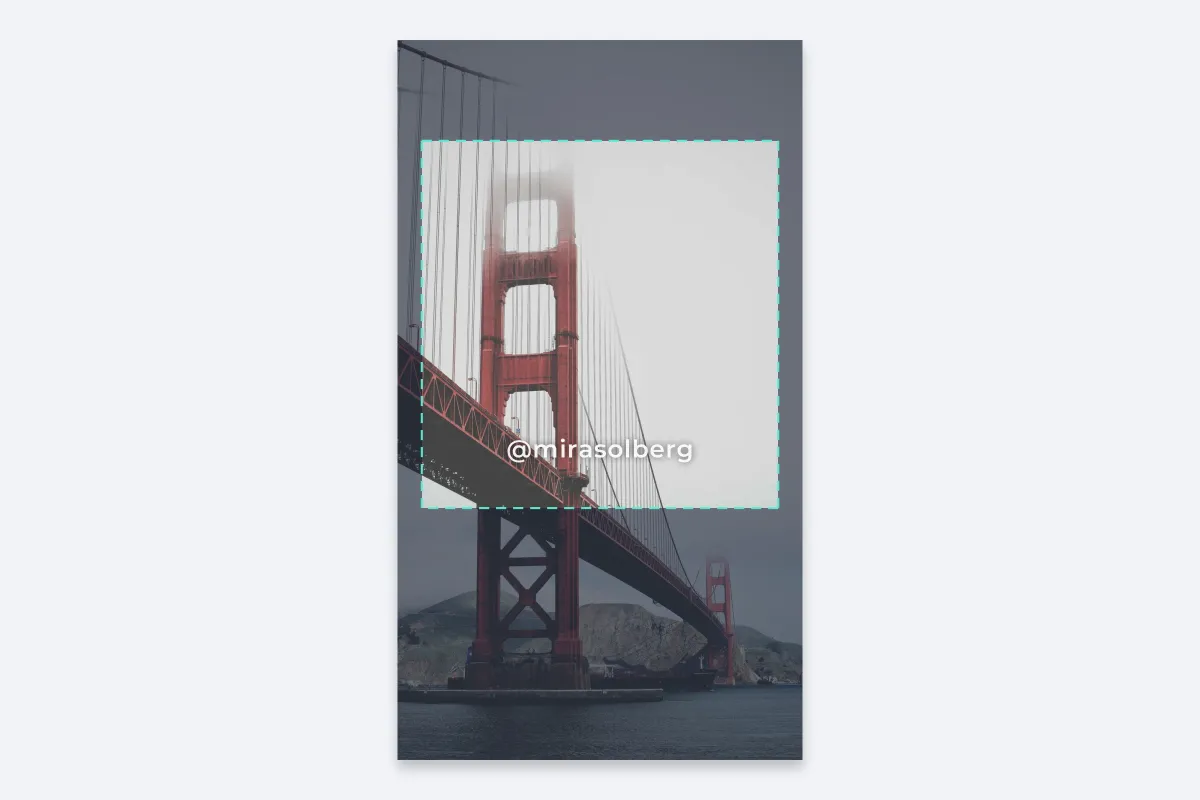
Moving the mark up into the safe area also helps against theft. A watermark that overlaps part of the scene is much harder to crop out of a screenshot than one tucked into a corner. For more on why, see where to put a watermark.
Watermarking Reel Covers for the Profile Grid
When you share a reel you can pick one of its frames or upload an image as its cover. The cover is 9:16, but since Instagram switched to taller grid tiles in January 2025, your profile shows only its centered 3:4 slice. On a 1080 × 1920 cover that is the middle 1080 × 1440, with about 240 px cut from the top and the bottom.
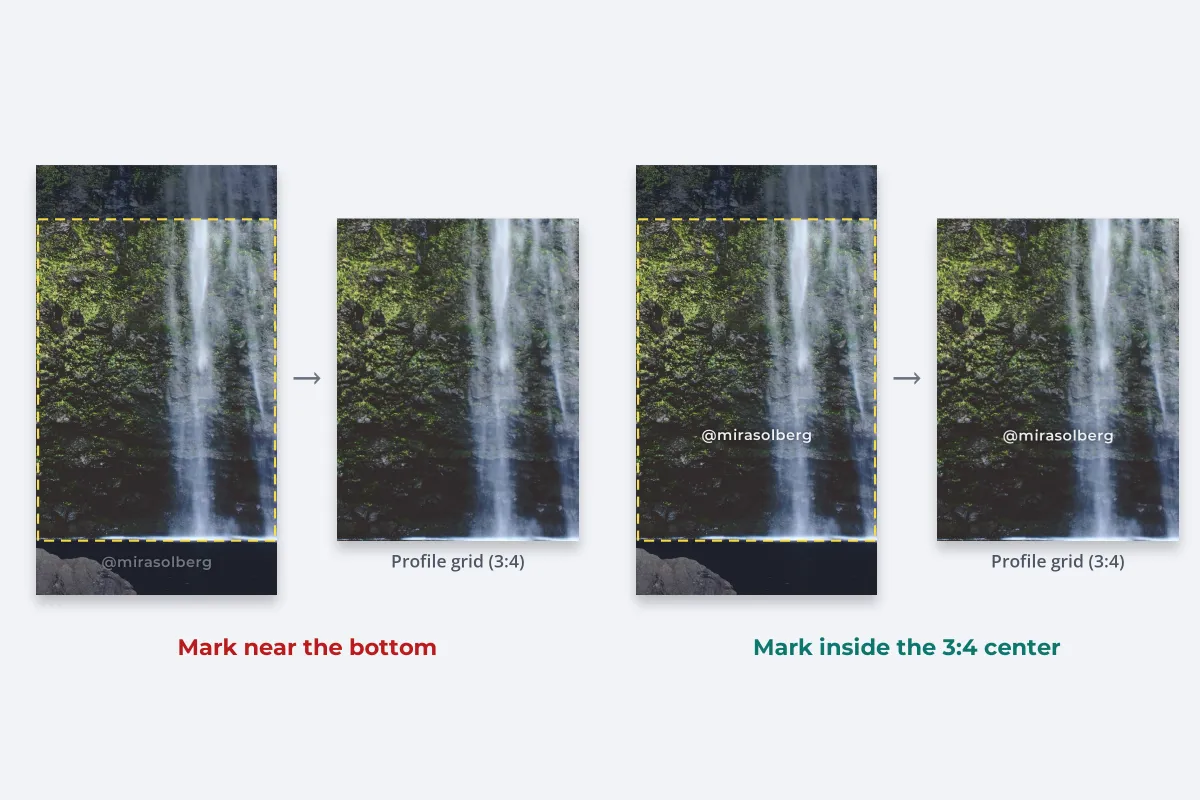
- Place the watermark and any title text inside the centered 3:4 area. In practice, that also keeps it inside the story safe area.
- Design custom covers at 1080 × 1920, then check them cropped to 1080 × 1440 before you upload.
- Keep covers consistent. The same handle in the same spot on every cover makes your grid look deliberate.
Feed posts face the same 3:4 grid crop, plus a separate feed crop; watermarking photos for Instagram covers those.
Watermarking Story and Reel Videos
Text and stickers you add inside Instagram stay on Instagram. The moment someone screen-records your story or downloads your reel with a third-party tool, the only credit that is guaranteed to travel is one burned into the video itself. The same file also goes to TikTok, YouTube Shorts and clients, where Instagram’s own labels never appear.
When someone uses Instagram’s own download option on a public reel, the saved file carries the Instagram logo and your username, and you can turn downloads off in your settings. Screen recorders and outside download sites skip that stamp, which is why your own watermark still matters. If a copy turns up on another account anyway, how to report stolen photos on Instagram covers the copyright report.
- Edit to 9:16 first. Watermark the final vertical export, not a landscape original that Instagram will crop.
- Keep the mark in the safe area for the whole clip. It appears on every frame, so check it against the busiest moment, not just the first frame.
- Lower the opacity a little. A moving picture makes a static mark more noticeable; around 60–80% with a soft shadow is usually enough.
- Avoid the right-hand side on reels. The like, comment and share buttons run down that edge.
Watermark.ws adds text and logo watermarks to MP4, MOV and other common video formats, on every frame from start to finish. See the guide to watermarking videos online, and video watermark best practices for size and opacity.
Keep It Consistent Across a Story Series
Stories are viewed in quick succession, and each frame can be screenshotted on its own. Watermark every frame, not just the first, and keep the mark identical from one to the next.
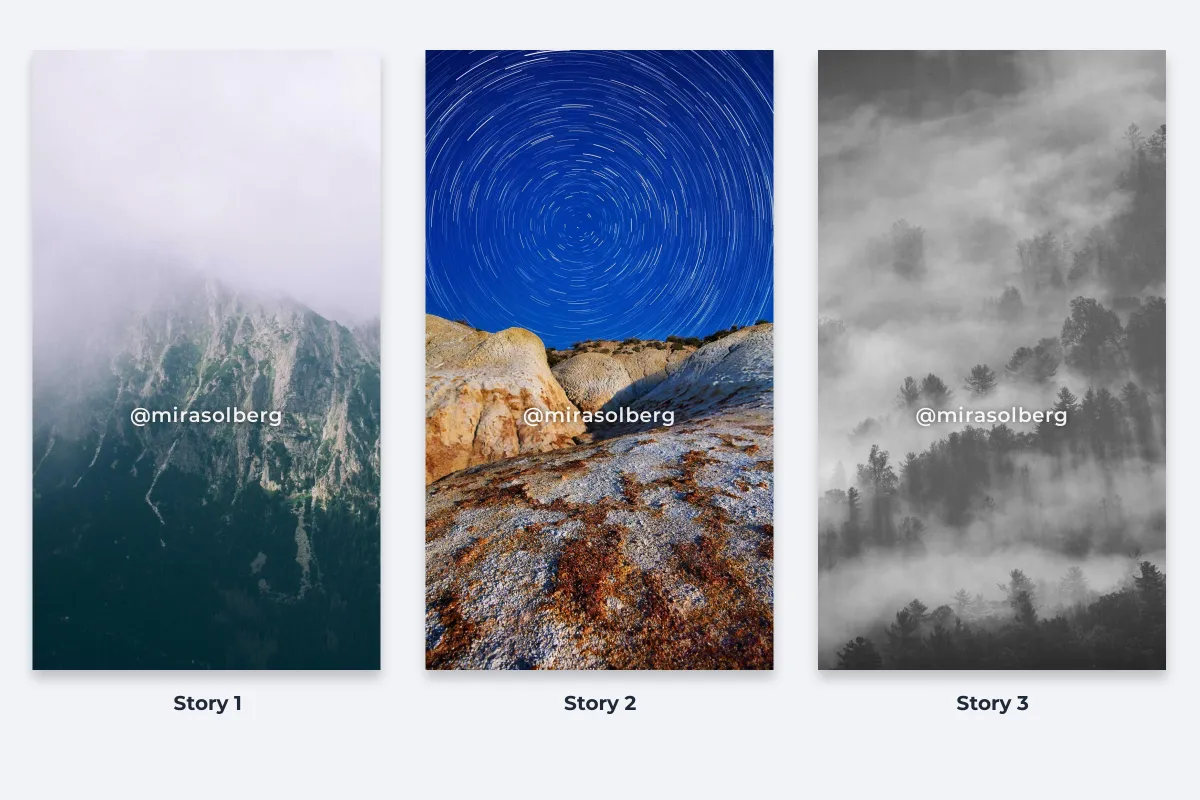
- Use your @handle, not just your name. On Instagram it is the quickest way for someone who sees a repost to find your account.
- Use a medium or bold weight. Thin fonts vanish on a phone screen, especially over moving video.
- Size it to the frame. On a 9:16 frame, a text handle around 40–50% of the width reads clearly without dominating.
Watermark Stories and Reels in Watermark.ws
-
1
Upload your photos or videos
Drag in a whole story series at once. It works in a phone browser too, as described in how to watermark photos on iPhone and on Android.
-
2
Crop photos to 9:16
In the Crop tool, type an exact size of 1080 × 1920 so every photo matches the story frame. Edit videos to 9:16 before you upload them.
-
3
Add your @handle
Add a text watermark with your handle, or upload a logo. Add a soft shadow so it reads on light and dark scenes.
-
4
Place it in the safe area
Center it horizontally and set it a little below the middle, clear of the top and bottom bands.
-
5
Save it as a template
Name it something like "Story 9:16" and reuse it for every story, reel and cover.
Posting the same photos in other shapes as well? A separate template for each shape keeps the watermark right everywhere; one watermark for every crop explains how to size them.
Sample photos: Aerial forest and sea by Mickey O'neil, Bridge in fog by Axel Antas-Bergkvist, Waterfall by Josefa Holland-Merten, Misty mountain by Aleksandra Boguslawska, Star trails by Anna Anikina, Foggy forest by Frances Gunn on Unsplash.