
On this page
The Short Answer
Photographers often hear that watermarks "kill your SEO". The worry is understandable — if your photos are how people find you, you do not want to trade protection for traffic. The good news is that the evidence points somewhere more specific than that.
- Google does not list watermarks as a factor. Its image SEO guide is about alt text, file names, page content and image quality. Watermarks are not mentioned.
- The thumbnail is where a watermark can cost you. A searcher decides whether to click on a small preview, and a heavy watermark makes that preview less appealing.
- Google Shopping is the exception. Merchant Center does not allow watermarks or logo overlays on product images.
- For credit in search, use metadata. Creator, credit and license fields can show up in Google Images; a watermark cannot do that.
Everything below is based on what Google has published in its Search Central and Merchant Center documentation, checked in September 2026. Search changes, so treat anything more specific than that as something to re-check.
What Google Uses to Understand an Image
Google cannot rank a photo on how beautiful it is. It relies on text and structure around the image to work out what it shows and which searches it answers.
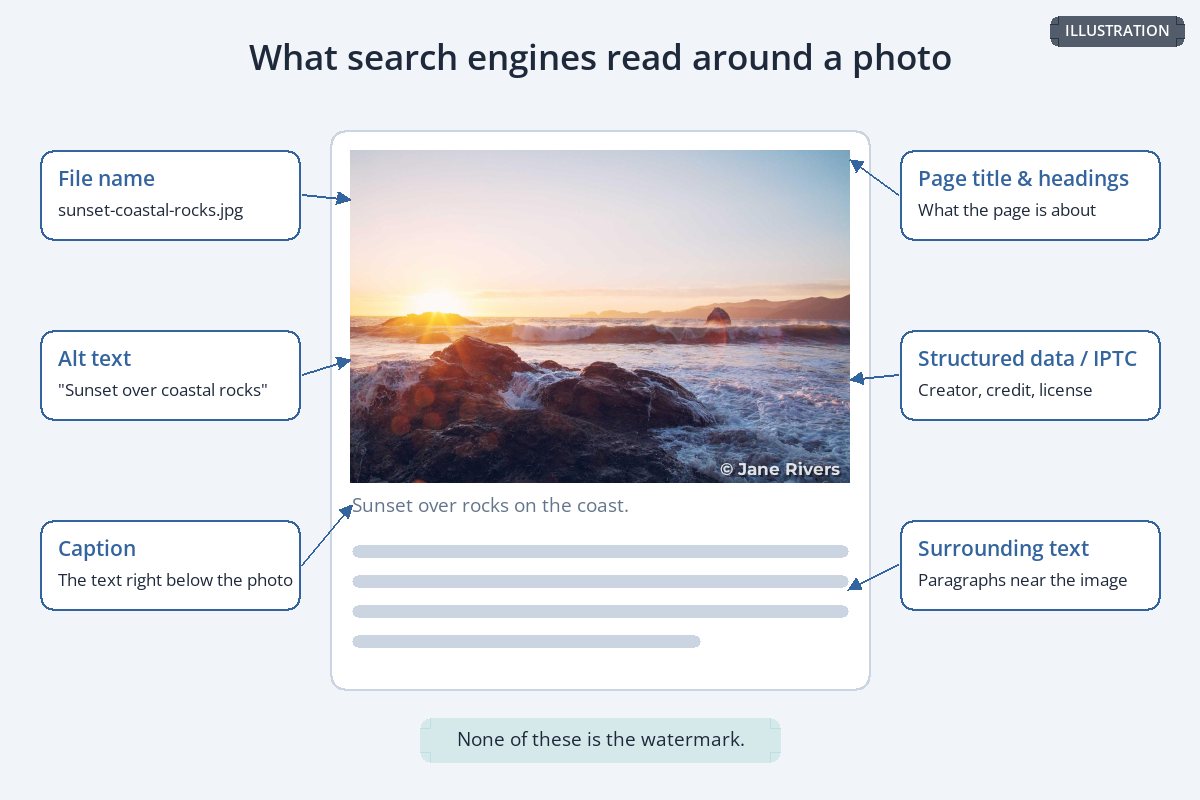
| Signal | What Google's image SEO guide says |
|---|---|
| Alt text | "The most important attribute when it comes to providing more metadata for an image is the alt text." |
| File name | "The filename can give Google very light clues about the subject matter of the image." |
| Page content | "Google extracts information about the subject matter of the image from the content of the page, including captions and image titles." |
| Image quality | "High-quality photos appeal to users more than blurry, unclear images." |
| Structured data | Can make images eligible for rich results, "including a prominent badge in Google Images." |
Notice what is missing from that list: the pixels in the corner of your photo. A small signature does not stop Google reading any of these signals, so it has no documented effect on whether your image can rank.
Where a Watermark Can Cost You: The Thumbnail
Ranking is only half of search traffic. The other half is whether someone clicks. In image results your photo competes as a small thumbnail next to dozens of others, and Google itself points out that "sharp images are more appealing to users in the result thumbnail."
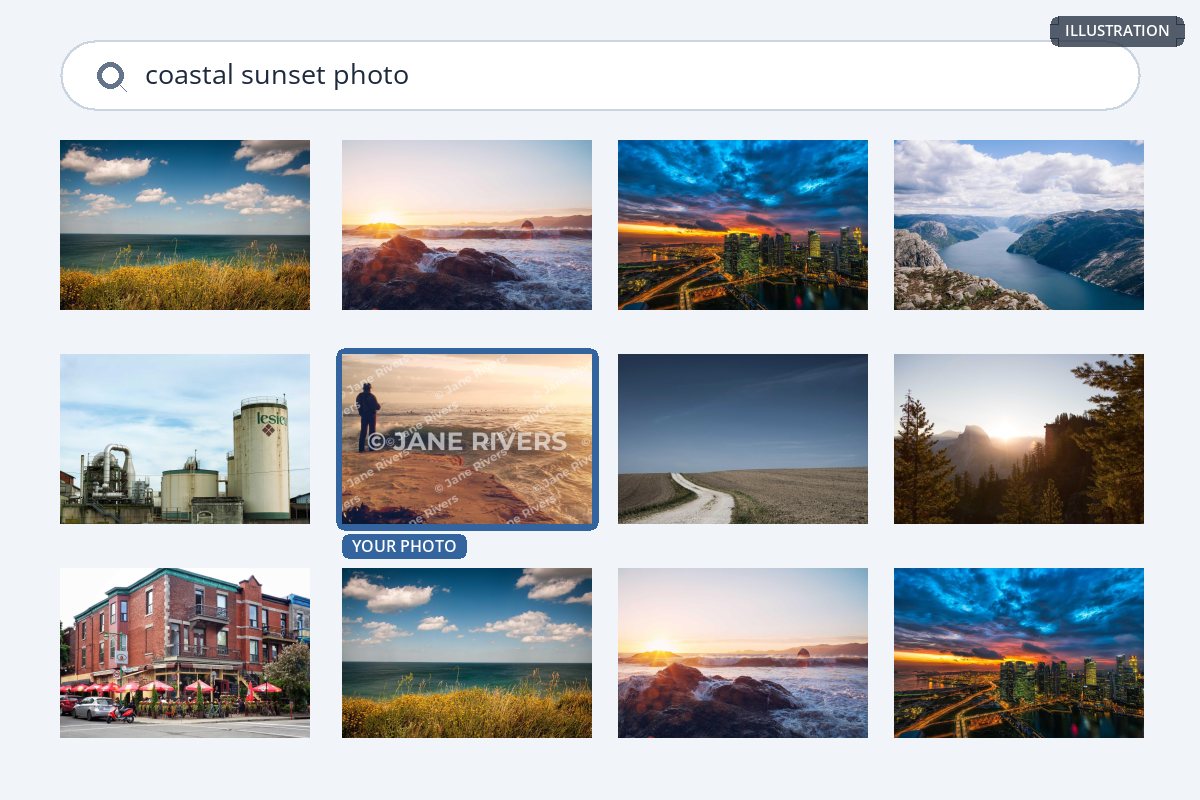
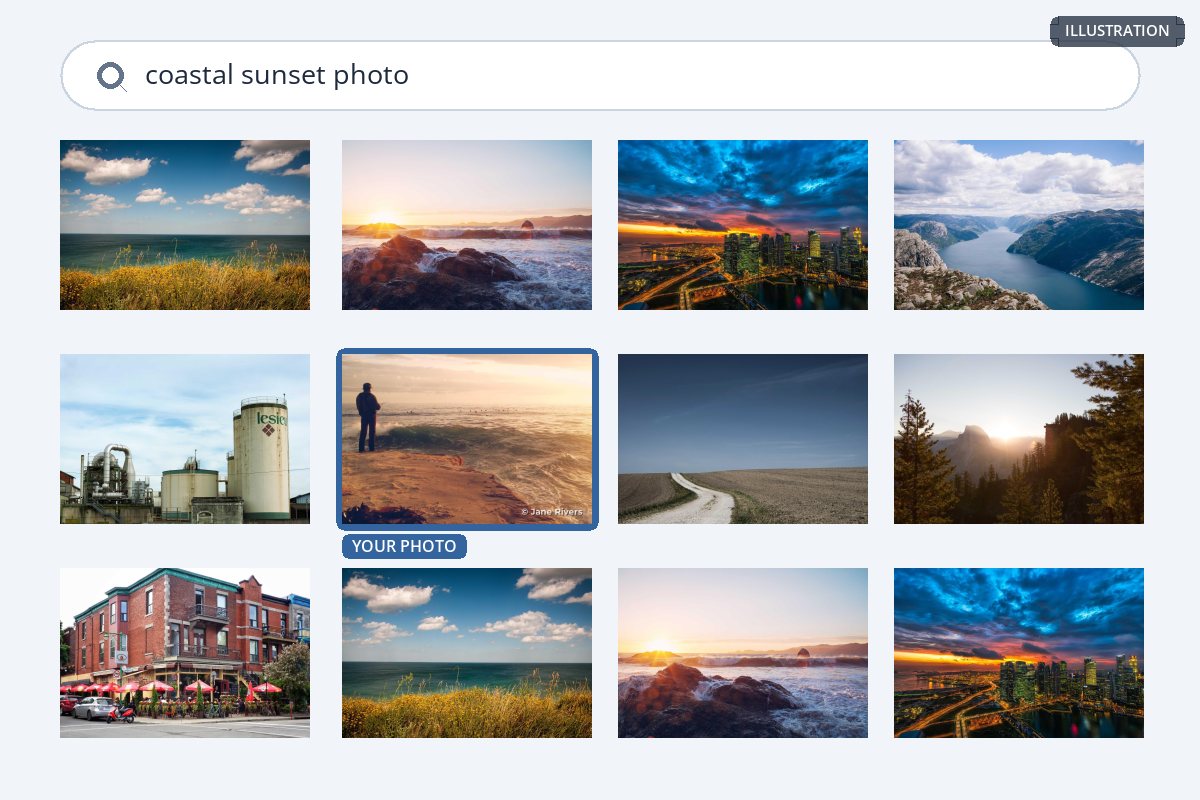
In the grid on the left, the watermarked photo reads as a stock preview: something to buy, not something to look at. On the right it looks like every other good photo in the results, with a quiet credit in the corner. That difference is decided by the searcher, not by an algorithm — but it is still the difference between a visit and no visit.



None of this means you should drop the watermark. It means matching it to the job. Photos that exist to attract visitors — portfolio images, blog photos, travel shots — work best with a small, well-placed mark. Save heavy or tiled watermarks for previews of images you sell, where protection matters more than clicks.
Google Shopping Is the Exception
Product listings are different, because Google has written a rule about them. Merchant Center's image requirements list "any overlay, for example, watermarks, brand names, logos (unless it's an inherent part of the product itself)" among the things a product image may not contain. They also say not to use images with borders or "promotional elements or content that covers the product."
If you sell through Google Shopping, the images in your product feed should be clean — no watermark, no logo overlay. A logo that is physically printed on the product is fine; one added on top of the photo is not. Merchant Center rules change, so check the current image requirements before you upload.
That does not stop you watermarking the same photos elsewhere — on social media, in lookbooks or in wholesale catalogs. It just means keeping two exports. Watermarking product photos covers the marketplace rules, and watermarking Shopify product photos covers your own store.
Getting Credit in Google Images Without a Watermark
If what you really want from a watermark in search is credit — people knowing who took the photo and where to license it — Google offers a better tool. According to its documentation, "when you specify image metadata, Google Images can show more details about the image, such as who the creator is, how people can use an image, and credit information."
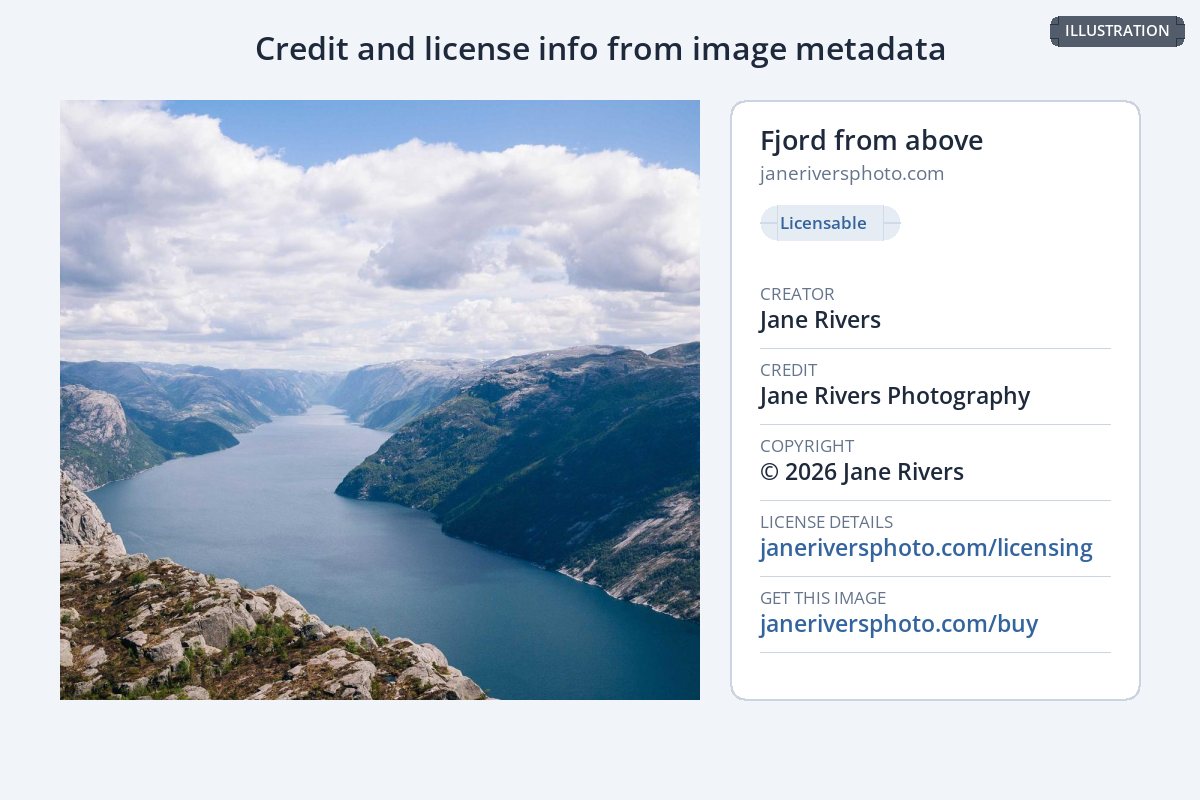
You can provide it in two ways: as structured data on the page, or as IPTC photo metadata embedded in the file itself. Google reads these IPTC fields:
- Creator — the photographer's name.
- Credit Line — how the photo should be credited.
- Copyright Notice — for example, © 2026 Jane Rivers.
- Web Statement of Rights — a link to a page describing the license.
- Licensor URL — a link to where someone can license the image.
Providing license information can make an image eligible for the "Licensable" badge in Google Images. Google presents this as a way to show more information, not as a ranking boost, so do it for credit rather than for traffic. How to fill in these fields is covered step by step in copyright in photo metadata.
Watermark SEO Myths
| What people say | What is actually documented |
|---|---|
| "Google penalizes watermarked images." | Google's image SEO guide does not mention watermarks at all. There is no documented penalty for a watermark on a normal web image. |
| "Putting my URL in the watermark builds backlinks." | Text inside an image is not a link. Links come from anchor tags in a page's HTML, not from pixels. |
| "The words in my watermark count as keywords." | Google has not documented using watermark text as a ranking signal. Descriptive words belong in the alt text, file name and caption. |
| "Removing all watermarks will boost my rankings." | Nothing Google has published supports that. It may make thumbnails more appealing, which can help clicks — that is a different thing. |
| "Watermarks are fine on Google Shopping images." | They are not. Merchant Center does not allow watermark or logo overlays on product images. |
An SEO-Friendly Way to Watermark
-
1
Match the watermark to the photo's job
Small and quiet for photos that should attract visitors; heavier only for previews of images you sell. See how big a watermark should be.
-
2
Keep it off the subject in thumbnails
A small mark in a calm area keeps the preview appealing. Where to put a watermark compares every placement.
-
3
Resize before you upload
A sensibly sized image loads fast and is less useful to anyone who copies it. See resizing photos before sharing them online.
-
4
Give the file a descriptive name
Something like sunset-coastal-rocks.jpg rather than IMG_4821.jpg.
-
5
Write real alt text
Describe what the photo shows in a short sentence. Do not stuff it with keywords — Google warns against that.
-
6
Add creator and license metadata
So Google Images can credit you and link to your licensing page.
-
7
Keep clean copies for Shopping feeds
Product images for Merchant Center go out without any watermark or logo overlay.
Watermark.ws applies the same watermark to a whole batch at once and never changes your originals, so keeping a clean set and a watermarked set side by side is easy. See how to batch watermark photos.
Sample photos: Coast at sunset by Yoni Kaplan-Nadel, Coastal meadow by David Marcu, Sunset seascape by Sebastien Gabriel, City at dusk by Dmitry Sytnik, Fjord by Jeff Sheldon, Industrial site by André Robillard, Country road by Martin Dörsch, Forest at sunset by Jordan McQueen, Street corner by Bonnie Meisels on Unsplash.