On this page
What Your Site Actually Serves
This article is about the practical job of getting photos onto your own website. If you are still deciding whether your portfolio should be watermarked at all, start with should you watermark your portfolio? — then come back here.
Every photo on a portfolio site exists in more than one size. Visitors see small versions in your grid and a large one when they click through. Your original — the full-resolution file from your camera or editing software — does not need to be online at all.
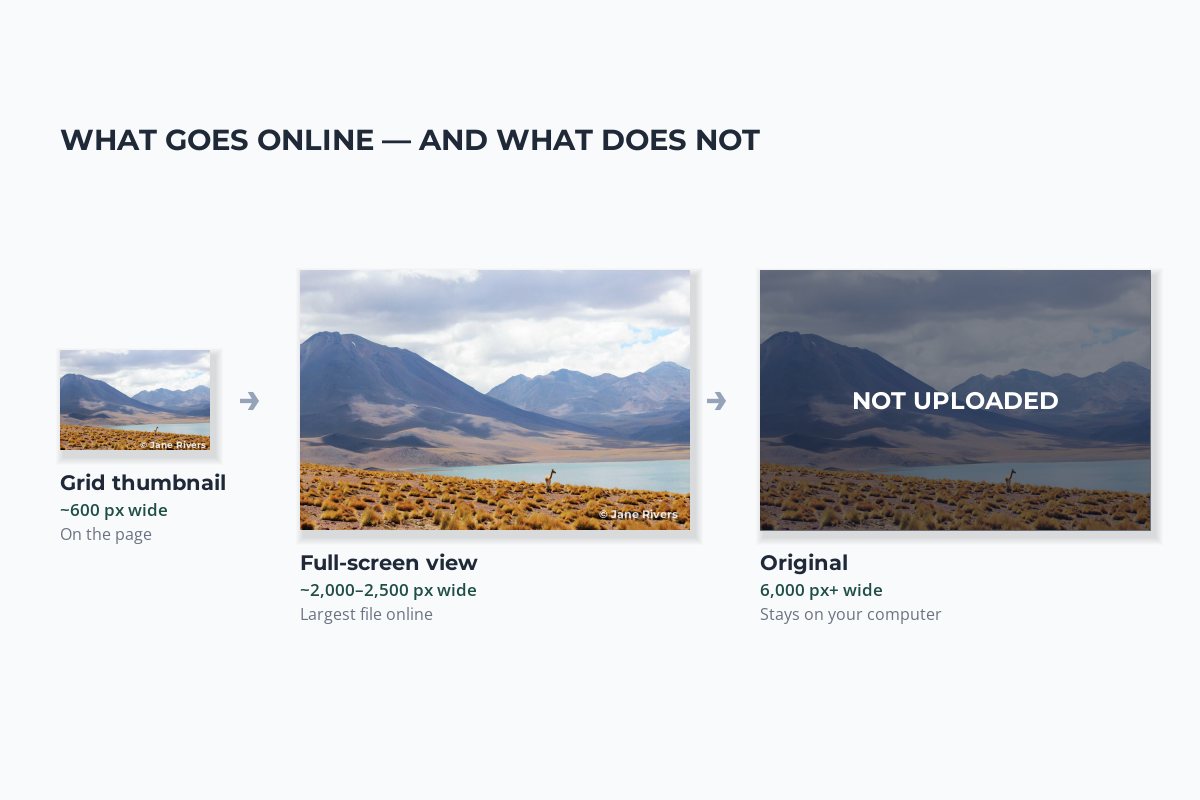
That makes the largest version the one that matters. Whatever you upload, visitors can eventually get: many site builders generate smaller copies for the grid, but the big one is still there to be viewed and saved. So prepare that version deliberately — the right size, with your credit on it — rather than uploading straight from your camera.
What Size to Upload
Big enough to look sharp on a large, high-resolution screen; small enough that it is no use for a large print. For most portfolios, that means around 2,000–2,500 pixels on the long edge.
| Where it is shown | Long edge | Why |
|---|---|---|
| Full-screen view or lightbox | 2,000–2,500 px | Sharp on large and high-resolution screens. |
| Wide banner across the page | About 2,500 px | Covers the full width of large monitors. |
| Blog posts and project pages | About 1,500–2,000 px | The text column is narrower than the screen. |
| Anything else online | Never your original | A 6,000 px file is a print file, not a web file. |
Site builders publish their own recommendations, and it is worth checking yours. Squarespace, for example, says in its help center that a width of 2,500 pixels is ideal for most images and that images under 1,500 pixels wide may appear blurry; it then creates smaller versions automatically, from 100 up to 2,500 pixels wide. For a deeper look at choosing sizes, see resizing photos before you share them online.
The Lightbox Is the Real Download
Most portfolio themes open a photo in a lightbox — a full-screen view with a dark background — when someone clicks it. That is the version people save, screenshot and share, because it is the biggest and best-looking copy on the page.
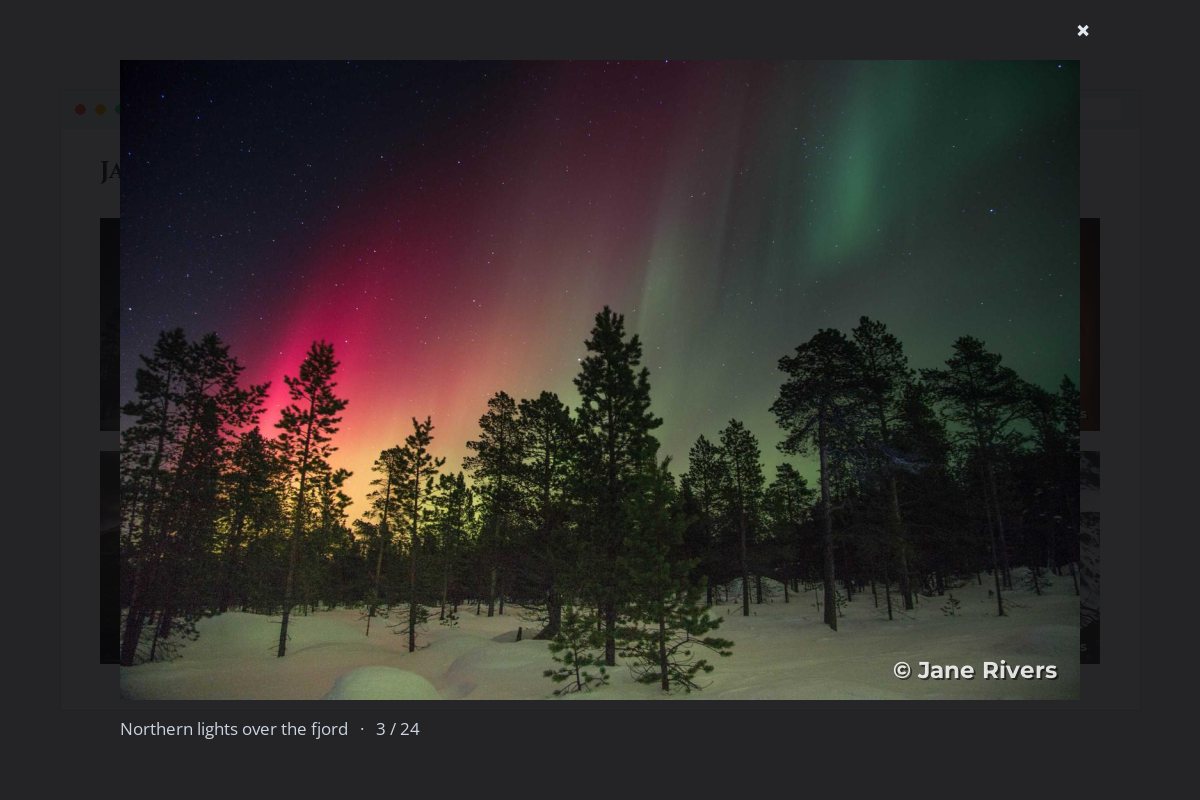
- Credit the large version. A credit that only appears on grid thumbnails, or is added with page styling rather than in the image, is gone the moment someone saves the full-size photo.
- Turn off download buttons in your gallery settings unless you really want visitors to download files.
- Do not link to originals. A “view full size” link to a camera-resolution file hands over your print file.
- Check zoom features. Some themes let visitors zoom in by loading a larger file. Find out which file that is before you upload.
One Small, Consistent Credit
On a portfolio page, photos are seen together, so the watermark is seen together too. A large mark on every photo turns your grid into a wall of logos; a small credit in the same spot on each photo disappears into the design.
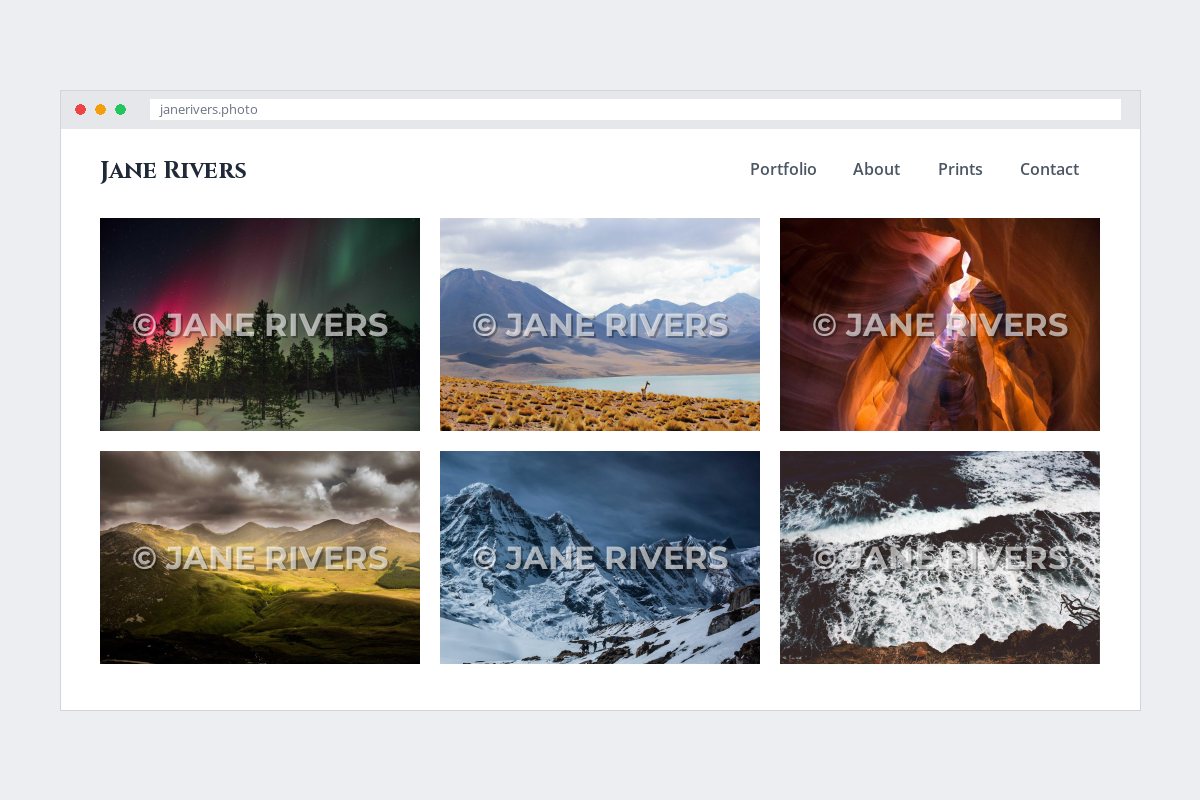
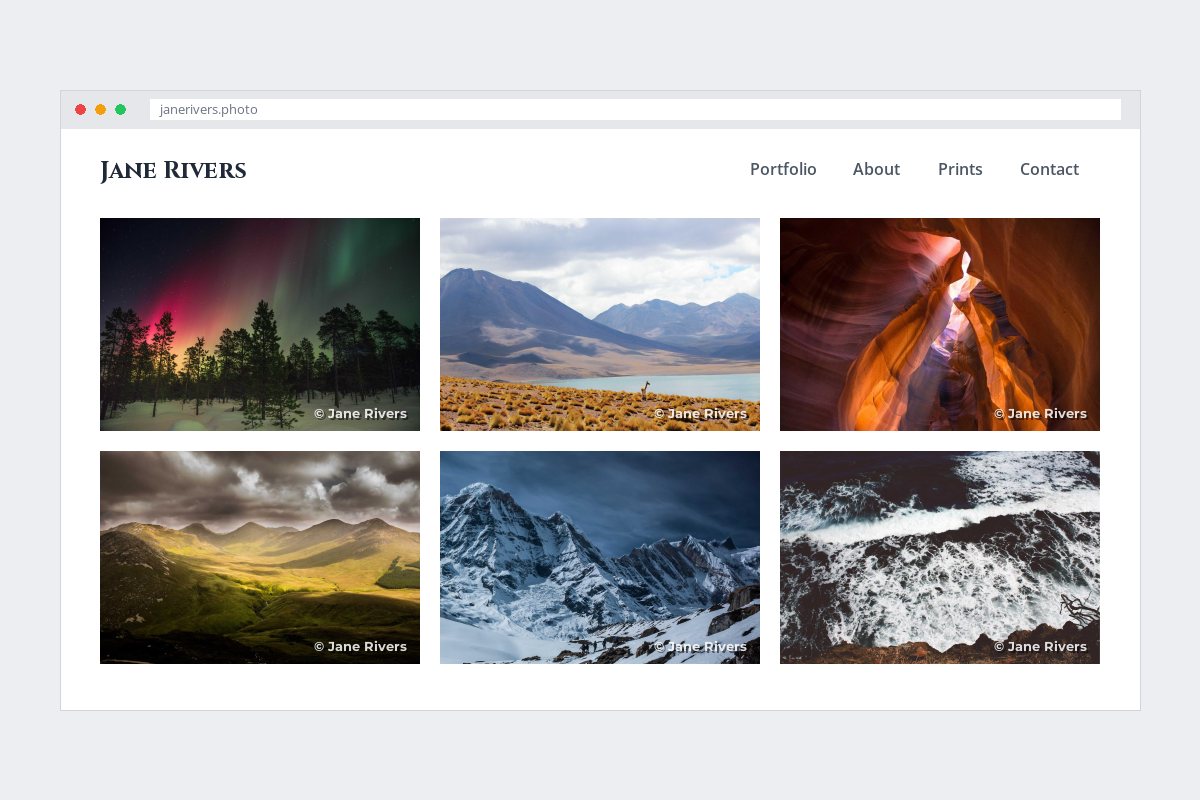
- Same corner, same size, same opacity on every photo. Consistency is what makes a credit look like part of the design.
- Size it for the full-screen version, not the thumbnail. On a 2,500 px image, a credit of roughly 10–15% of the width reads clearly without dominating.
- Give it a soft shadow so it reads on light skies and dark shadows alike.
A corner credit is about getting credit when a photo travels, not about stopping theft — it can be cropped off. If a photo is at real risk, see where to put a watermark for placements that protect.
Right-Click Blocking Does Not Protect Photos
Many portfolio platforms and plugins offer to disable right-clicking on images. It stops the most casual “Save image as…”, and nothing else.
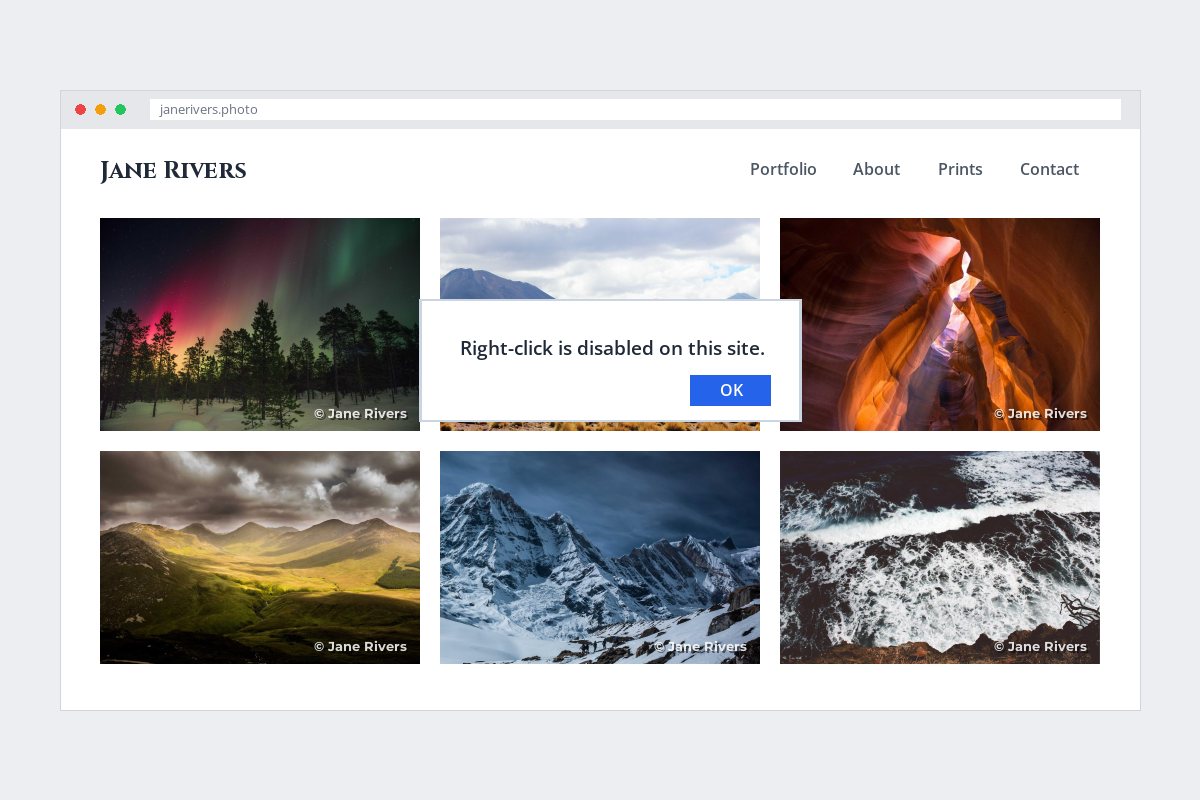
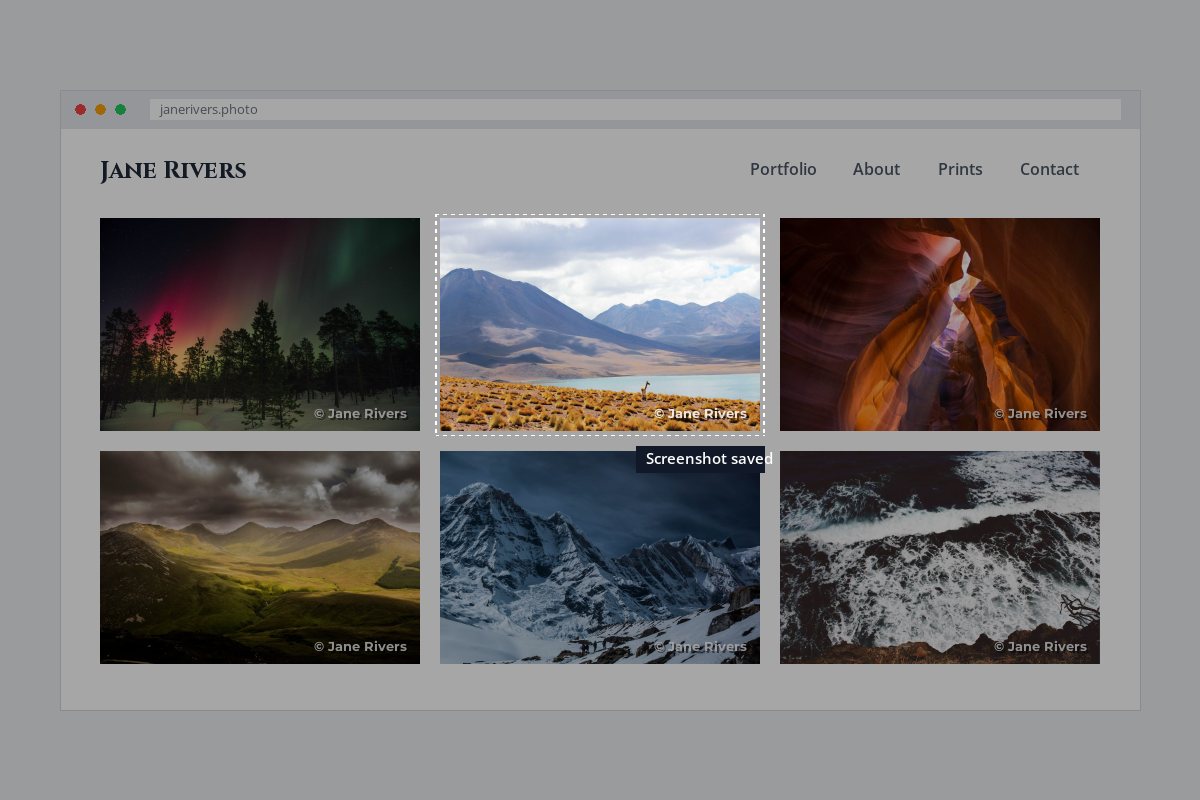
Any image displayed on a screen can be screenshotted, and the browser has already downloaded it in order to display it. Right-click blocking also gets in the way of honest visitors — people who want to copy your page link or open a photo in a new tab. If you use it, treat it as a small nudge, not protection. What survives a screenshot is what is in the pixels: the size you uploaded and the credit on the photo.
Recompression Can Blur a Small Credit
Your site, your theme or your hosting may re-save uploaded images to make them load faster. Heavy compression softens fine detail first — and a small credit is fine detail. Here is the same credit, enlarged, after a light and a heavy re-save:


- Export at good quality and let the site do the shrinking, rather than compressing twice.
- Use a medium or bold font for the credit; thin strokes break up first. See the best fonts for watermarks.
- Check the live page, not just your export. What visitors see is the site’s version.
File Names and Alt Text
A portfolio should be found as well as protected. Google’s image SEO guidance recommends short but descriptive file names — its example is my-new-black-kitten.jpg rather than IMG00023.JPG — and alt text that describes the image in the context of the page.
| Weak | Better | |
|---|---|---|
| File name | DSC_4821-final-2.jpg | northern-lights-lofoten-fjord.jpg |
| Alt text | photo | Northern lights over a fjord in Lofoten, with pine trees in the foreground |
| Alt text | Jane Rivers photography landscape photographer best landscape photos | Sunlit green valley below storm clouds in the Scottish Highlands |
Describe the photo, not the watermark, and do not stuff your name or keywords into alt text — it exists so people using screen readers know what the image shows. Your name belongs in the page title, the surrounding text and your credit.
That is a separate question with its own answer — see do watermarks hurt SEO?
Preparing a Batch for Your Site in Watermark.ws
-
1
Upload the photos for the gallery
Use your edited, full-resolution exports — Watermark.ws works on copies, so the originals stay untouched.
-
2
Resize for the web
Add a Resize step and set the size in pixels or as a percentage, for example 2,500 pixels on the long edge.
-
3
Add a small credit
A short text or logo watermark in one corner, with a soft shadow, sized for the full-screen version.
-
4
Apply it to the whole batch
Apply the resize and the credit to every photo, then nudge the credit on any photo where it lands on something important.
-
5
Save it as a template
Save the batch settings so every future gallery gets the same size and the same credit in the same place.
-
6
Download, rename and upload
Download the batch, give the files descriptive names, and upload them to your site with alt text.
For more on doing this at scale, see the batch watermarking workflow.
Sample photos: Northern lights by Nelly Volkovich, Mountain lake by Paula Porto, Slot canyon by Sebastian Boguszewicz, Green valley by Sylvain Guiheneuc, Snowy peaks by Lee Roylland, Waves by Josefa Holland-Merten, River valley by Steve Carter, Underwater by Christopher Campbell on Unsplash.