
On this page
- The App Draws Over Your Video
- Vertical Video: Three Areas to Avoid
- Horizontal YouTube Videos: Stay Above the Controls
- End Screens Cover the Last 5–20 Seconds
- YouTube’s “Branding Watermark” Is Not a Watermark
- Reframing, Reposts and Stitches
- One Position That Works for Both Shapes
- How to Watermark Your Videos in Watermark.ws
The App Draws Over Your Video
On a photo, the only thing covering your watermark is whatever you put there. On a video platform, the app itself paints a layer over your picture: like and share buttons, your caption, the account name, a progress bar, playback controls, and at the end of a YouTube video, clickable end-screen elements.
None of that is part of your video file, so you never see it in your editor. But it is exactly what viewers see — and a watermark that lands under a button or a caption is a watermark nobody reads.
- Vertical video (TikTok, Shorts, Reels): keep clear of the right-hand buttons, the caption area at the bottom and the very top of the frame.
- Horizontal YouTube video: sit above the control bar, away from the bottom-center subtitles and the bottom-right corner.
- Posting both shapes: place the mark inside the centered 9:16 area of the frame, above the bottom fifth.
- Always burn it in. A watermark that is part of the pixels travels with every download, screen recording and reupload.
Vertical Video: Three Areas to Avoid
TikTok, YouTube Shorts and Instagram Reels all use the same basic layout for full-screen vertical video. The exact spacing changes between apps, devices and caption lengths, but the areas the interface occupies are consistent:
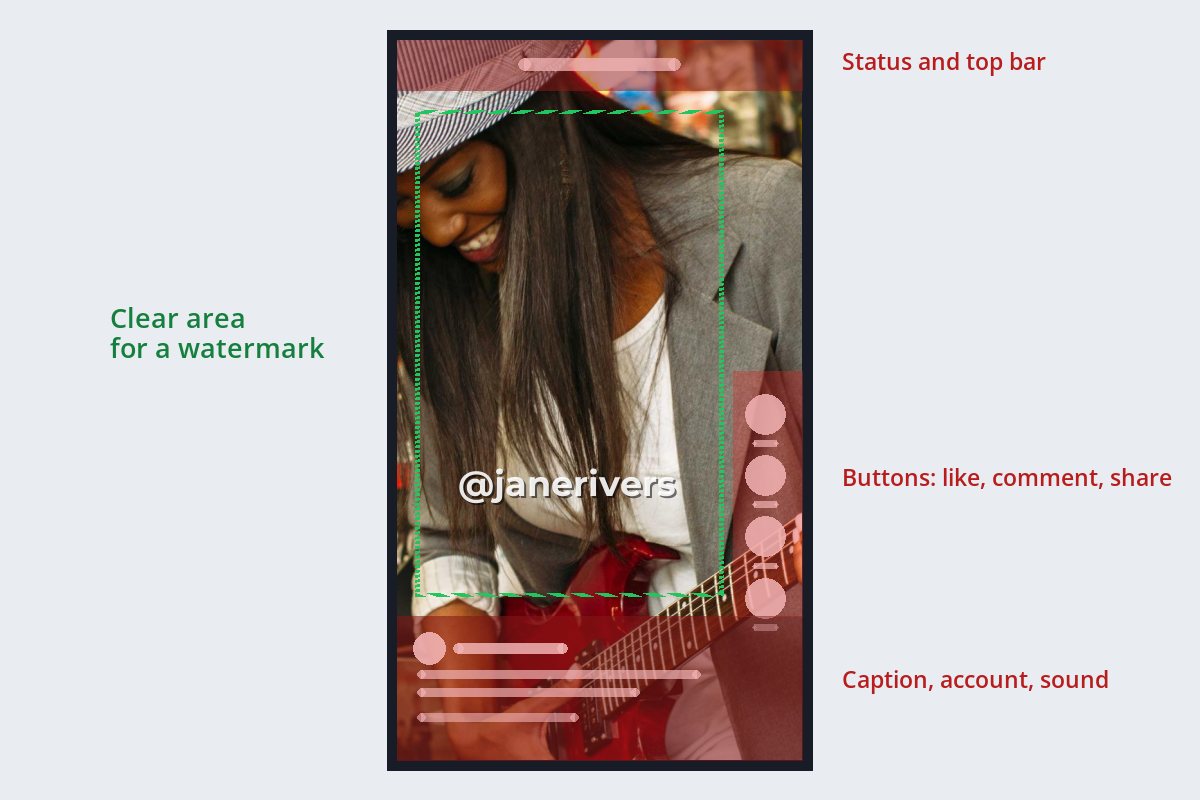
- The right-hand column. Like, comment, share and save buttons, plus the creator’s profile picture, stacked from about the middle of the screen downward.
- The bottom band. Your account name, the caption and the sound, and on ads, a call-to-action button.
- The top edge. The phone’s status bar and the app’s own tabs or search.
TikTok’s own ad guidance describes the same problem: fixed interface elements on the For You feed can cover part of a video, so text and logos should sit inside a “safe zone” — and that safe zone gets smaller as the caption gets longer. The same logic applies to a watermark on an ordinary post.
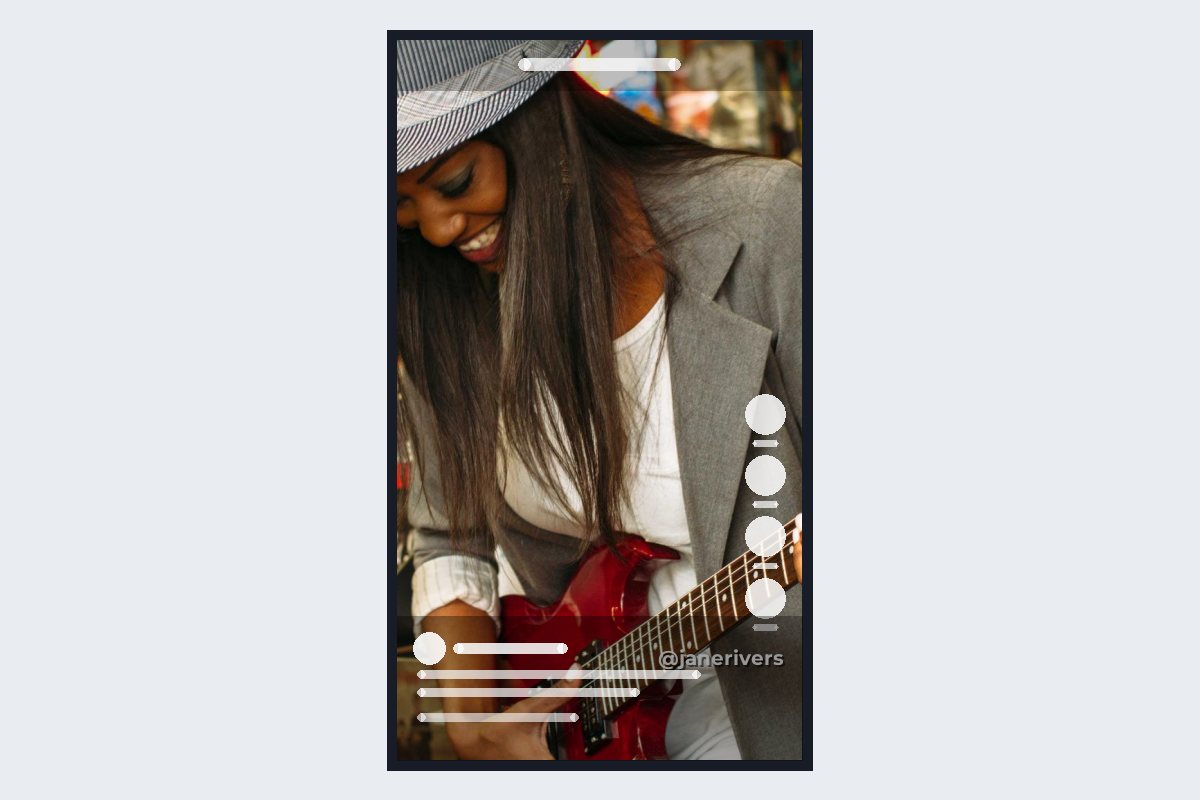
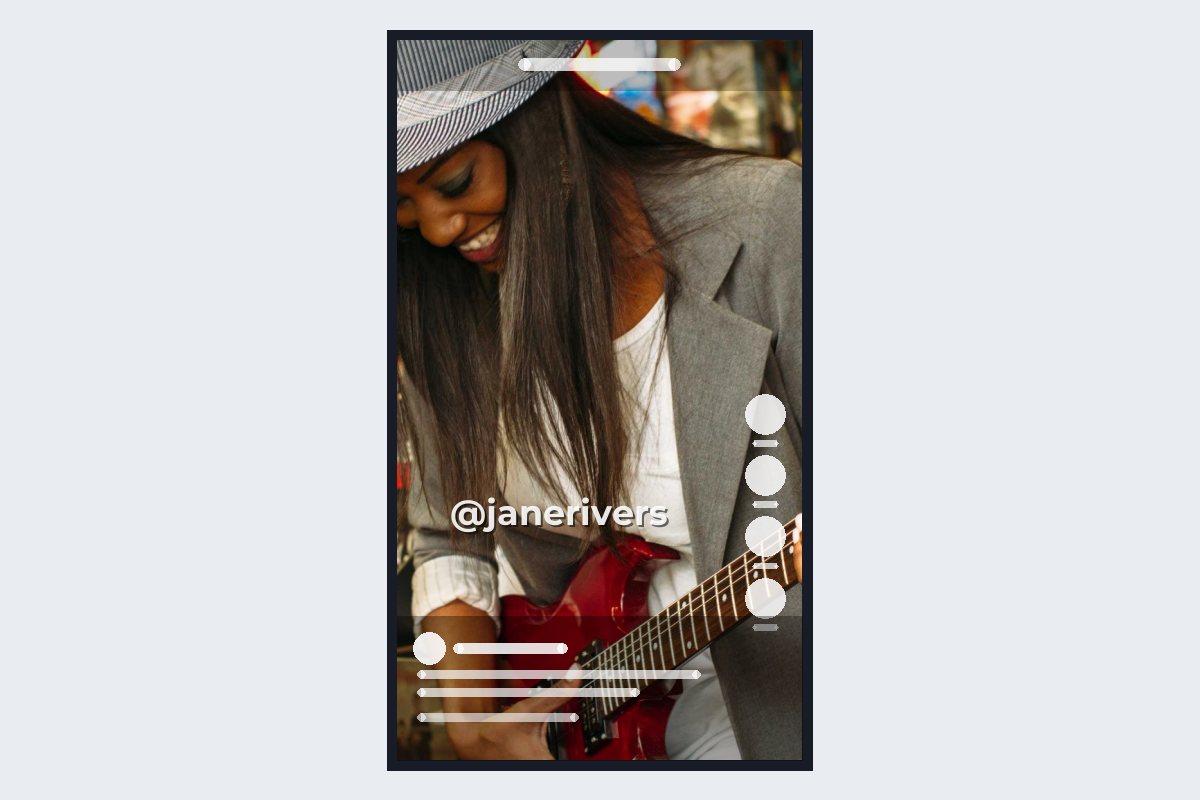
The bottom-right corner — the default spot for a photo watermark — is the worst place on a vertical video: it sits under both the button column and the caption. Move the watermark up into the lower-middle of the frame and a little left of center, and it stays readable whatever the caption length.
Horizontal YouTube Videos: Stay Above the Controls
On a regular YouTube video, the interface is lighter but it still covers the bottom of the frame: the progress bar and playback controls appear whenever a viewer pauses, scrubs or hovers, and closed captions are drawn along the bottom center.


Raising the watermark a little — to roughly the lower quarter of the frame, rather than the very edge — keeps it clear of the controls. Keep it toward one side rather than the center, so it never collides with subtitles.
There is one more thing that lives in the bottom-right corner: YouTube’s own branding watermark, if you have set one up in YouTube Studio. More on that below.
End Screens Cover the Last 5–20 Seconds
According to YouTube Help, end screens can be added to the last 5–20 seconds of a video, on videos at least 25 seconds long. For that stretch, clickable video tiles, a subscribe element and playlist links sit on top of your picture.

YouTube hides its own branding watermark while the end screen is showing. A watermark that is burned into your video is not hidden — it is part of the picture — so decide where your end-screen elements will go and keep the watermark out of those spots.
YouTube’s “Branding Watermark” Is Not a Watermark
YouTube Studio has a setting called a video watermark (often called the branding watermark). You upload a square image — YouTube Help asks for at least 150 × 150 pixels and under 1 MB — and choose when it shows: for the last 15 seconds, from a custom start time, or for the entire video. It appears in the bottom-right corner of the player and works as a subscribe button.
It is useful for growing a channel. It does not protect anything, because it is not part of your video:
| YouTube branding watermark | Watermark burned into the video | |
|---|---|---|
| Where it lives | In the YouTube player only | In every frame of the file |
| Clickable | Yes — it subscribes viewers | No |
| Survives a download or screen recording | No | Yes |
| Survives a reupload to another platform | No | Yes |
| You choose the position | No — bottom right | Yes |
Use both if you like — but place your burned-in watermark somewhere other than the bottom-right corner, so the two never stack on top of each other. For more on the difference between a mark in the pixels and a mark in the player, see video watermark best practices.
Reframing, Reposts and Stitches
Many creators cut the same footage twice: a horizontal version for YouTube and a vertical version for Shorts and TikTok. The quickest way to make the vertical cut is to crop the middle of the frame — which throws away both sides, including any watermark sitting in a corner.
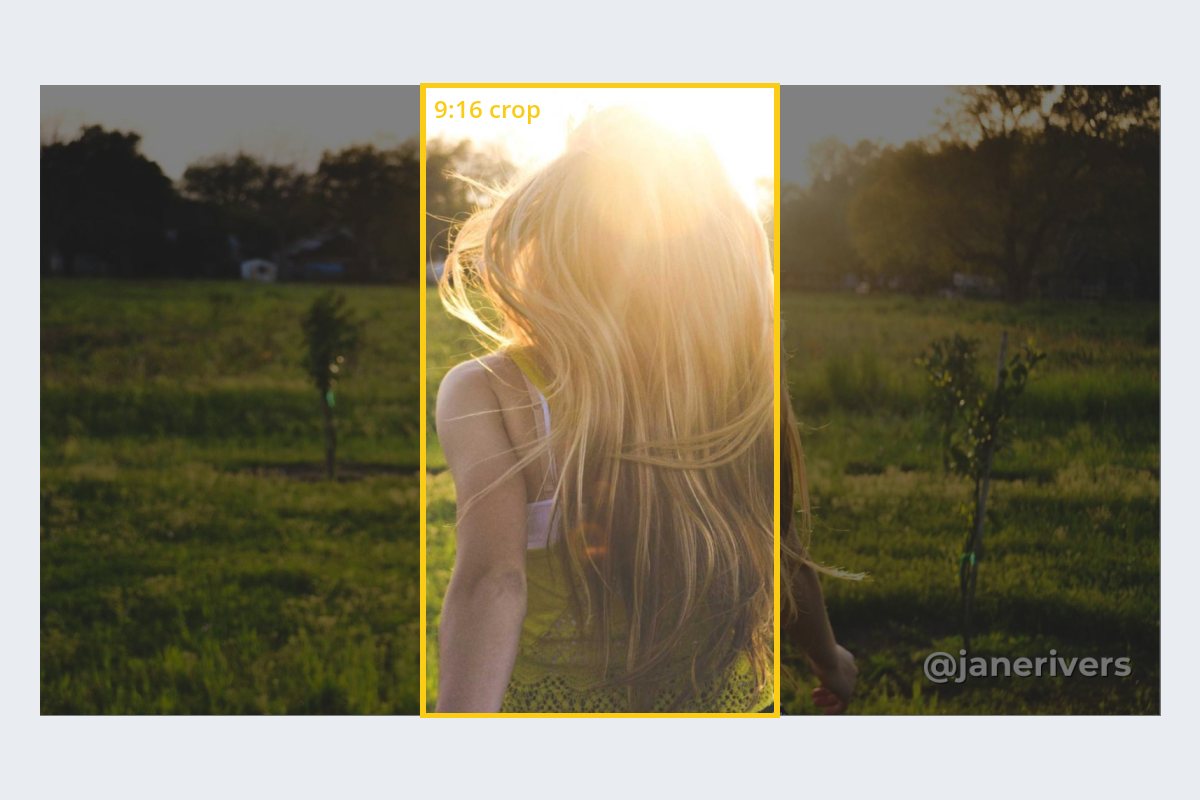

The same thing happens when someone else reposts your clip. Reaction videos, compilations and reposts in a different shape almost always crop or shrink your footage, and TikTok’s Duet and Stitch features put your video inside someone else’s post. A watermark near the middle of the frame survives most of that; one tucked into a corner rarely does.
When a clip travels without credit, an @handle is the fastest way for viewers to find the original account. The same advice applies on Instagram — see how to watermark photos for Instagram.
One Position That Works for Both Shapes
If you post the same video in both shapes, you can pick a single watermark position that survives either version. It is the overlap of two areas: the centered vertical slice of the frame, and everything above the bottom interface.
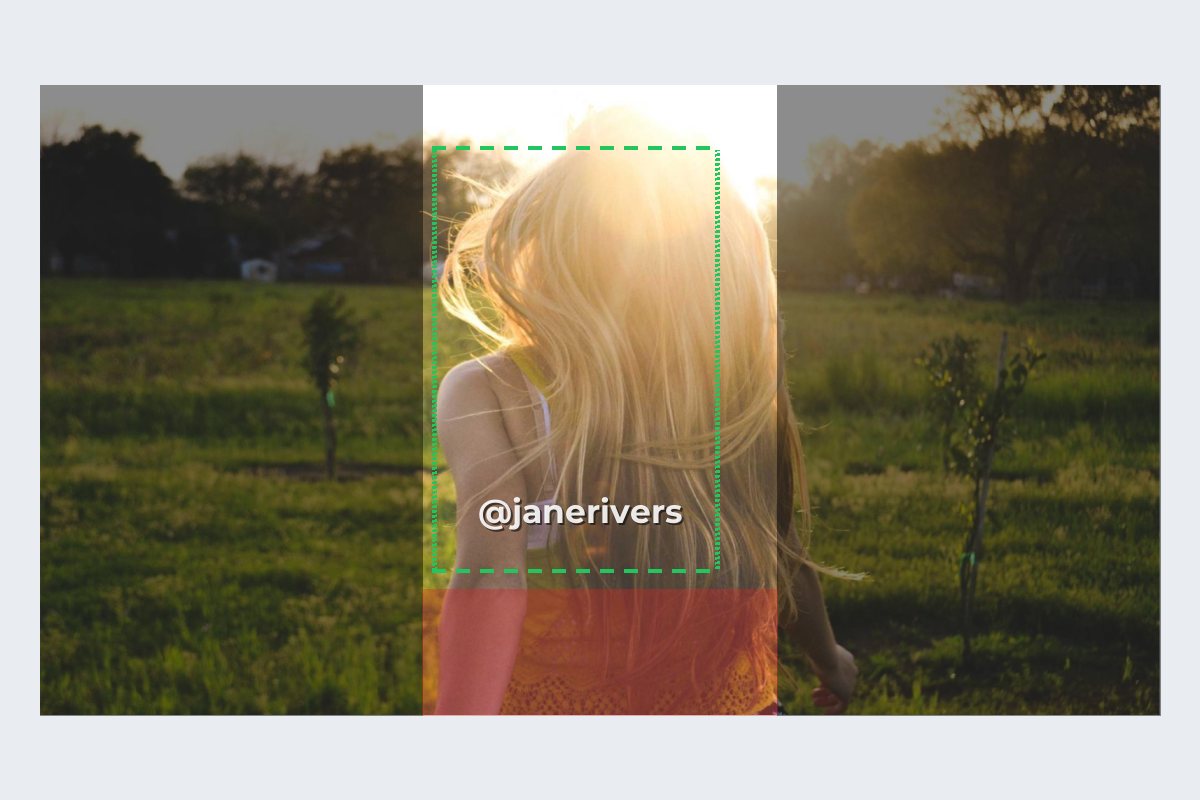
- Keep it inside the middle third of the frame’s width.
- Keep it above the bottom fifth of the frame.
- Lean slightly left of center, away from the vertical apps’ button column.
- Make it big enough to read on a phone — thin, small text disappears first. See the best fonts for watermarks.
How to Watermark Your Videos in Watermark.ws
-
1
Upload your videos
Drag in one or several clips. MP4, MOV, AVI, MKV, WMV, FLV, 3GP, MPG and M4V files are supported.
-
2
Add your handle or logo
Type your @handle as a text watermark, or upload a logo as a JPG, PNG, SVG or GIF. If the logo has a plain background, Remove Background can clear it.
-
3
Place it in the clear area
Drag the watermark into the lower-middle of the frame, clear of where the app draws its buttons and captions, and set its size and opacity.
-
4
Give it an edge
Turn on a shadow or stroke on a text watermark so it stays readable as the picture changes behind it.
-
5
Apply it to every video and save a template
Apply the watermark to the whole batch, save it as a template for next time, and download. The watermark is rendered into every frame, from the first second to the last.
For a step-by-step walkthrough of the tool itself, see how to watermark videos online.
Sample photos: Guitarist by Lechon Kirb, Rail yard at sunset by Dmitrii Vaccinium, Field at golden hour by Morgan Sessions on Unsplash.