How to Save a Video as MP4, MOV or WebM
Choose the format and quality your watermarked videos come out in, in the same edit.
- No account needed to start
- Up to 5,000 files per batch
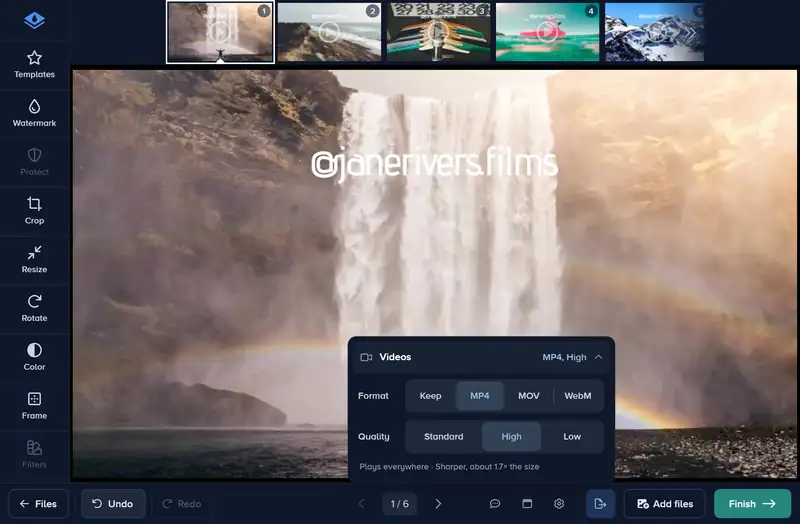
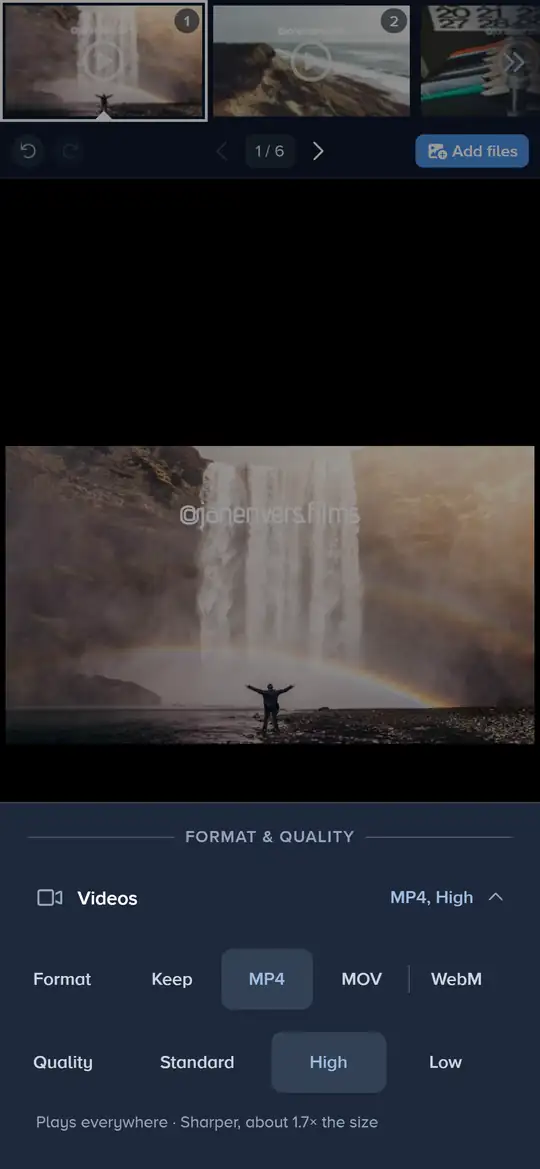
In short
Each video comes back in its own format unless you pick one, except 3GP, which comes back as MP4, and WebM, which comes back as MKV. On Premium and Ultimate, open Format and quality in the editor and pick MP4, MOV or WebM, and Standard, High or Low quality. On the free plan, each video keeps its default format.
How to Choose a Video’s Format in 4 Steps
Set it once; your choice is kept for next time.
-
Step 1: Open Format and Quality
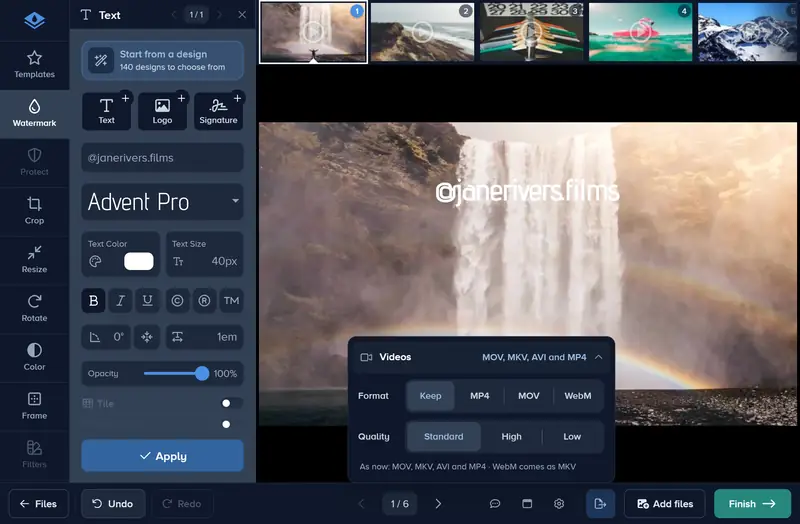
In the editor, click the Format and quality button, the file icon in the bar at the bottom. On a phone it sits in the bottom bar too and opens as a sheet.
-
Step 2: Pick the Format
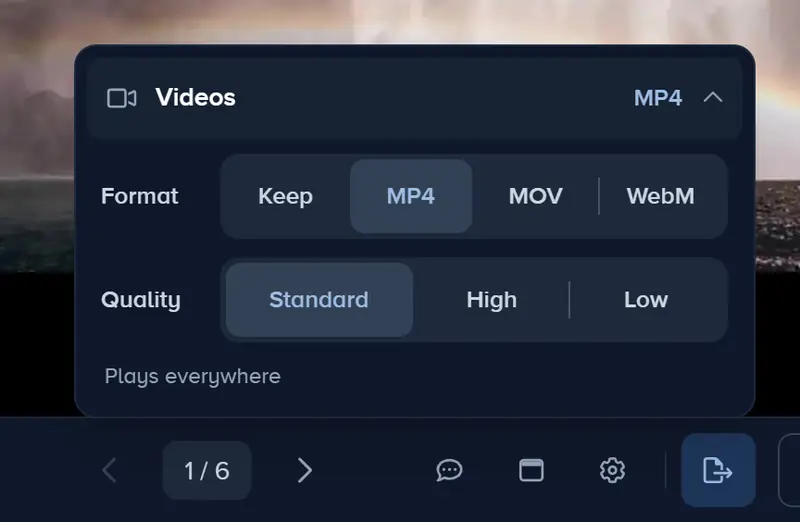
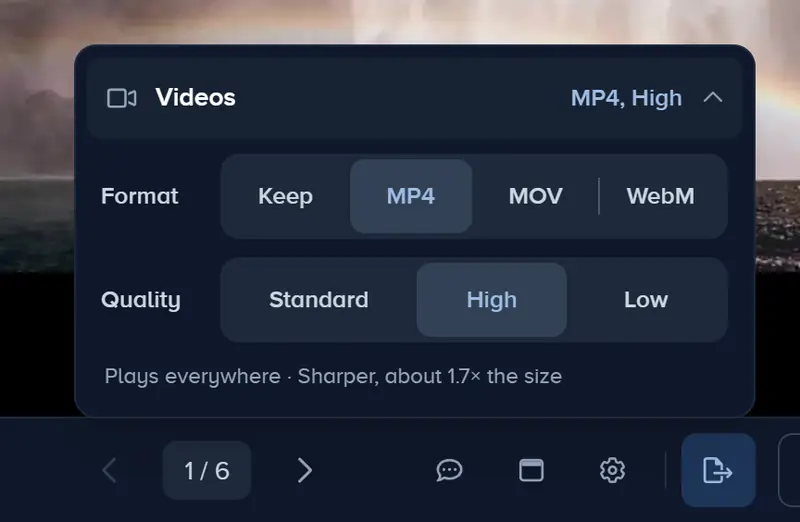
In the Videos row, under Format, pick MP4, MOV or WebM. Keep leaves each video in the format it comes out in by default.
-
Step 3: Pick the Quality
Under Quality, Standard is the default. High is sharper and about 1.7 times the size; Low is about 60% of the size.
-
Step 4: Finish and Download
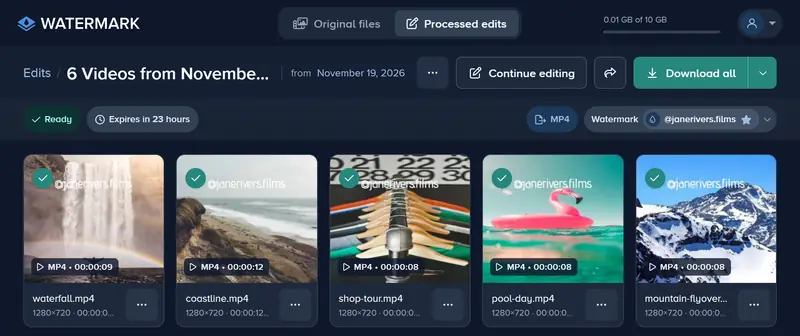
Click Finish and download the videos in the format you picked. Already finished? Open the arrow beside Download all, pick the format and click Reprocess.
If It Doesn’t Look Right
The Formats Have a Crown
Choosing the format and quality is part of Premium and Ultimate. On the free plan, picking one opens the upgrade, and your videos come out in their default format.
Not Sure Which Format to Pick
MP4 plays everywhere. MOV suits Apple apps and video editors. WebM is for the web and is slower to make.
The File Is Bigger Than Expected
High quality makes a video about 1.7 times the size of Standard. Pick Low for about 60% of the size when the file has to stay small.
The Button Is Grayed Out
Documents can’t be converted, so in an edit of only PDFs or Word files the button is off. The format choice is for photos and videos.
Save Your Videos the Way You Need Them
Watermark them and pick MP4, MOV or WebM in the same edit.
Watermark your videos- No account needed to start
- Works in your browser
Questions people ask
Does converting change my original video?
Can photos and videos in one edit get different formats?
Which video formats can I upload?
Keep reading
 Guide
Add a Logo Watermark to Your Photos
Upload your logo, set its size, opacity and position, and put it on one photo or a whole shoot. PNG, SVG or JPG logos up to 50 MB and 8,000 px. Free to try.
Guide
How to Add a Logo to a Video
Upload your logo, set its size and opacity, place it on the video’s frame and download the video with your logo on it. PNG, SVG or JPG logos up to 50 MB.
Guide
How to Add a Text Watermark to Photos
Type your name, website or © line, pick a font, then set its size, color, opacity and place. Apply it to one photo or a whole batch and download them.
Guide
How to Apply an Edit Only to the Photos You Changed
Open the photos that need an edit, then click Apply and pick Edited files. Only those photos get the watermark or crop; the rest of the batch stays as it is.
Guide
How to Batch Watermark Multiple PDFs at Once
Watermark many PDFs in one edit: place the watermark once, apply it to all files, and download them together. Up to 5,000 files per edit on Premium.