How to Crop Photos to Social Media Sizes While Watermarking
Cut your photos to a 4:5 post, a 9:16 story or a 16:9 thumbnail in the same edit that adds your watermark.
- No account needed to start
- Up to 5,000 files per batch
In short
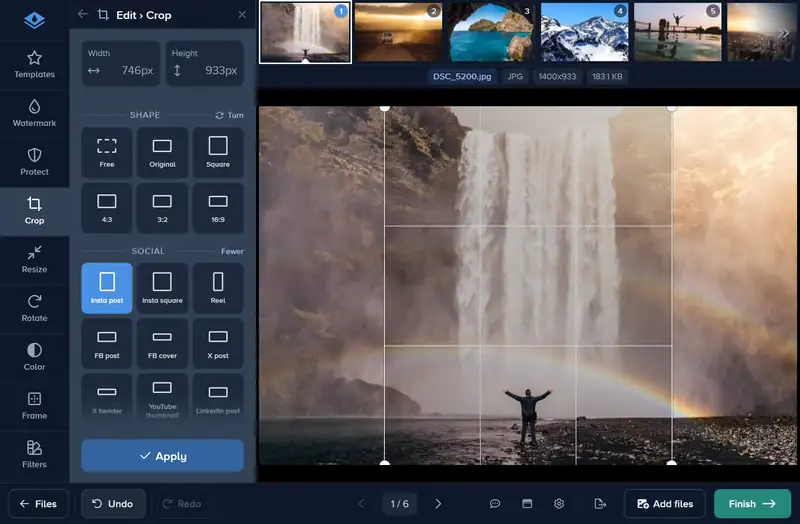
Open Edit, then Crop, and pick a shape under Social: 12 sizes, from a 4:5 portrait post and a 9:16 Reel to a 16:9 YouTube thumbnail and a 4:1 LinkedIn banner. Crop sets the shape; for an exact pixel size, Resize has 6 social sizes that fill the frame. Add your watermark in the same edit. Both tools are free on every plan.
How to Crop for Social Media in 5 Steps
Crop, watermark and download in one pass, so nothing gets cut off later.
-
Step 1: Add Your Photos
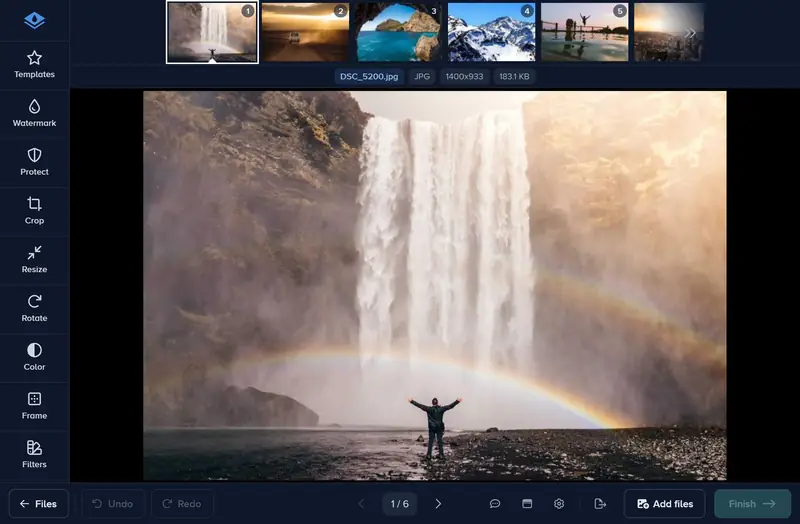
Click Choose files and add the photos you are posting. Photos of one shape and size crop most evenly together.
-
Step 2: Open Crop
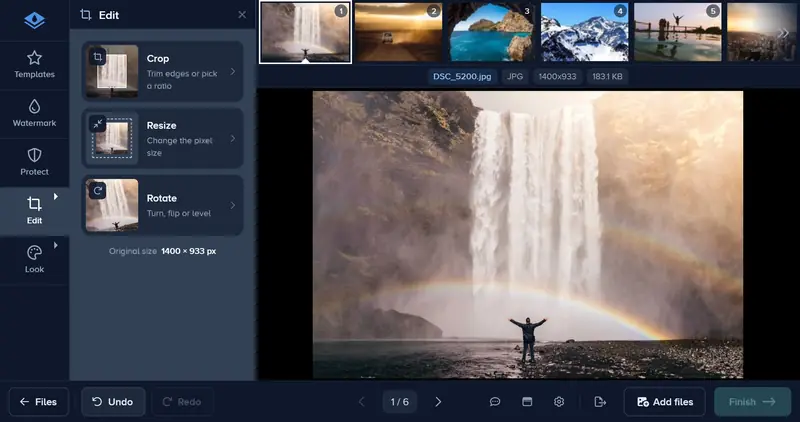
Click Edit in the tools and pick Crop. On a phone, tap Edit, then Crop.
-
Step 3: Pick a Social Size
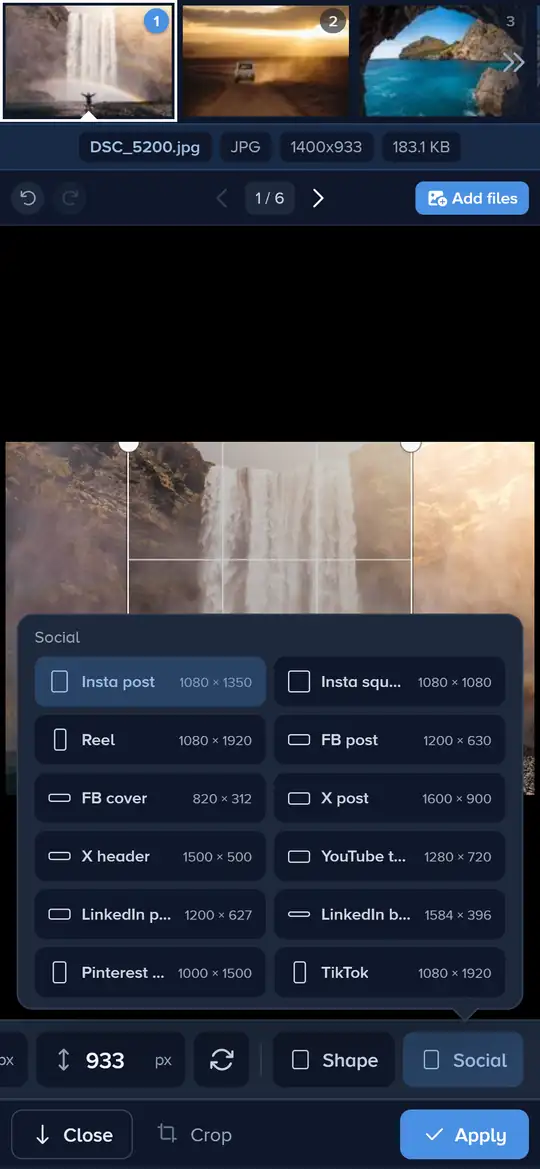
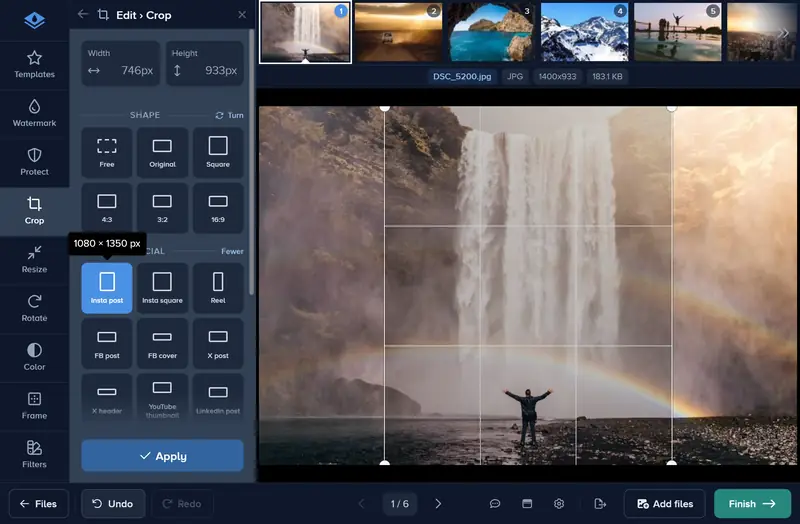
Under Social the first six sizes show; click All 12 › for the rest. Point at one to see its pixels, such as 1080 × 1350 for the 4:5 post. On a phone, tap Social and the sizes are listed with their pixels.
-
Step 4: Frame the Subject and Add Your Watermark
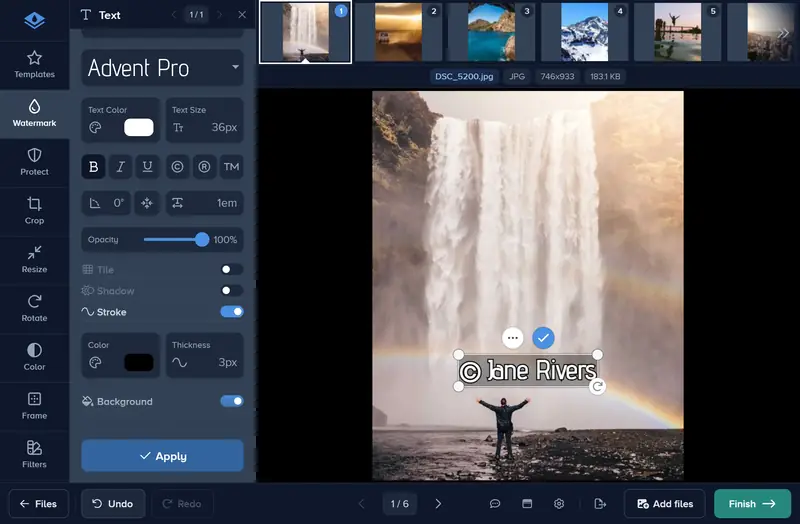
Drag the box over the subject; it keeps its shape as you move or resize it. Then open Watermark and place your text or logo inside the cropped area.
-
Step 5: Apply to Every Photo
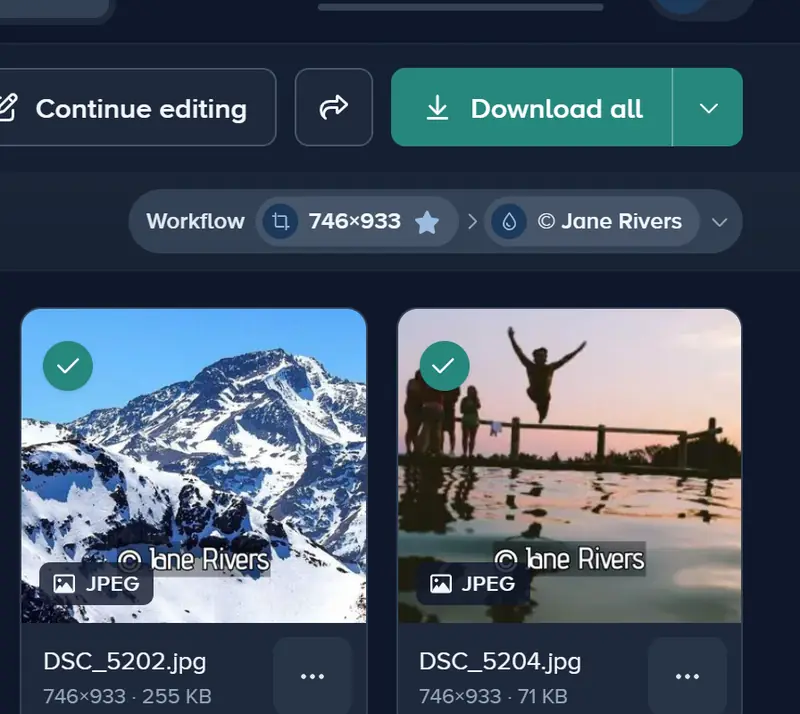
Click Apply and choose All files, then Finish to download the cropped, watermarked photos.
If It Doesn’t Look Right
The Subject Is Cut Off
Crop starts with the largest box of that shape in the middle of the photo. Drag it over the subject before you apply; its corners resize it without changing the shape.
The Box Is the Wrong Way Round
Click Turn beside Shape to swap the box between portrait and landscape, such as 5:4 for 4:5. It shows for every shape that is not square.
Mixed Photos Come Out Uneven
The box you draw is copied to the other photos as it is, so portraits and landscapes in one edit can come out differently. Crop them in separate edits, or crop each one and apply to Edited files.
The Pixel Size Isn’t Exact
Crop sets the shape, not the pixel count. For exactly 1080 × 1350, open Resize and pick that size under For social media: it fills the frame and trims what does not fit.
Crop and Watermark in One Edit
Pick a social size, keep the subject in frame and put your watermark on every photo.
Crop and watermark- No account needed to start
- Works in your browser
Questions people ask
Which social sizes does Crop offer?
Should I crop before I add the watermark?
Are there print sizes too?
Can I crop videos the same way?
Keep reading
 Guide
Add a Logo Watermark to Your Photos
Upload your logo, set its size, opacity and position, and put it on one photo or a whole shoot. PNG, SVG or JPG logos up to 50 MB and 8,000 px. Free to try.
Guide
How to Add a Logo to a Video
Upload your logo, set its size and opacity, place it on the video’s frame and download the video with your logo on it. PNG, SVG or JPG logos up to 50 MB.
Guide
How to Add a Text Watermark to Photos
Type your name, website or © line, pick a font, then set its size, color, opacity and place. Apply it to one photo or a whole batch and download them.
Guide
How to Apply an Edit Only to the Photos You Changed
Open the photos that need an edit, then click Apply and pick Edited files. Only those photos get the watermark or crop; the rest of the batch stays as it is.
Guide
How to Batch Watermark Multiple PDFs at Once
Watermark many PDFs in one edit: place the watermark once, apply it to all files, and download them together. Up to 5,000 files per edit on Premium.
 Guide
How to Batch Watermark Photos Online
Batch watermark up to 5,000 photos in one batch: design the watermark once, apply it to all, fix single photos and download a zip. Free to try, no install.