On this page
Why Pins Lose Their Way Back to You
Pinterest is built for images to travel. That is why it can send so much traffic to blogs and shops: people save a pin, come back to it later and click through to the page it came from. As long as the pin carries your link, every save works in your favor.
The trouble starts when the image is separated from the link. Someone downloads your pin and uploads it again as a new pin — with no link, or with a link to their own page. A content farm scrapes your recipe photo for its own post. A screenshot gets shared outside Pinterest entirely. In each case, the only part of your pin that survives is the image itself.
That is what a Pinterest watermark is for. It is not really protection; it is a return address. If the pin is copied, the image still tells people where to find the original.
Watermark Your Website, Not Just Your Name
On Instagram, an @handle works best because people search for accounts there. On Pinterest, most pins point to a website — so the most useful watermark is your domain. Someone who finds a copied pin can type it straight into a browser.
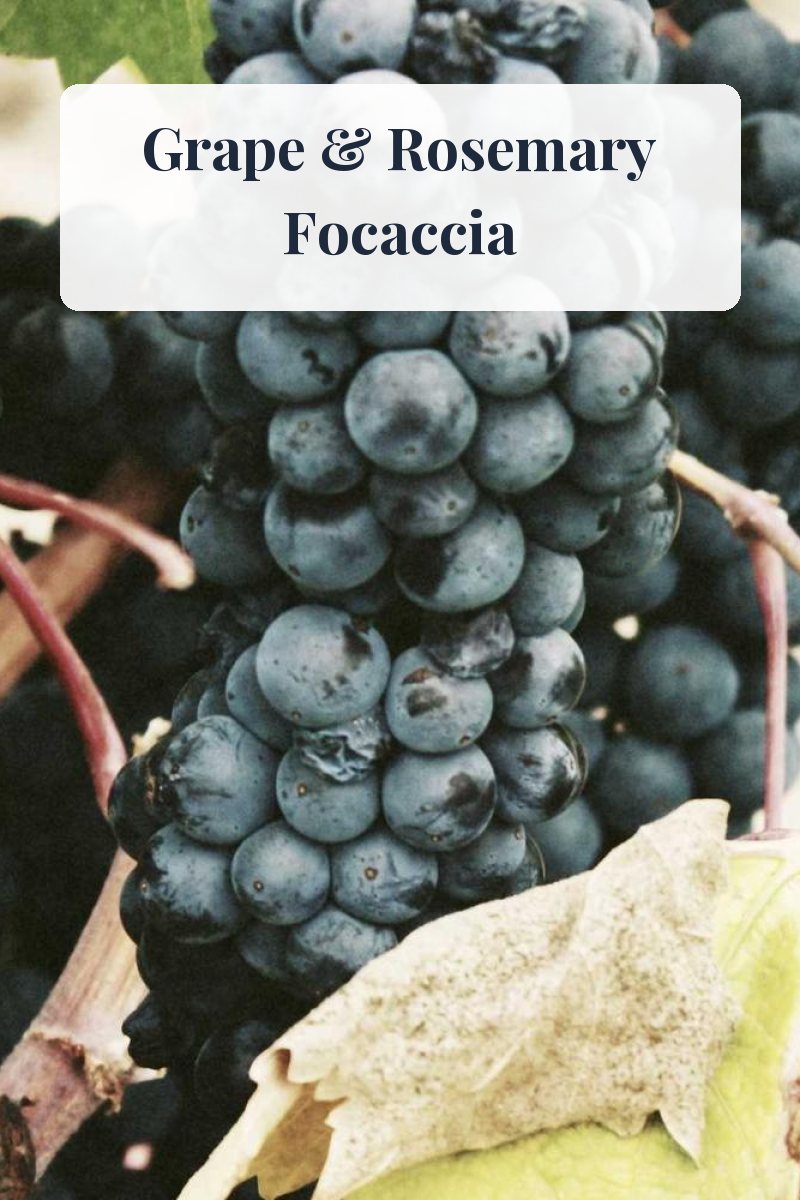
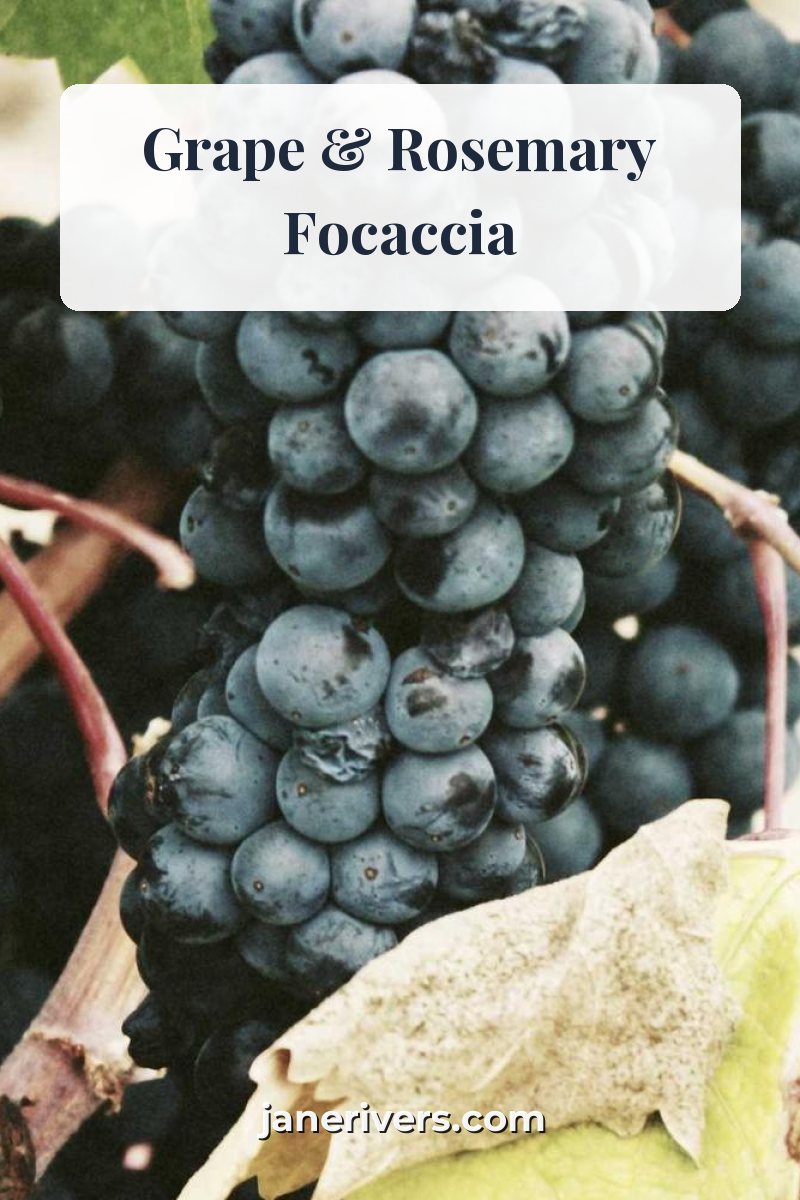
- Use the bare domain. “janerivers.com” is shorter and easier to read than “https://www.janerivers.com/recipes”.
- Keep it small but solid. Pins are viewed as narrow columns on a phone, so the URL needs a medium or bold weight and a soft shadow to stay readable.
- Use the same spot on every pin. Bottom center is the convention, which also makes your pins recognizable in a feed.
Keep It Inside a 2:3 Pin
At the time of writing, Pinterest recommends a 2:3 aspect ratio — 1000 × 1500 pixels — for image pins, and its ad specs warn that pins taller than 2:3 might get cut off in people’s feeds. For a watermark at the bottom of the pin, that matters: on an extra-tall pin, the bottom is exactly the part that can be hidden.
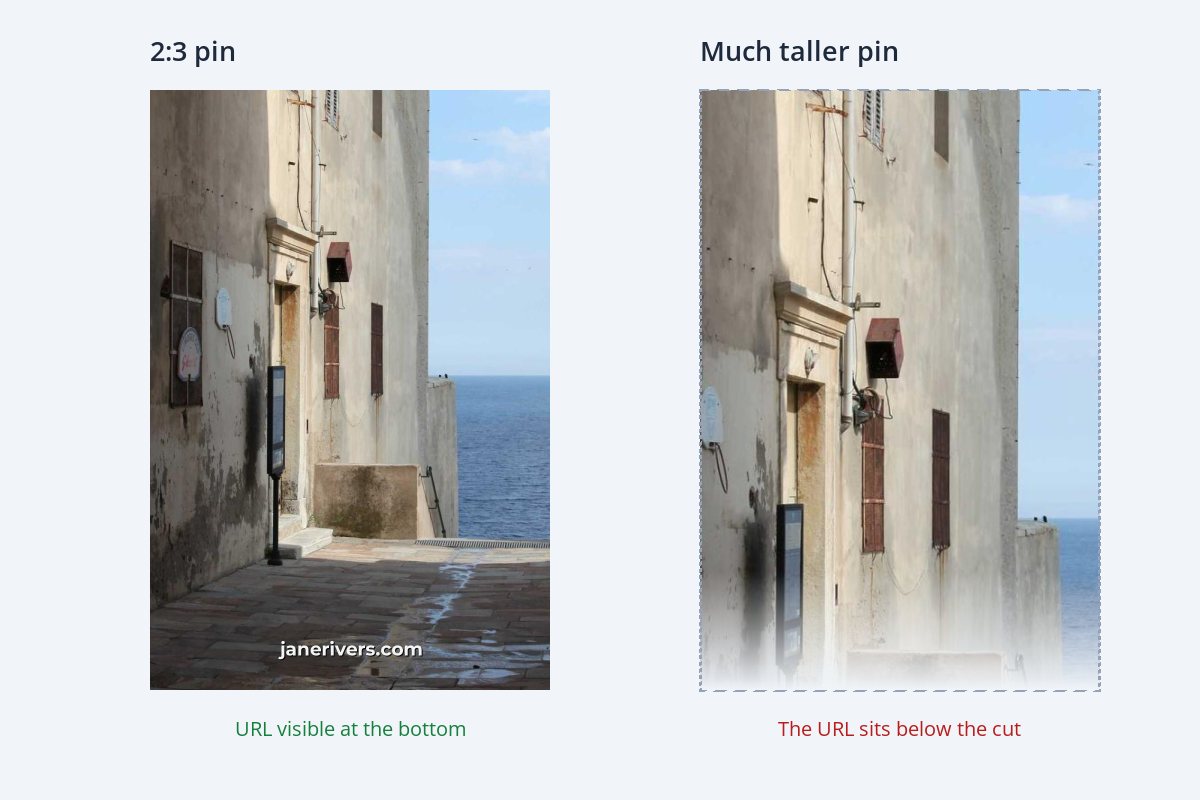
The simple fix is to make your pins 2:3 and keep the watermark a little way up from the bottom edge rather than right against it. If you do make longer pins, do not leave your website only at the very bottom — put it somewhere in the top two-thirds as well.
The Crop tool in Watermark.ws accepts an exact width and height in pixels, so you can crop any photo to 1000 × 1500 before adding your URL.
Title Overlays and Watermarks Do Different Jobs
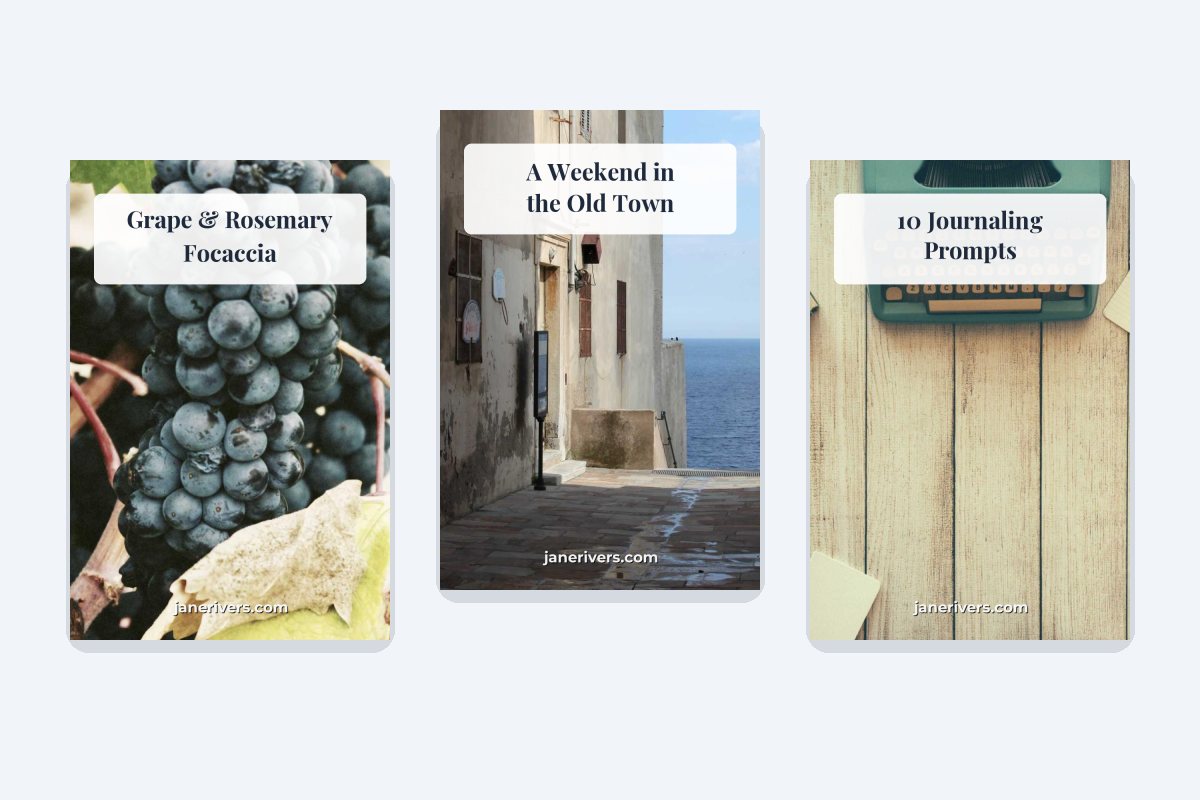
Many pins carry a text overlay: a headline such as “How to Brew Better Coffee”, usually in a band at the top. That is not a watermark. The overlay is there to make people stop and click; the watermark is there to say who made it. They work best together, each doing its own job.


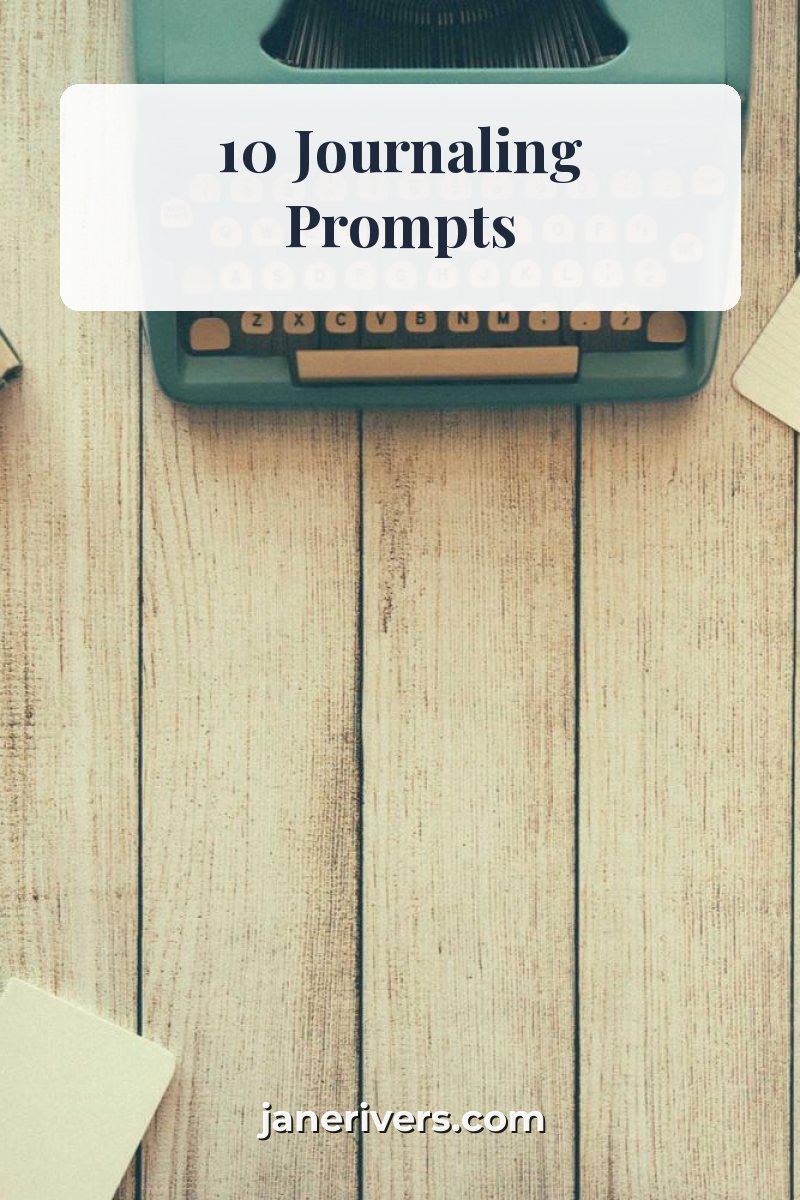
Keep the two visually separate. A big title and a small URL in the same band compete for attention; a title at the top and a URL at the bottom read as a headline and a signature.
Where the URL Goes on Different Kinds of Pins
| Pin | Where the URL goes | Watch out for |
|---|---|---|
| Recipe | Bottom center, below the dish. | Covering the food. The dish is what makes people click. |
| DIY and tutorials | Bottom center, or on a plain area of the backdrop. | Step photos cropped out and re-pinned individually — watermark each step image. |
| Travel | Lower third, over sky, water or road. | Very tall pins; keep the URL inside the 2:3 area. |
| Blog graphics and lists | Under the title band, or at the bottom. | Using the same color as the title, which makes it look like part of the headline. |
| Photography | A small credit inside the frame. | Heavy marks. People pin photos because they are beautiful. |
| Products | A small logo or URL in empty space. | Covering the product. Marketplace listings have their own rules. |
Food bloggers and travel bloggers pin more than almost anyone; watermarks for food bloggers and watermarks for travel bloggers cover the rest of their workflow, and product photo watermarks covers shop images.
Readers Pin Your Blog Images Too
The pins you design are only part of the picture. Readers can save any image from your blog to Pinterest, including the ones you never meant as pins: step photos in a tutorial, the third photo of a recipe, a detail shot in a travel post. Each of those becomes a pin of its own.
A pin saved from your page starts with a link to that page, which is good. But those images are just as easy to download and re-upload as your designed pins, and they usually carry no text at all. If you want your site credited wherever your images go, watermark every image you publish, not only the pin graphics.
- A small URL on every blog image, in the same place each time, is enough. It does not need a title band.
- Keep it subtler than on pins. Readers are looking at these images inside your post; they should not feel like ads.
- Batch it. Watermark all of a post’s images at once before you upload them to your blog.
Will a URL on the image put people off? Pinterest does not publish figures on that, so treat it as a design choice. A small, tidy URL that matches your pin style is common on successful blogs; a large one across the photo is what tends to look spammy.
Pinterest Watermark Checklist
- Put your bare domain on every pin image.
- Make pins 2:3 and keep the URL a little way up from the bottom.
- Use a sturdy font with a soft shadow, so the URL survives a narrow phone column.
- Watermark every image you publish, not just the main pin — step photos get pinned too.
- Keep the same position and style on every pin.
- Rely on the pin’s link alone — it is lost when the image is re-uploaded.
- Put the URL only at the very bottom of an extra-tall pin.
- Cover the dish, the product or the finished project.
- Style the URL like the headline, so it looks like part of the title.
- Use a thin script for the URL; it disappears at pin size.
Making Pins in Watermark.ws
-
1
Upload your blog or pin images
Drag in the photos from a post — the main image and any step photos.
-
2
Crop to 2:3
Enter 1000 × 1500 in the Crop tool for each pin image.
-
3
Add your URL as a text watermark
Your bare domain, in a medium or bold font, with a soft shadow. Place it bottom center, a little way in from the edge.
-
4
Add a title band if you use one
A second text watermark with the Background option turned on gives you a simple headline band. Keep it visually separate from the URL.
-
5
Save it as a template
Every new post’s pins then get the same URL, in the same place, in one click.
For more on choosing a readable font, see the best fonts for watermarks; for the text itself, what to write in a watermark.
Sample photos: Grapes by Jassy Onyae, Coffee beans by Daniel Ruswick, Tea and flowers by Carli Jean, Typewriter by Dustin Lee, Old town alley by Bertrand Zuchuat on Unsplash.