How to Resize Photos for the Web While Watermarking
Shrink every photo to a web size in the same edit that adds your watermark, and upload smaller files.
- No account needed to start
- Up to 5,000 files per batch
In short
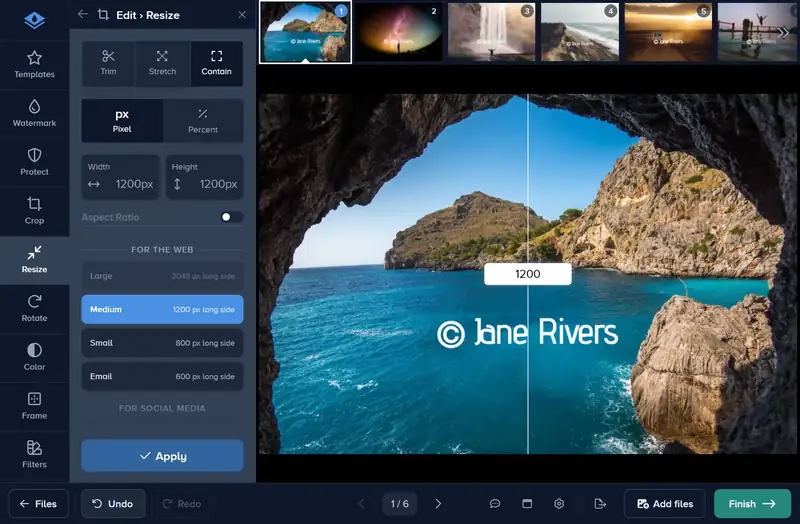
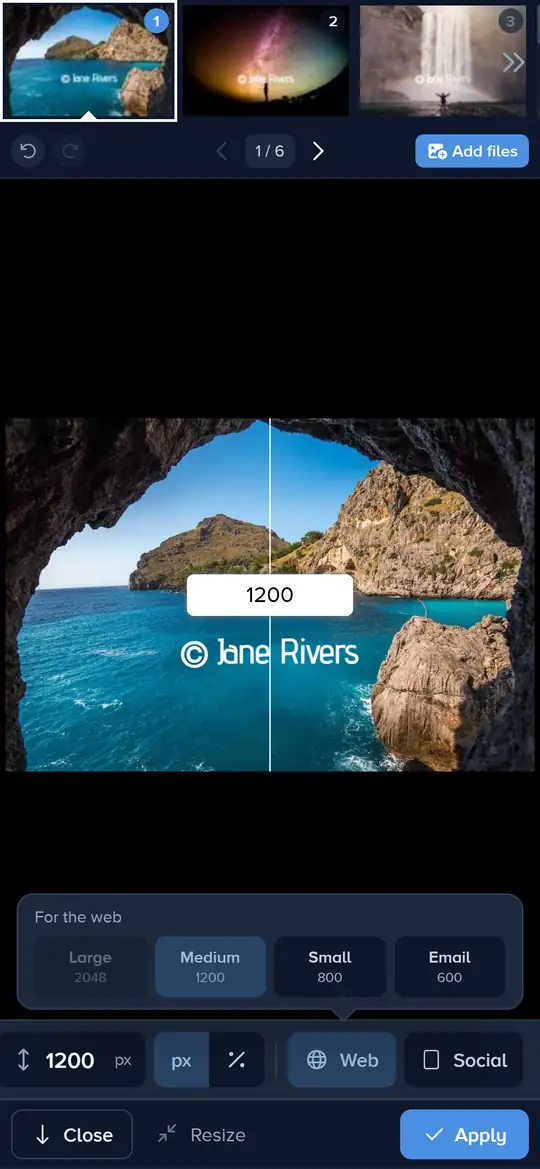
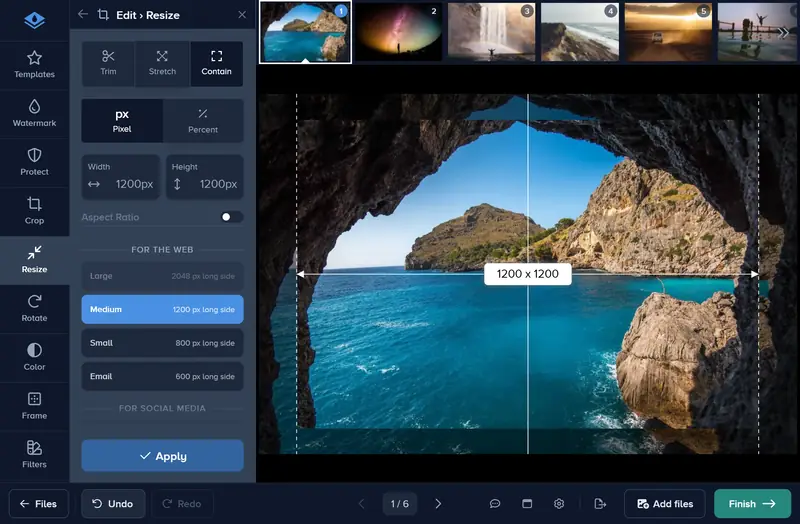
Open Edit, then Resize, and pick a size under For the web: Large sets each photo’s long side to 2,048 px, Medium to 1,200, Small to 800 and Email to 600, and every photo keeps its shape. Add your watermark in the same edit and apply both to all your files. Resize is free on every plan.
How to Resize and Watermark Photos in 5 Steps
Smaller files and your watermark, in a single pass.
-
Step 1: Add Your Photos
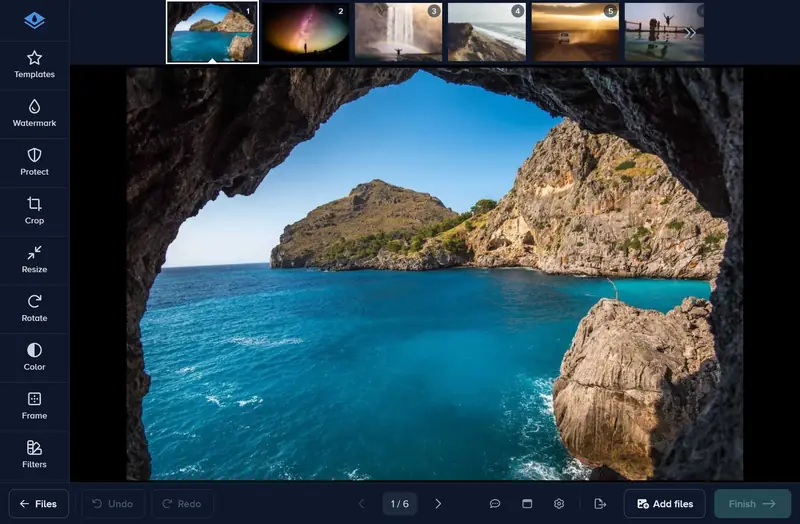
Click Choose files and add the photos you are putting online. Resize works on videos too.
-
Step 2: Open Resize
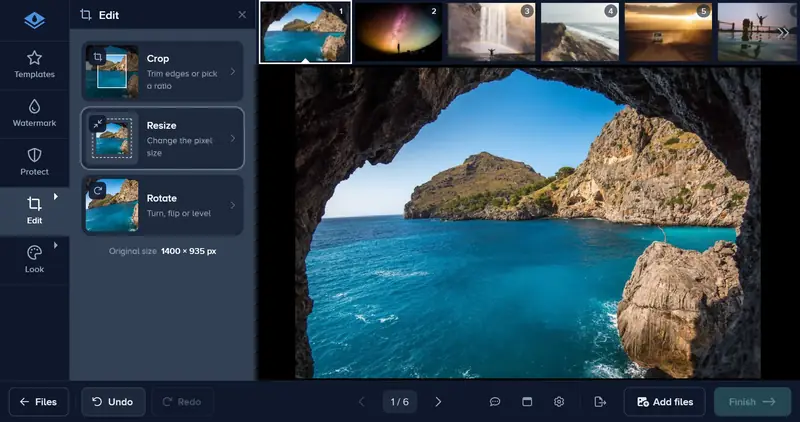
Click Edit in the tools and pick Resize. On a phone, tap Edit, then Resize.
-
Step 3: Pick a Web Size
Under For the web, click Large, Medium, Small or Email. For a size of your own, type a Width and Height in px, or switch to %. On a phone, the sizes are under For the web in the row.
-
Step 4: Add Your Watermark
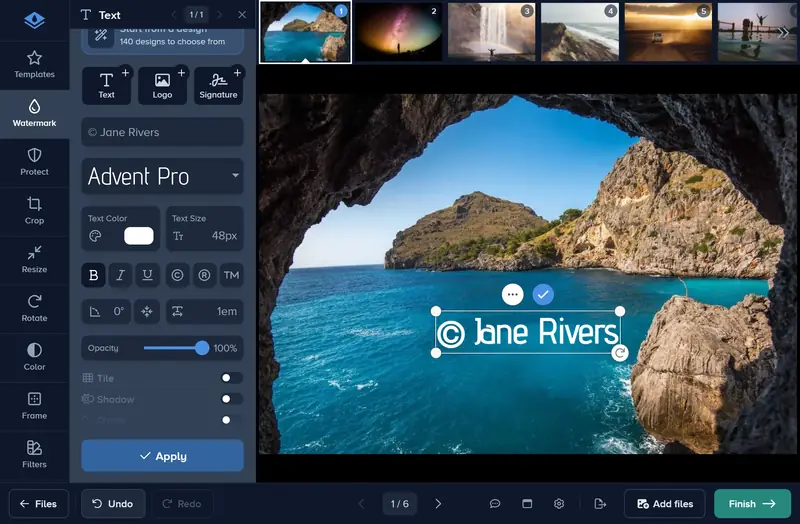
Open Watermark and add your text or logo. Size it for the finished photo: on an 800 px photo, thin or small text gets hard to read.
-
Step 5: Apply and Download
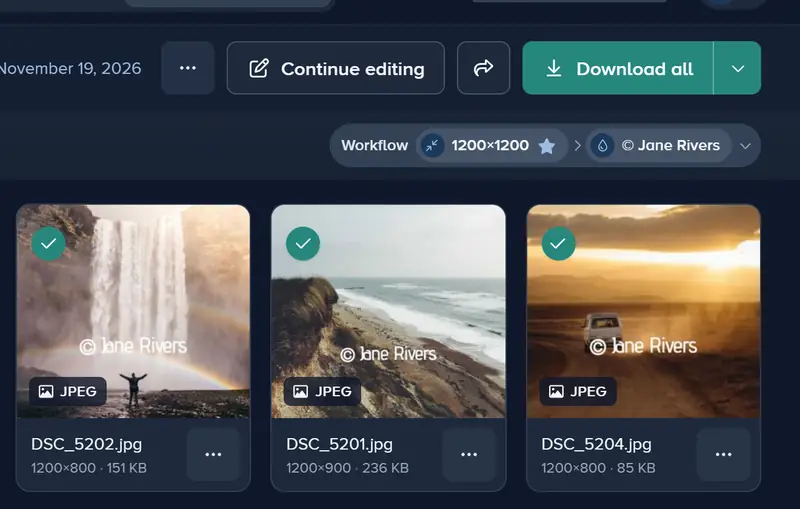
Click Apply and choose All files, then Finish. On Premium and Ultimate, the Format and quality button also saves photos as JPG, PNG or WebP at the quality you pick.
If It Doesn’t Look Right
A Web Size Is Grayed Out
Your photo is already smaller than that size on its long side, and the web sizes only make photos smaller. Pick a smaller size, or leave the photo as it is.
Photos Look Squashed
Stretch forces the exact width and height you type. Switch to Contain to fit each photo inside that box in its own shape, or Trim to fill the box and trim the edges.
The Files Are Still Large
Pick Medium or Small, which cut the pixels much further. On Premium or Ultimate, save as JPG or WebP rather than PNG, which keeps every pixel and is much larger.
The Watermark Is Hard to Read
At 800 or 600 px a thin font or a small watermark breaks up. Raise its size, pick a heavier font, or add a shadow so the letters hold together.
Resize and Watermark Your Next Batch
Pick a web size, add your watermark and apply both to every photo.
Resize and watermark- No account needed to start
- Works in your browser
Questions people ask
What size should photos be for a website?
Do portrait and landscape photos come out the same size?
Can I resize on the free plan?
Are my original photos changed?
Keep reading
 Guide
Add a Logo Watermark to Your Photos
Upload your logo, set its size, opacity and position, and put it on one photo or a whole shoot. PNG, SVG or JPG logos up to 50 MB and 8,000 px. Free to try.
Guide
How to Add a Logo to a Video
Upload your logo, set its size and opacity, place it on the video’s frame and download the video with your logo on it. PNG, SVG or JPG logos up to 50 MB.
Guide
How to Add a Text Watermark to Photos
Type your name, website or © line, pick a font, then set its size, color, opacity and place. Apply it to one photo or a whole batch and download them.
Guide
How to Apply an Edit Only to the Photos You Changed
Open the photos that need an edit, then click Apply and pick Edited files. Only those photos get the watermark or crop; the rest of the batch stays as it is.
Guide
How to Batch Watermark Multiple PDFs at Once
Watermark many PDFs in one edit: place the watermark once, apply it to all files, and download them together. Up to 5,000 files per edit on Premium.
 Guide
How to Batch Watermark Photos Online
Batch watermark up to 5,000 photos in one batch: design the watermark once, apply it to all, fix single photos and download a zip. Free to try, no install.