On this page
- What an Invisible Watermark in a PDF Really Is
- Option 1: A Barely Visible Watermark
- Option 2: Hidden White Text
- Option 3: Your Name in the PDF Metadata
- Option 4: Per-Recipient Marks to Trace a Leak
- Option 5: Forensic Watermarks
- What Each Invisible Watermark Survives
- Adding a Faint PDF Watermark in Watermark.ws
What an Invisible Watermark in a PDF Really Is
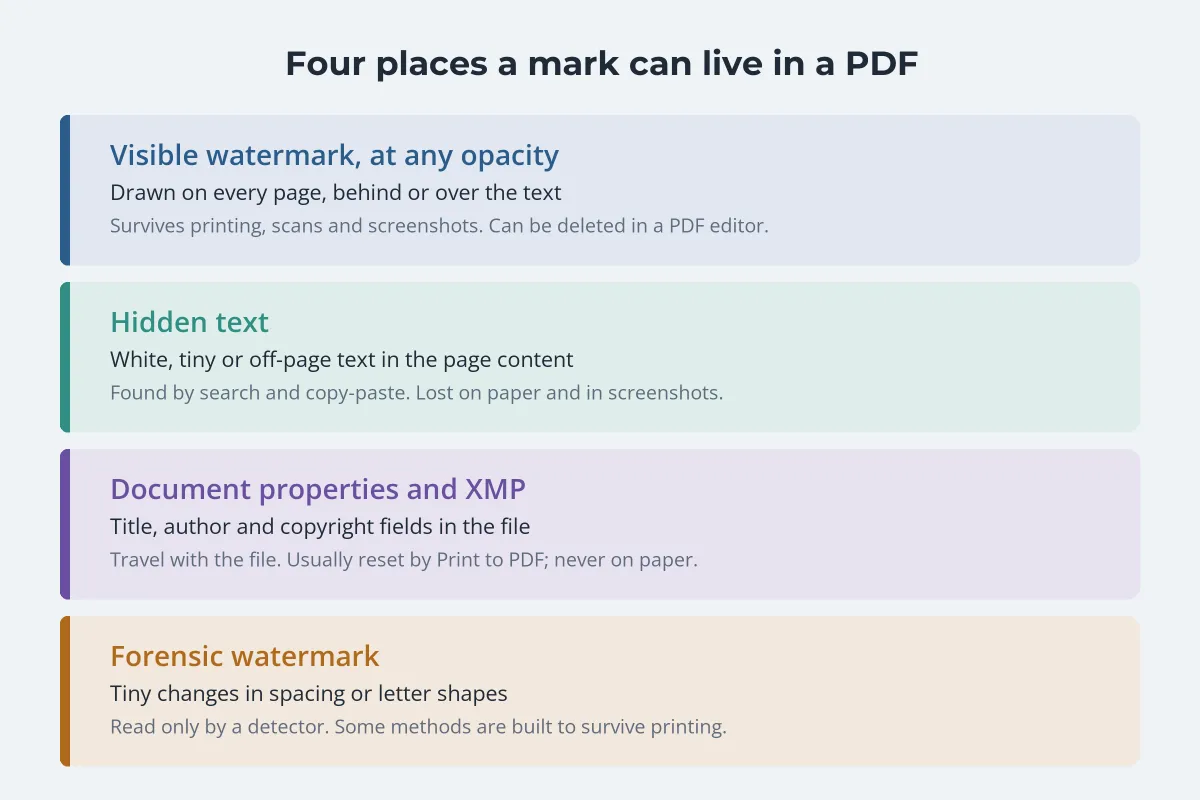
If you want to add an invisible watermark to a PDF, start with this: PDFs have no single "invisible watermark" feature. A photo can carry a mark hidden in its pixels. A document is mostly text and shapes, so a mark that readers cannot see has to live somewhere else. In practice there are five options:
- A barely visible watermark: an ordinary watermark at around 5–8% opacity. Readers look straight past it, but anyone who looks for it can find it.
- Hidden text: white or tiny text on the page that shows up when the text is selected, searched or copied.
- Metadata: your name and copyright in the document properties, never shown on the page.
- Per-recipient marks: a different name or code in every copy you send, so a leaked copy points back to the person who received it.
- Forensic watermarks: tiny, deliberate changes to spacing or letter shapes that only a detector can read.
- To show a PDF is yours: a faint watermark on every page, plus your copyright in the document properties.
- To find out who leaked it: a different, quietly visible name on each recipient’s copy.
- To leave nothing visible at all: metadata or hidden text, both easy to lose, or a specialist forensic watermark.
Option 1: A Barely Visible Watermark
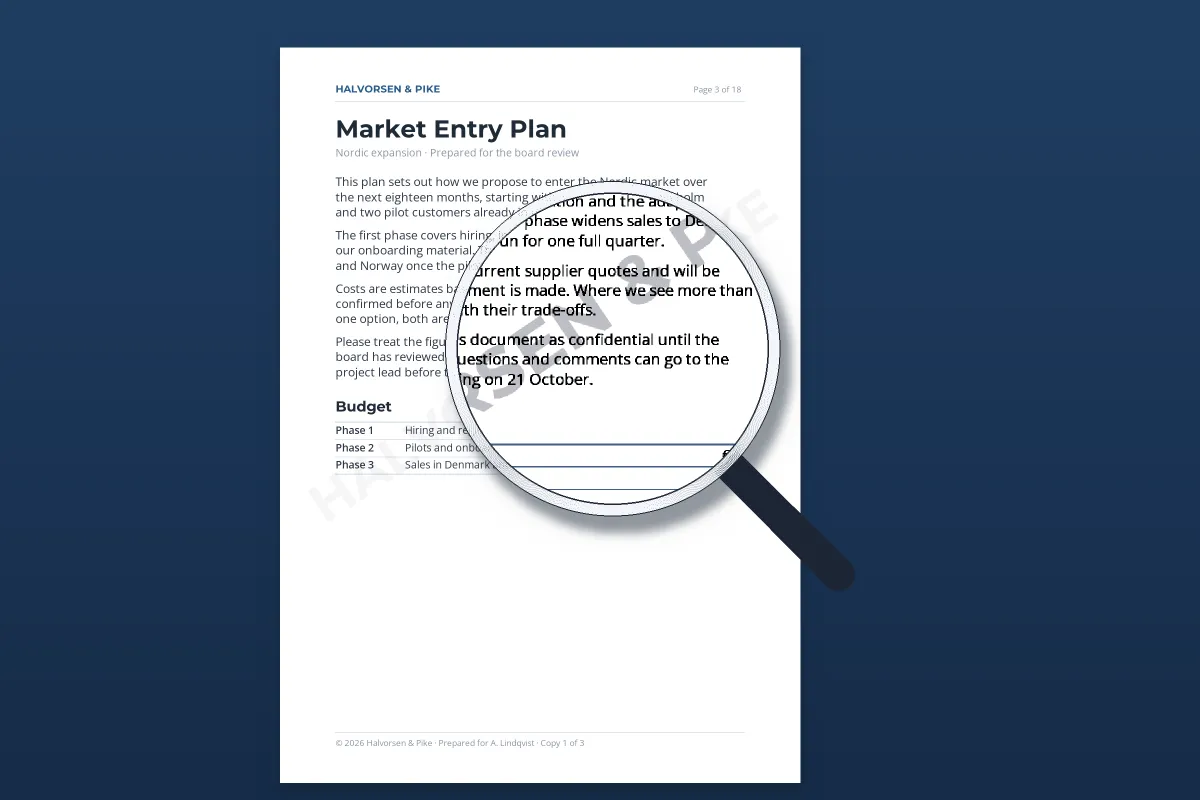
The sturdiest "invisible" watermark is not hidden at all. It is simply very faint. The mark is drawn on every page like any other watermark, but light enough that readers stop noticing it after the first line.



At around 5–8%, in a mid gray behind the text, most people read the whole page without registering the mark. Yet it is on every page and in every screenshot, and it becomes plainly readable when someone zooms in or raises the contrast. For most people searching for an invisible PDF watermark, that is the real goal: a mark that does not spoil the document but still shows where it came from. For more on choosing a level, see how transparent a watermark should be.
You can add a faint watermark with tools you probably already have:
- Adobe Acrobat (the paid versions, not the free Reader): open the PDF, select Edit, then Watermark › Add. Choose Text or File, lower the opacity, and use the appearance settings to decide whether the mark shows on screen, when printed, or both.
- Microsoft Word, before you export: Design › Watermark › Custom Watermark. Tick Semitransparent for a text watermark, or Washout for a picture, then save the document as a PDF.
- Watermark.ws: upload the PDF, add a text or logo watermark and turn the opacity down. The mark goes on every page, and a whole batch of PDFs can share the same settings.
Very faint marks can disappear in print. Light tints may print as a sparse dot pattern or drop out entirely, and scanners and copiers that clean up the background often remove whatever is left.


In this simulated print and scan, the 6% mark is gone while the 15% mark survives. The exact cut-off depends on the printer and the scanner. If paper copies matter, print one page and scan or photocopy it before you settle on an opacity.


Option 3: Your Name in the PDF Metadata
Every PDF can carry document properties (title, author, subject and keywords) and a block of XMP metadata that can hold a copyright status, a copyright notice and a URL. None of it appears on the page, but anyone who opens the file’s properties can read it. In Acrobat:
-
1
Open Document Properties
Press Ctrl+D (Cmd+D on a Mac) and select the Description tab.
-
2
Fill in the basics
Add a title, your name or company as the author, and a few keywords.
-
3
Add the copyright
Select Additional Metadata, set Copyright Status to Copyrighted, and enter a Copyright Notice and a Copyright Info URL.
-
4
Save and check
Save the file, reopen it and look at the properties again to make sure they stuck.
In Word, fill in the title, author and tags under File › Info before you save as PDF, and leave "Document properties" ticked in the PDF options.
Metadata is the most fragile layer. It stays with the file as long as the file is copied as it is. But Print to PDF writes a new document from what is on the page, which usually resets the title and author. PDF optimizers can be set to throw metadata away. And a printout, scan or screenshot carries none of it. Photos have the same problem, as copyright in photo metadata explains.
Option 4: Per-Recipient Marks to Trace a Leak
If the real worry is a leak, such as a board pack, a manuscript or a pitch deck shared under NDA, the most useful mark is one that is different in every copy. Send each person a version with their own name, a copy number or a short code, and a leaked page tells you which copy it came from.
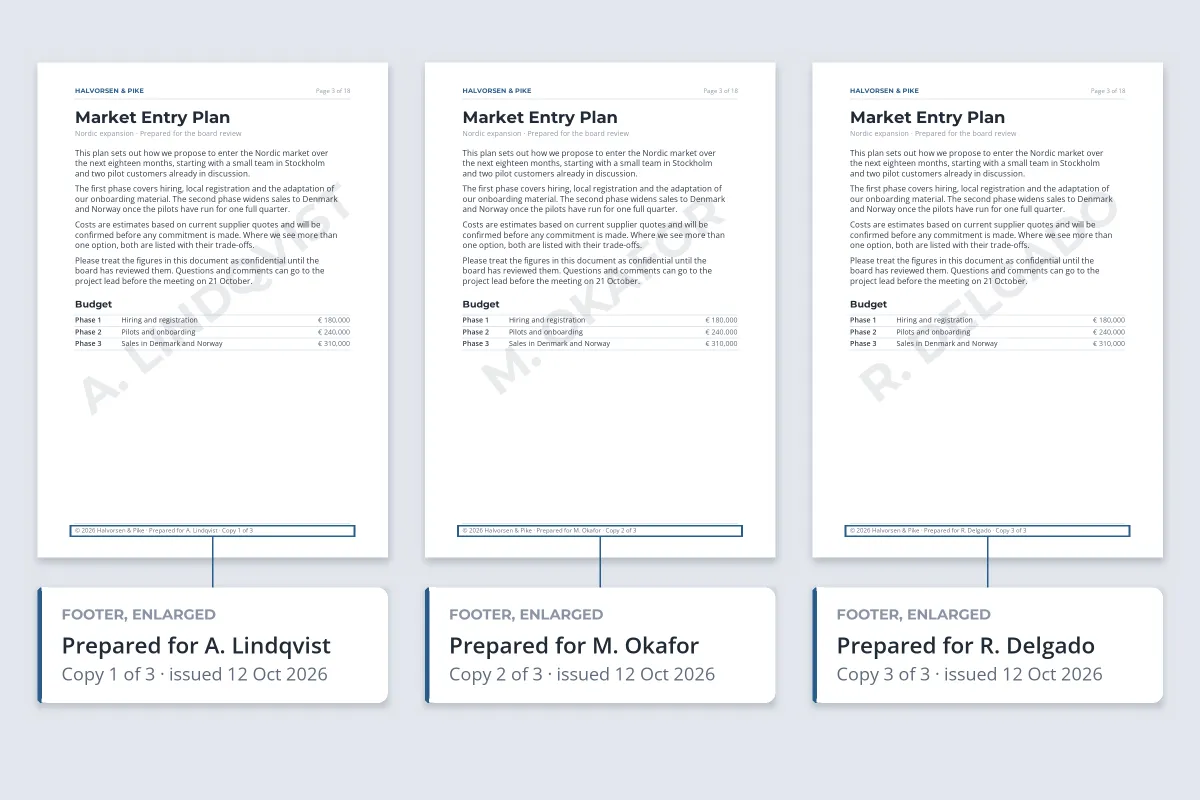
Surprisingly, the best leak tracer is usually not invisible. A quiet footer line or a faint diagonal name survives printing, scanning, screenshots and photos of a screen, which is how most documents actually leak. It also deters as well as traces: people think twice before forwarding a page with their own name on it.
To add a hidden layer on top, vary something nobody would notice: a line of white text from option 2, or slightly different wording in one sentence of each copy, an old technique often called a canary trap. Keep a record of which copy got which variation, or the mark is no use.
- Acrobat: the Watermark and Header & Footer tools can add a recipient line, one copy at a time.
- Data rooms and secure sharing services: many can stamp each viewer’s name or email onto the pages automatically.
- Watermark.ws: design the watermark once, save it as a template, and change only the name for each recipient’s copy.
Option 5: Forensic Watermarks
A truly invisible document watermark works like the hidden watermarks used on photos and video: it encodes an identifier in changes too small to notice. For text, some of the earliest published methods move whole lines or words by a tiny fraction of their spacing. Research published in 1995 described encoding an identifier by shifting selected lines of a document up or down, then reading the pattern back from a printed or photocopied page.
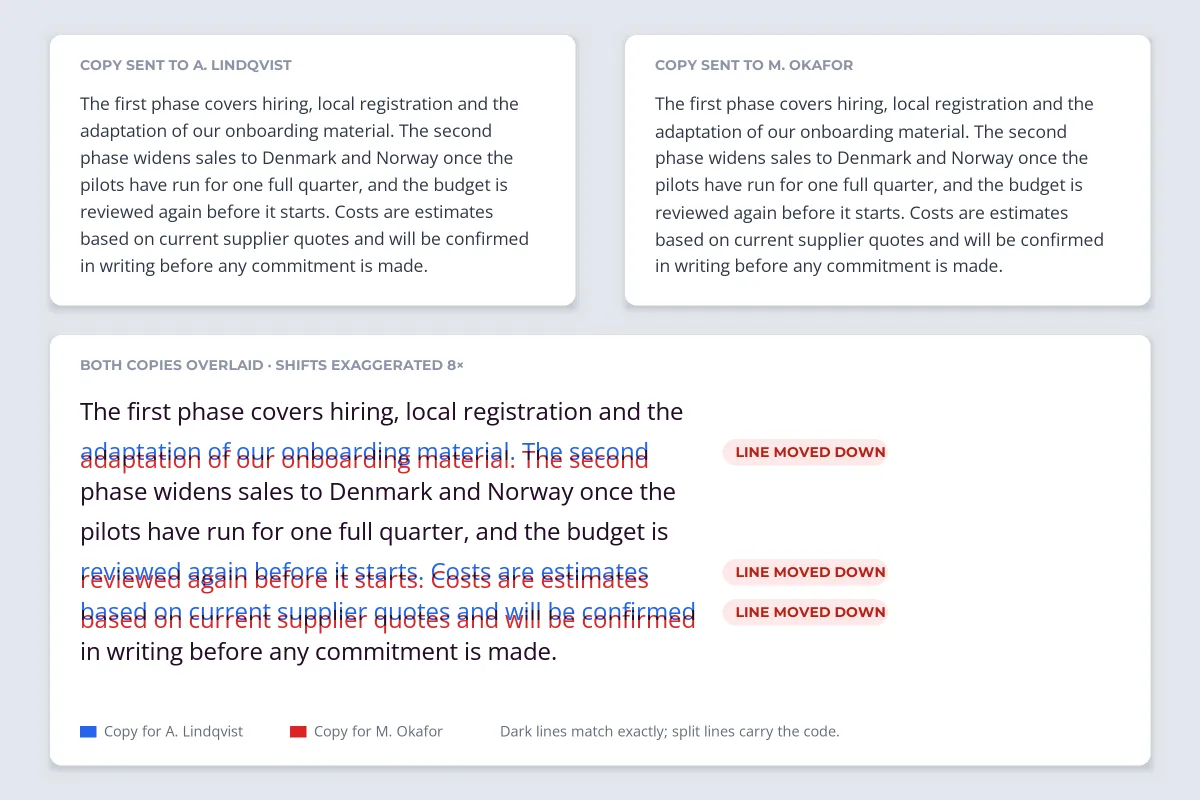
Other methods change letter shapes or character spacing, or hide a signal in the images on a page. They share the same trade-offs. You need specialist software to add the mark and a detector to read it. The mark tells a casual reader nothing. And how well it survives depends on the method: some are built for print and scan, others are lost as soon as the text is retyped, reflowed or run through text recognition.
If you need this level of tracing, look at document security and data room providers that offer it, and ask exactly which conversions their mark survives. The same ideas applied to photos are covered in invisible watermarks and Content Credentials.
What Each Invisible Watermark Survives
| Method | Screenshot | Print and scan | Print to PDF | Removal |
|---|---|---|---|---|
| Faint watermark | Yes | Only if not too faint | Yes, if set to print | Easy in a PDF editor |
| Hidden white text | No | No | Varies | Easy once found |
| Metadata | No | No | Usually reset | Easy |
| Per-recipient name | Yes | Yes | Yes | Possible, but every page needs cleaning |
| Forensic watermark | Depends on the method | Some methods | Depends on the method | Hard without knowing the method |
Two patterns stand out. Anything that lives in the file rather than on the page, like metadata and hidden text, disappears when someone prints, scans or screenshots it. And anything a person can see survives almost everything except deliberate editing.
For most documents, the strongest setup uses both: a faint watermark or recipient line on the page, and your details in the metadata. For how PDF watermarks get removed and how to keep a document readable, see how to watermark a PDF without ruining it.
Adding a Faint PDF Watermark in Watermark.ws
Watermark.ws adds visible text and logo watermarks to PDFs at any opacity, on every page, one file or a whole batch at a time. It does not add hidden text, edit document metadata or embed forensic watermarks. For those, use a PDF editor or a specialist service as described above.
-
1
Upload the PDF
Drag in one PDF or several. A PDF that needs a password to open has to have the password removed first.
-
2
Add your text or logo
Your name, your company, "© 2026 Jane Rivers", or a recipient’s name for a traceable copy.
-
3
Turn the opacity down
Use a mid gray and lower the opacity until the body text reads normally. Around 5–8% is barely visible; go higher if the document will be printed.
-
4
Save it as a template
Reuse the same mark on the next batch, or change only the name for each recipient.
-
5
Download
The watermark is applied to every page of the document.
For a walkthrough with screenshots, see the guide to watermarking PDFs online.