
On this page
GIFs Play by Different Rules
Most watermark advice assumes a JPEG or PNG: millions of colors, soft shadows, smooth transparency. An animated GIF has none of that. The format is decades old, and its limits decide what a watermark on it will look like:
| GIF limit | What it means for a watermark |
|---|---|
| Each frame has at most 256 colors | Soft shadows, glows and faint semi-transparent text get broken into visible steps. |
| Transparency is on or off — no partial transparency | Anti-aliased, feathered edges have to be baked onto the frame’s own colors. |
| An animation is a sequence of separate frames | The watermark has to be on every one of them, in exactly the same place. |
| Most GIFs loop and autoplay | Anything that jumps or flickers from frame to frame is seen again and again. |
None of this makes GIFs hard to watermark. It just means the style that works best is simpler than the one you would use on a photo.
The Watermark Has to Be on Every Frame
An animated GIF is played back as a series of still frames. If a tool only stamps the first one — or flattens the GIF into a single image — you either lose the animation or end up with a watermark that blinks on and off.




The picture moves; the watermark does not. Watermark.ws processes every frame of an animated GIF and keeps the original frame order and timing, so the mark sits in the same spot for the whole loop. See watermarking GIFs for the supported workflow.
256 Colors: Why Soft Effects Break Up
A photo can use millions of colors. A GIF frame gets 256, so every smooth gradient has to be rebuilt from a small set of shades. Here is the same patch of out-of-focus light, enlarged, in full color and after reduction to a GIF palette.


A watermark goes through the same reduction. The effects that make a watermark look refined on a photo — a soft drop shadow, a gentle glow, text at 30–40% opacity — are all made of subtle in-between shades, and those are exactly what the palette throws away. Many GIF optimizers go further and cut the palette well below 256 colors to save space. Below, both marks were reduced to 64 colors and enlarged:


The solid version survives because it only needs two colors — white and dark — and both are easy for any palette to keep. For GIFs, trade the soft shadow for a thin stroke, and use a watermark that is fully or almost fully opaque rather than faint.
A 20% white watermark over a sunset is really “sunset, slightly lighter”, and the palette may not have a shade for that. If you need a large, faint mark on a GIF, test it on the finished file — it often comes out patchy.
Keep It Out of the Motion
In a GIF, the eye goes straight to whatever moves — which is usually the reason the GIF exists. A watermark over the moving part competes with it on every loop. The same mark over a still part of the frame is noticed once and then ignored.
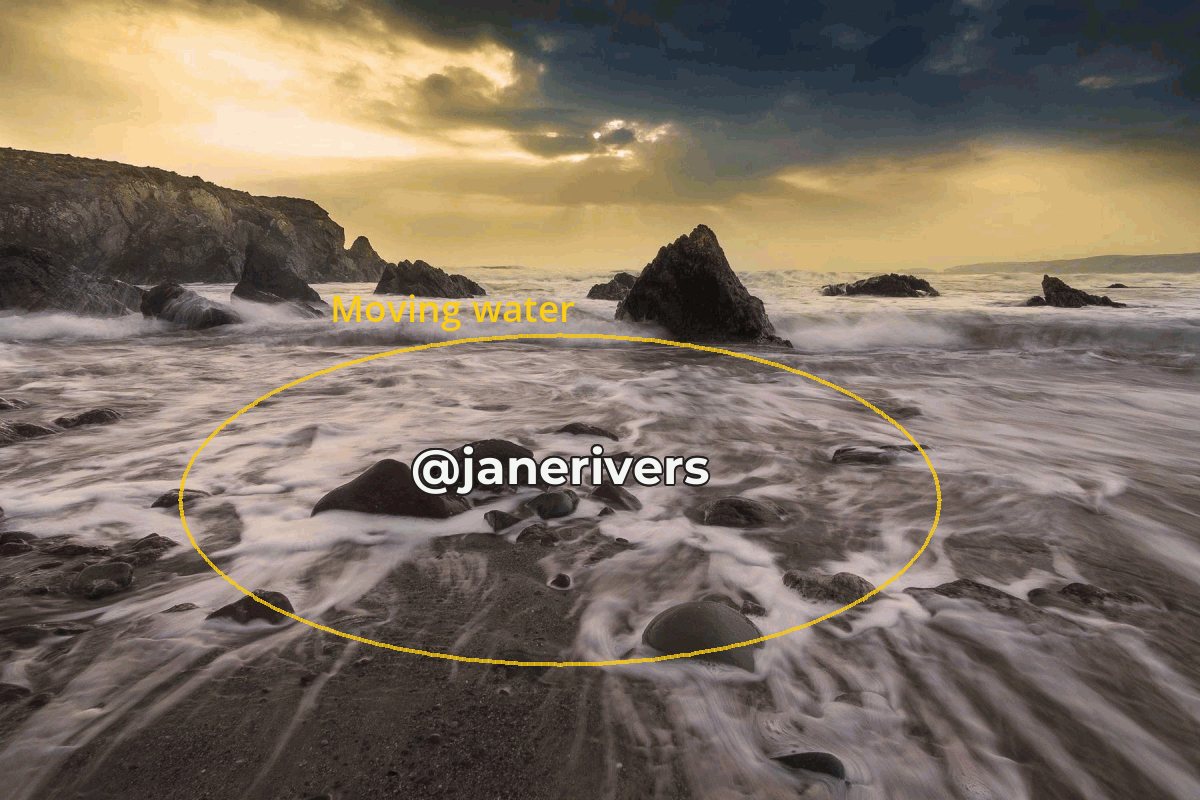
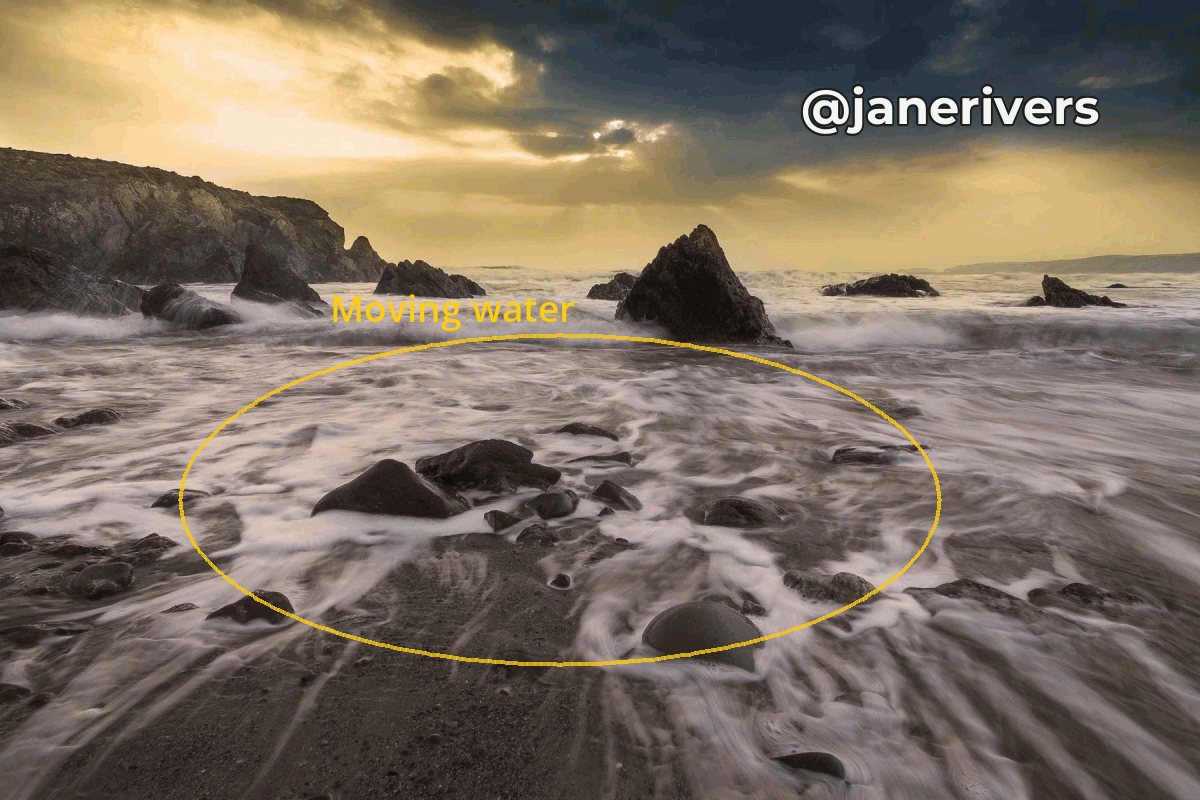
Before placing the watermark, play the GIF through and notice which parts never change — a wall, the sky, a table top, the edge of a screen recording. Put the mark there. GIFs are also shared small, in chats and comment threads, so keep it bold enough to read at that size.
Transparent GIFs and Stickers
Some GIFs — stickers, reaction cut-outs, animated logos — have a transparent background so they float over whatever they are posted on. Here the on-or-off transparency matters. Every pixel is either fully see-through or fully solid, so the soft, anti-aliased edge of a watermark cannot fade into the background the way it would in a PNG. It has to be blended onto a fixed color when the GIF is made, and when that color does not match the page it ends up on, it shows as a ragged halo around each letter.
- Put the mark on the solid part. A watermark that sits entirely on the subject, not over the transparent area, has no see-through edges to worry about.
- Give it a stroke. A thin outline in a color close to the subject hides a stray fringe far better than a soft shadow.
- Test on light and dark. Drop the finished GIF onto a white page and a dark one before you share it.
Does a Watermark Make a GIF Bigger?
Slightly. GIF compression works best on runs of identical pixels, and a watermark adds detail that the frame did not have. To see how much, we saved one 480 × 320 frame of the falling-leaves photo at the top of this page as a 256-color GIF with four different watermarks:
| Watermark on the frame | Size of one frame | Change |
|---|---|---|
| None | 80.9 KB | — |
| Small solid mark in a corner | 81.9 KB | +1% |
| Large mark with a soft shadow | 82.9 KB | +2% |
| Tiled pattern across the frame | 84.7 KB | +5% |
Measured on this one example, so treat the numbers as an illustration rather than a rule. The pattern holds, though: a small watermark barely changes the size, and even a tiled one adds only a few percent. What really decides the size of a GIF is its dimensions, its number of frames and how busy the footage is. If a GIF is too big, trim frames or shrink it — do not drop the watermark.
Mind the First Frame and the Loop
- The first frame is often the preview. Where autoplay is off or data saving is on, apps and sites commonly show a still of the first frame. Make sure the watermark is on it — a mark that fades in later is invisible in the preview.
- Keep it identical on every frame. Any change in position, size or opacity between frames reads as a flicker once the GIF loops.
- Avoid animated watermarks. A moving mark on a looping GIF is distracting on the first play and maddening on the tenth.
GIF Watermark Checklist
- Use a solid color with a thin, dark outline.
- Place the mark over a part of the frame that never moves.
- Keep it on every frame, in exactly the same place.
- Make it bold enough to read at chat and comment sizes.
- Check the finished GIF, not just the editor preview.
- Rely on soft shadows, glows or gradients.
- Use a very faint, low-opacity mark.
- Cover the motion that makes the GIF worth watching.
- Animate the watermark itself.
- Flatten the GIF into a single still image to watermark it.
How to Watermark a GIF in Watermark.ws
-
1
Upload the GIF
Drag in one GIF or a whole batch. Every frame is read, in order.
-
2
Add a text or logo watermark
Pick a sturdy font, set a solid color, and add a thin stroke to a text watermark instead of a soft shadow.
-
3
Place it over a still area
Drag it to a part of the frame that does not move, and set its size and opacity.
-
4
Apply and download
The watermark is added to every frame, and the animation keeps its original timing. Save the settings as a template to reuse them on your next GIFs.
Working with video instead? See video watermark best practices.
Sample photos: Falling leaves by Autumn Mott, Blossoms by Arvee Marie, Out-of-focus lights by Sebastian Muller, Sunset by Jenna Beekhuis, Rocky shore by Owen Walters on Unsplash.