On this page
How to Watermark Photos on Android: Your Options
Android has no dedicated watermark button, but you can watermark photos on Android without installing an app. Which route is best depends on the phone you have, whether you want text or a logo, and how many photos you need to mark.
- Any Android phone, one photo: Google Photos › Edit › Markup › Text, then Save as copy.
- Samsung Galaxy: the Gallery editor can add text too, and the Camera app can stamp a model name or your own text on every new photo.
- A logo, a tiled mark or a whole batch: open Watermark.ws in Chrome, upload from your gallery, and save the results back to your phone.
- Whichever you use: keep the clean original, and look at the result at phone size before you post it.
Add Text With Google Photos Markup
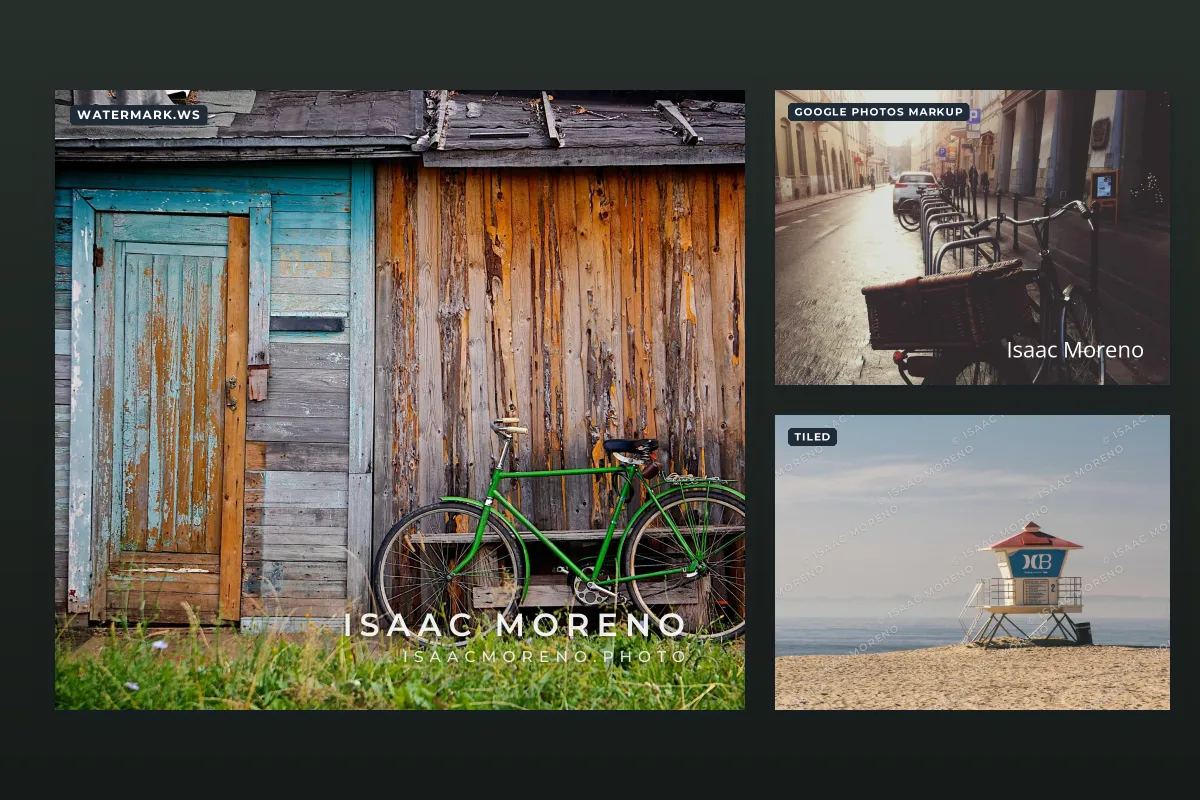
Google Photos, the default gallery on Pixel and many other Android phones, has a Markup tool with Pen, Highlight and Text. Google’s steps:
-
Open the photo
In Google Photos, open the photo you want to mark.
-
Open Markup
Tap Edit, then Markup. On some versions it sits under Edit › Tools › Markup.
-
Add text
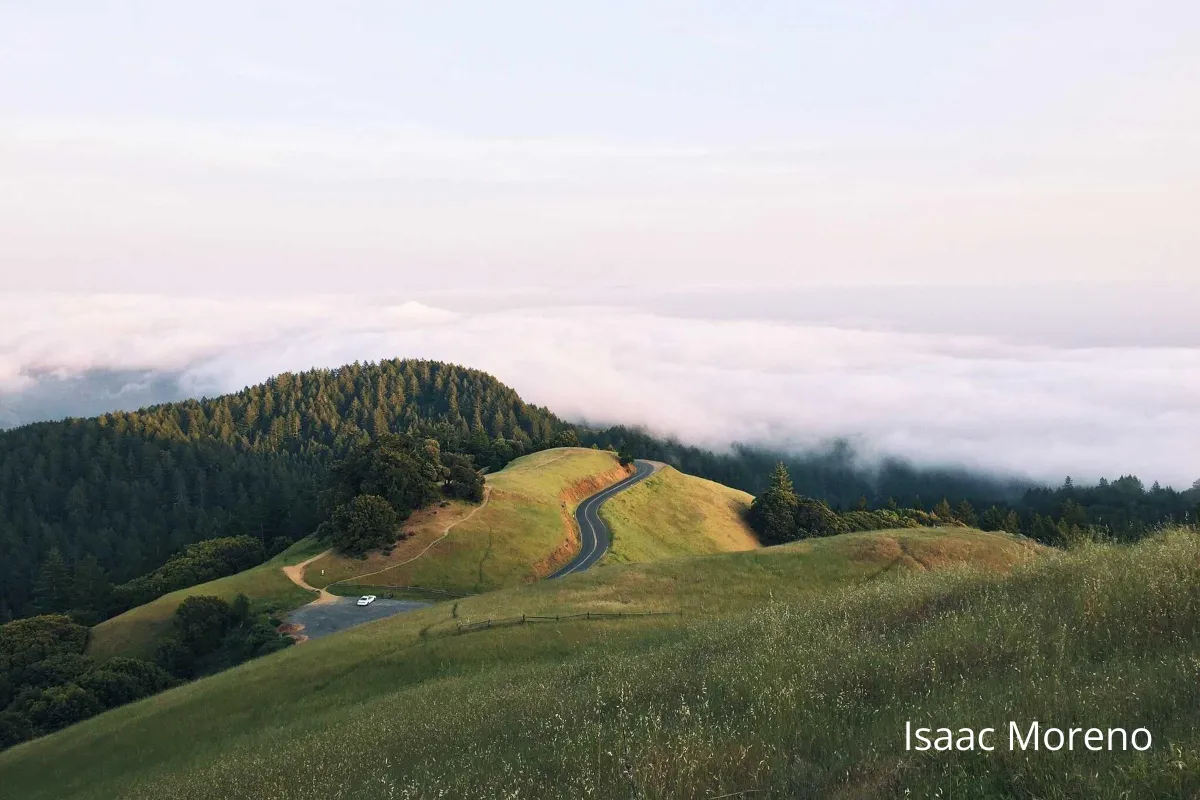
Tap Text, type your name or "© 2026 Your Name", and choose a color. Touch and hold the text box to drag it into place.
-
Save a copy
Tap the checkmark, then Save as copy. That makes a new, watermarked photo and leaves the original untouched.
 Markup text
 Designed watermark
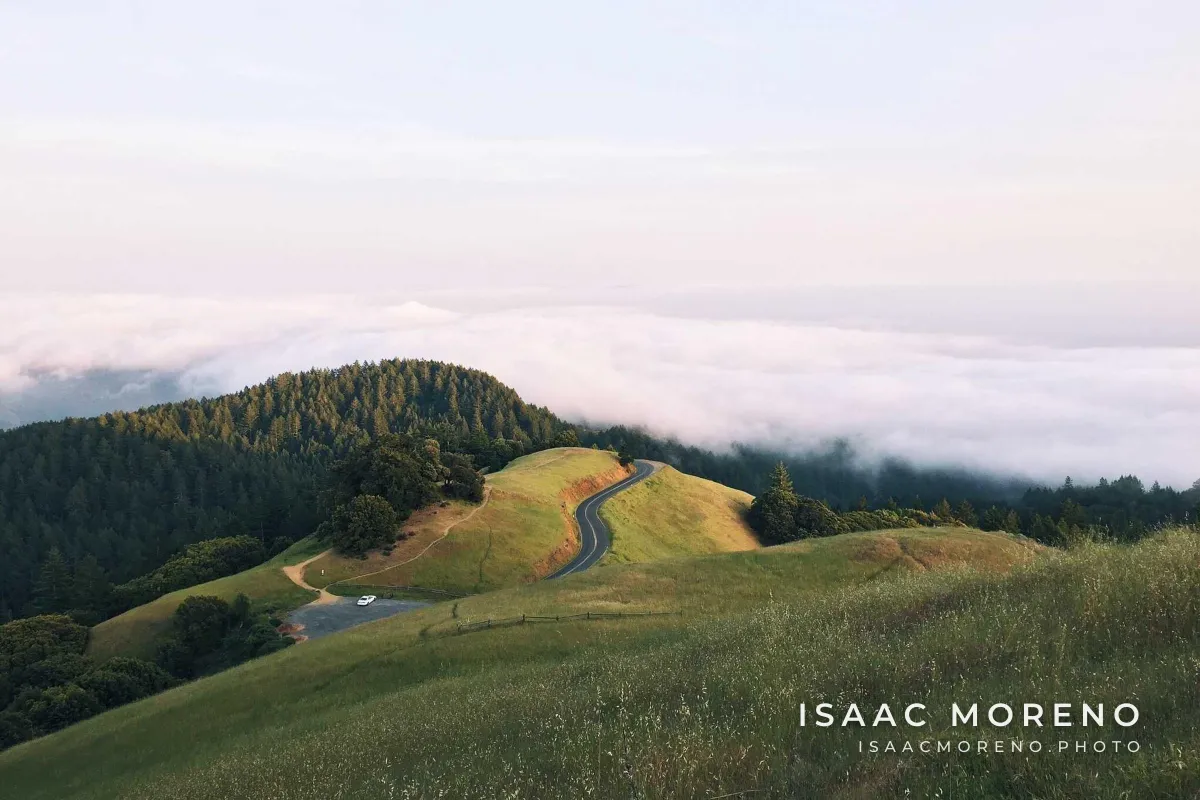
Markup is fine for an occasional photo. It is less suited to anything you publish regularly: the styling options are basic, there is no logo, no soft shadow, no tiling and no saved design, so every photo is placed by hand and comes out slightly different. If you want the © symbol, how to type the copyright symbol covers Android keyboards.
On a Samsung Galaxy: Gallery and the Camera Watermark
Samsung phones come with their own Gallery app, and its editor can add text in much the same way:
-
Open the editor
In Gallery, open the photo and tap the Edit icon (the pencil).
-
Add text
Tap the Decorations icon (the smiley face), then Text, and type your watermark.
-
Save a copy
Tap More options (the three dots) and choose Save as copy to keep the original. If you saved over it by mistake, Revert › Revert to original undoes the edit.
Recent Galaxy phones also have a camera watermark. Open the Camera app, tap the settings icon, and turn on Watermark. You can show the model name or replace it with your own text, add the date and time, and change the font and alignment. Samsung’s support pages point out two things to know before you switch it on:
- It only stamps new photos taken while it is on. It cannot mark photos already in your gallery.
- It cannot be removed. Samsung says that once a watermark has been applied to a photo, it cannot be deleted. Every shot carries it, including the ones you later want to print or sell clean.
That makes the camera watermark better suited to casual "shot on" captions than to protecting your work. For photos you care about, shoot clean and add the watermark to a copy afterwards.
Logos, Tiling and Batches: Watermark.ws in Chrome
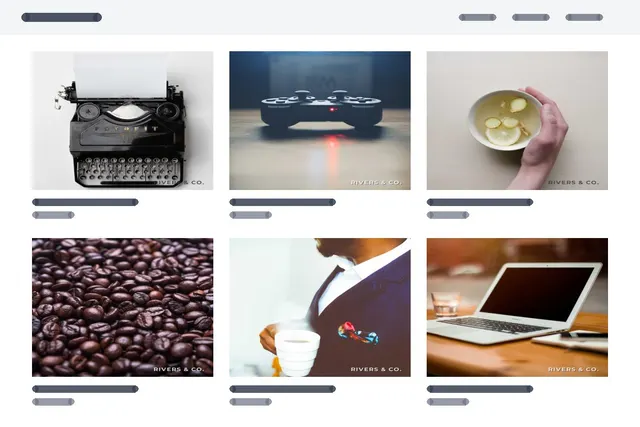
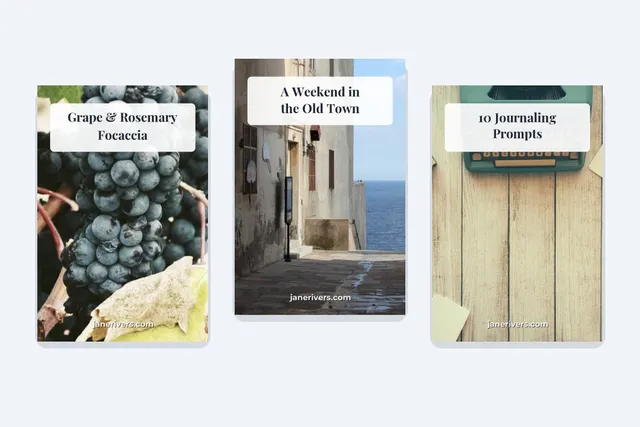
None of the built-in tools can place a semi-transparent logo, repeat a mark across the photo, or apply the same design to fifty photos at once. Watermark.ws does all three in the browser, so there is nothing to install.
-
Open Watermark.ws in Chrome
No signup is needed to try it. Chrome’s menu can add it to your home screen for quicker access.
-
Upload your photos
Tap to upload and pick photos from your gallery or Files. Select as many as you need.
-
Add your text or logo
Type your name (the text editor has a © button) or upload a transparent PNG logo. Set the font, size, opacity, letter spacing, rotation and shadow.
-
Handle busy photos
Add a stroke or a background band behind the text when the photo is full of detail.
-
Save it as a template
The next batch gets the same watermark in one tap.
-
Save to your phone
Where Chrome supports it, a Share button hands the finished photos to the Android share sheet. Otherwise download them; they land in your Downloads folder, and a large batch arrives as a ZIP file.
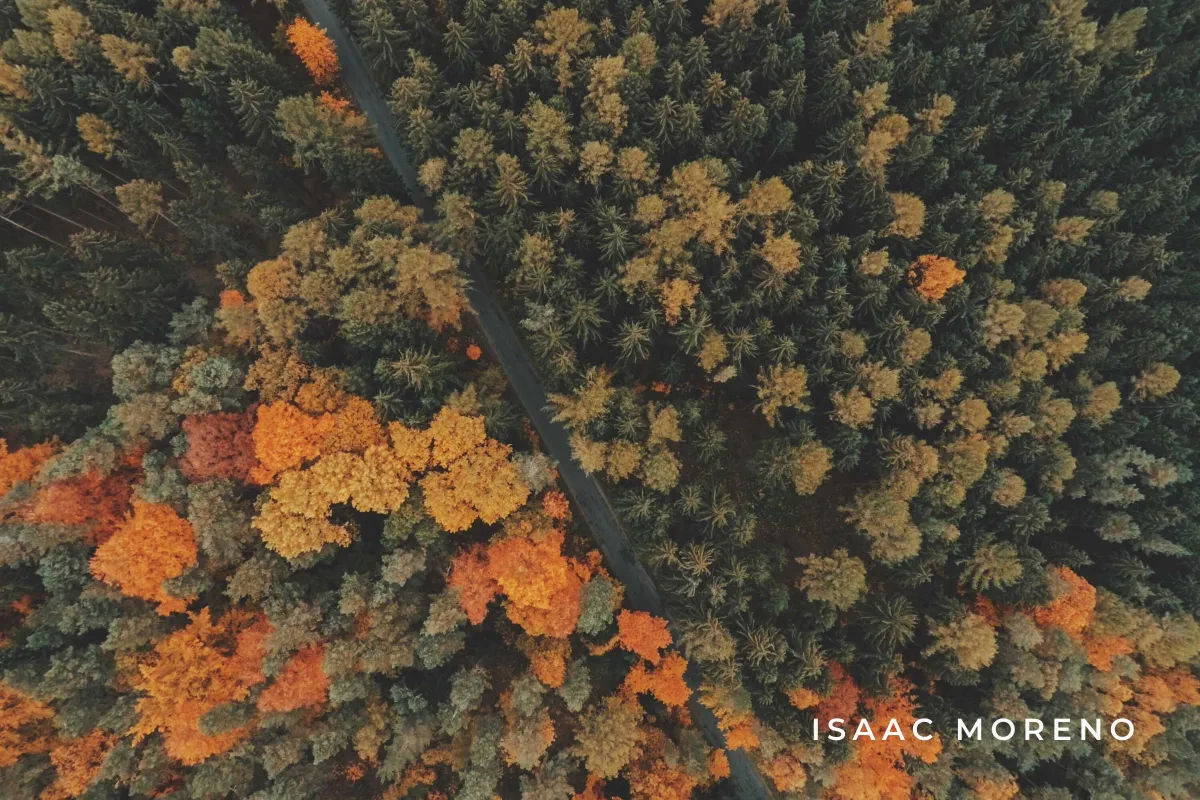 Text only
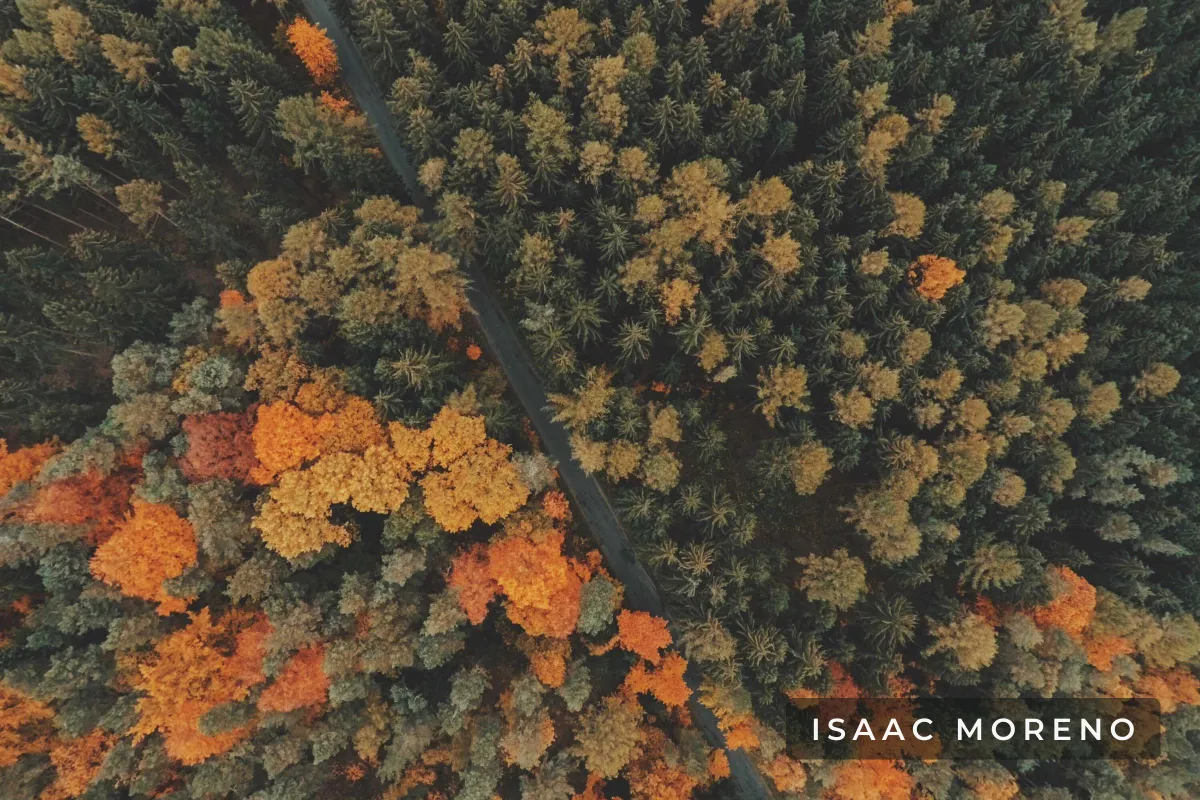 Background band
On a photo this busy, plain white letters break up wherever they cross bright leaves. A soft, semi-transparent band behind the text gives it a calm patch to sit on without hiding the photo. For more on choosing a color for the mark itself, see what color a watermark should be.
Watermark a Whole Batch From Your Phone
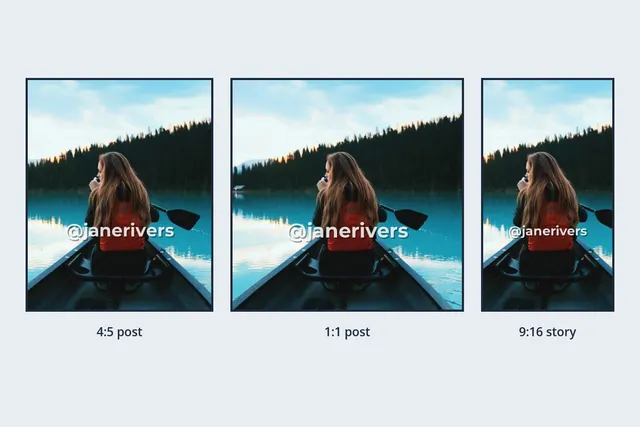
Phones take photos in every shape: portrait, landscape and square crops, often in the same afternoon. Stories and Reels add a 9:16 frame on top, with its own safe zone; how to watermark Instagram Stories and Reels covers it. A good batch watermark looks the same on all of them, which means it should be sized relative to the photo, not in fixed pixels.
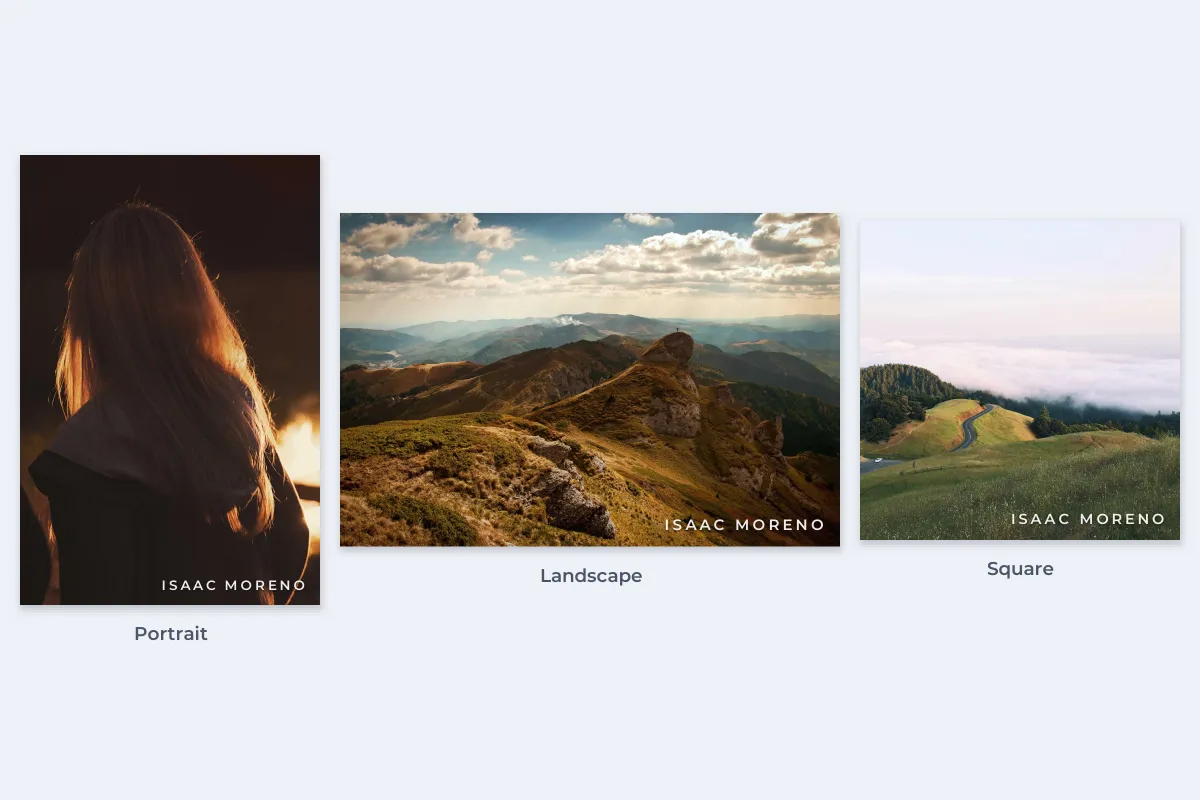
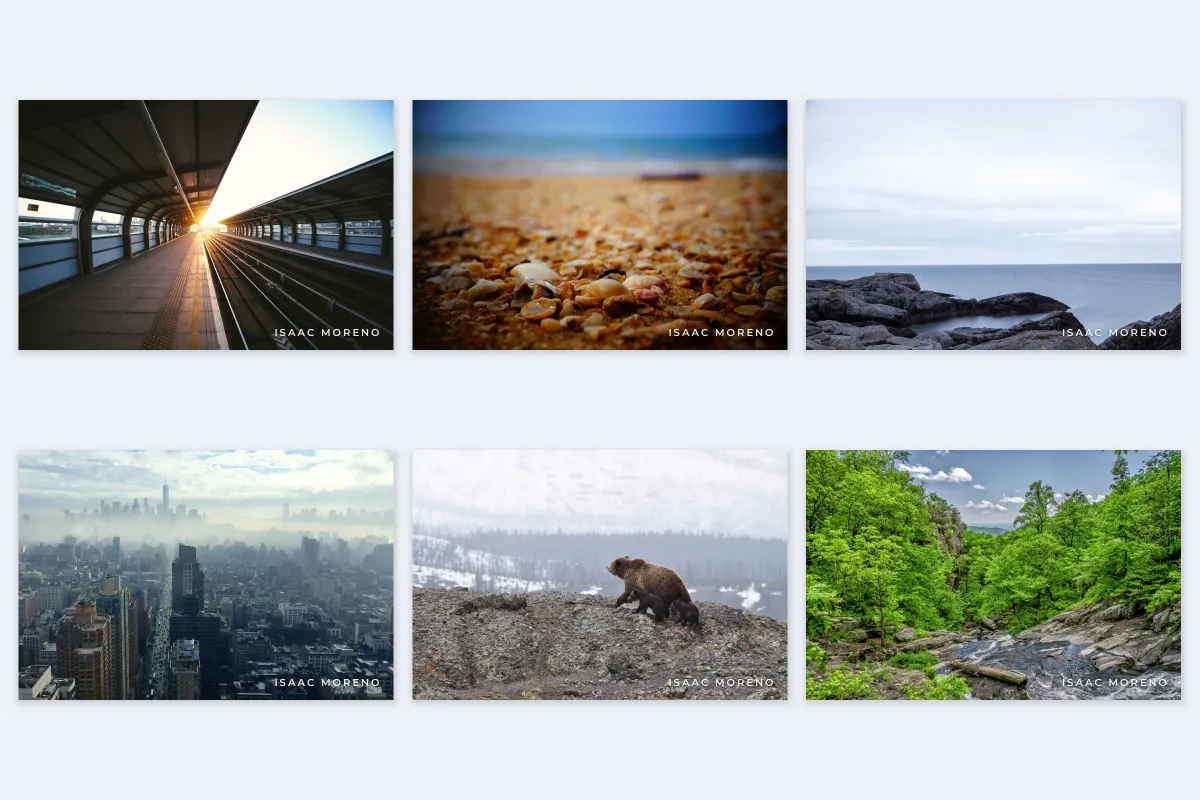
Before running a big batch, check one portrait and one landscape photo in the preview. If the mark looks too large on one shape, reduce it; how big a watermark should be gives sensible starting sizes. The guide to batch watermarking photos covers the rest of the workflow.
Which Android Watermark Method to Use
| Google Photos Markup | Samsung Gallery | Galaxy camera watermark | Watermark.ws in Chrome | |
|---|---|---|---|---|
| Text watermark | Yes, basic | Yes, basic | Model name or custom text | Yes, fully styled |
| Logo with transparency | No | No | No | Yes |
| Existing photos | Yes | Yes | No, new shots only | Yes |
| Keeps a clean original | With Save as copy | With Save as copy | No | Yes |
| Tiled across the photo | No | No | No | Yes |
| Many photos at once | No | No | Every shot, automatically | Yes |
For the odd photo sent to a friend, Markup or the Gallery editor is enough. For anything you publish, sell or send to clients, or more than a handful of photos, a saved template in the browser is faster and more consistent. If you also shoot on an iPhone, how to watermark photos on iPhone covers the Apple side.
Sample photos: Bicycle and shed by Alexander Shustov, City street by Sylwia Bartyzel, Lifeguard tower by Gabriel Santiago, Hills above fog by Jared Erondu, Autumn forest from above by Jakub Sejkora, Woman by a fire by Joshua Earle, Mountain ridge by David Marcu, Train platform by Charles Forerunner, Shells on a beach by Rafael Souza, Coastal rocks by Dominik Schröder, City skyline by Jeffrey Swanson, Bear and cubs by Adam Willoughby-Knox, Forest stream by Jerry Adney on Unsplash.