On this page
Can You Add a Watermark in Excel?
Yes, but not with a watermark button. Word has Design › Watermark; Excel has nothing like it. To add a watermark in Excel, you put a picture in the page header. Excel prints header pictures behind the cells, on every page of the sheet, so the picture behaves like a watermark. Microsoft’s own help pages describe exactly this workaround. PowerPoint has no watermark button either; how to add a watermark in PowerPoint covers its slide master method.
-
The method: Insert › Header & Footer, click into the header, choose Picture, then press Enter before
&[Picture]to move it down the page. - Make it faint: Format Picture › Picture › Color › Washout, so the numbers stay readable.
- Where it shows: only in Page Layout view, Print Preview, on paper and in a PDF. Never in Normal view.
- For text like DRAFT: save the word as a light, transparent PNG first, then insert that picture.
- For a mark that is harder to strip: export the sheet to PDF and watermark the PDF.

How to Add a Watermark in Excel, Step by Step
Before you start, have the watermark ready as an image file: your logo, or a word like CONFIDENTIAL saved as a PNG (more on that below). A PNG with a transparent background works best, because it will not print as a white box over your cells. These steps are for Excel for Microsoft 365 and Excel 2019 to 2024 on Windows.
-
Open the header
Select the sheet, then choose Insert › Header & Footer. Excel switches to Page Layout view and puts the cursor in the header. Click the center section if you want the mark in the middle of the page.
-
Insert the picture
On the Header & Footer tab, in the Header & Footer Elements group, choose Picture and pick your image. The header now shows the code
&[Picture]instead of the image. -
See it on the page
Click any cell outside the header. The picture appears behind the cells, starting at the top of the page.
-
Move it down
Click back into the header, put the cursor in front of
&[Picture]and press Enter a few times. Each blank line pushes the picture further down. Click outside the header to check, and repeat until it sits where you want it. -
Return to Normal view
Choose View › Normal when you are done. The watermark disappears from the screen there, but it is still part of the sheet and will print.
![A printed budget page with a pale H&R logo at the very top, overlapping the title and the first rows, next to a card showing the header box containing only &[Picture]](/images/learn/add-a-watermark-in-excel/header-top.webp) Just inserted
Just inserted
![The same page with the logo moved down to the middle of the table, next to a card showing eight blank lines before &[Picture] in the header box](/images/learn/add-a-watermark-in-excel/header-centered.webp) After pressing Enter
After pressing Enter
On a Mac, the idea is the same: choose View › Page Layout, click into a header section, and use Picture on the Header & Footer tab. Excel for the web cannot add header pictures at all. Microsoft’s advice is to open the file in the desktop app.
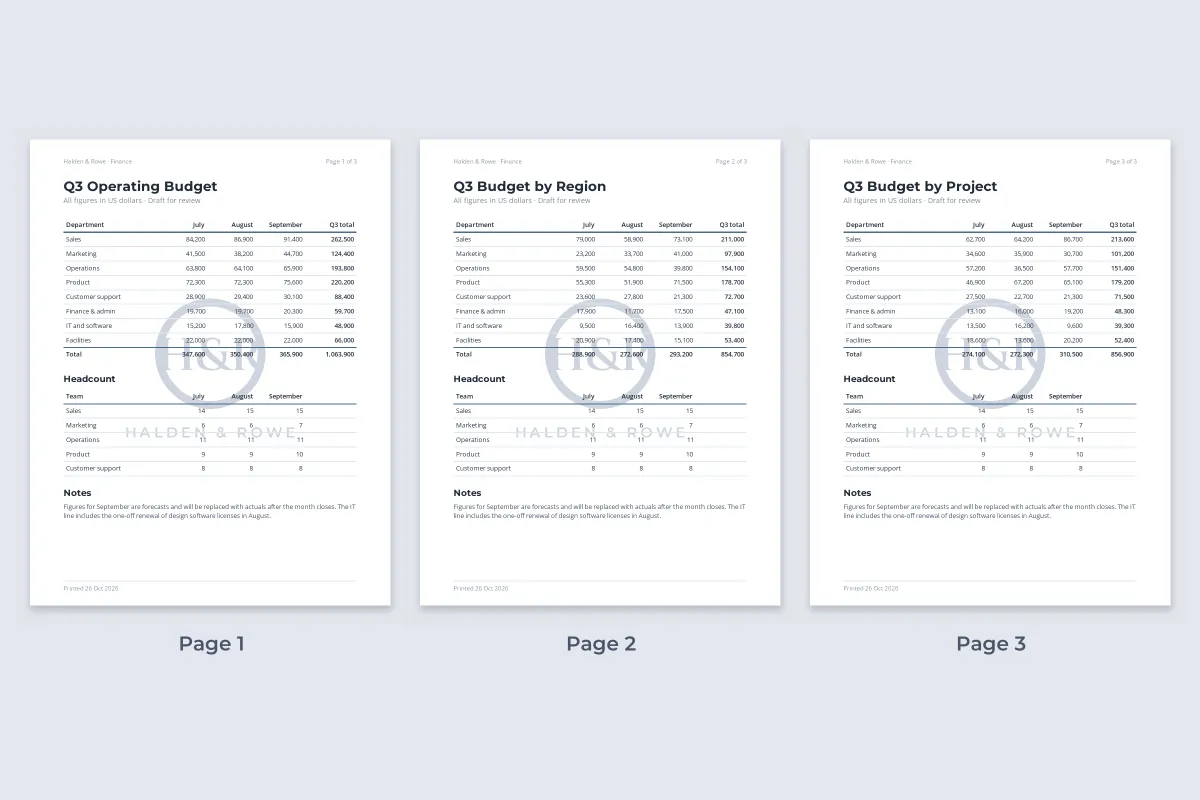
Because the picture lives in the header, it repeats on every printed page of the sheet automatically. Headers belong to one worksheet, though, so a workbook with several sheets needs the picture added to each sheet that should carry it.
Make the Watermark Faint Enough to Read Through
Excel inserts the picture at full strength. A dark logo behind a table of figures makes the numbers hard to read, and that defeats the point of sharing the sheet. Fix it before you print:
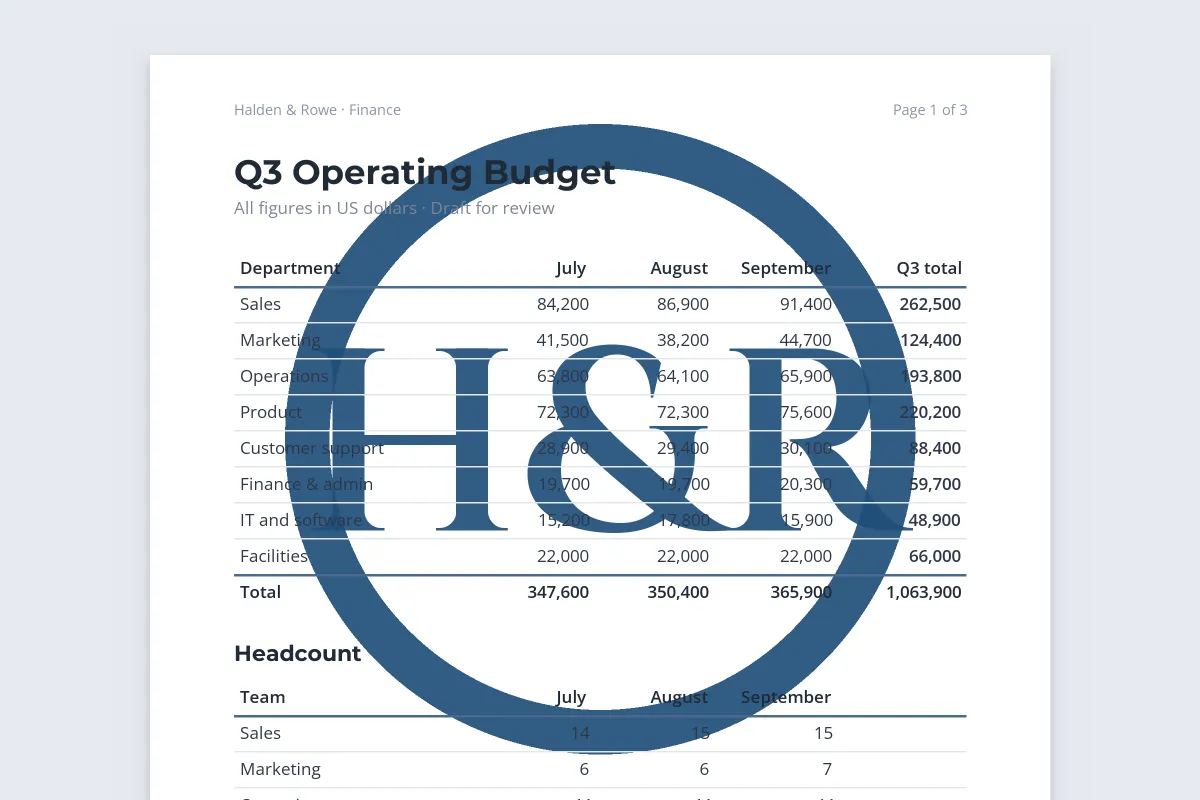 As inserted
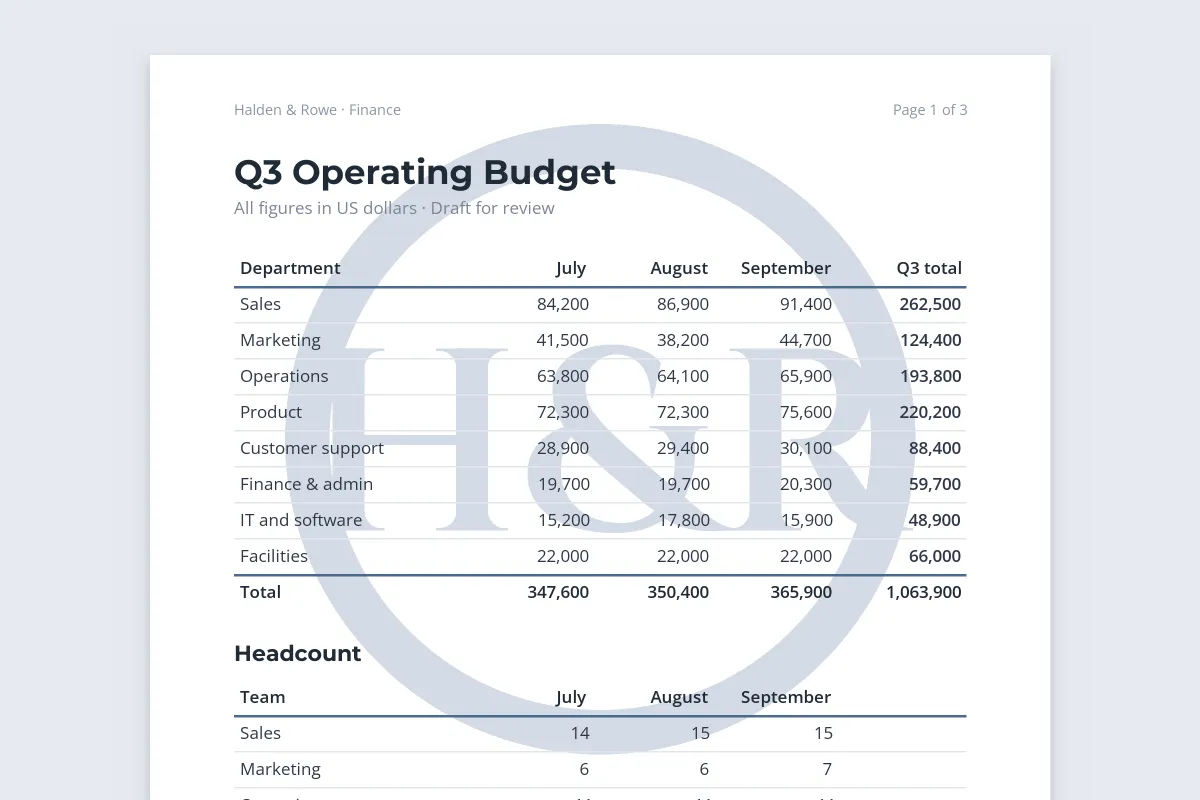 Washout
-
Open Format Picture
Click into the header that holds
&[Picture], then choose Format Picture on the Header & Footer tab. -
Wash it out
On the Picture tab, under Image control, set Color to Washout. You can fine-tune Brightness and Contrast there too.
-
Set the size
On the Size tab, change the height and width, or the scale, with Lock aspect ratio ticked so the image does not stretch.
Washout is a blunt tool. If your logo is already light, it may become almost invisible. The more reliable option is to prepare the image at the right strength in the first place: a light gray version of the logo or text, saved as a transparent PNG. For how faint is faint enough, see how transparent a watermark should be. Go too light and the mark may not survive the printer at all, as how to print a PDF with a watermark explains.
Adding a Text Watermark Like DRAFT or CONFIDENTIAL
Header text in Excel prints as a normal line at the top of the page, not as a big diagonal stamp. To get a classic DRAFT or CONFIDENTIAL watermark, turn the text into a picture first.

- Make the PNG. In any image editor, type the word in a bold font, rotate it about 30–45 degrees, set it to a light gray, and export it as a PNG with a transparent background. Wide letter spacing helps it read at a glance.
- Insert it in the header with the steps above. Because it is already light, you may not need Washout at all.
- Keep one file per label. DRAFT, CONFIDENTIAL and INTERNAL USE ONLY, each ready to drop in. Which label to use, and what each one signals, is covered in confidential and draft watermarks, and the headers, footers and notices that go with them in how to mark a document as confidential.
There is a second way: Insert › Text › WordArt, typed and rotated directly on the sheet, with its text fill made partly transparent in the Format Shape pane. WordArt shows in Normal view and prints, but it is a shape sitting on top of the cells, not behind them. It appears only where you put it, not on every page, and it gets in the way when you click the cells underneath. It suits a one-page form. For a sheet that prints over several pages, the header picture is the better tool.
Why Your Excel Watermark Is Not Showing
Most "my watermark disappeared" problems come down to one of five causes:
- You are in Normal view. Headers and footers display only in Page Layout view, Print Preview and on printed pages. Switch to View › Page Layout to check.
- The cells have a fill color. A filled cell is opaque, so it covers the watermark behind it. Even a white fill does this. Set those cells to No Fill.
- It is a sheet background. Page Layout › Background tiles a picture behind the cells on screen, but Microsoft is clear that a sheet background is not printed.
- It is on another sheet. Each worksheet has its own header, so the picture you added to Sheet1 does not appear on Sheet2.
- You are in Excel for the web. It can show the workbook, but adding header pictures needs the desktop app.
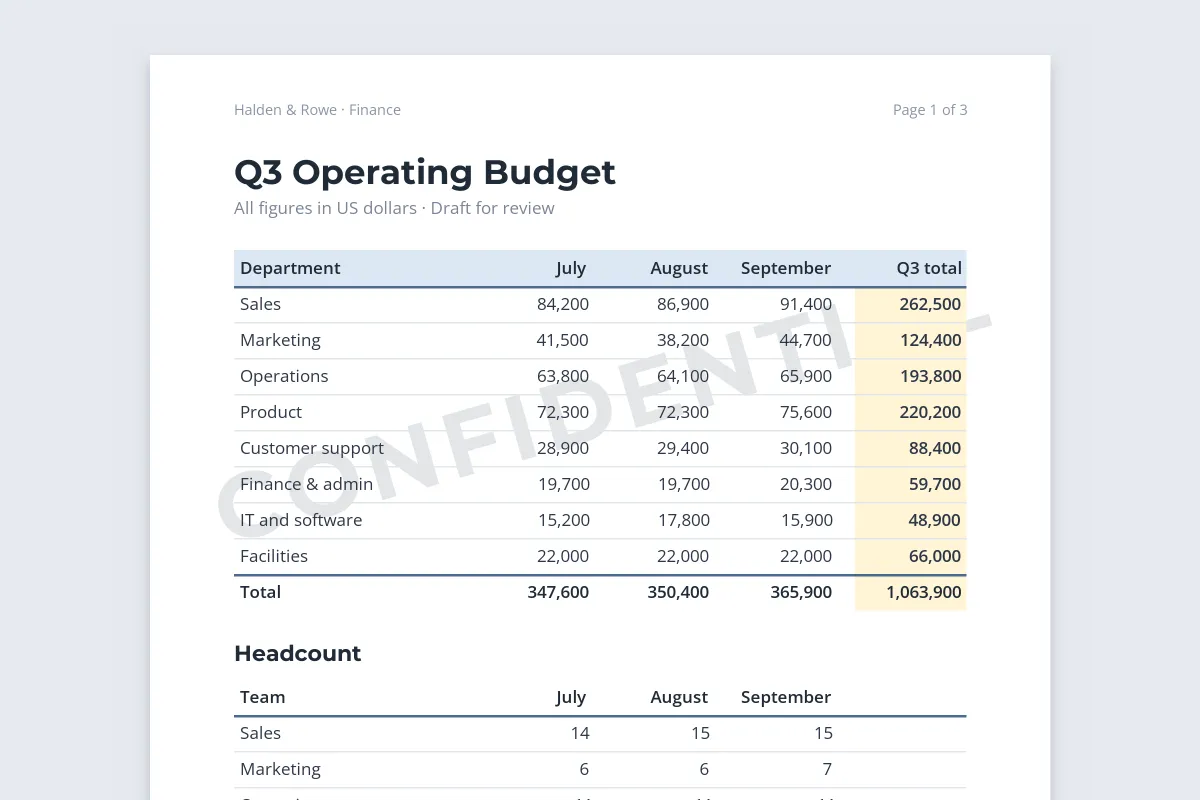 Filled cells
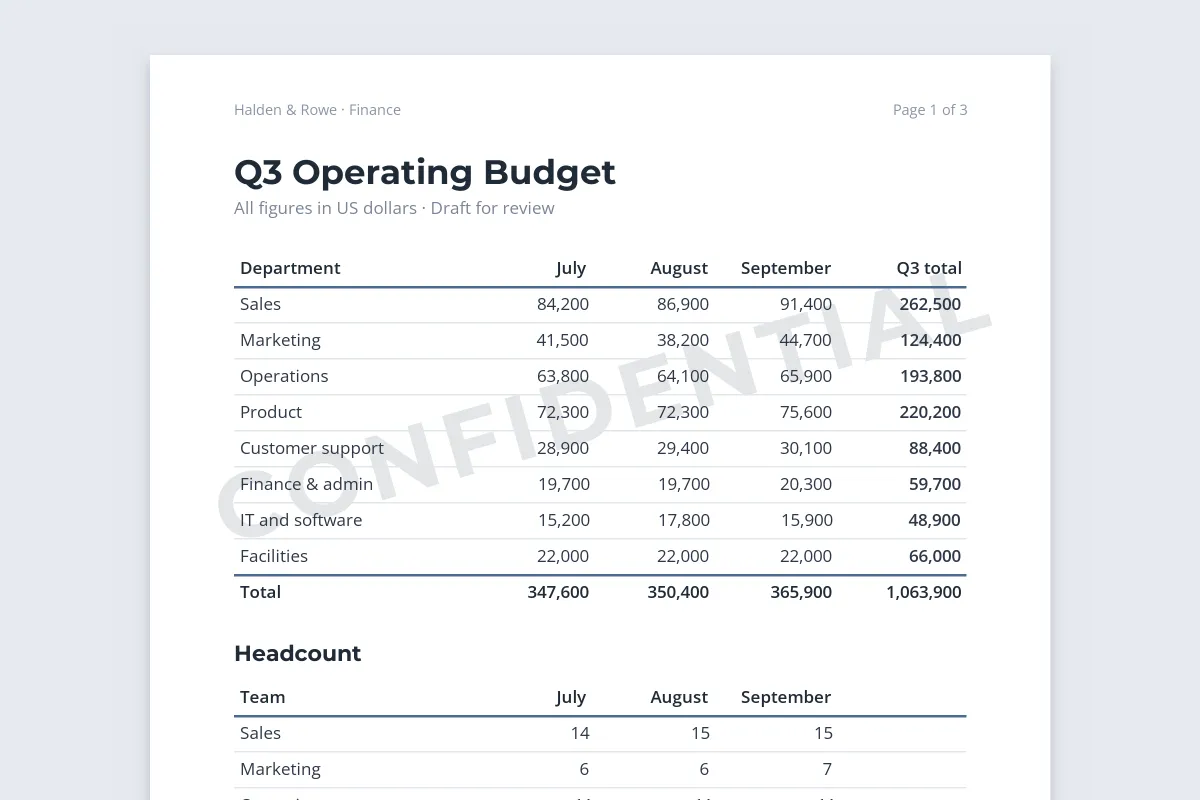 No Fill
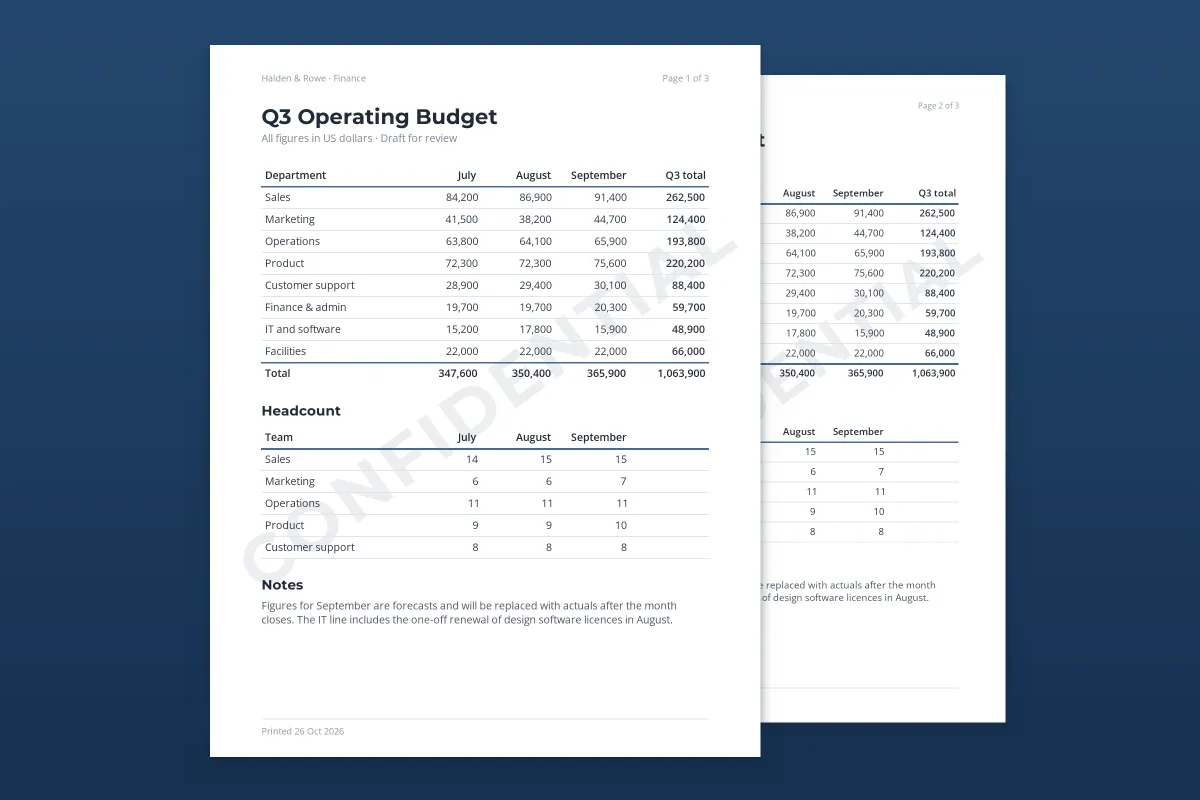
In the filled version, two letters of CONFIDENTIAL vanish where the mark crosses the shaded total column. If you need colored headings, use a colored font or a thicker border instead of a fill, or accept that the mark will be broken in those cells.
| Method | Normal view | Prints | Every page | Behind the cells |
|---|---|---|---|---|
| Header picture | No | Yes | Yes | Yes |
| WordArt or shape | Yes | Yes | No, only where placed | No, on top |
| Sheet background | Yes | No | Not printed | Yes |
| Watermark on an exported PDF | Not applicable | Yes | Yes | Over the page |
The PDF Route: Export the Sheet, Then Watermark It
Any watermark you add inside Excel stays inside an editable file. Whoever receives the .xlsx can open the header and delete &[Picture] in seconds, and copying the cells into a new workbook leaves the watermark behind. If you are sending figures to people outside your team, a PDF is usually the better thing to send anyway.
-
Set up the print area
Check Print Preview first. Whatever prints is what the PDF will contain, page breaks included.
-
Export to PDF
On Windows, choose File › Export › Create PDF/XPS Document, or File › Save As and pick PDF as the file type. A header-picture watermark, if you added one, comes along.
-
Watermark the PDF
Upload the PDF to Watermark.ws, add your text or logo, and set the opacity, angle and position. Turn on tiling to repeat a small mark across each page, so there is no clean area to crop.
-
Download and send
Every page of the PDF carries the watermark. Save the design as a template so next month’s report gets the same mark in one click.
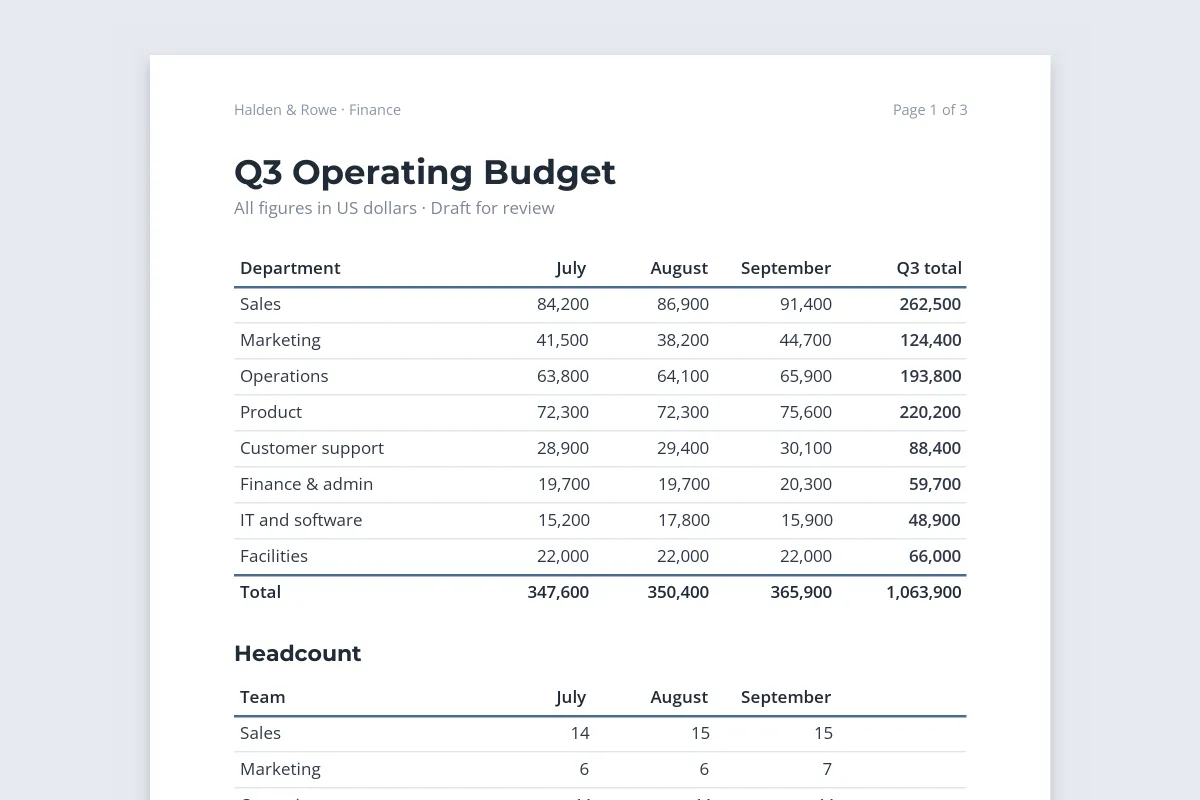 Exported PDF
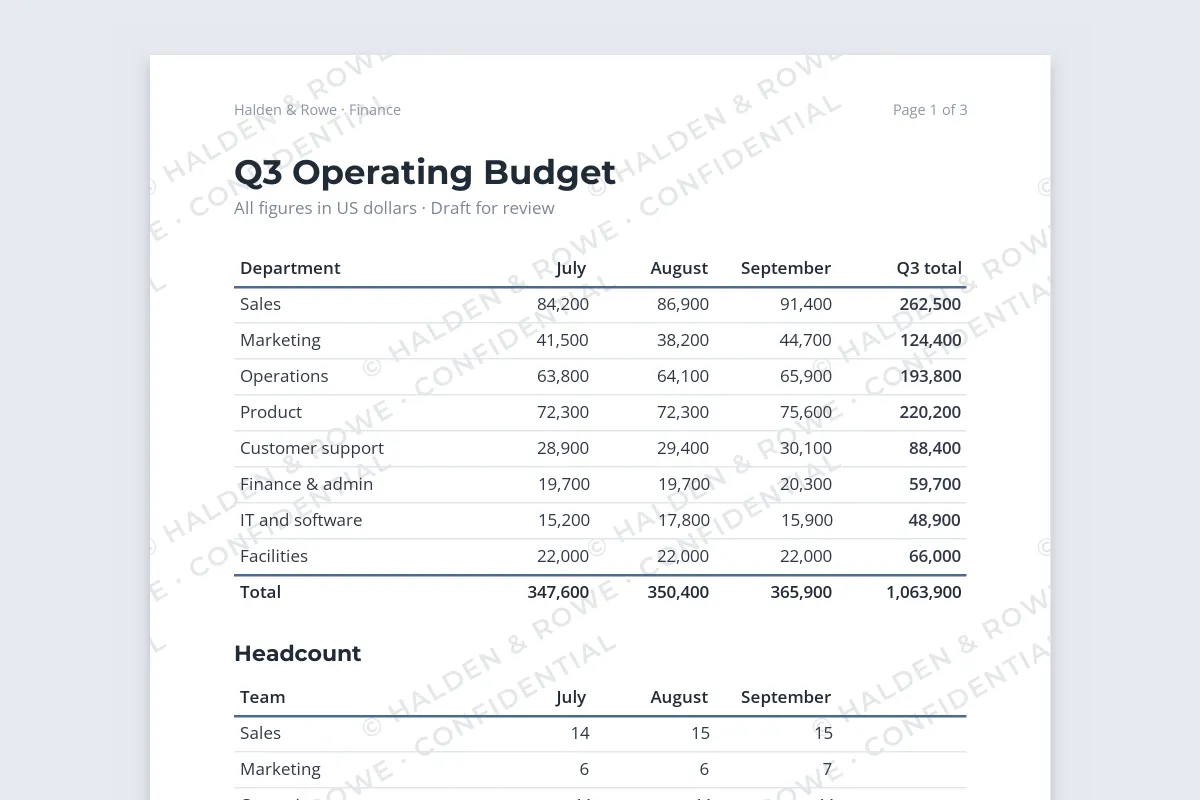 Tiled watermark
A tiled mark is much harder to tidy away than one centered logo, because every part of the page carries a copy. Tiled watermarks covers the spacing and angle, and how to watermark a PDF without ruining it covers keeping a document readable.
Watermark.ws does not open or edit Excel files, so it cannot add a watermark to an .xlsx. It watermarks the PDF you export from Excel, along with photos, Word documents, GIFs and videos. A PDF that needs a password to open has to have the password removed first.
For a walkthrough of the PDF side, see the guide to watermarking PDFs online.