How to Save a Watermark, Crop and Resize as One Workflow
Keep every step of an edit together and run them all on your next photos in one click.
- No account needed to start
- Up to 5,000 files per batch
In short
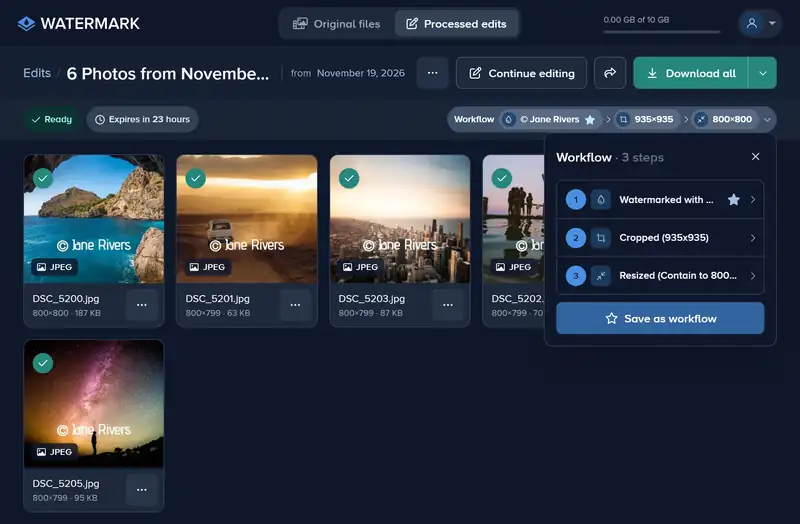
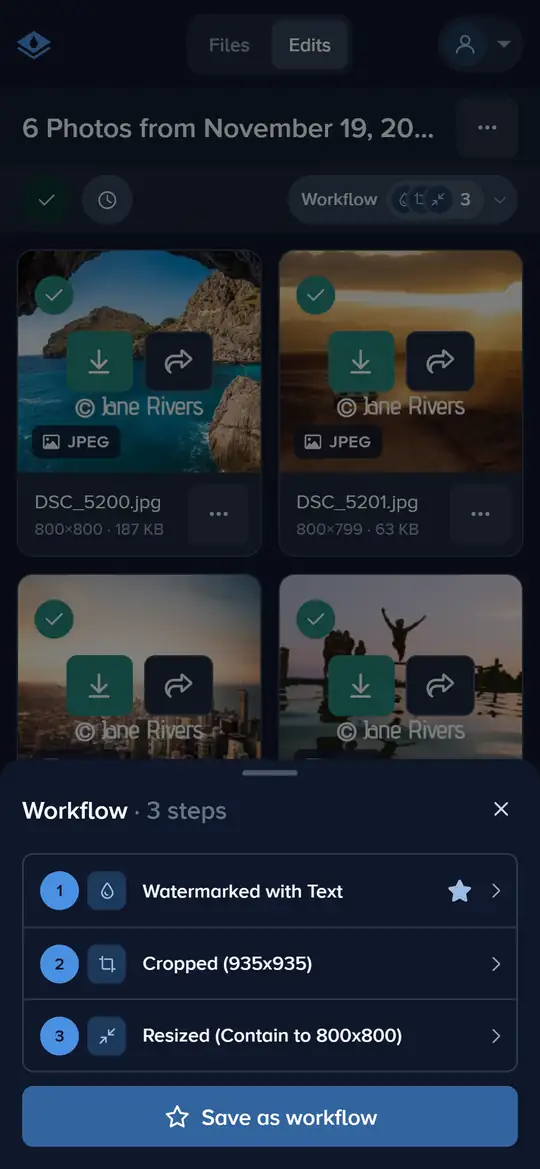
Apply your watermark, crop and resize as steps of one edit, click Finish, and on the edit’s page choose Save as workflow. Next time, Run workflow puts every step on the new files in order. Saving is free on every plan; running a workflow needs Premium or Ultimate.
How to Save a Workflow in 4 Steps
Each Apply in the editor becomes one step.
-
Step 1: Apply Each Step
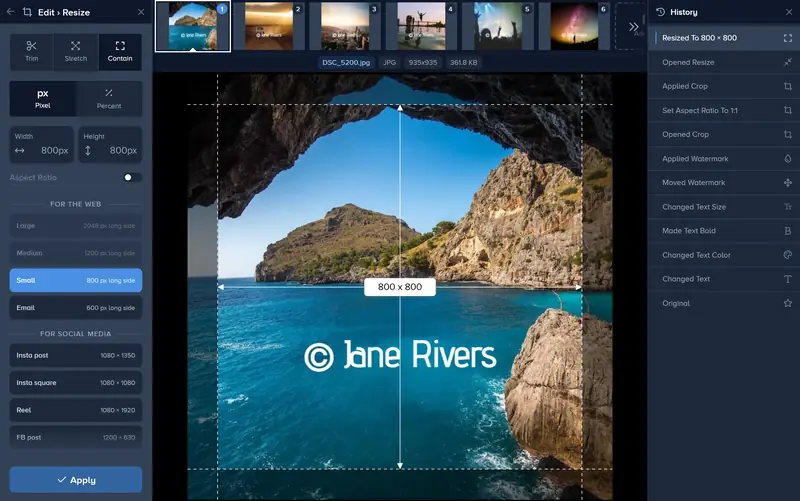
Add your watermark and click Apply. Then open Edit, choose Crop or Resize, set it and click Apply again. Every Apply is one step.
-
Step 2: Click Finish
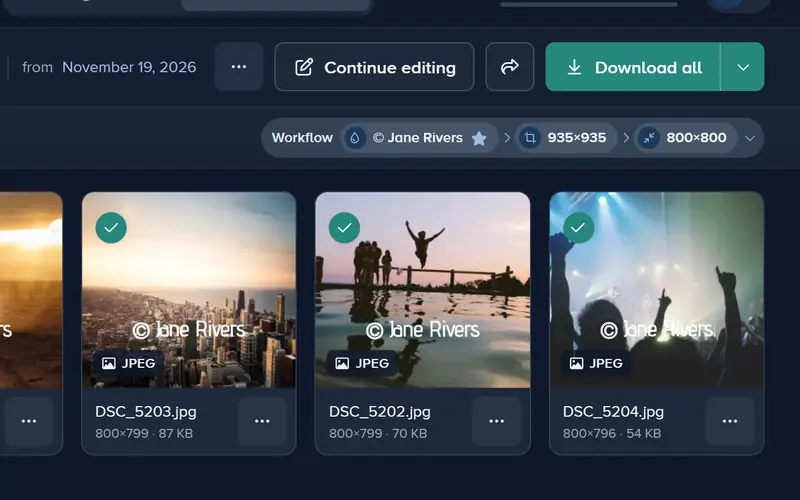
Click Finish. At the top of the edit’s page your steps show together as Workflow.
-
Step 3: Save as Workflow
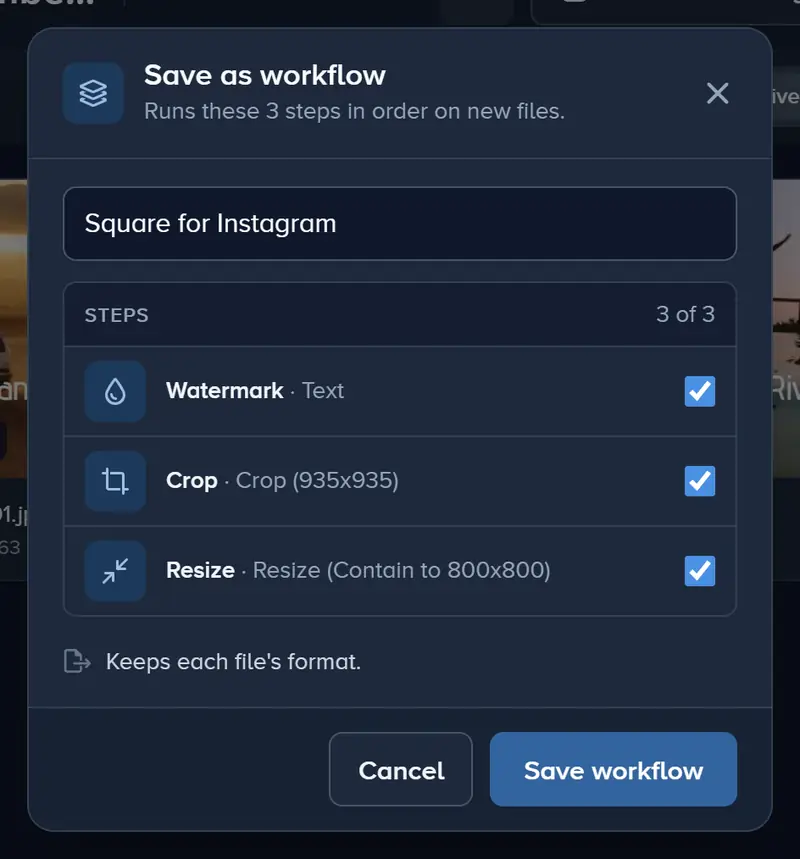
Click the steps, then Save as workflow, or choose it from the ⋯ menu. Name it, untick any step to leave out, and click Save workflow.
-
Step 4: Run It on New Photos
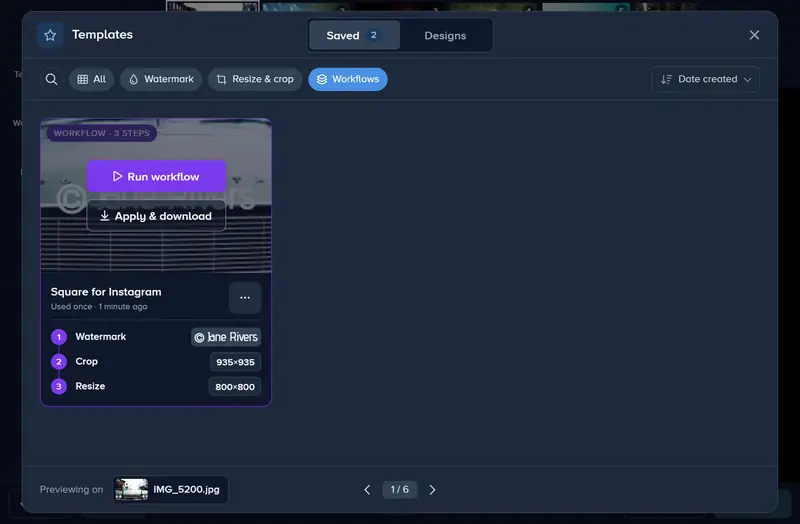
In a new edit, open Templates › Saved, filter by Workflows and click Run workflow; on a phone, tap it and then Load. Every step runs on your files in order.
If It Doesn’t Look Right
It Says Save as Template
The edit has only one step that can be saved, and a workflow needs two or more. Apply the crop or resize too, or keep the single step as a template.
My Two Watermark Steps Became One
Steps that are all watermarks save as one watermark template, which loads to be tweaked rather than run. Add a crop or resize step to make it a workflow.
The Files Come Out in Another Format
A workflow also keeps the format and quality the edit was made in, and the save dialog names it, such as “Saves as WebP 80”. Save it from an edit made in the format you want.
Some Files Skip a Step
A step that does not work on a file, such as a photo look on a video, is left out for that file. The workflow’s card says so before you run it.
Set Up Your Edit Once
Save the watermark, crop and resize as a workflow and run it on every batch.
Build your workflow- No account needed to start
- Works in your browser
Questions people ask
What is the difference between a template and a workflow?
Can I save a workflow without finishing the edit?
Can I save one step of a finished edit on its own?
How do I change a workflow later?
Keep reading
 Guide
Add a Logo Watermark to Your Photos
Upload your logo, set its size, opacity and position, and put it on one photo or a whole shoot. PNG, SVG or JPG logos up to 50 MB and 8,000 px. Free to try.
Guide
How to Add a Logo to a Video
Upload your logo, set its size and opacity, place it on the video’s frame and download the video with your logo on it. PNG, SVG or JPG logos up to 50 MB.
Guide
How to Add a Text Watermark to Photos
Type your name, website or © line, pick a font, then set its size, color, opacity and place. Apply it to one photo or a whole batch and download them.
Guide
How to Apply an Edit Only to the Photos You Changed
Open the photos that need an edit, then click Apply and pick Edited files. Only those photos get the watermark or crop; the rest of the batch stays as it is.
Guide
How to Batch Watermark Multiple PDFs at Once
Watermark many PDFs in one edit: place the watermark once, apply it to all files, and download them together. Up to 5,000 files per edit on Premium.
 Guide
How to Batch Watermark Photos Online
Batch watermark up to 5,000 photos in one batch: design the watermark once, apply it to all, fix single photos and download a zip. Free to try, no install.