On this page
How to Print a PDF With a Watermark
To print a PDF with a watermark, add the watermark to the PDF first, make sure it is set to show when printing, then print normally and check the print preview. If you only need marked paper copies and not a marked file, your printer driver may be able to add a watermark at print time instead.
- Add the mark to the PDF with Watermark.ws, Adobe Acrobat or another PDF editor, so it is part of every page.
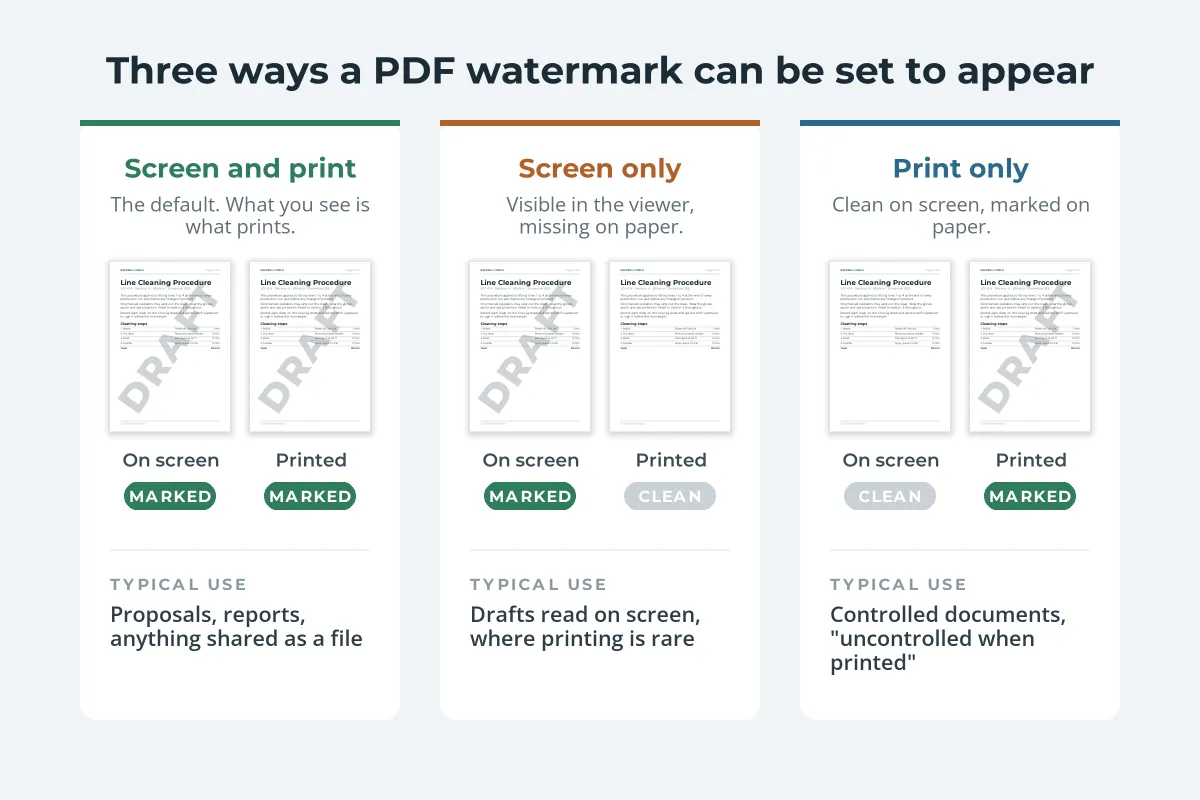
- Leave "show when printing" on. Acrobat lets a watermark appear on screen only, in print only, or both.
- Check the print preview. If the mark is missing there, it will be missing on paper.
- Make it dark enough for paper: a mid gray at around 15–25% for a large mark, never a pale yellow or a 5% tint.
- Print one test page before printing the whole batch.
Step 1: Add a Watermark That Prints
The most reliable printed watermark is one that is simply part of each page, visible on screen and on paper alike. Any viewer, printer or browser then prints it along with everything else.
In Watermark.ws:
-
Upload the PDF
Drop in one PDF or a batch. A PDF that needs a password to open has to have the password removed first.
-
Add the text or logo
Type DRAFT, CONFIDENTIAL, COPY or your company name, or upload a logo.
-
Set it up for paper
Pick a bold font and a mid gray, rotate it across the page, and set the opacity around 15–25%. Tile it if you want the mark on every part of the page.
-
Download and print
The watermark is added to every page of the file you download. There is no screen-only setting to forget, so what you see in the preview is what prints.
In Adobe Acrobat (the paid version, not the free Reader): open the PDF, select Edit, then Watermark › Add. Choose text or a file, set the font, size, rotation and opacity, then open Appearance Options. There you can tick or untick "Show when printing" and "Show when displaying on screen". For a normal watermark, leave both ticked.
The free Acrobat Reader can print a watermark that is already in a PDF, but it cannot add one. For a fuller walkthrough of the Watermark.ws editor, see the guide to watermarking PDFs online.
A Watermark That Only Shows When Printed
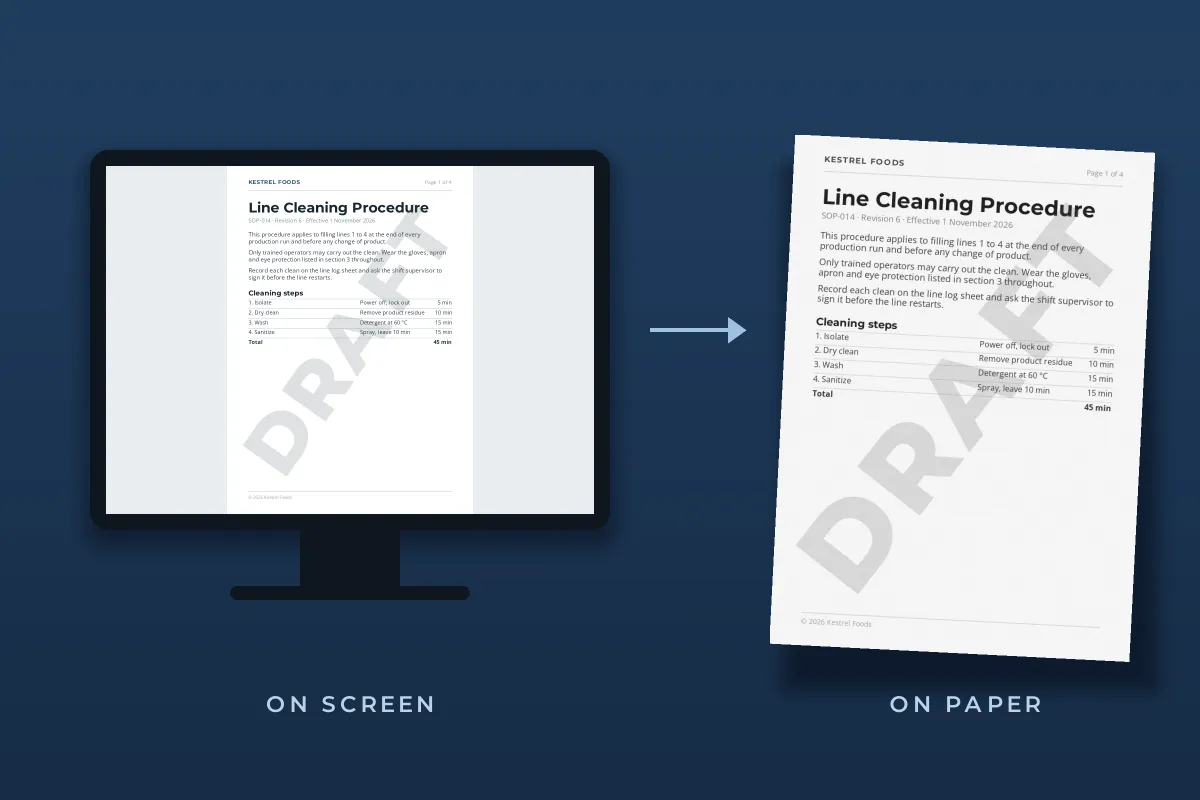
Sometimes you want the opposite: a clean document on screen, and a mark only on paper. The classic case is a controlled document, such as a procedure, a policy or a work instruction. The live version on the company system is always the current one, and any printout should say it may already be out of date.
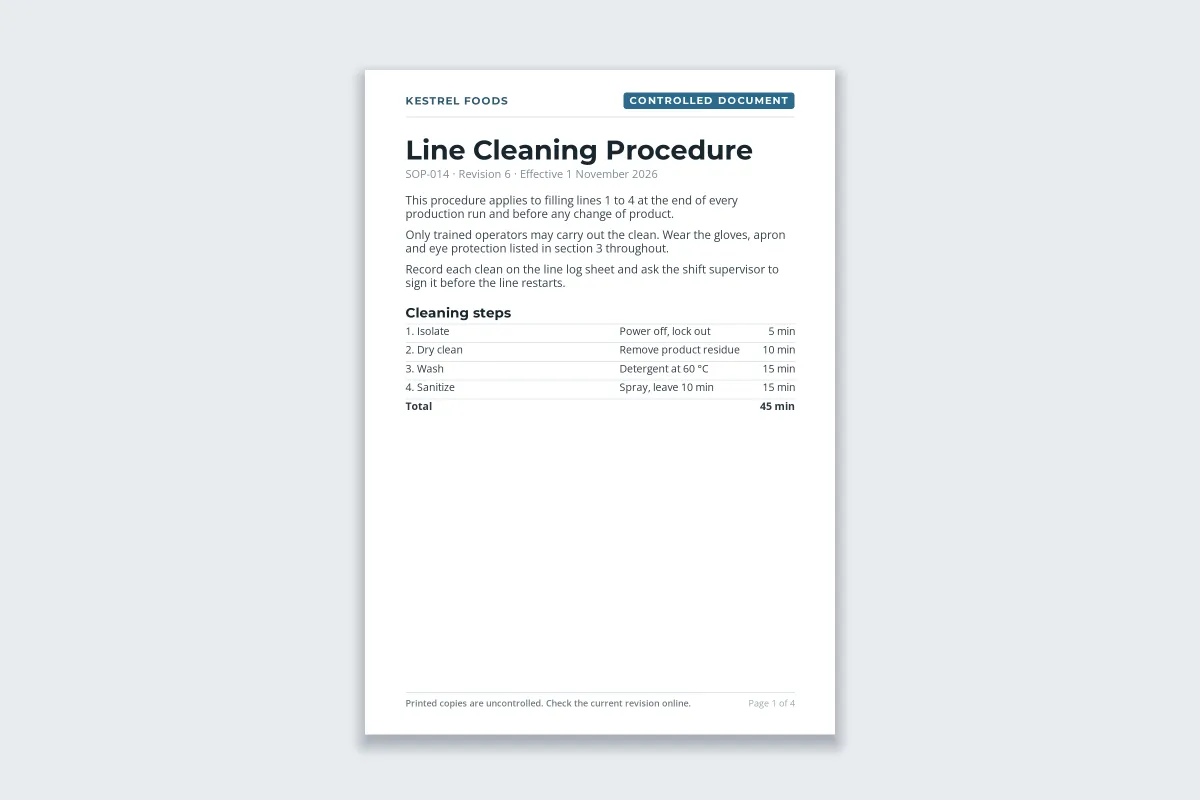 On screen
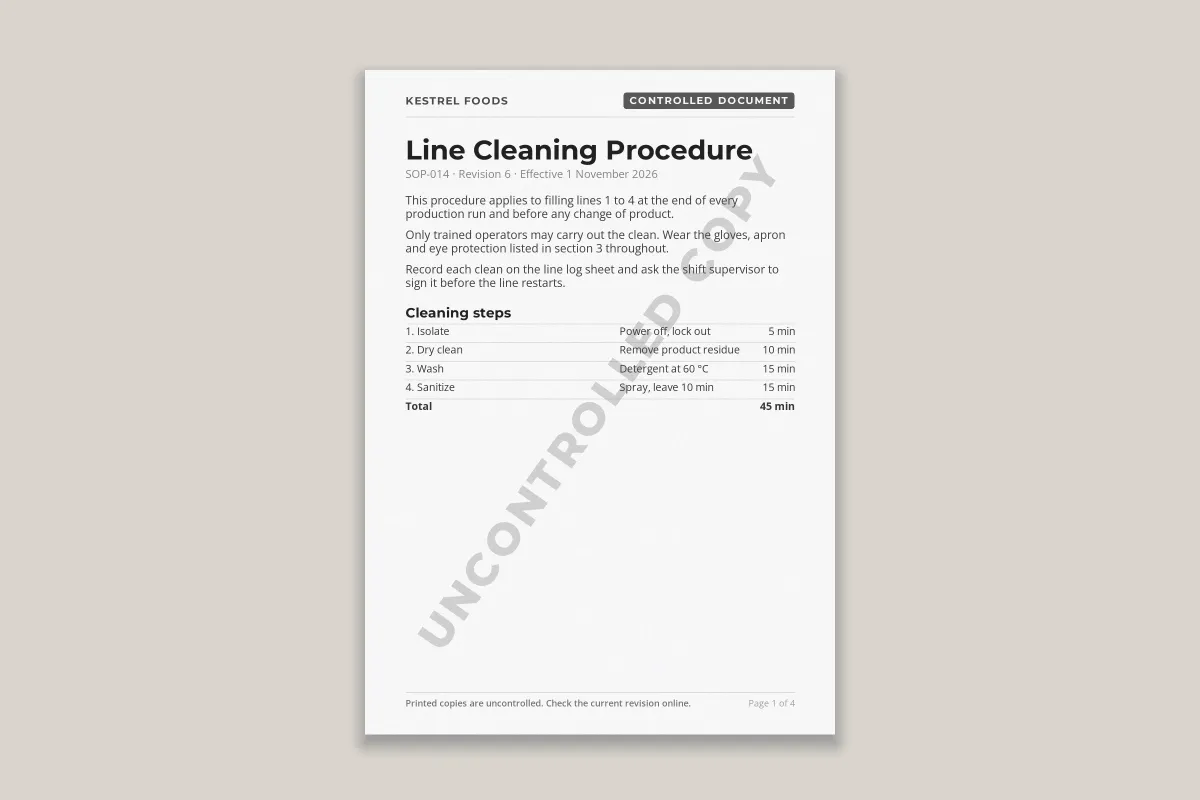 Printed
In Acrobat, add the watermark as usual, then in Appearance Options untick "Show when displaying on screen" and leave "Show when printing" ticked. Readers see a clean page; every printout says UNCONTROLLED COPY. A header-picture watermark in Excel behaves in a similar way, showing in print but not in Normal view, as how to add a watermark in Excel explains.
Screen-only and print-only marks depend on the viewer honoring the setting. Before you rely on one, open the PDF in the apps and browsers your readers actually use and look at the print preview in each. If the mark must appear on paper no matter what, use a normal watermark that shows both on screen and in print, and keep the wording in the footer as well.
Let the Printer Add the Watermark
If you only need marked paper copies, some printer drivers can stamp a watermark on everything they print. On Windows, look in the printer’s Printing Preferences. Brother drivers, for example, offer preset marks such as CONFIDENTIAL, COPY and DRAFT, custom text, and a choice of all pages or the first page only. The options and their names differ between printer makers and models.
- Good for: a quick stack of marked printouts from any app, not just PDFs.
- Limitation: the mark is added on the way to the printer. The PDF file itself stays unmarked, so anyone you email it to gets a clean copy.
- Watch out: driver settings often stick. If CONFIDENTIAL suddenly appears on everything you print, a driver watermark was left switched on. Turn it off in Printing Preferences.
Why a Watermark Doesn’t Print
If the watermark is on screen but not on paper, work through these causes in order:
- It is set to screen only. In Acrobat, open Edit › Watermark › Update and check that "Show when printing" is ticked in Appearance Options.
- It is a stamp, not a watermark. A CONFIDENTIAL stamp added with Acrobat’s Stamp tool is a comment. If the print dialog’s Comments & Forms option is set to Document only, stamps are left out. Choose Document and Stamps, or Document and Markups.
- It is too faint for the printer. Very light tints can drop out completely, especially in draft or toner-saving modes. Print at normal quality and raise the opacity.
- The color disappears in grayscale. A pale yellow or light cyan mark reads clearly on screen but can print as almost nothing on a black-and-white printer, because grayscale keeps only how light or dark a color is.
- You are printing a different file. It happens more than anyone admits: the original, unmarked PDF is still in the downloads folder with a similar name.
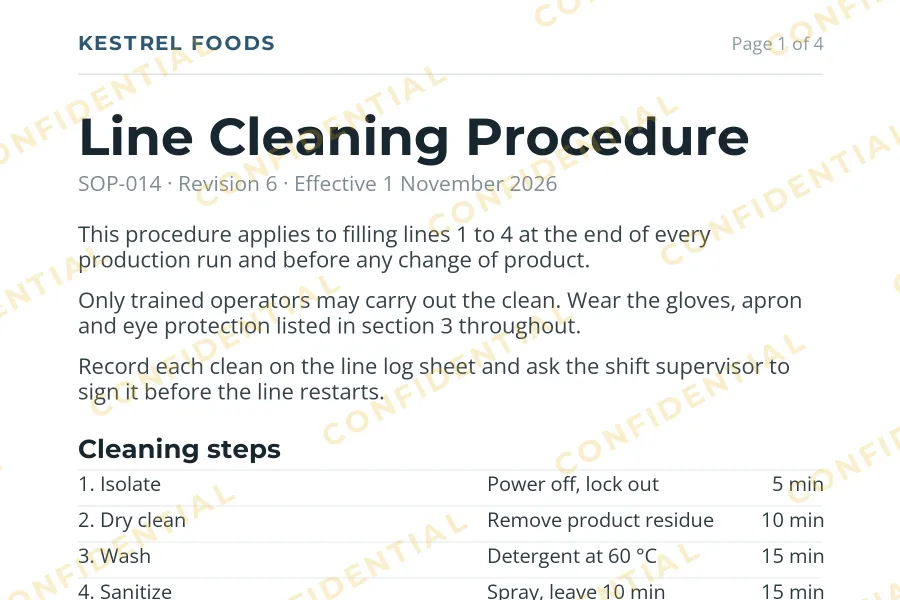
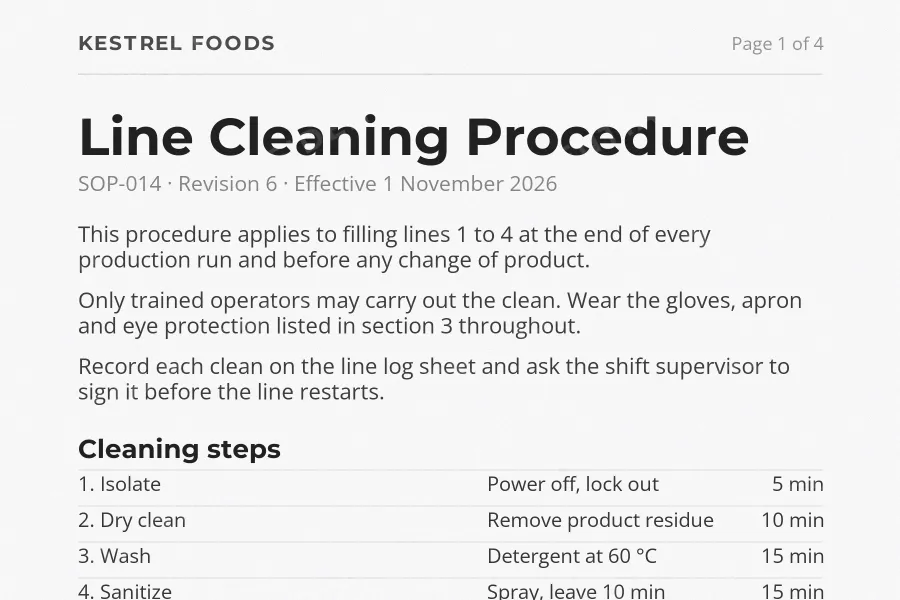
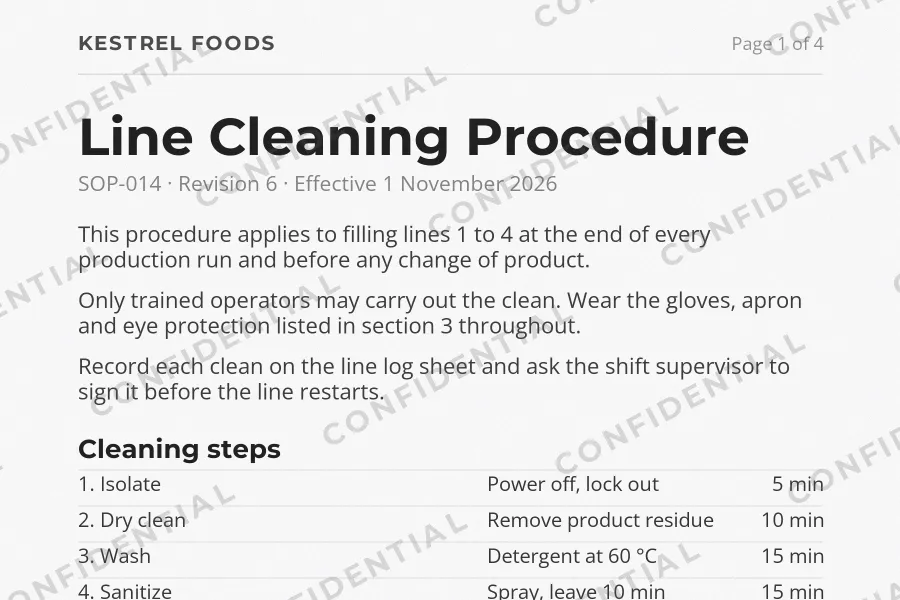
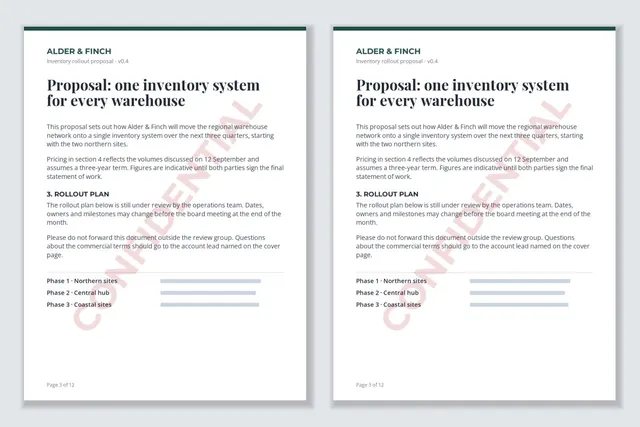
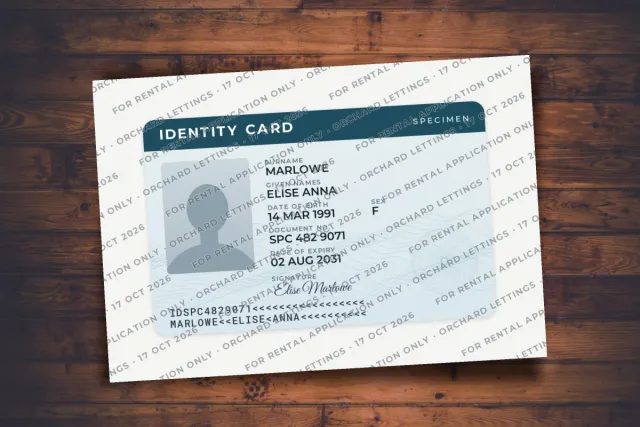
These printouts are simulated, and every printer handles light tints a little differently, but the pattern holds: judge a watermark by how dark it is, not by how colorful it looks.
Make a Faint Watermark Survive Printing
There is a tension here. A watermark should stay out of the way of the text, but printers and copiers are built to clean up faint gray. A mark that is barely visible on screen may not make it onto paper at all.
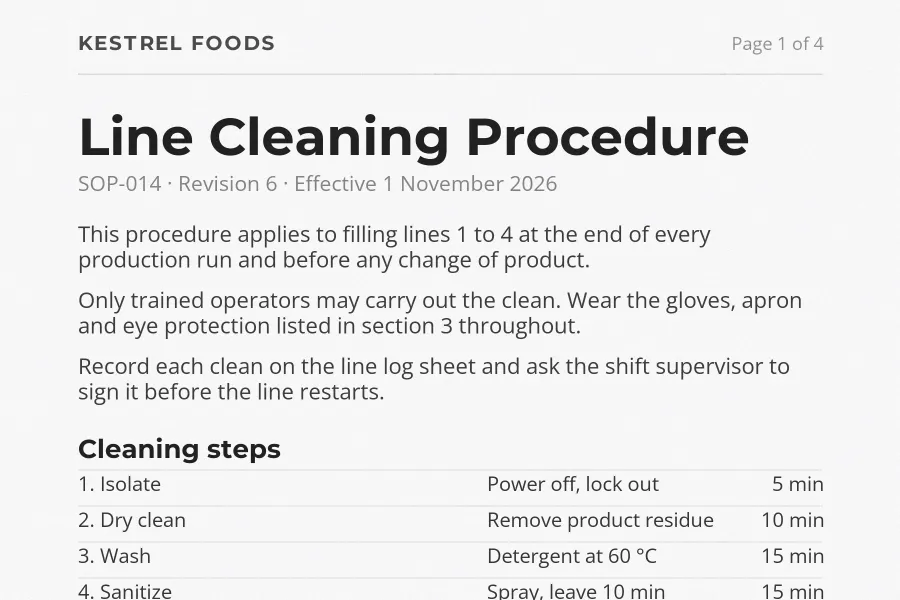
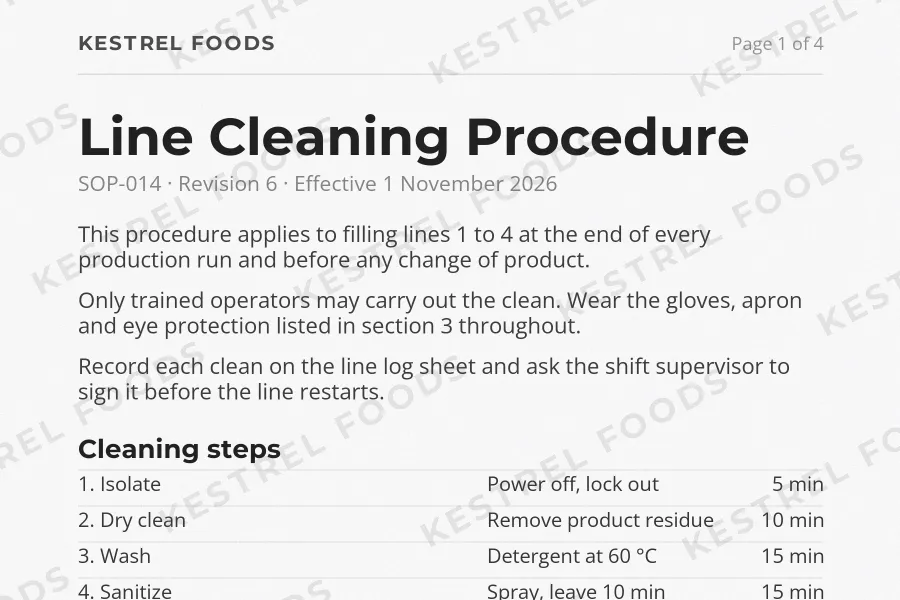
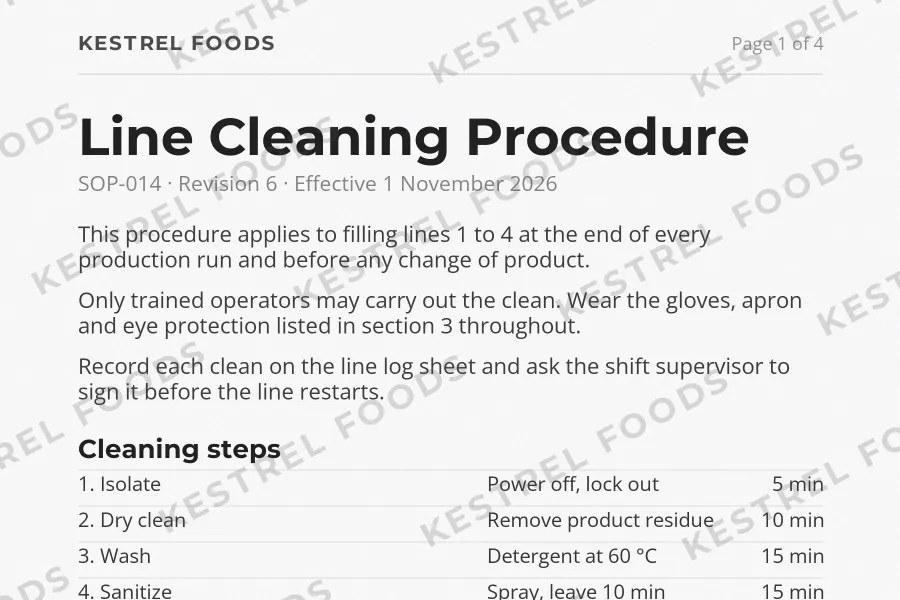
- Use a mid gray, not a light one. Lower the opacity of a darker gray rather than picking a very pale color at full strength.
- Go bolder and bigger. A heavy sans-serif keeps enough ink in each letter; thin or script fonts break up on paper.
- Aim for 15–25% on a large mark. Higher if the pages will be photocopied or scanned, since copiers lighten backgrounds further. How transparent a watermark should be explains the trade-off.
- Print one page first, on the printer that will do the real job, at its normal quality setting.
If your goal is a mark that is almost invisible on screen, accept that it may not survive paper. How to add an invisible watermark to a PDF compares those faint and hidden options and what each one survives.
Printing a Watermarked PDF From a Browser or Phone
Browsers and phones open PDFs in their own viewers, which are simpler than Acrobat. A watermark that is part of the page prints from them like any other content.
-
Open the watermarked file
Make sure it is the downloaded, watermarked copy, not the original.
-
Open the print dialog
Press Ctrl+P (Cmd+P on a Mac) in a browser. On a phone, use the share or menu button and choose Print.
-
Check the preview
Look for the watermark on several pages, not just the first. If it is missing, open the PDF in Acrobat Reader and check the Comments & Forms setting described above.
-
Print at normal quality
Draft and toner-saving modes lighten everything, faint watermarks first.
For documents that carry a status label, such as CONFIDENTIAL or DRAFT, the label should also sit in the header and footer, so it prints even in a viewer that drops the watermark. How to mark a document as confidential covers the full set of markings.