On this page
How to Watermark a Screenshot
To watermark a screenshot, save it as a PNG, add a short text watermark such as your name, your studio or a label like INTERNAL, and repeat it at an angle across the content area at low opacity. Avoid putting the only watermark in a corner or on the window edges: those are the first parts anyone crops away.
- Watermark the content, not the frame. People crop screenshots down to the part they care about.
- Repeat it. A tiled watermark survives any crop; a single corner watermark rarely does.
- Keep it light: a dark gray at around 15–25% with a thin light outline, so small interface text still reads.
- Redact first with solid boxes, then watermark the copy you share.
- Keep the original untouched, especially if the screenshot may be evidence.
When a Screenshot Needs a Watermark
Most screenshots are throwaway. These are the ones worth watermarking, because they show work, data or conversations that could be reused without you:
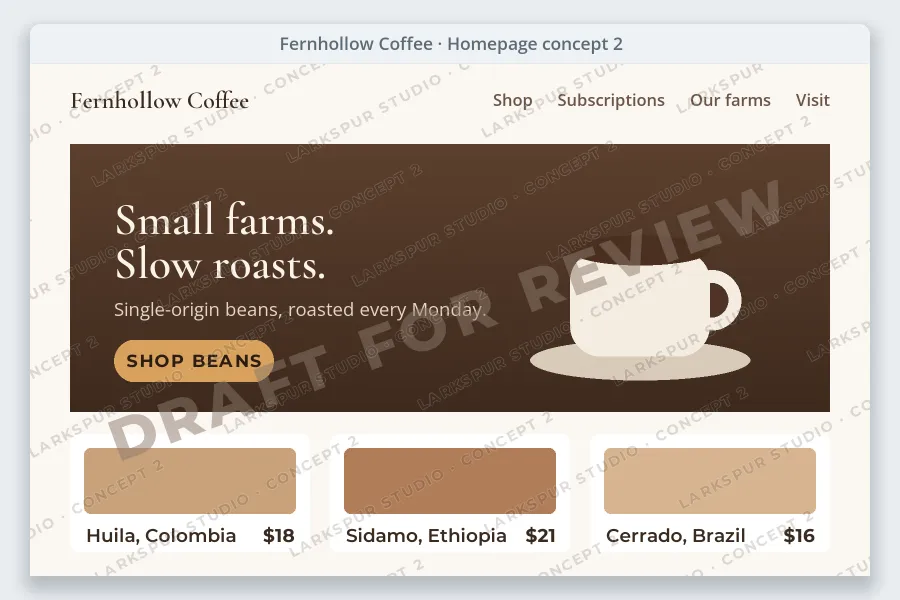


- Design previews: website and app mockups, logo options and layouts. A screenshot of a design is often all a client needs to have it built elsewhere. More in watermarking design drafts.
- Dashboards, reports and spreadsheets: revenue, customer lists and forecasts get screenshotted into chats and slide decks all the time. A label keeps their status attached; how to mark a document as confidential covers which label to use.
- App and software screens for tutorials: a small, consistent credit tells readers where the guide came from when it is copied to another site.
- Chats and emails you share with someone: a copy watermarked with who it was shared with and when, while you keep the original. More on this below.
One caution: watermarking a screenshot of someone else’s work does not make it yours. Watermarking a screenshot is for your own designs, data and conversations, or for labeling how a copy may be used.
Put the Watermark Where Cropping Can’t Reach It
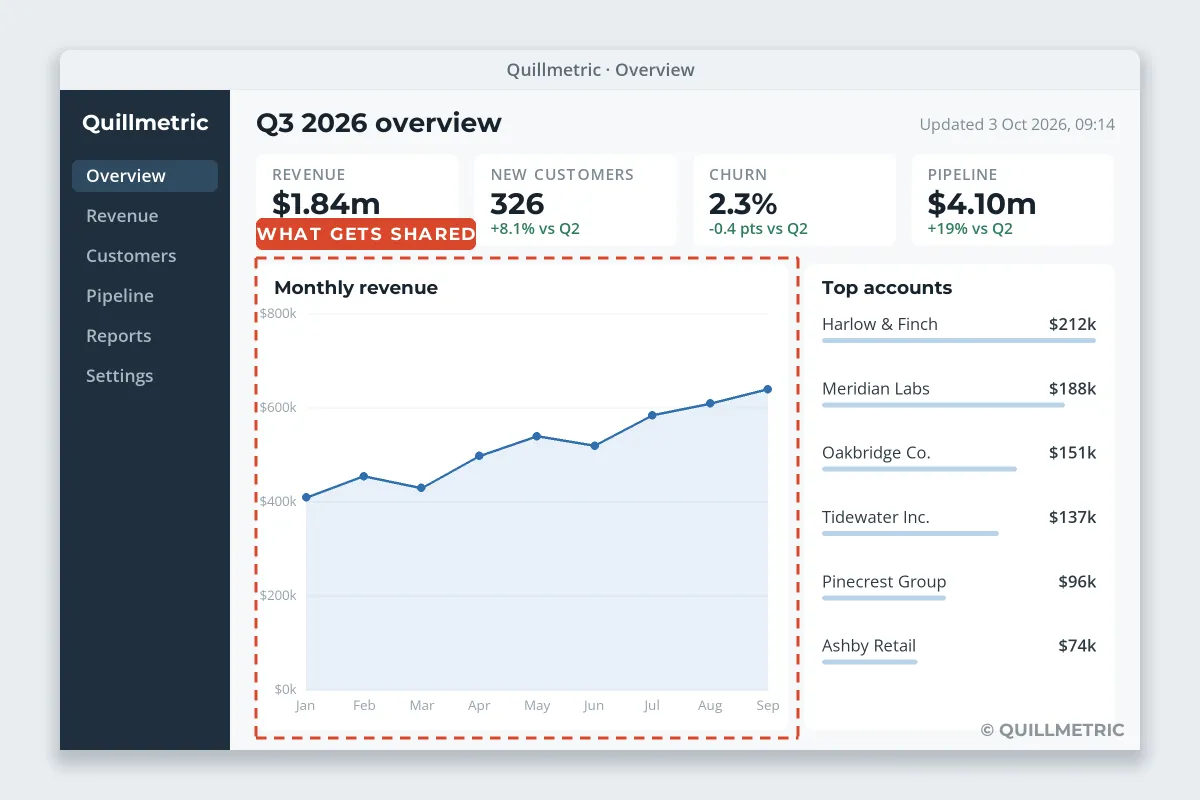
A screenshot almost never stays whole. Someone wants the chart, not the sidebar, so they crop to the chart. Whatever sat in the corner, the title bar or the margin is gone in one move.
 Corner watermark, cropped
 Tiled watermark, cropped
A tiled watermark repeats across the whole content area, so every crop keeps several copies of it. Keep the text short so each copy is complete, and set the spacing so at least one full copy lands in any area the size of a single card or chart. Tiled watermarks covers spacing and angle in more detail.
Keep Small Interface Text Readable
Screenshots are full of small text: menu labels, table rows, axis values. A watermark that would be fine on a landscape photo can make a screenshot useless.
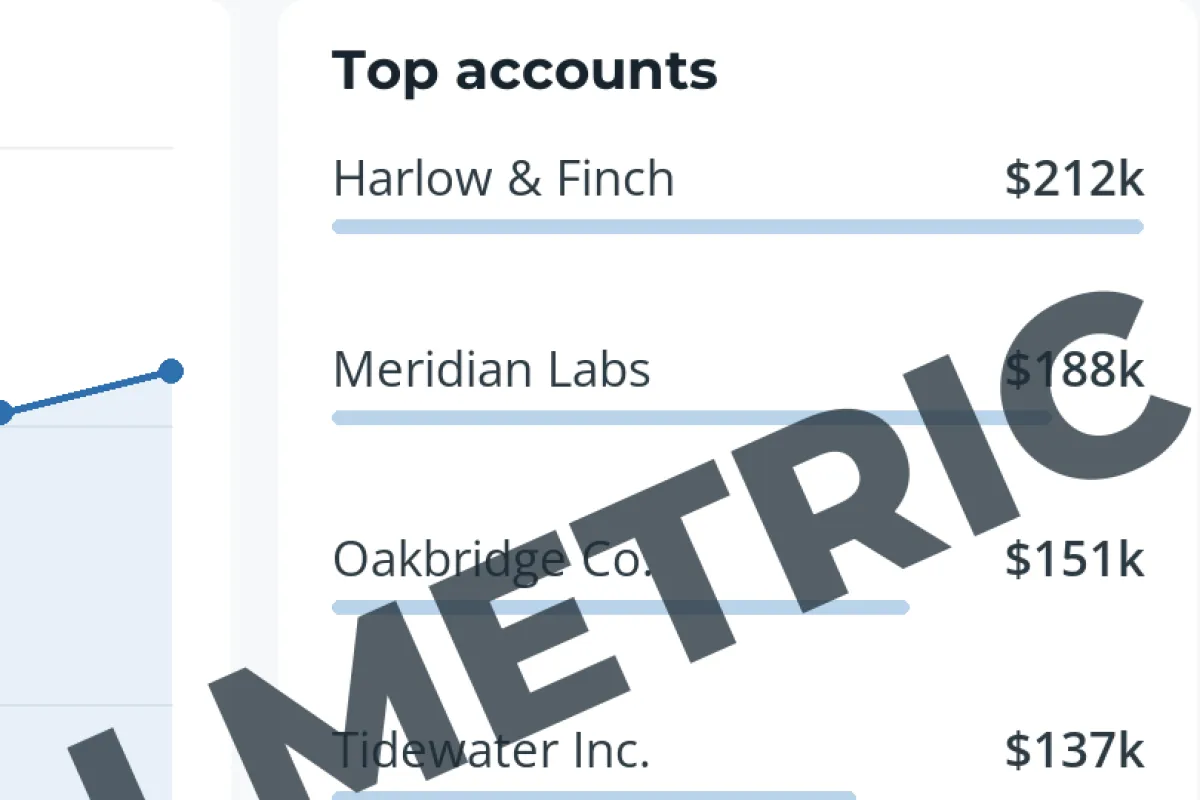 Large and dark
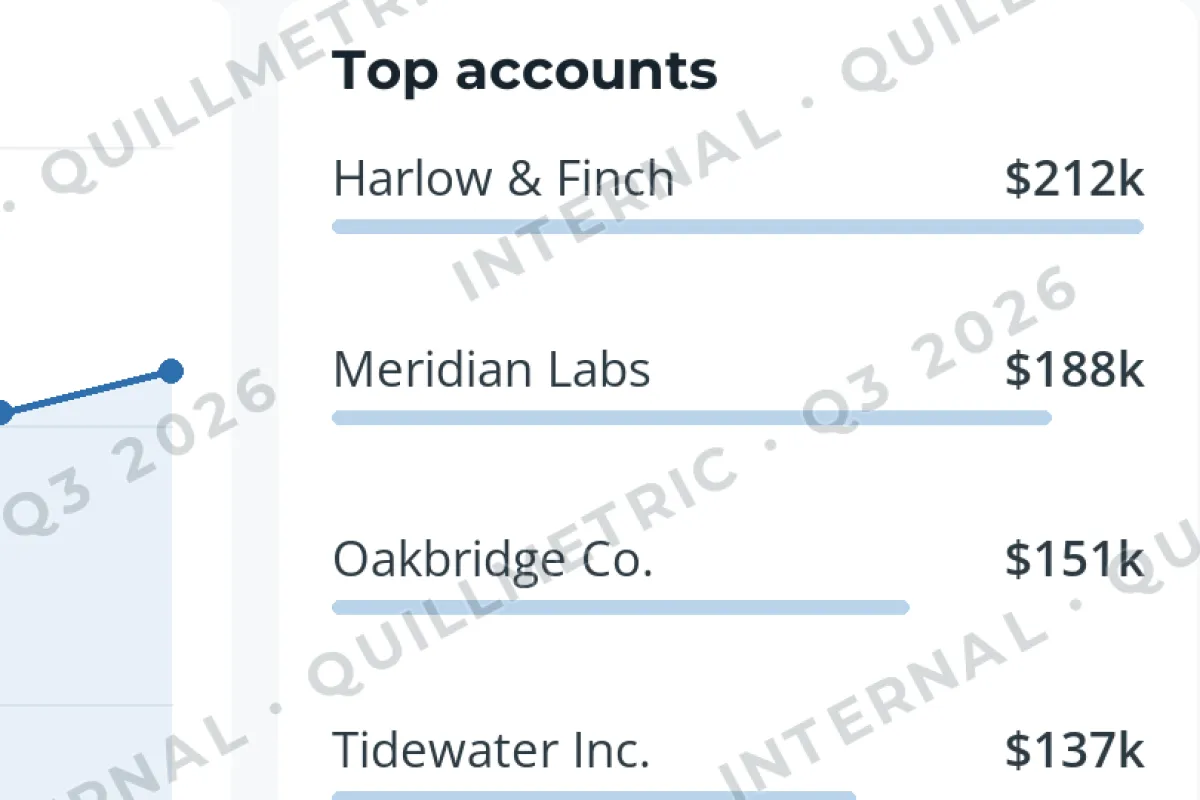 Small, light, repeated
- Opacity: about 15–25% for a dark gray tiled watermark. Interface backgrounds are mostly white or very light, so a little goes a long way. How transparent a watermark should be explains the trade-off.
- Outline: a thin white stroke or soft shadow keeps the watermark visible where it crosses dark areas such as sidebars and buttons.
- Size: make the watermark’s letters about the size of the interface’s headings, not its body text, so the two are easy to tell apart.
- Format: save and share screenshots as PNG. JPEG compression smudges small text and the edges of the watermark, as JPEG, PNG or WebP for watermarked photos shows.
Redact First, Then Watermark
A watermark labels a screenshot; it does not hide anything. Before you share, cover what the recipient should not see: names, email addresses, phone numbers, account numbers, other people’s messages.
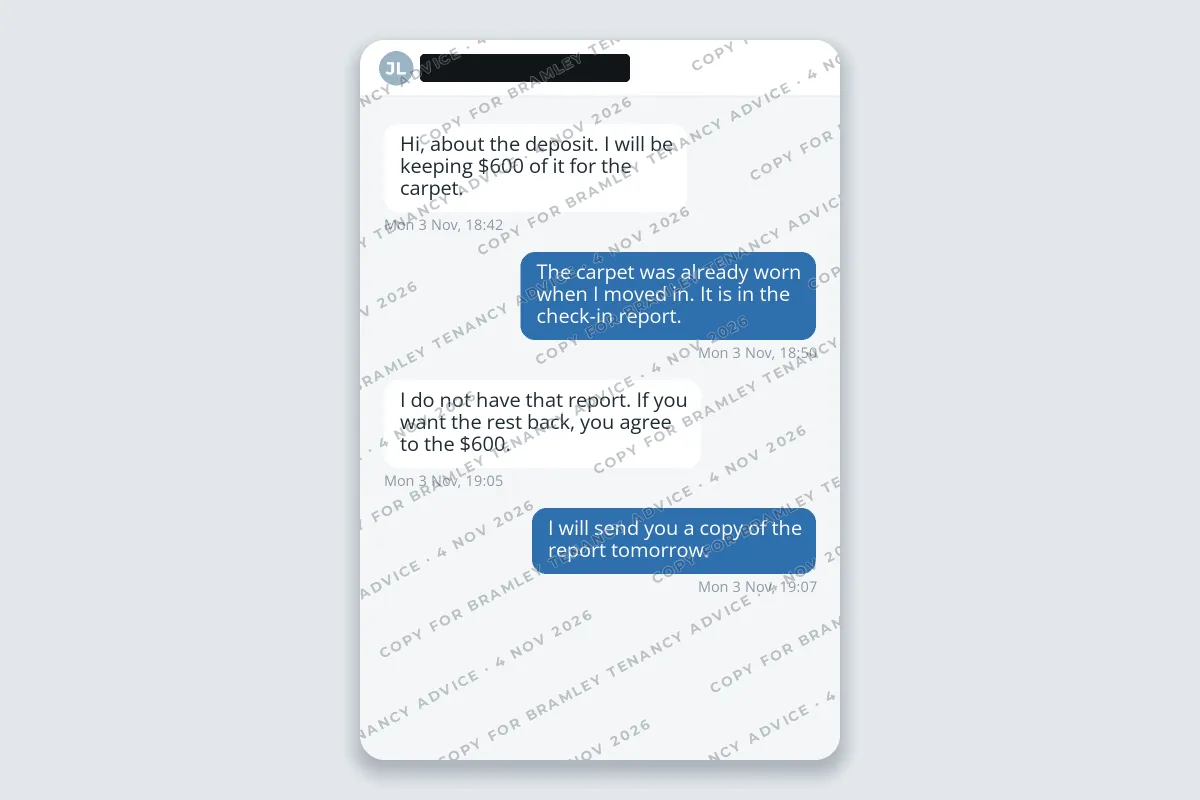
- Use solid boxes, not blur. Researchers have shown that pixelated or lightly blurred text can sometimes be reconstructed. An opaque box cannot.
- Redact the pixels, not a layer. In a PDF or design file, a black rectangle drawn on top can often be moved or deleted. Export the redacted screenshot as a flat image.
- Check the edges. Notification banners, tab titles and status bars often carry names and times you did not mean to share.
Screenshots You Share as Evidence
Screenshots of chats and emails are often sent to an employer, a landlord, a tenancy adviser or a platform’s support team. Two rules make them more useful and safer to share.
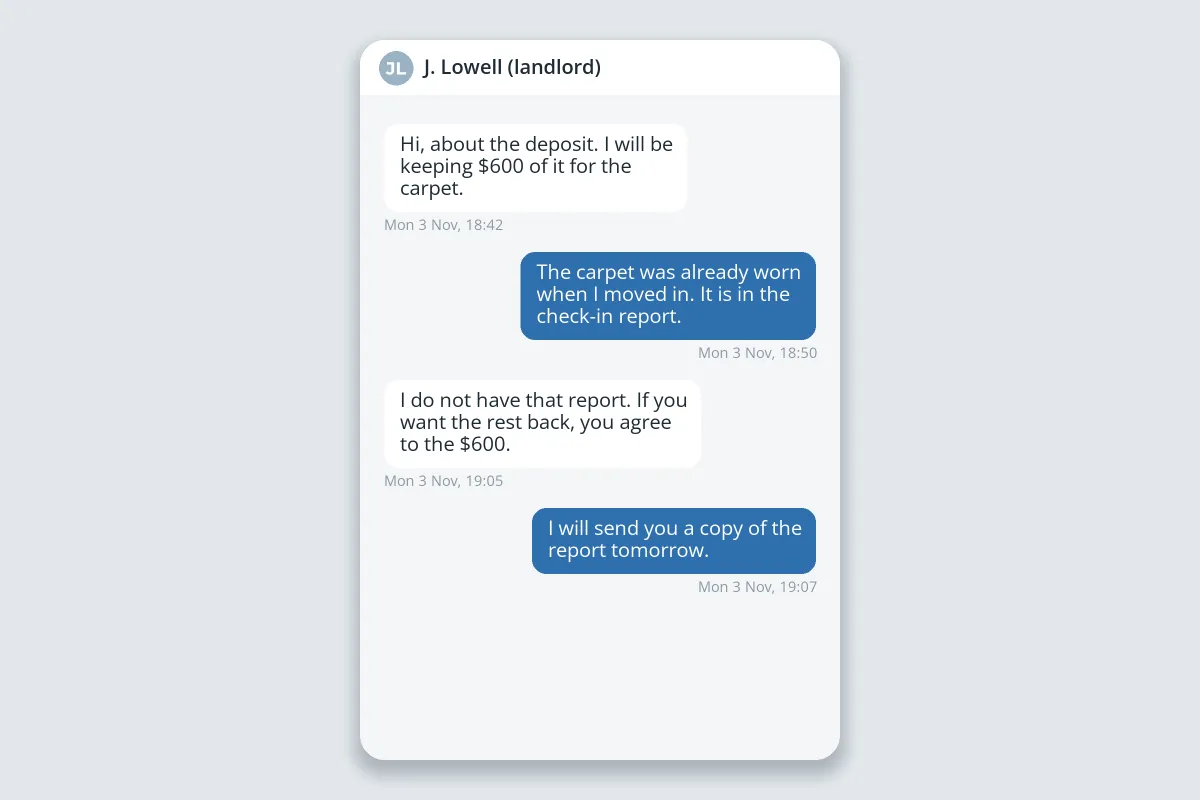 Original, kept
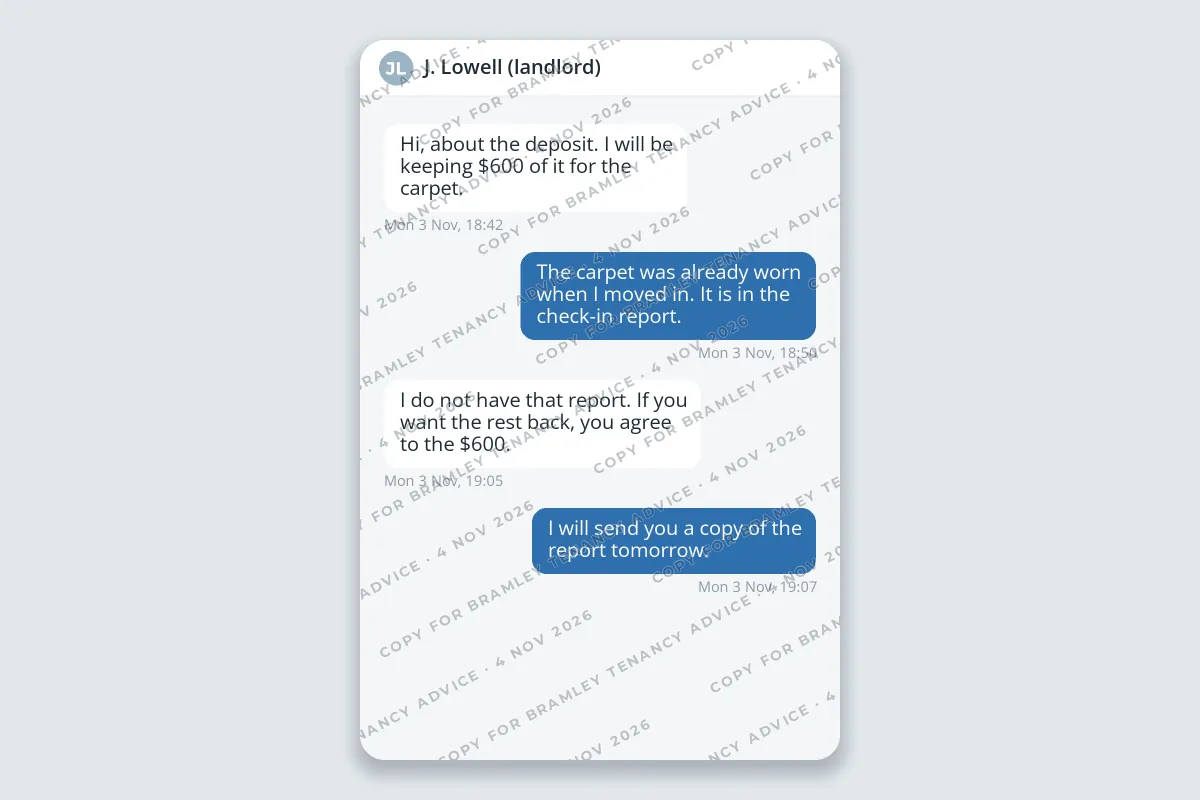 Copy, shared
- Keep the original exactly as captured. If a dispute goes further, the people deciding it may want to see the untouched screenshot, or the messages on the device itself. Do not watermark, crop or edit the only copy you have.
- Watermark the copy you send with who it is for and the date, the same pattern used for ID copies. If it is passed on, it is clear where it came from and why it was shared.
If you are unsure whether an organization will accept a watermarked copy, ask, or send the watermarked copy and offer the original on request.
How to Watermark Screenshots in Watermark.ws
-
Take the screenshot as a PNG
Most systems save screenshots as PNG by default. Crop it to what you want to share, and redact anything private first.
-
Upload one or many
Drag in a single screenshot or a whole set, such as every screen of a design concept or every image in a tutorial. Watermark.ws works in the browser, on a computer or a phone, with no signup needed to try it.
-
Add a short text watermark
Your name, your studio, or a label such as INTERNAL or DRAFT FOR REVIEW. Pick a bold sans-serif and a dark gray.
-
Tile it lightly
Turn on Tile, rotate it about 25–30 degrees, add a thin white stroke, and lower the opacity until the smallest text reads clearly.
-
Save it as a template
Every future batch of screenshots gets the same watermark in one click.
The markup tools built into phones and computers can add a single line of text, which is fine for a one-off label. For a repeated watermark across a whole set, see how to batch watermark images.