On this page
- Why Remove Location From Photos Before Posting
- How Precise Photo Location Data Is
- Which Sites Remove Location for You, and Which Don’t
- How to Check a Photo for Location Data
- Remove Location From Photos on iPhone
- Remove Location From Photos on Android
- Remove Location From Photos on Windows and Mac
- Location Isn’t Only in the Metadata
Why Remove Location From Photos Before Posting
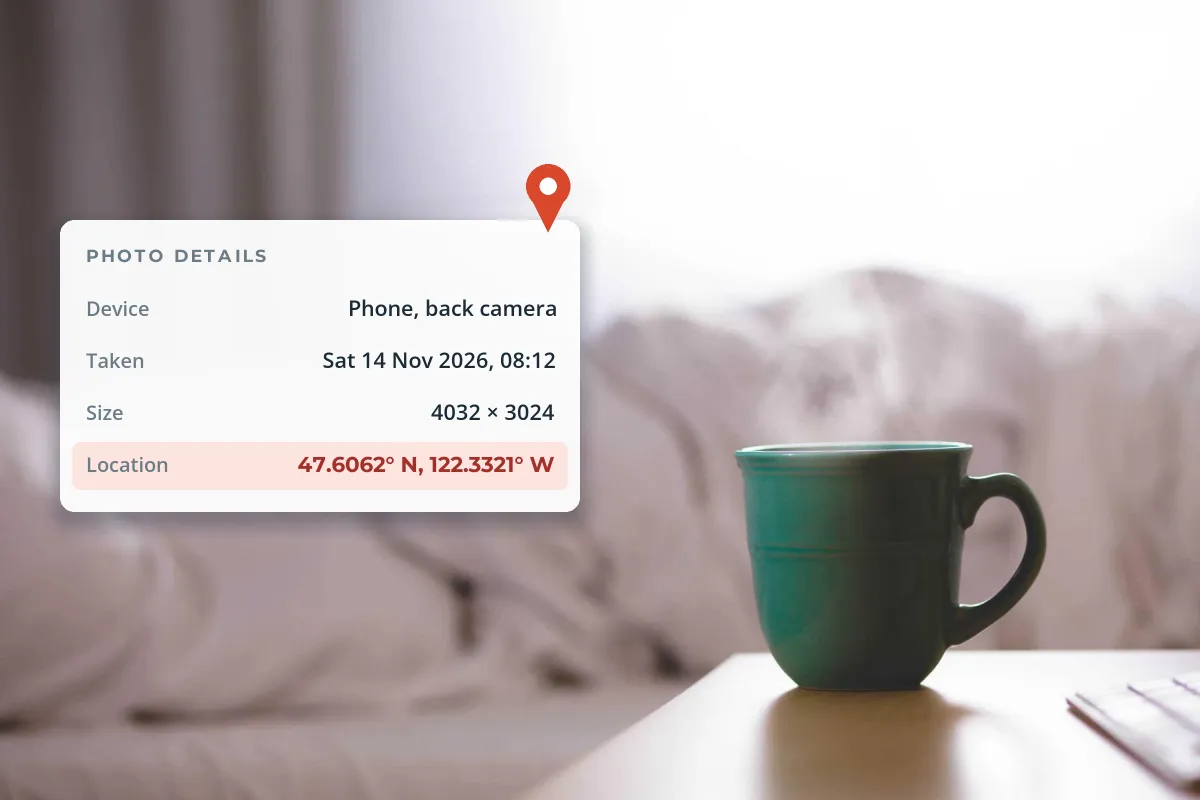
To remove location from photos before posting, turn off location for the photos you share (on iPhone, Share › Options › Location off; on Samsung phones, tick Remove location data when sharing), or strip the GPS fields from the file itself in Windows or macOS. For the future, stop your camera app from saving location at all.
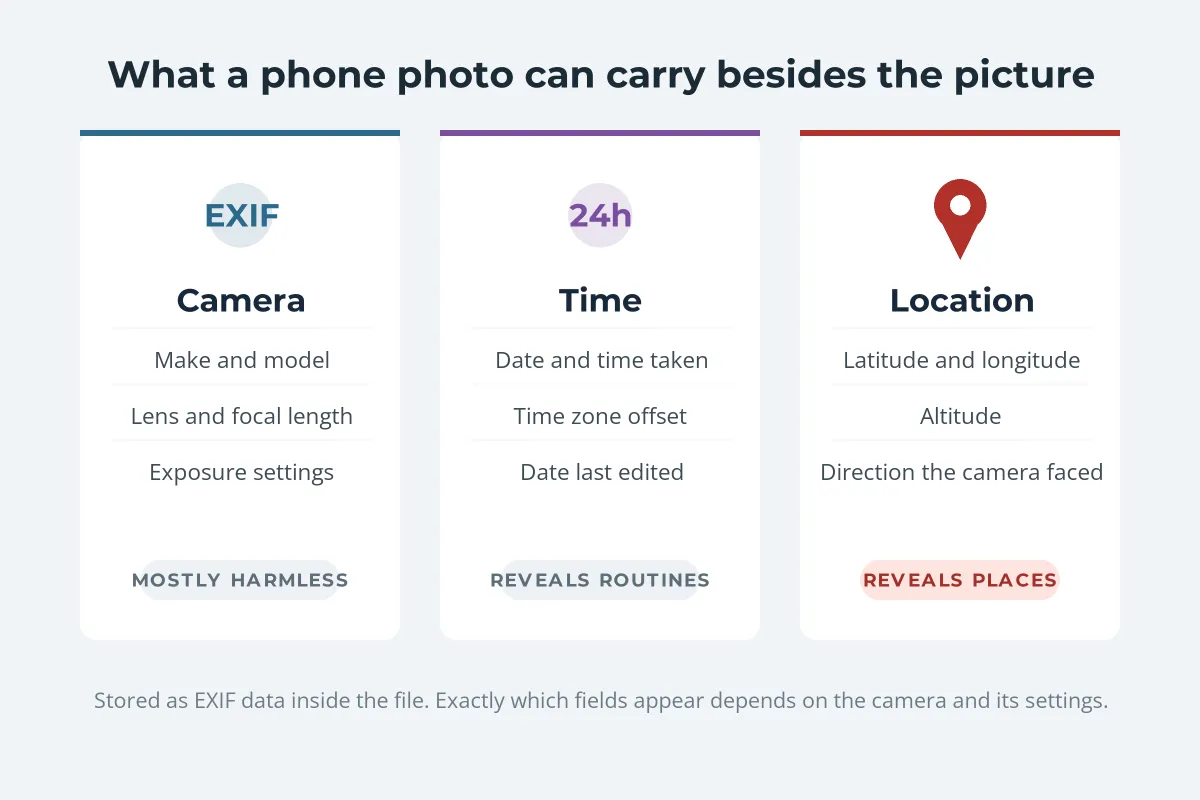
Most phones save the location of every photo by default, inside the file, as part of its EXIF data. It is invisible when you look at the picture, but anyone who has the original file can read it in seconds.
- iPhone: tap Share, then Options, and turn off Location before sending. Or set Settings › Privacy & Security › Location Services › Camera to Never.
- Android: turn off location in your camera app’s settings (Save location on Pixel, Location tags on Samsung), and use Remove location data when sharing from Samsung Gallery.
- Windows: right-click the file, Properties › Details › Remove Properties and Personal Information.
- Mac: in Preview, open the Inspector’s GPS tab and choose Remove Location Info, or untick location when exporting from Photos.
- Check the result, and remember the picture itself can still give the place away.
How Precise Photo Location Data Is
Phone GPS is good. According to GPS.gov, GPS-enabled smartphones are typically accurate to within about 4.9 meters (16 feet) under open sky, less so near buildings and trees. That is close enough to identify a single house.
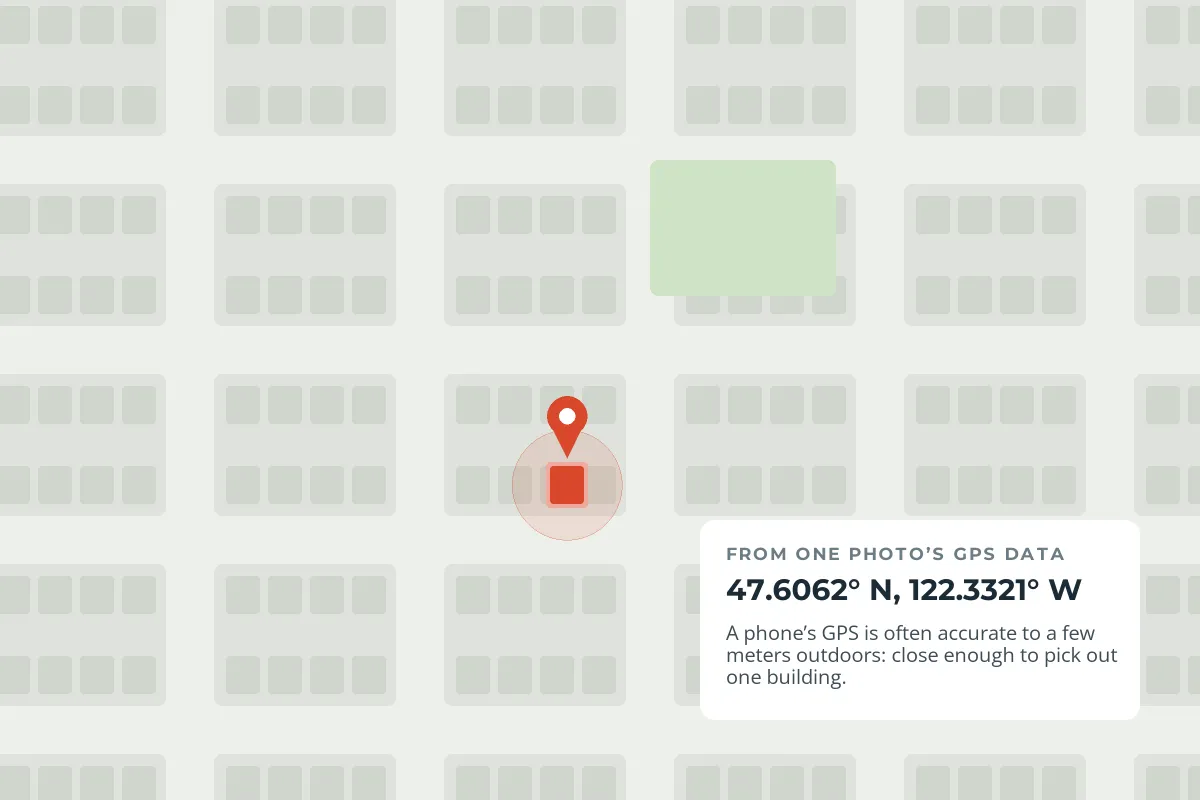
- Photos taken at home reveal your address, even when nothing in the picture does.
- Photos of children can reveal their school, nursery or playground. Watermarks for newborn and family photographers covers sharing children’s photos with care.
- A series of photos reveals routines: the gym at 7, the same café every Saturday.
- Product and listing photos taken at home, such as items for sale, reveal where the items are kept.
Which Sites Remove Location for You, and Which Don’t
Many large social networks re-process the images you post and drop most of their metadata, including GPS, from the copy other people see and download. But the platform itself still receives your original file, and many other ways of sharing send the file exactly as it is.
| How you share | Location in the copy others get | Notes |
|---|---|---|
| Public posts on Instagram, Facebook or X | Usually removed | Independent tests show GPS stripped from posted images. The platform still receives the original. |
| Email attachments | Kept | Email sends the file as it is. |
| Cloud links (Google Drive, Dropbox, iCloud and similar) | Usually kept | People download your original file. Google Photos is an exception: its links and albums leave location out by default. |
| Messaging apps | Varies | Some compress images and drop metadata; options to send as a file or document usually keep it. |
| Your own website or portfolio | Depends on the platform | Some resize and strip, others serve the file you uploaded. |
| Marketplaces and forums | Varies | Do not assume. Check a downloaded copy. |
Platforms change how they process uploads, so treat the table as a guide rather than a guarantee. The reliable approach is to remove location before the photo leaves your device, whatever the destination. And if you post a lot of photos, resizing before you share is a good habit to pair with it.
How to Check a Photo for Location Data
- iPhone: open the photo in Photos and swipe up or tap the Info button. A map means the photo has a location.
- Android: open the photo in Google Photos or your gallery app and look at its details. A location or map means it is tagged.
- Windows: right-click the file, choose Properties, then the Details tab, and scroll to the GPS section.
- Mac: open the photo in Preview, choose Tools › Show Inspector, and look for a GPS tab. In Photos, select the photo and click the Info button.
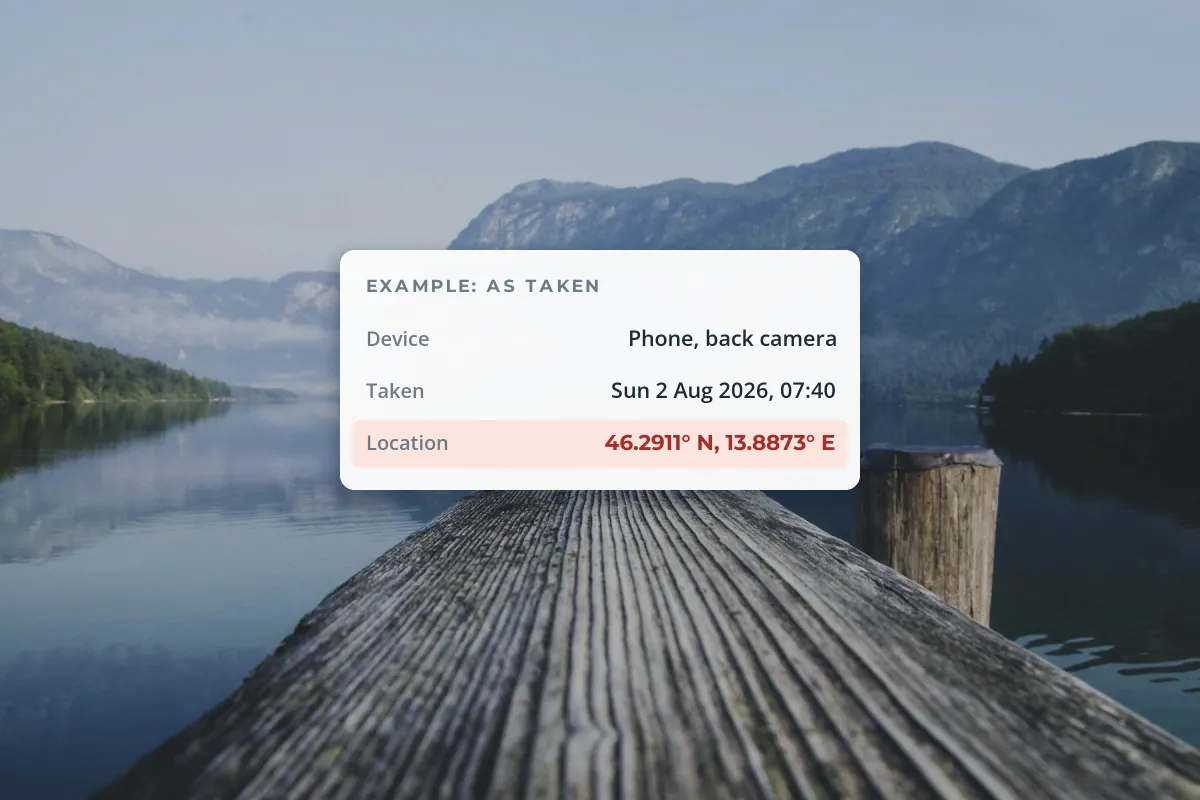 As taken
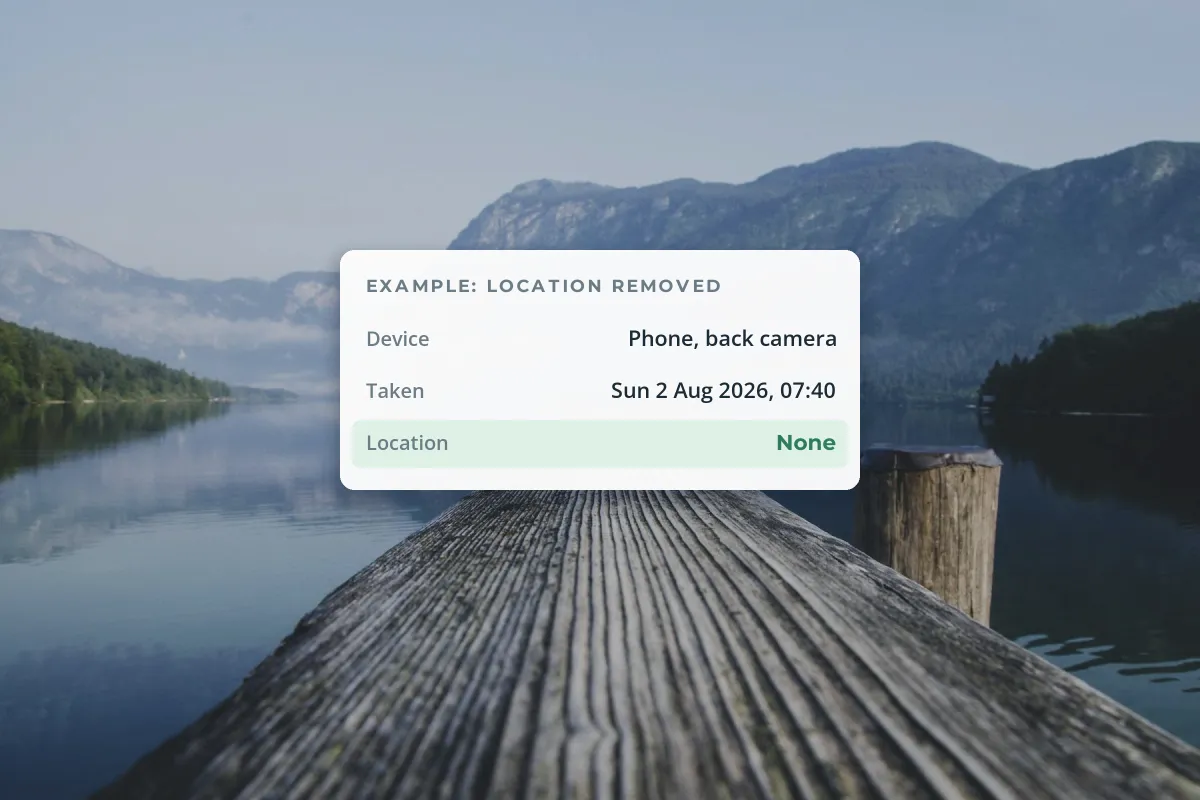 Location removed
Check the file you are actually going to post, not the original. Editing apps differ: some copy all metadata into the edited file, some drop it, and some let you choose. Photo metadata can also hold useful things, such as your copyright notice; copyright in photo metadata explains which fields are worth keeping.
Remove Location From Photos on iPhone
-
Share without location
In Photos, select the photos, tap the Share button, then tap Options at the top and turn off Location. "Location Not Included" appears above the Options button. Then share as usual.
-
Remove it from a photo you keep
Open the photo, tap the More button, tap Adjust Info, then Adjust Location, and choose No Location.
-
Stop saving it
Go to Settings › Privacy & Security › Location Services › Camera and choose Never. New photos will no longer be tagged.
The Share Options switch applies to that share only, so it is easy to forget. If you never use the map in Photos, turning camera location off entirely is the simplest protection.
Remove Location From Photos on Android
Android phones differ by maker, so the menus vary. These are the common ones:
-
Stop your camera saving location
On a Pixel, open the Camera app, tap Settings, then More settings, and turn off Save location. On a Samsung Galaxy, open Camera settings and turn off Location tags.
-
Share without location from Samsung Gallery
Select the photo, tap Share, and tick Remove location data under the preview before choosing an app.
-
Remove it from a photo you keep (Samsung)
In Gallery, open the photo, tap More options, then Details, then Edit, remove the location and save.
-
Google Photos
Google says new links, albums and conversations do not include location by default. But Google Photos cannot remove a location the camera added to the file itself, so if you share or download the original file elsewhere, remove the location with another tool first.
Remove Location From Photos on Windows and Mac
Windows (File Explorer):
-
Open the file’s details
Right-click the photo, choose Properties, then the Details tab. You can select several photos at once.
-
Remove the properties
Click Remove Properties and Personal Information at the bottom.
-
Choose copy or original
Pick Create a copy with all possible properties removed for a clean sharing copy, or Remove the following properties from this file and tick the GPS fields.
Mac: in Preview, open the photo, choose Tools › Show Inspector, select the GPS tab and click Remove Location Info, then save. In the Photos app, select the photos and choose Image › Location › Hide Location, and when exporting with File › Export, untick the option to include location information.
Some file types and fields can survive these tools. For anything sensitive, check the cleaned copy again before you post it.
Location Isn’t Only in the Metadata
Stripping GPS data hides the coordinates, not the scene. Signs, landmarks, house numbers, school logos and the view from a window can place a photo just as precisely, and people are good at matching them.


- Look at the background before posting photos taken at or near home.
- Crop or blur house numbers, car plates, school badges and street signs you do not want to share.
- Post later. Sharing travel photos after you are back home says less about where you are right now. The same applies to photos for a travel blog.
A watermark is a separate question: it adds your name to the picture but does not change what the file says about where it was taken, and editing tools differ in whether they keep or drop EXIF data. Remove the location first, then check the final watermarked file before you post. If you watermark on your phone, how to watermark photos on iPhone and on Android cover the options. For more on preparing photos to share, see watermarking photos before you send them.
Sample photos: Mug at the bedside by David Mao, Lake jetty by Ales Krivec, Concert hall entrance by Verne Ho, City street by Kim Daniel on Unsplash.