On this page
How Teachers and Course Creators Use Watermarks
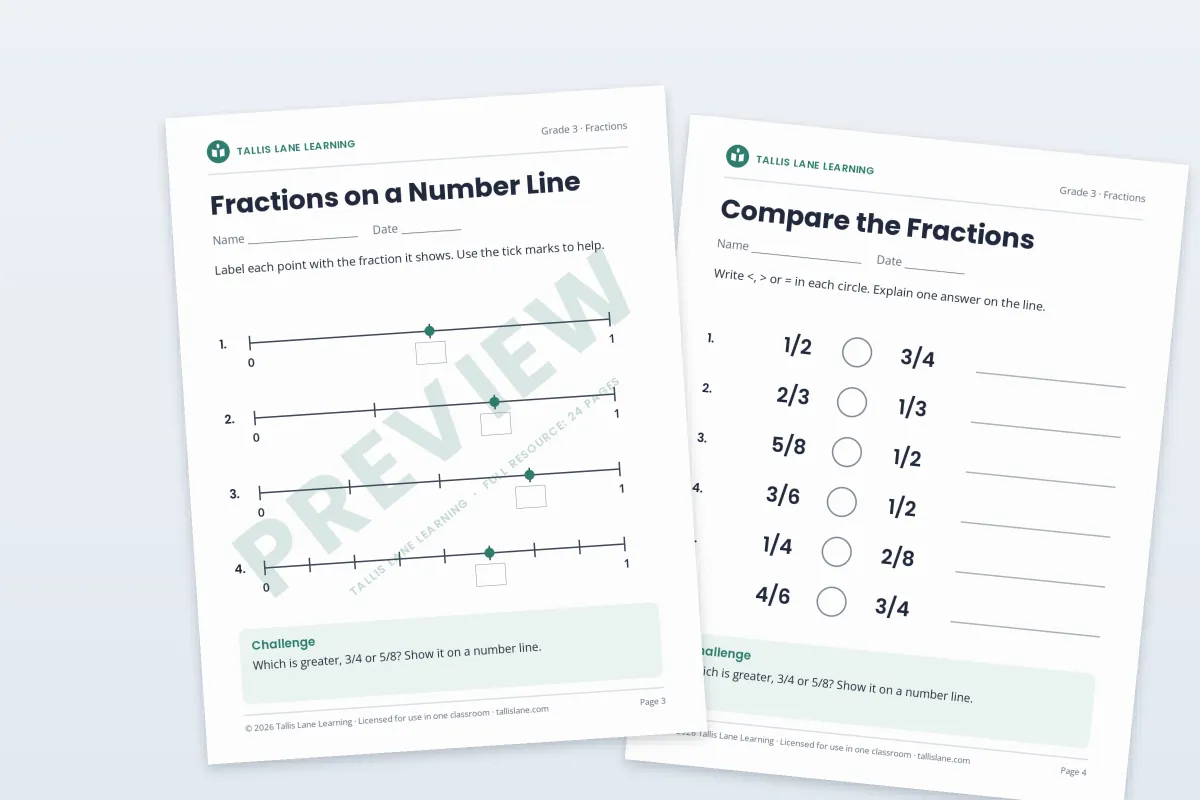
Teachers and course creators watermark teaching resources in two very different ways. The free preview of a resource gets a clear PREVIEW watermark, because it is a sample, not the product. The resource a buyer pays for gets only a small copyright footer, because it has to print cleanly and work in front of a class.
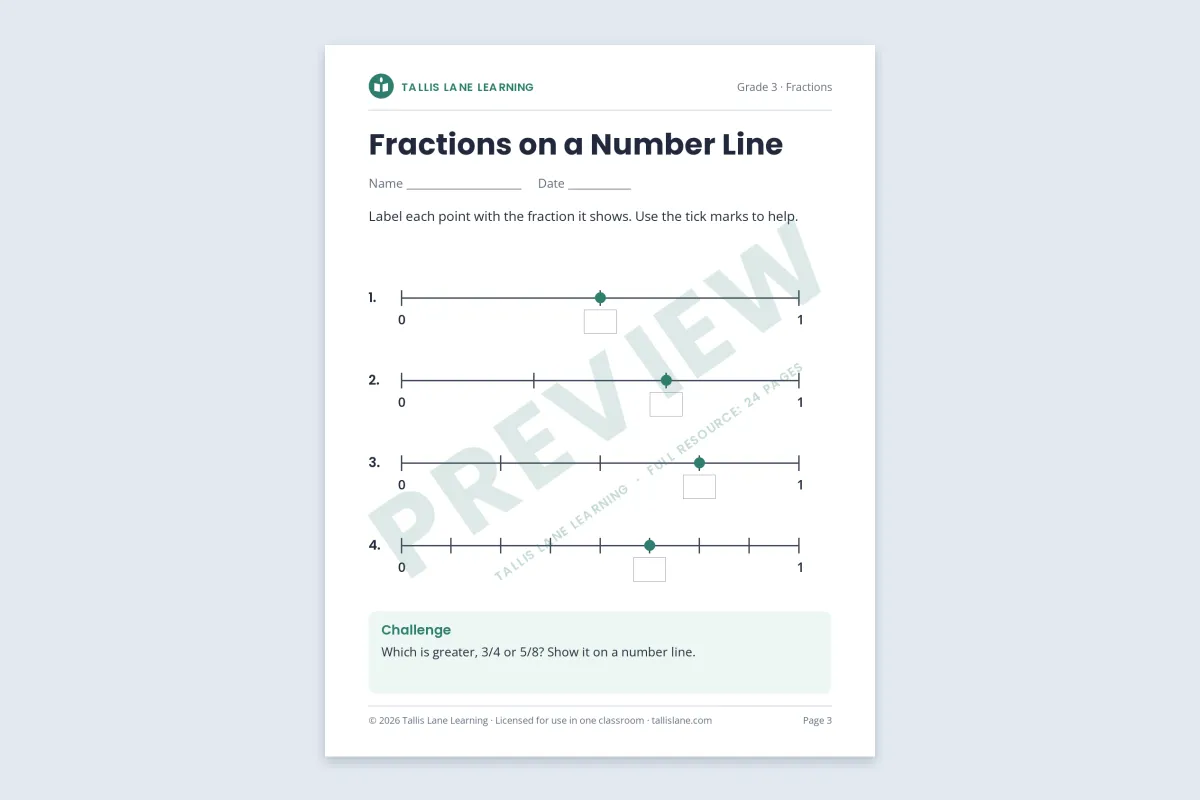
- Marketplace previews: a few sample pages with a faint diagonal PREVIEW and your store name.
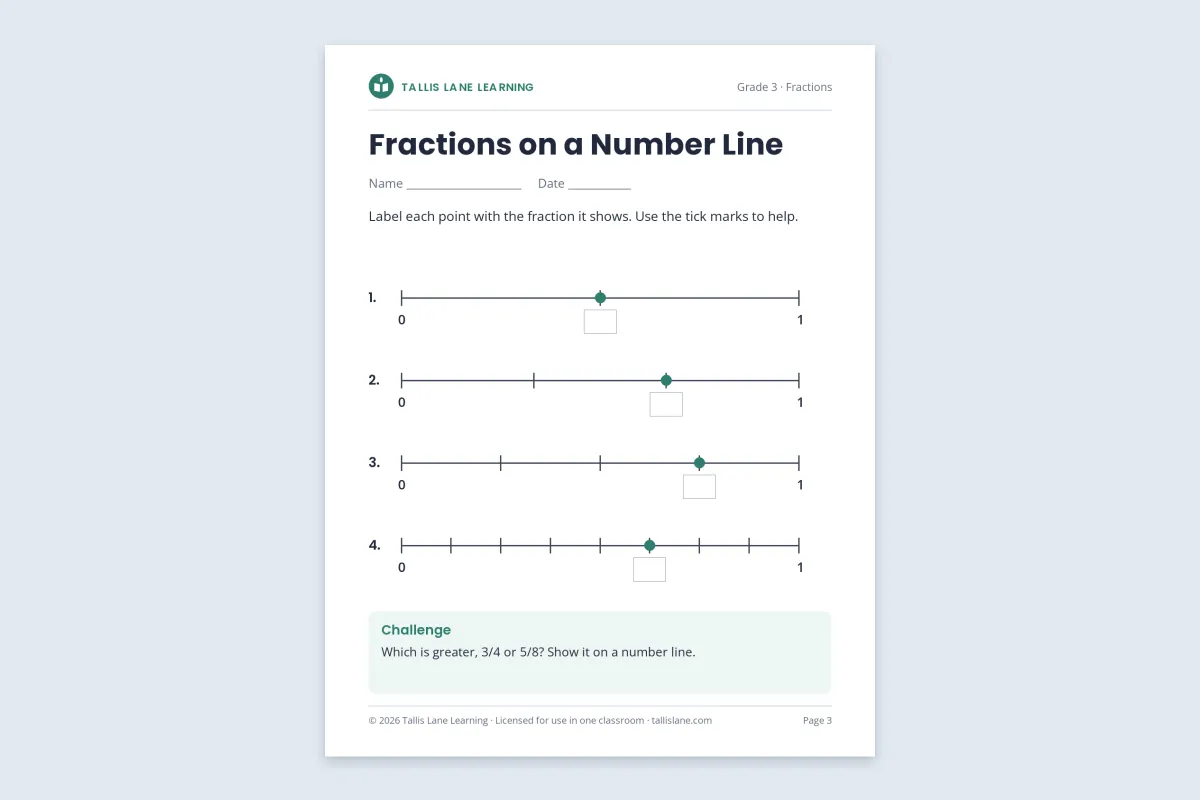
- Paid worksheets: no watermark over the content, just a footer with your copyright, the license and your web address on every page.
- Slide decks: export to PDF, then add a small logo or web address in the same corner of every slide.
- Course videos: a small, semi-transparent logo in one corner.
- Licensed copies for a school: the licensee's name in the footer, so a shared copy shows where it came from.
| Material | Who sees it | Watermark |
|---|---|---|
| Preview file and thumbnails | Anyone browsing | Faint PREVIEW across sample pages |
| Paid worksheet or unit | The buyer and their students | Copyright and license footer |
| Slide deck | The buyer, projected in class | Small logo or URL in a corner |
| Course video | Enrolled students | Small corner logo |
| School or district license | Several teachers | Licensee name in the footer |
Previews on TPT and Other Marketplaces
On Teachers Pay Teachers (TPT), a listing has two kinds of sample. Thumbnails are small images, up to four per product, which TPT can generate from your file or you can upload yourself. The preview is a short version of the resource that buyers can open or download before purchasing. TPT accepts preview files as PDF or as images such as JPG and PNG, and its help center notes that most previews are one to three pages. Free resources have no separate preview, because the whole file is the sample.
 Preview page
 Paid resource
A preview has to sell the resource without replacing it. A faint diagonal PREVIEW across each sample page does that: buyers can read every question and judge the layout, but the page is clearly not meant to be printed and used. Add a short line saying how many pages the full resource has, so the sample also works as a reminder of what they would get. We found no rule against watermarked previews in TPT's help center, and many sellers use them; check the current guidelines of any other marketplace you sell on.
- Show a few pages, not the best ones in full. A cover page, a sample page and the answer key format are often enough.
- Keep thumbnails clean or lightly watermarked. They are your shop window, shown small in search results.
- Use a color from your branding at low opacity, so the watermark looks designed rather than stamped.
Paid Worksheets: A Footer, Not a Watermark
A diagonal watermark across a worksheet a teacher has paid for gets in the way of the students using it, and it prints on every copy. The standard approach in teaching resources is a quiet footer on every page instead.
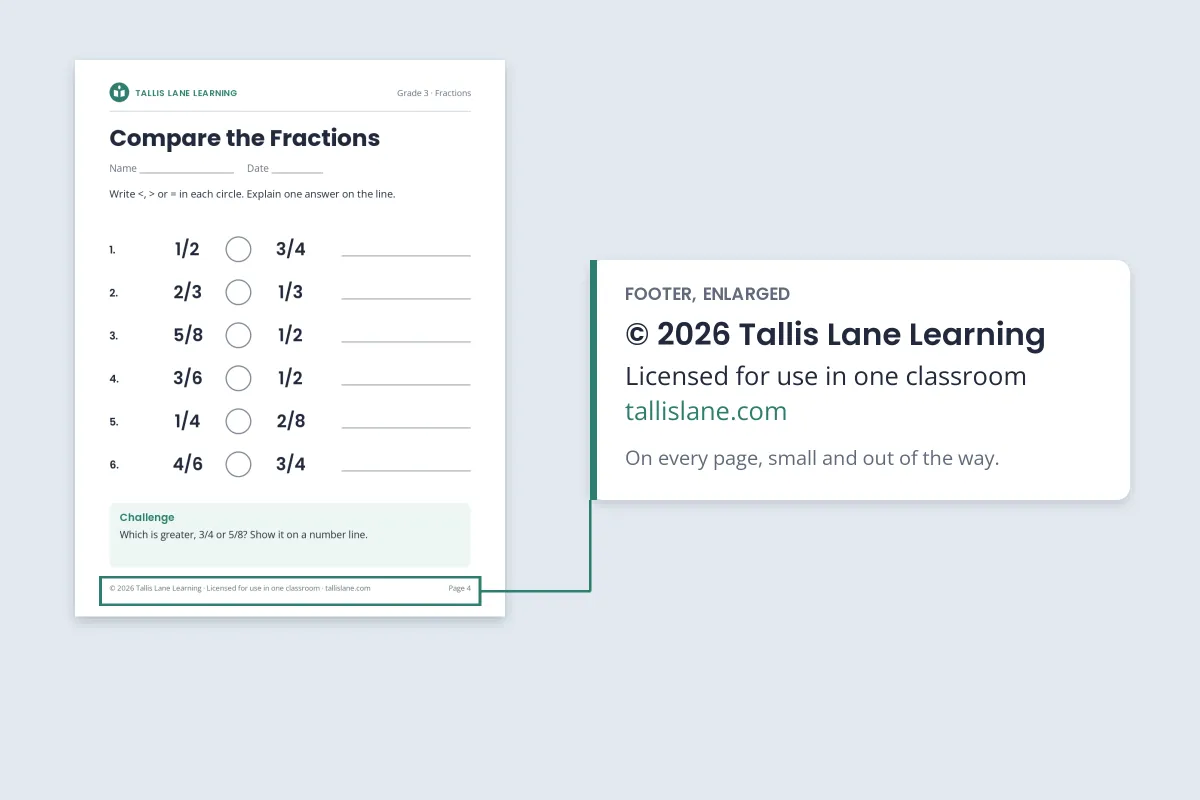
- The copyright line: © with the year and your store or name. How to type the copyright symbol has the shortcut for every device.
- The license in a few words: "Licensed for use in one classroom" or "Personal use only".
- Your web address: a page photocopied in another school leads teachers back to your store.
Spell out the full terms of use on a page at the front or back of the resource, and keep the footer short. For the right wording of the copyright line, see how to write a copyright notice.
Slide Decks: Export to PDF, Then Watermark
Lesson slides are often shared as editable PowerPoint, Keynote or Google Slides files. Editable files are easy to rebrand: anyone can delete a logo from the master slide. If you share slides for viewing or printing rather than editing, export them to PDF first and add the watermark to the PDF.
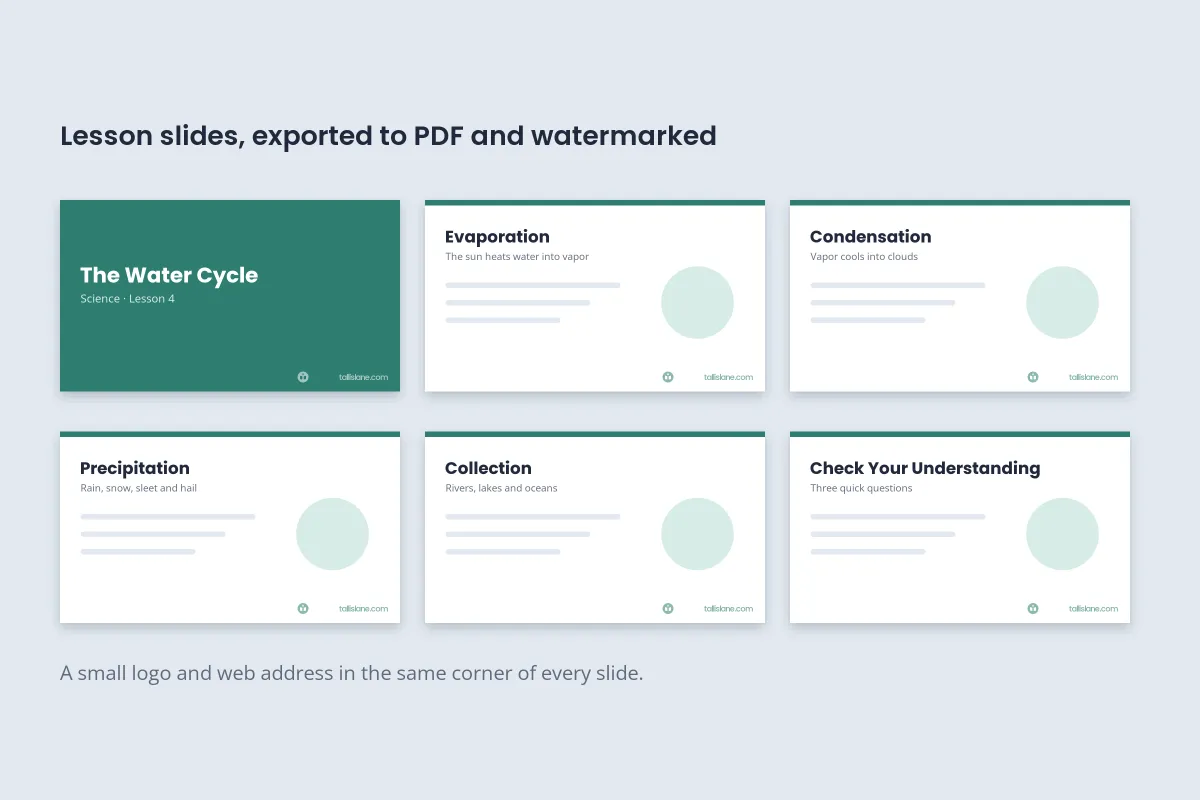
A small logo with your web address in the lower right corner, at around 50–60% opacity, is visible when the slides are projected and still there in a screenshot. If you do want to sell or share the editable file, how to add a watermark in PowerPoint covers the slide master method. Watermark.ws works on the exported PDF, not on .pptx or Google Slides files.
Per-Buyer and Per-School Copies
For licenses sold to a school or district, or a resource you send directly to a buyer, putting the licensee's name on the copy is the most effective watermark there is. People think twice before forwarding a file with their own name on every page, and a copy that turns up somewhere else shows which license it came from.
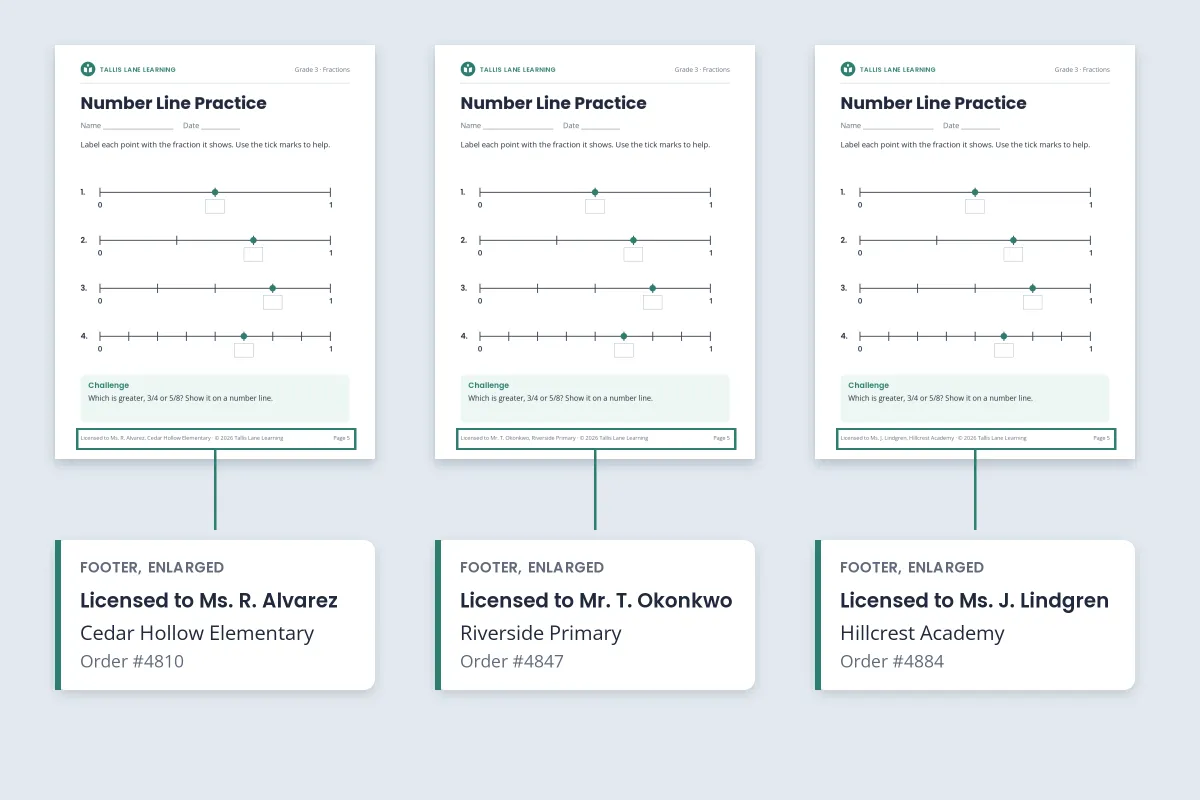
- In Watermark.ws: design the footer once and save it as a template, then change only the name for each licensee's copy. It does not fill in names automatically.
- On Gumroad: its PDF stamping feature adds the customer's email address and Gumroad's logo to the bottom-right corner of the first page.
- Keep a record of who received which copy, or the name cannot help you later.
The same idea is used for confidential reports and manuscripts. Traceable watermarks covers the process of distributing and tracing named copies in more depth.
Course Videos and Lesson Recordings

Course platforms protect the video files themselves to different degrees, but a screen recording gets around all of them. A small logo and web address in one corner makes a pirated copy point back to the original course. Keep it small and semi-transparent, away from captions and on-screen titles, in the same corner in every lesson. Video watermark best practices covers size, opacity and timing.
What a Watermark Will Not Do
A watermark does not stop a teacher from photocopying a worksheet for a colleague, or a student from screenshotting a slide. What it does is keep your name and terms on every copy, so honest users know the rules and anyone who finds a copy knows where it came from.
The rest comes from clear terms of use, licenses priced for more than one classroom, and acting when you find a copy being resold. If your resources turn up on another site, a DMCA takedown is the usual way to get them removed.
Setting It Up in Watermark.ws
-
Export your resource as a PDF
From Word, PowerPoint, Keynote, Google Docs or Slides. Watermark.ws also accepts Word (.docx) files directly.
-
Make a preview template
A large diagonal PREVIEW in your brand color at low opacity, plus a smaller line with your store name.
-
Make a footer template
Your copyright, license and web address as small text along the bottom edge of every page.
-
Watermark a batch
Upload several resources at once and apply the right template to each. Every page of a PDF gets the watermark.
-
Name licensed copies
Duplicate the footer template, change the licensee's name and download their copy.
For a walkthrough, see the guide to watermarking PDFs online.
Sample photos: Table with notebook and tablet by Alejandro Escamilla on Unsplash.