On this page
- Can You Use Images From Google? The Short Answer
- Why Images on Google Are Not Free to Use
- How to Use Google Images’ Usage Rights Filter
- What About Fair Use?
- How to Check Whether You Can Use an Image
- Where to Find Images You Can Use
- If You Already Used an Image From Google
- For Photographers: Make Ownership Obvious
Can You Use Images From Google? The Short Answer
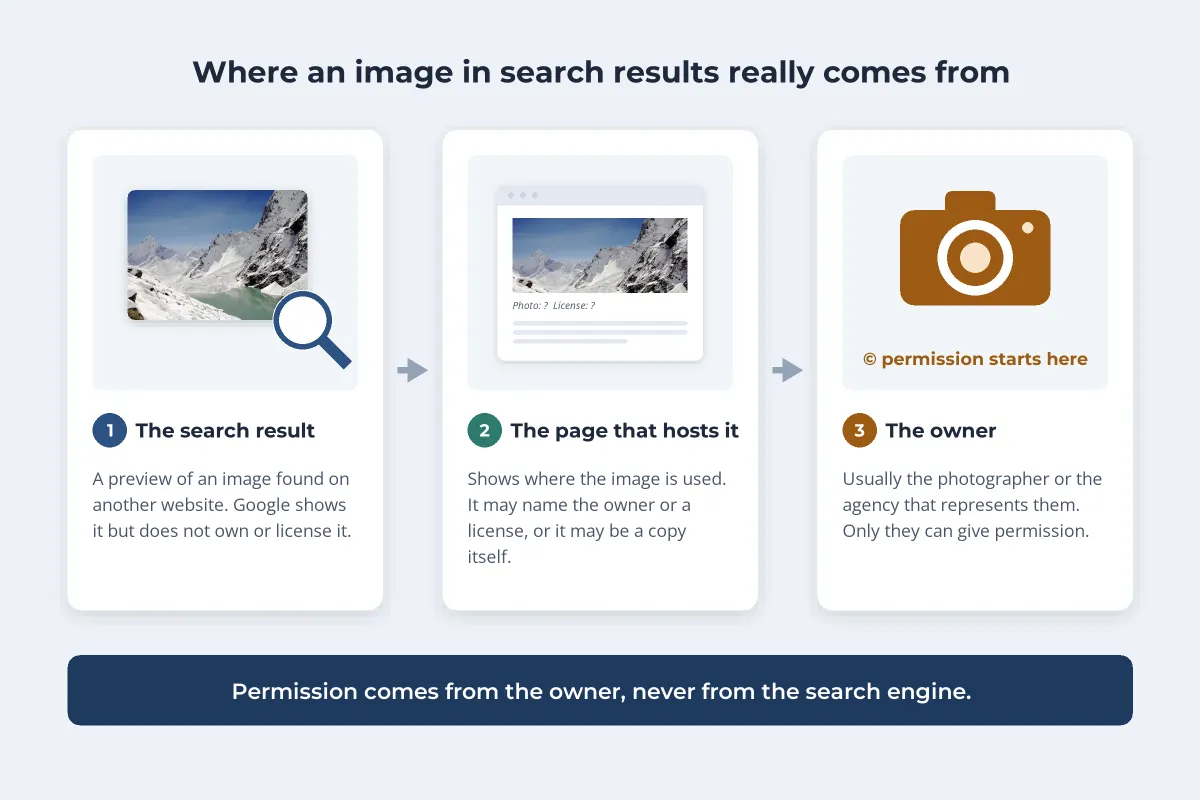
If you are wondering whether you can use images from Google, the honest answer is: not just because Google shows them to you. Google Images is a search engine. Every picture in it lives on someone else’s website, and almost all of them belong to someone, usually the photographer, an illustrator or an agency that licenses their work.
- Assume every image is copyrighted. Copyright starts when a photo is taken. It needs no © symbol, no watermark and no registration.
- Google’s Usage rights filter is a starting point, not permission. It narrows results to images with license information, and Google itself tells you to confirm that license before reusing anything.
- Fair use is narrow. It is a US defense weighed case by case, and decorating a blog post or a business page with someone’s photo rarely qualifies.
- Safe options: your own photos, images you license or get written permission for, openly licensed images whose terms you follow, and genuine public domain works.
Why Images on Google Are Not Free to Use
Under the Berne Convention, which most countries have joined, copyright arises automatically. In the US, a copyright notice has not been required for works published since March 1, 1989. So an image with no name, no watermark and no © line is not "unclaimed". It is simply unlabeled.
Using it anyway can be costly. In the US, a photographer who registered the photo in time can ask for statutory damages of $750 to $30,000 per work, and up to $150,000 if the infringement was willful (17 U.S.C. § 504). The UK and most of Europe have no US-style statutory damages, but owners can still claim damages or a license fee, demand the image be removed and send takedown notices to your host. Photographers and agencies do search the web for their images, and demand letters for a single blog photo are common.
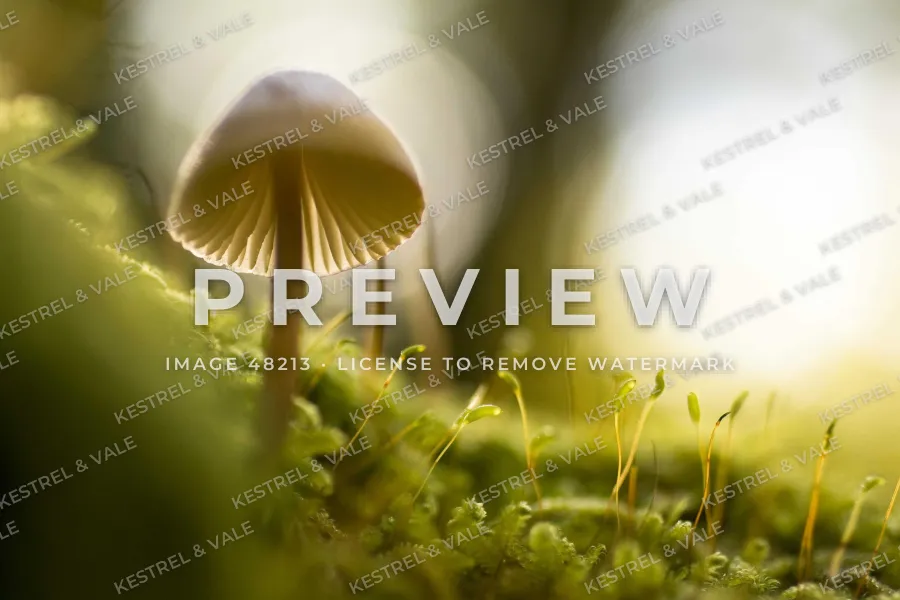
Many images do carry a clue to their owner. Learn to spot them:

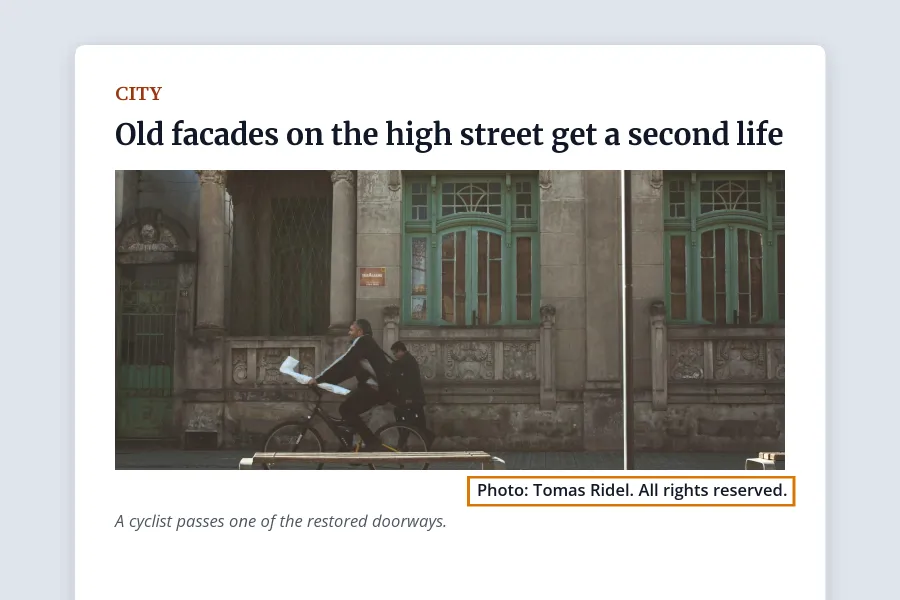
Some images carry their owner’s name in the file itself, too. Google can show the creator, credit line and copyright notice from a photo’s metadata, when the site has kept it. See copyright in photo metadata for what those fields hold.
How to Use Google Images’ Usage Rights Filter
Google Images has a filter that narrows results to images whose sites have published license information. On a computer:
-
Search on Google Images
Go to images.google.com and search as usual.
-
Open Tools
Select Tools, below the search box.
-
Choose a license type
Select Usage rights, then Creative Commons licenses or Commercial & other licenses.
-
Open the image and read the license
Select an image, then License details below it. This takes you to the page where the owner explains how the image may be used.
-
Check the source page itself
Confirm the license on the site that hosts the image, and that the uploader really owns it.
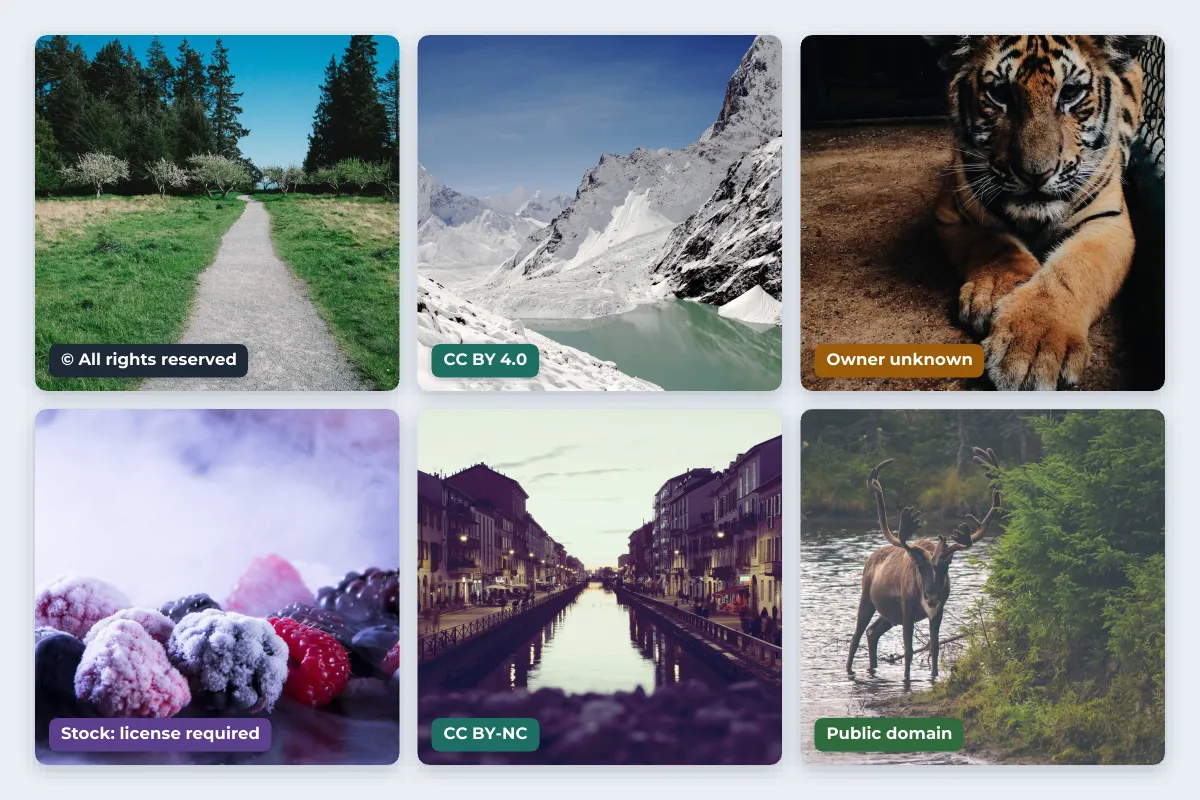
The two options mean very different things. Creative Commons licenses are usually free, but almost all of them require credit, and some forbid commercial use or edited versions. Commercial & other licenses usually means the image is for sale, through a stock library or the photographer.
Google says the filter relies on information from the sites that host the images, and warns that images might be subject to copyright. If someone uploaded a photo they did not own and tagged it Creative Commons, the filter cannot know. The license only counts if it comes from the real owner.
This is how the common licenses compare:
| License | Commercial use | Edited versions | Credit |
|---|---|---|---|
| All rights reserved | Only with permission | Only with permission | As agreed |
| CC BY | Yes | Yes | Required |
| CC BY-SA | Yes | Yes, under the same license | Required |
| CC BY-ND | Yes | No | Required |
| CC BY-NC | No | Yes | Required |
| CC BY-NC-SA | No | Yes, under the same license | Required |
| CC BY-NC-ND | No | No | Required |
| CC0 or public domain | Yes | Yes | Not required |
For the details of each license, see Creative Commons licenses explained.
What About Fair Use?
Fair use is the reason many people assume they can use images from Google. It is real, but much narrower than its reputation. It is a US doctrine, it is decided case by case on four factors, and it is usually argued after someone has been accused of infringement.
- Uses that are more likely to be fair: criticizing or commenting on the image itself, news reporting about the image, and some teaching and research uses.
- Uses that rarely are: illustrating a blog post, decorating a website, advertising a product, or posting the photo on social media because it looks good. These are the same uses the photographer licenses to paying customers.
- Myths that do not help: giving credit, being non-commercial, or changing the image a little does not make a use fair on its own.
Outside the US, there is usually no general fair use at all. The UK has "fair dealing" for fixed purposes, and its exception for reporting current events specifically excludes photographs. EU countries apply a list of exceptions that each country implements in its own way. For the four factors and the Warhol ruling, read fair use and photos.
How to Check Whether You Can Use an Image
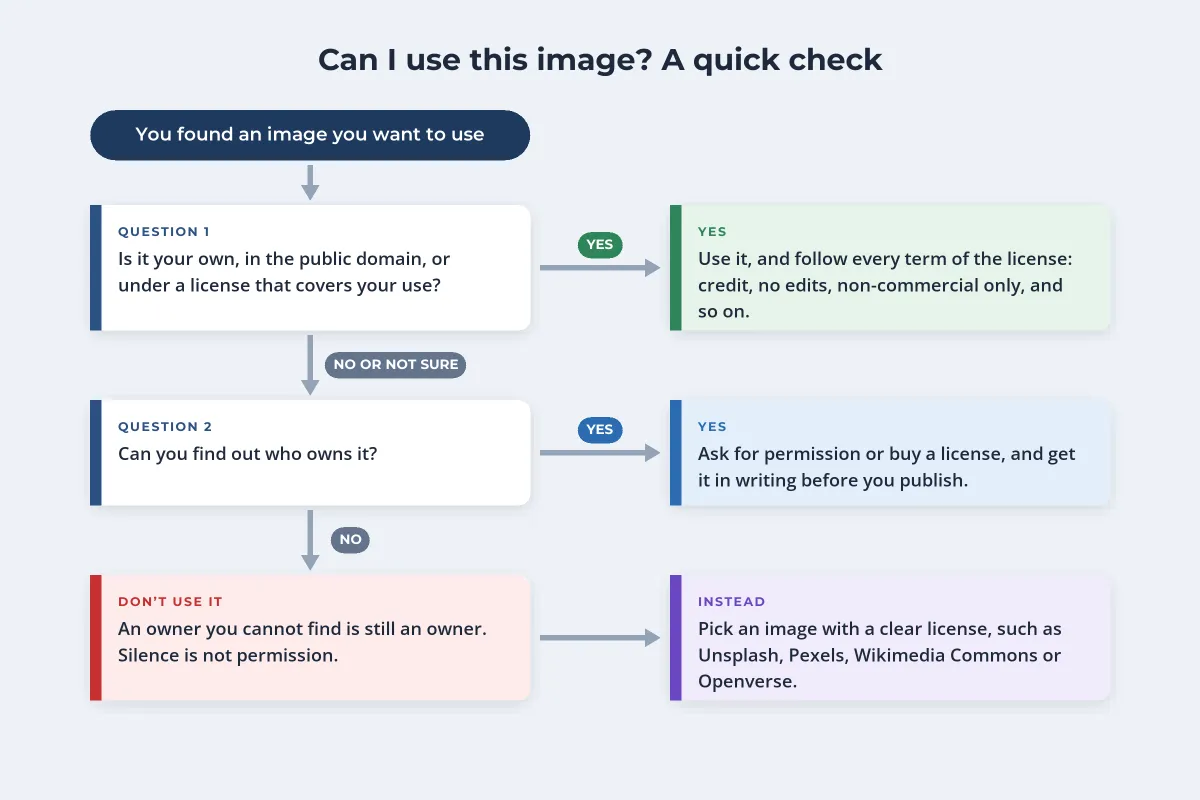
-
Visit the page, not just the preview
Open the site that hosts the image. Look for a photographer credit, a license, a terms page or a "licensing" link.
-
Trace it back to the original
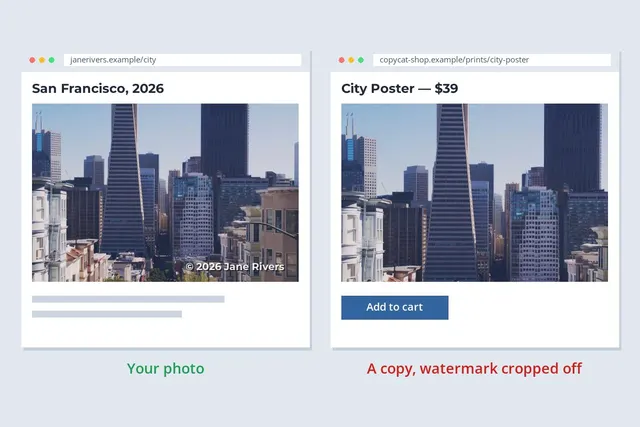
The page you found may be a copy. A reverse image search with Google Lens, TinEye or Bing shows other pages that use the same image, which often leads to the photographer or the stock library. See how reverse image search works.
-
Read the license against your use
Check whether it allows commercial use, edits, and your medium. A license for a blog post may not cover print, ads or merchandise.
-
Ask, and keep the answer
Email the owner with the image, where it will appear, for how long and whether it is commercial. Keep their written reply. Many photographers say yes for a credit or a fee.
-
If you cannot find the owner, move on
An unknown owner can still turn up later. Use an image whose rights are clear instead. For each check in more depth, including metadata and Copyright Office records, see how to check if an image is copyrighted.
People in a photo raise a separate question. Even with a license for the photo, using someone’s likeness to advertise a product can need their consent (see do you need a model release), and logos and artworks in the frame can bring rights of their own.
Where to Find Images You Can Use
These sources publish clear terms. Each one still has rules, so read them once before you rely on them.
| Source | Terms | Commercial use | Credit |
|---|---|---|---|
| Unsplash | Unsplash License | Yes, but not selling unaltered copies | Appreciated, not required |
| Pexels | Pexels License | Yes, with limits on unaltered resale and implied endorsement | Appreciated, not required |
| Pixabay | Pixabay Content License | Yes, with limits on unaltered resale and trademarks | Appreciated, not required |
| Wikimedia Commons | Set per file, often CC BY-SA or public domain | Depends on the file | Usually required |
| Openverse | Search engine for CC and public domain works | Depends on the work | Depends on the license |
| US federal government | Works by federal employees have no US copyright (17 U.S.C. § 105) | Generally yes | Not required, but courteous |
- Check the license of each image, not just the site’s general policy. Unsplash also sells Unsplash+ images under separate terms, and Openverse says plainly that it does not verify the licenses it indexes.
- Government sites host other people’s photos too. A credit to a private photographer or agency on a .gov page means the § 105 rule does not cover that image, and state and foreign governments have their own rules.
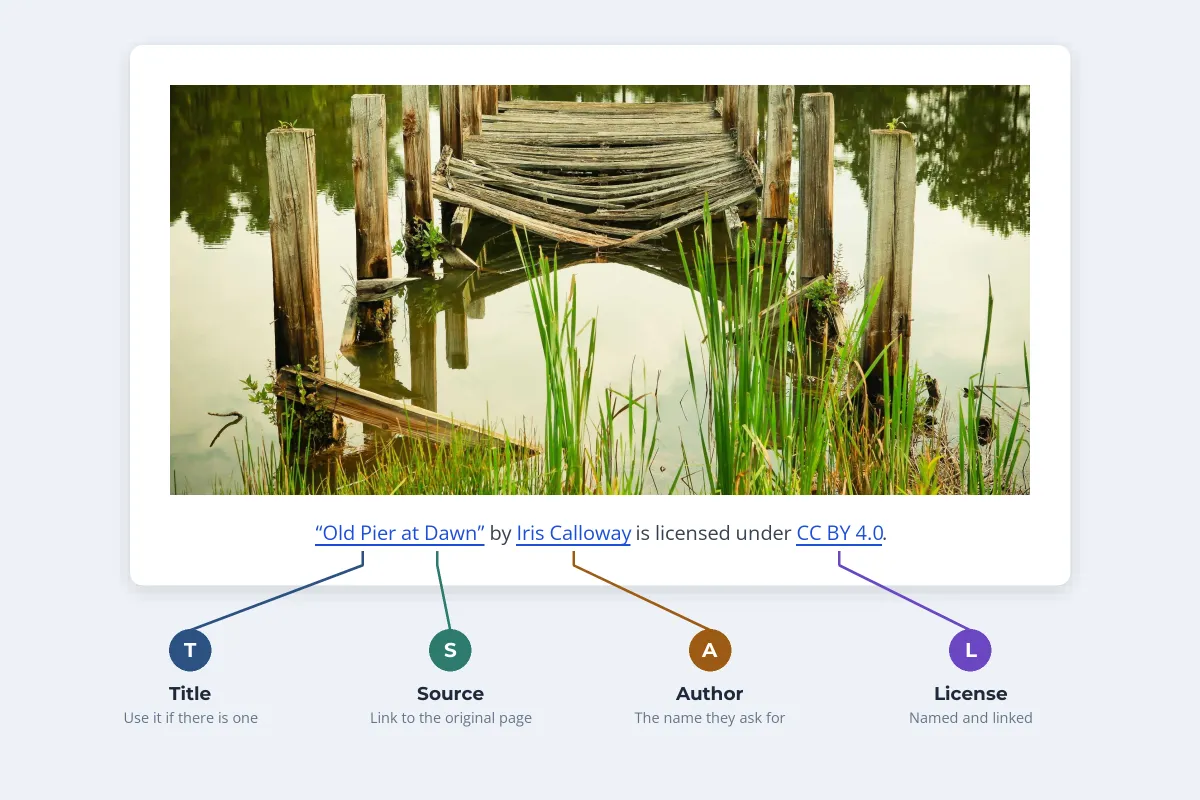
- Credit openly licensed images properly. For Creative Commons, that means title, author, source and license, often shortened to TASL. How to credit a photo has examples for print, web and social posts.
Buying a license is the other dependable route, from a stock library or straight from the photographer. How photo licensing works explains what a license covers, which is useful from either side of the deal.
If You Already Used an Image From Google
It happens often, and it is fixable. If you are not sure about an image on your site, either license it now or take it down and replace it with one you have the rights to.
If you receive a takedown notice or a demand letter, do not ignore it. Check whether the sender really owns the image and whether the amount is reasonable for the use. For a large claim, a short consultation with a copyright lawyer is usually worth it. Removing the image does not undo past use, but it stops the problem from growing.
For Photographers: Make Ownership Obvious
The reverse is true too. When your photos turn up in Google Images, the easier you make it to see who owns them, the fewer people can claim they did not know. Three habits help:
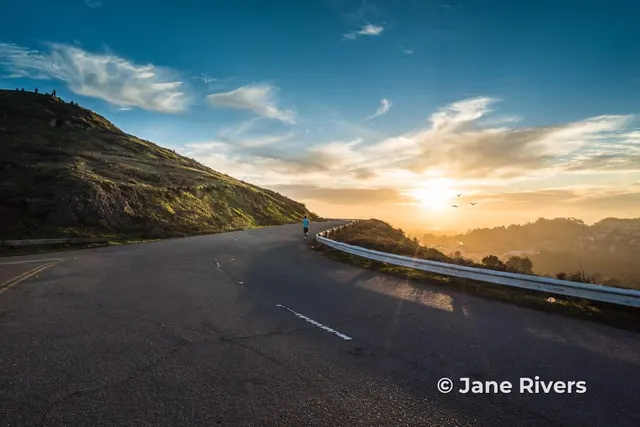
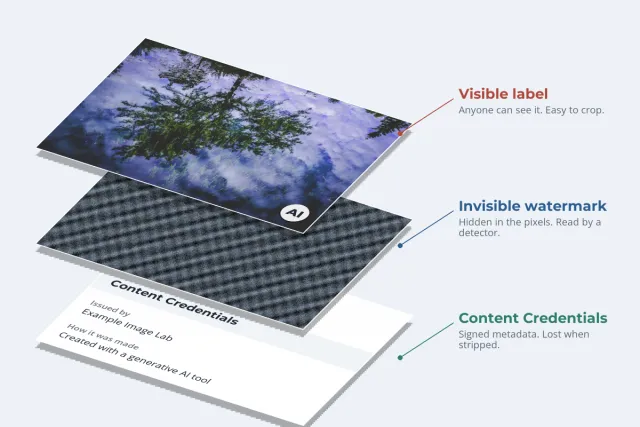
- A visible watermark with your name or website on the copies you post. It survives screenshots and tells people who to ask.
- Copyright and creator metadata in every file you export.
- License information on your site, so Google can show License details for your images and send buyers to the right page.
Watermark.ws adds a text or logo watermark to a whole batch of photos at once, with a saved template so every upload carries the same mark. It is free to try in the browser, with no signup.
Sample photos: Forest path by Paul Jarvis, Mountain lake by Caitlin Wynne, Tiger cub by Paula Borowska, Frosted berries by Devin Rajaram, Canal at dusk by Emanuele Pinna, Deer in a river by Thomas Lefebvre, Hot air balloon by Austin Ban, Mushroom by Manuel Barroso Parejo, Cyclist and old facade by Ariana Prestes, Old pier by Tom Butler on Unsplash.